How to Check Cpu Tempature: Easy Steps to Prevent Overheating
Is your computer running slower than usual or making strange noises? One of the first things you should check is your CPU temperature.
Knowing how to check your CPU temperature can save you from unexpected crashes and costly repairs. You’ll discover simple and effective ways to monitor your CPU’s heat levels. By the end, you’ll be able to keep your computer running smoothly and avoid overheating problems before they start.
Keep reading to find out how easy it is to protect your device!
Why Cpu Temperature Matters
Cpu temperature is very important for your computer’s health. It shows how hard your processor works. High temperatures can cause serious problems. Knowing why cpu temperature matters helps you protect your device. It keeps your computer running well and lasts longer.
Impact Of Overheating
Overheating makes your cpu slow down. It lowers performance and causes lag. If the temperature stays high, it can damage the cpu. This damage may lead to permanent hardware failure. Overheating also causes unexpected shutdowns. These shutdowns can make you lose important work.
Signs Of High Cpu Temp
Your computer may feel hot to touch. Fans run loudly and constantly. Programs freeze or crash without warning. The system may restart by itself. You might see error messages about overheating. These signs warn you to check the cpu temperature quickly.

Credit: www.youtube.com
Tools To Monitor Cpu Temperature
Monitoring your CPU temperature helps keep your computer safe and fast. High temperatures can damage parts or slow down your system. Using the right tools makes it easy to check your CPU’s heat levels. These tools show real-time temperature and help you spot problems early.
Built-in System Utilities
Most computers have basic tools to check CPU temperature. Windows users can use Task Manager or BIOS settings. BIOS shows temperature before the system boots up. Mac users can check Activity Monitor for basic info. These tools do not offer detailed temperature data but give a quick look. They are free and ready to use without extra downloads.
Third-party Software Options
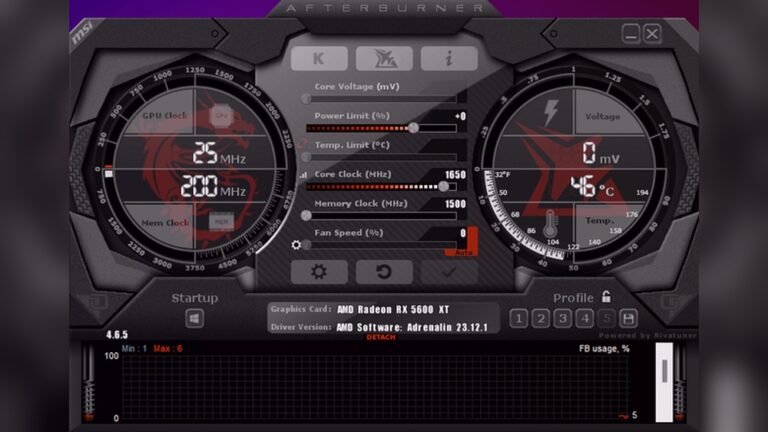
Many free and paid apps offer detailed CPU temperature monitoring. Programs like HWMonitor and Core Temp show exact temperatures for each CPU core. They also track other system parts like GPU and motherboard. These tools often include alerts for high temperatures. Third-party software is easy to install and use. They give more data than built-in utilities and help maintain your PC’s health.
Step-by-step Cpu Temp Check
Checking your CPU temperature helps protect your computer from overheating. It shows if your system runs too hot. This can cause slowdowns or damage over time. Monitoring temperature is simple with the right tools. Follow the steps below for your operating system.
Using Windows Tools
Open the Start menu and type “Task Manager.” Launch it and go to the “Performance” tab. Here, you can see basic CPU details but not temperature. For detailed readings, download a free app like Core Temp or HWMonitor. Install and run the program. It shows real-time CPU temperature clearly. Keep the app open while you work or play games.
Using Mac Tools
Mac does not show CPU temperature by default. Download a free app called Macs Fan Control or iStat Menus. Install and open the app. It displays CPU temperature and fan speed. You can also set alerts for high temperatures. Use this to keep your Mac safe during heavy tasks.
Using Linux Tools
Open the Terminal on your Linux system. Type sudo sensors-detect and press Enter. Follow the instructions to detect hardware sensors. Then, type sensors and press Enter again. This command shows CPU temperature and other sensor data. For a graphical option, install Psensor. It displays temperature in a simple interface.

Credit: softwareg.com.au
Tips To Lower Cpu Temperature
Keeping your CPU temperature low helps your computer run smoothly. High temperatures can cause slowdowns and damage parts. Simple steps can reduce heat and improve performance.
Improving Airflow
Good airflow moves hot air out and brings cool air in. Arrange cables neatly to avoid blocking vents. Position your computer in an open space, not inside a tight cabinet. Add extra case fans if needed to boost airflow.
Cleaning Dust And Debris
Dust builds up inside your PC and blocks airflow. Turn off and unplug your computer before cleaning. Use compressed air to blow dust off fans and vents. Clean regularly to keep air paths clear and cool.
Adjusting Fan Settings
Fans control how much air moves through your computer. Use software to increase fan speeds for better cooling. Set fan curves to boost speed when the CPU gets hot. Quiet fans at low temperatures, faster fans when needed.
When To Seek Professional Help
Knowing when to seek professional help for CPU temperature issues is important. Some problems need expert care to avoid damage. Ignoring signs of trouble can cause your computer to fail. Learn the key moments to get help and what to expect.
Persistent Overheating Issues
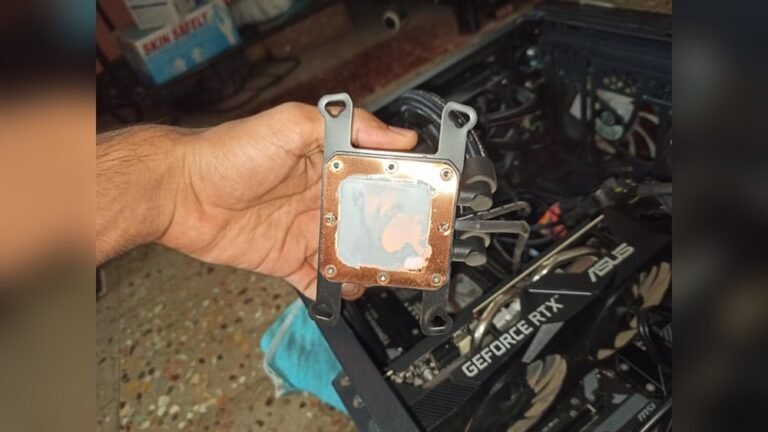
Sometimes, your CPU keeps getting too hot despite your efforts. Cleaning dust or adding cooling fans may not fix the problem. Overheating can happen due to faulty hardware or poor thermal paste application. Professionals can find hidden issues causing high temperatures. They have tools to test your CPU’s health accurately. Persistent heat problems can shorten your CPU’s lifespan. Act early to avoid costly repairs or replacements.
Hardware Replacement Options
When overheating is severe, parts may need replacement. A technician can suggest replacing the CPU cooler, thermal paste, or even the CPU itself. Some older CPUs lose efficiency over time and run hotter. New hardware can improve performance and keep temperatures low. Professionals ensure the correct parts fit your system. They also install components safely to prevent future issues. Replacing hardware is a smart step when repairs don’t help.

Credit: openhardwaremonitor.org
Frequently Asked Questions
How Can I Check My Cpu Temperature On Windows?
You can check CPU temperature on Windows using software like HWMonitor or Core Temp. These tools show real-time temperature data. Install the program, run it, and look for the CPU temperature reading. This helps monitor system health and prevent overheating.
What Is The Ideal Cpu Temperature Range?
The ideal CPU temperature typically ranges from 30°C to 50°C during normal use. Under heavy load, temperatures up to 70°C are acceptable. Consistently higher temperatures may indicate cooling issues, requiring immediate attention to avoid hardware damage.
Can Bios Show Cpu Temperature?
Yes, most modern BIOS setups include a hardware monitor section. You can access CPU temperature directly within BIOS without extra software. Restart your computer, enter BIOS by pressing the setup key, and find the CPU temperature reading under hardware monitoring.
Why Is Monitoring Cpu Temperature Important?
Monitoring CPU temperature prevents overheating, which can cause system instability and hardware damage. It helps maintain optimal performance and prolongs CPU lifespan. Regular checks allow you to identify cooling problems early and take corrective actions promptly.
Conclusion
Checking your CPU temperature helps keep your computer safe. It shows if the CPU gets too hot. Overheating can cause slowdowns or damage. Use simple tools or software to check the temperature. Watch for numbers that are higher than normal.
Cooling your CPU can stop problems early. Regular checks help your computer run better and last longer. Stay aware and act fast if temperatures rise. Your computer’s health depends on good temperature control. Keep it cool, keep it running smooth.