How to Reduce Gpu Temperature: Effective Tips for Cooler Performance
Is your GPU running hotter than it should? High temperatures can slow down your computer, cause crashes, and even shorten the life of your graphics card.
But don’t worry—you don’t have to be a tech expert to fix this. You’ll discover simple and effective ways to reduce your GPU temperature. By following these easy steps, you’ll keep your system cooler, boost performance, and protect your investment.
Ready to take control of your GPU’s heat? Let’s dive in.
Credit: www.cgdirector.com
Causes Of High Gpu Temperature
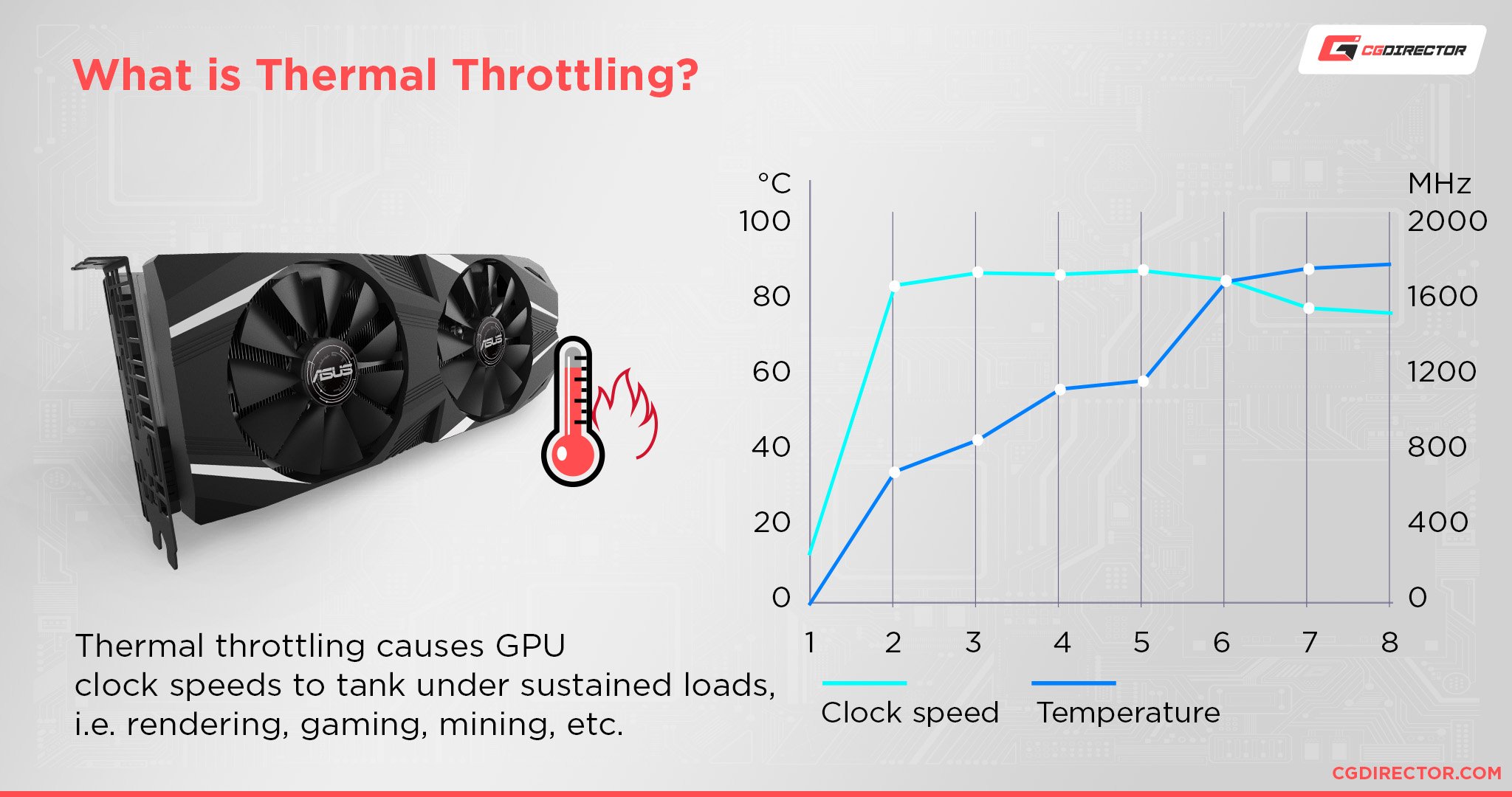
High GPU temperature can cause your computer to slow down or even crash. Knowing what causes your GPU to heat up helps you fix the problem fast. Several common issues lead to high GPU temperature.
Overclocking Effects
Overclocking makes your GPU run faster than normal. This extra speed creates more heat. The cooling system may not handle the added heat well. Overclocking without proper cooling raises temperature quickly.
Poor Airflow
Good airflow pushes hot air out and brings cool air in. Blocked vents or small cases limit airflow. Fans that don’t work well reduce air movement. Poor airflow traps heat inside the case.
Dust Accumulation
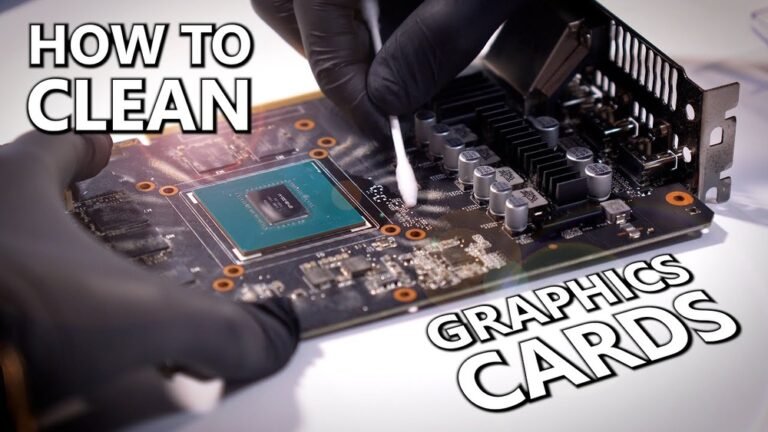
Dust builds up on GPU fans and heatsinks over time. Dust blocks air paths and lowers fan efficiency. This causes the GPU to stay hot longer. Cleaning dust regularly keeps the GPU cooler.
Thermal Paste Degradation
Thermal paste helps move heat from the GPU chip to the cooler. Over time, it dries out or wears off. Old thermal paste reduces heat transfer. Reapplying fresh thermal paste improves cooling.
Monitoring Gpu Temperature
Monitoring your GPU temperature is essential to keep your computer running smoothly. High temperatures can cause slowdowns, crashes, or even damage the hardware. Checking the temperature helps you act before problems start. It also shows if your cooling system works well.
Using Software Tools
Many free and paid programs show real-time GPU temperatures. Popular options include MSI Afterburner, HWMonitor, and GPU-Z. These tools display temperature, fan speed, and clock rates. You can see how your GPU reacts under different loads. Some software lets you set alerts for high temperatures. Running these tools while gaming or working helps track heat spikes.
Safe Temperature Ranges
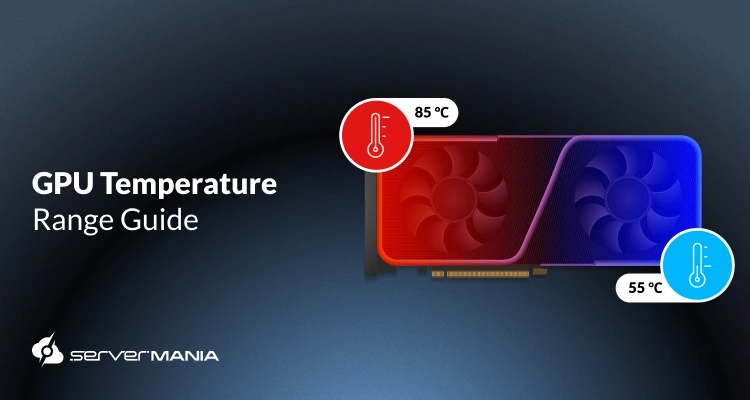
Most GPUs run safely between 30°C and 85°C. Idle temperatures usually stay around 30°C to 45°C. Under heavy use, temperatures up to 85°C are acceptable. Temperatures above 90°C may cause damage or reduce lifespan. Consistent high heat signals a need for better cooling or cleaning. Keeping GPU temperature below 85°C ensures stable performance and longevity.
Improving Case Airflow
Improving case airflow plays a key role in reducing GPU temperature. Good airflow helps move hot air out and bring cool air in. This keeps your graphics card running at lower temperatures. Small changes inside your PC case can make a big difference.
Optimizing Fan Placement
Place intake fans at the front of the case. They pull cool air inside. Exhaust fans go at the rear or top. They push hot air out. This creates a steady flow of air through the case. Avoid blocking fans with cables or components. Balanced fan placement improves overall airflow and cools your GPU better.
Cable Management Tips
Keep cables tidy and out of airflow paths. Use zip ties or Velcro straps to bundle cables. Route cables behind the motherboard tray if possible. This clears space inside the case. Less clutter means air can move freely. Better airflow reduces hotspots near the GPU and lowers temperatures.
Choosing The Right Case
Select a case designed for good airflow. Look for cases with mesh front panels or multiple fan mounts. Bigger cases often have more room for fans and better ventilation. Cases with good airflow designs prevent heat buildup inside. This helps your GPU stay cool during heavy use.
Credit: www.youtube.com
Cleaning And Maintenance
Cleaning and maintenance are key to keeping your GPU cool. Dirt and old thermal paste can block heat from leaving the GPU. Regular care helps the GPU work better and last longer.
Removing Dust Buildup
Dust gathers inside your computer and on the GPU fan. This blocks airflow and raises temperatures. Use a soft brush or compressed air to clean the fan and heat sink. Clean gently to avoid damage. Do this every few months for best results.
Replacing Thermal Paste
Thermal paste sits between the GPU and its heat sink. Over time, it dries out and loses effectiveness. Removing the old paste and applying a new layer improves heat transfer. Use a small amount and spread it evenly. This step can lower temperatures significantly.
Adjusting Gpu Fan Settings
Adjusting GPU fan settings can help lower your graphics card temperature. Fans push hot air away from the GPU. Faster fan speeds cool the GPU more but create more noise. Slower fans are quiet but may allow heat to build up. Finding the right balance is key.
Manual Fan Speed Control
Manual fan speed control lets you set the fan speed yourself. You can choose a fixed speed for all times. This method is simple and works well for steady cooling. Use your GPU control panel or third-party software to adjust the speed. Watch the temperature and noise level as you change settings. Set a speed that keeps the GPU cool without too much noise.
Using Fan Curve Software
Fan curve software changes fan speed based on GPU temperature. The fan spins faster as the GPU gets hotter. This smart control saves noise and power. Many programs let you draw your own fan curve. You decide what speed matches each temperature. It provides good cooling and quiet operation. Try different curves to find what fits your needs best.
Lowering Gpu Load
Lowering the GPU load is a key step to reduce its temperature. The GPU works harder when it processes more data. This extra work causes more heat. By lowering the load, the GPU uses less power and stays cooler. This can also help your computer run smoother and last longer.
Reducing Graphics Settings
Lowering graphics settings in games and apps can ease GPU stress. Turn down details like shadows, textures, and effects. These changes reduce the work your GPU must do. The result is less heat and better performance. You will still enjoy good visuals but with cooler GPU temperatures.
Limiting Frame Rates
Limiting frame rates controls how many images your GPU creates per second. High frame rates increase GPU workload and heat. Set a cap on frame rates to lower this load. This keeps your GPU cooler and can prevent overheating. Many games and software have options to limit frame rates easily.
Upgrading Cooling Solutions
Upgrading your GPU cooling system can greatly lower its temperature. Better cooling helps your graphics card run smoother and last longer. Choosing the right cooling upgrade depends on your needs and budget.
Aftermarket Gpu Coolers
Aftermarket GPU coolers replace the standard fans and heatsinks. These coolers have larger fans or better heat pipes. They move heat away faster and keep the GPU cooler. Installing one can drop temperatures by 10 to 20 degrees Celsius. They are easy to install for most users. Check compatibility with your GPU model before buying.
Liquid Cooling Options
Liquid cooling uses water or special fluids to cool the GPU. It is more efficient than air cooling. A liquid cooling system has a pump, radiator, and tubes. The liquid absorbs heat and moves it to the radiator. Radiators then release the heat outside the case. This method keeps the GPU very cool and quiet. It is ideal for high-performance or overclocked GPUs. Installation is more complex and costs more than air coolers.
Credit: www.servermania.com
Ensuring Proper Power Supply
Ensuring a proper power supply is key to reducing GPU temperature. A stable power source helps the GPU work efficiently. It stops extra heat caused by power issues. Power problems can make the GPU work harder, leading to more heat. Proper power keeps the GPU cool and safe.
Using Reliable Psus
Use a reliable power supply unit (PSU) for your PC. Cheap or low-quality PSUs may deliver unstable power. This instability can cause the GPU to heat up more. Choose a PSU with enough wattage for your GPU and system. A high-quality PSU protects your GPU and lowers its temperature.
Avoiding Power Spikes
Power spikes can damage the GPU and raise its temperature. Use surge protectors to avoid sudden voltage changes. Surge protectors keep power steady and safe for your PC. Regularly check your power cables and connections. Stable power means less stress and heat for your GPU.
Frequently Asked Questions
How Can I Lower My Gpu Temperature Quickly?
To lower GPU temperature fast, improve case airflow and clean dust from fans. Also, reduce graphics settings in games to lessen GPU load.
What Are The Best Cooling Methods For Gpus?
Effective GPU cooling includes using high-quality aftermarket coolers, applying thermal paste properly, and ensuring good case ventilation with multiple fans.
Does Updating Gpu Drivers Affect Temperature?
Updating GPU drivers can optimize performance and improve thermal management, sometimes reducing temperature slightly by enhancing efficiency.
How Often Should I Clean My Gpu Fans?
Clean GPU fans every 3-6 months to remove dust buildup. Dust clogs fans, reducing cooling efficiency and raising temperatures.
Conclusion
Keeping your GPU cool helps your computer work better and last longer. Clean fans and good airflow make a big difference. Using quality thermal paste and monitoring temperatures often keeps problems away. Small changes can prevent big issues. Take care of your GPU to enjoy smooth performance every day.