

Is your Nvidia GPU running hotter than it should? You’re not alone.
Controlling your GPU’s fan speed can make a huge difference in keeping your system cool and quiet. But how do you take charge of those fans without risking damage? You’ll discover simple, effective ways to adjust your Nvidia GPU fan speed to suit your needs.
Whether you want a quieter gaming experience or better cooling for heavy workloads, you’ll learn the exact steps to make it happen. Keep reading, and take control of your GPU’s temperature like a pro.
Why Control Gpu Fan Speed
Controlling your Nvidia GPU fan speed helps you manage your computer’s temperature and noise. It gives you control over how your graphics card cools down during work or gaming. Adjusting fan speed can keep your GPU safe and improve your overall experience.
Let’s explore why controlling the GPU fan speed matters.
Impact On Cooling
Faster fan speeds improve cooling by moving more air over the GPU. This reduces the heat inside the card and prevents overheating. Cooler temperatures help the GPU run smoothly and last longer. You avoid crashes or slowdowns caused by high heat.
Noise Levels
Fan speed affects how loud your computer sounds. Higher speeds mean more noise. Lower speeds make your system quieter but may reduce cooling. You can find a balance between noise and temperature that suits your needs. This keeps your workspace peaceful without risking heat damage.
Performance Benefits
Better cooling allows the GPU to run at higher speeds safely. This means improved graphics performance and smoother gameplay. Controlling fan speed helps maintain stable operation during heavy use. It also reduces the chance of thermal throttling, which slows down the GPU.
Tools To Adjust Nvidia Gpu Fan Speed
Controlling the fan speed of your Nvidia GPU helps keep your system cool and quiet. Several tools allow you to adjust the fan speed easily. Some are built into your system, while others come from third-party developers. These tools give you control over temperature and noise levels.
Nvidia Control Panel
The Nvidia Control Panel is the official software for Nvidia graphics cards. It offers basic settings for your GPU. You can check your GPU status and performance here. However, it does not provide direct control over fan speeds. It is mainly used for display and graphics settings.
Third-party Software
Many third-party programs let you control your Nvidia GPU fan speed. These tools often have more features than the Nvidia Control Panel. They provide custom fan curves and temperature monitoring. Examples include SpeedFan and Argus Monitor. These programs are useful for fine-tuning your system’s cooling.
Using Msi Afterburner
MSI Afterburner is a popular tool for adjusting GPU settings. It works with most Nvidia cards, not just MSI models. You can set fan speed manually or create a fan curve. The interface is simple and user-friendly. It also shows temperature, clock speed, and usage. This tool helps balance cooling and noise effectively.
Step-by-step Fan Speed Adjustment
Adjusting your Nvidia GPU fan speed helps control temperature and noise. It improves performance and protects your hardware. This guide shows you how to change fan speed step-by-step. Follow these easy instructions to customize your fan settings safely.
Accessing Fan Controls
Open Nvidia’s control panel or a third-party tool like MSI Afterburner. These programs let you change fan speed directly. Find the fan control section in the software menu. Make sure your GPU is detected and ready for adjustments.
Setting Custom Fan Curves
Create a custom fan curve to balance cooling and noise. Set fan speed points at different temperature levels. For example, low speed at 40°C and higher speed at 70°C. This way, the fan runs quietly when cool and speeds up when hot.
Saving And Applying Settings
After setting your fan curve, save the profile in the software. Apply the changes to activate the new fan speed settings. Check if the fan reacts to temperature changes. Adjust again if needed to find the best balance.

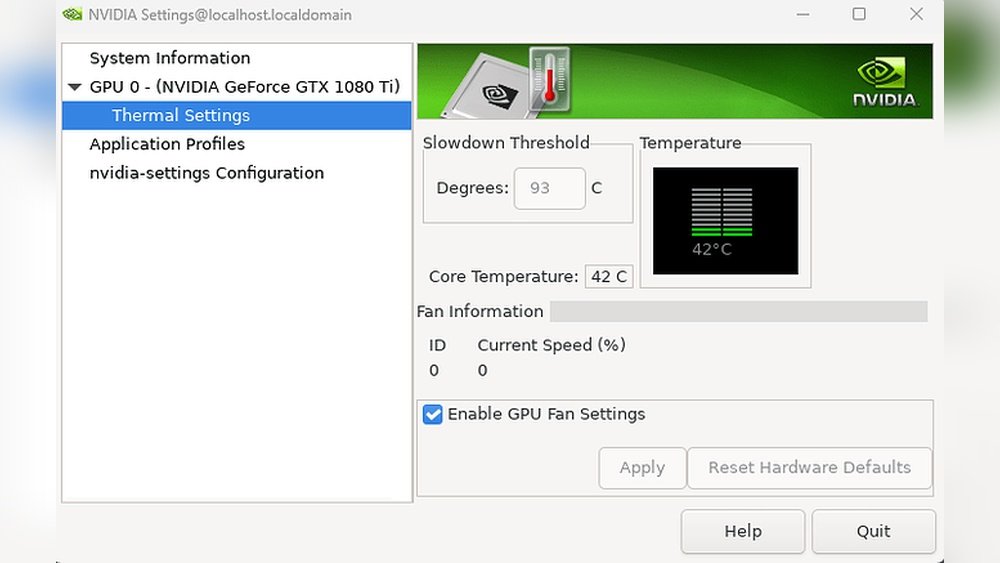
Credit: forums.developer.nvidia.com
Monitoring Gpu Temperature And Fan Speed
Monitoring your Nvidia GPU temperature and fan speed is essential to keep your graphics card safe and running smoothly. Overheating can reduce performance and damage the hardware. Watching these values helps you adjust fan speed and improve cooling.
Checking these details regularly ensures your GPU does not get too hot during heavy use. It also helps you find the right balance between noise and cooling. Using the right tools makes this task easier and more accurate.
Best Monitoring Tools
Several programs show GPU temperature and fan speed clearly. MSI Afterburner is a popular choice for many users. It offers real-time monitoring with an easy interface.
Another good tool is GPU-Z. It provides detailed info about your graphics card. NVIDIA’s own GeForce Experience also shows basic temperature stats.
Choose a tool that fits your needs and is simple to use. All these tools work well on Windows systems.
Interpreting Temperature Readings
Keep GPU temperature below 85°C for safe operation. Temperatures above this can cause throttling or damage. Idle temperatures usually range from 30°C to 45°C.
Under load, expect temps between 65°C and 80°C. If the temperature is too high, your fan speed might need adjustment.
Watch for sudden spikes or constant high temperatures. These signs suggest poor cooling or dust buildup.
Adjusting Based On Performance
Increase fan speed to lower GPU temperature during intense tasks. This reduces heat but may increase noise. Lower fan speed when your GPU is idle or lightly used.
Some software allows custom fan curves for smooth control. You can set fan speed to rise gradually with temperature.
Balance cooling needs and noise levels based on your environment. Proper fan control extends GPU life and keeps performance steady.
Tips For Optimal Cooling
Keeping your Nvidia GPU cool helps it work better and last longer. Proper cooling stops your computer from slowing down or shutting off. Follow these simple tips to keep your GPU fan speed and temperature under control.
Improving Case Airflow
Good airflow inside your computer case helps cool your GPU. Make sure your case has enough fans to move air in and out. Place intake fans at the front and exhaust fans at the back or top. Keep cables neat and out of airflow paths. This lets air flow freely and cools the GPU faster.
Cleaning Gpu Fans
Dust blocks fans and stops them from spinning well. Turn off your PC and unplug it before cleaning. Use a soft brush or compressed air to remove dust from GPU fans. Clean your fans regularly to keep them spinning smoothly. A clean fan cools better and runs quieter.
Avoiding Overclocking Overheating
Overclocking makes your GPU run faster but heats it up more. High heat can damage your GPU over time. Use overclocking carefully and watch the temperature. If your GPU gets too hot, lower the clock speeds. Keeping temperatures low helps your GPU last longer and run stable.

Credit: www.liftingitalia.com
Troubleshooting Fan Speed Issues
Controlling your Nvidia GPU fan speed can sometimes lead to issues. Fans may not respond or make strange noises. These problems can affect your computer’s performance and temperature. Troubleshooting fan speed issues helps keep your GPU cool and running well.
Understanding common problems and quick fixes saves time. It also prevents damage to your hardware. The following tips address typical fan problems with Nvidia GPUs.
Fan Not Responding
The fan may stop working after adjusting speed settings. Check if the fan is physically blocked by dust or cables. Use software like Nvidia Control Panel or MSI Afterburner to manage fan speed. Restart the software and your computer if the fan still does not respond. Update your GPU drivers to ensure compatibility. Faulty hardware might require professional repair or replacement.
Unusual Fan Noise
Strange noises often mean dust or debris inside the fan. Clean the fan blades gently with compressed air or a soft brush. Loud clicking or grinding sounds can indicate worn-out bearings. Avoid running the GPU with noisy fans to prevent further damage. Reducing fan speed can lower noise but watch GPU temperature closely. Replace the fan if noise persists after cleaning.
Resetting To Default Settings
Resetting fan controls can fix many issues. Open Nvidia Control Panel or your fan control software. Look for a reset or default option to restore factory settings. Restart your computer after resetting settings. This step helps clear incorrect custom fan curves or profiles. If problems continue, try reinstalling the GPU driver for a clean start.
Credit: www.liftingitalia.com
Frequently Asked Questions
How Can I Manually Control Nvidia Gpu Fan Speed?
You can control Nvidia GPU fan speed using software like MSI Afterburner or Nvidia Inspector. These tools allow manual fan curve adjustments to optimize cooling and noise levels. Always monitor temperatures to prevent overheating while customizing fan speeds for your specific GPU model.
Does Nvidia Control Panel Allow Fan Speed Adjustment?
No, the Nvidia Control Panel does not include fan speed controls. Fan speed adjustments require third-party software, as Nvidia’s official control panel focuses on display and graphics settings only. Use dedicated tools like MSI Afterburner for precise fan speed management.
What Is The Best Software To Control Nvidia Gpu Fans?
MSI Afterburner is the most popular software for controlling Nvidia GPU fan speeds. It offers customizable fan curves, real-time monitoring, and overclocking features. It supports most Nvidia GPUs and is user-friendly, making it ideal for both beginners and advanced users.
Can I Set Automatic Fan Speed Based On Gpu Temperature?
Yes, most fan control software lets you set automatic fan curves based on GPU temperature. This ensures optimal cooling by increasing fan speed when the GPU heats up and lowering it during idle or low load periods. It balances noise and performance effectively.
Conclusion
Controlling your Nvidia GPU fan speed helps keep your computer cool and quiet. You can use simple software tools to adjust fan settings. Regularly check your GPU temperature to avoid overheating. Changing fan speed can improve your system’s performance and lifespan.
Take small steps and watch how your GPU responds. Stay safe by monitoring your hardware carefully. This guide gives you the basics to start managing fan speed today. Easy to follow and effective. Keep your Nvidia GPU running smoothly and quietly.
