How to Check Gpu And Cpu Temps: Easy Steps for Safe Performance
Are you worried that your computer might be running too hot? Knowing how to check your GPU and CPU temps is key to keeping your system safe and running smoothly.
When your hardware gets too warm, it can slow down, crash, or even get damaged. But don’t worry—checking these temperatures is easier than you think. You’ll learn simple, effective ways to monitor your computer’s heat levels so you can protect your gear and boost performance.
Keep reading to find out how to take control of your PC’s health right now.
Credit: www.garinfobahn.com
Why Monitor Cpu And Gpu Temps
Monitoring CPU and GPU temperatures is important for every computer user. These components generate heat during use. Too much heat can cause problems. Checking their temperatures helps keep your system safe and running well.
Impact On Performance
High temperatures can slow down your CPU and GPU. They reduce the speed to avoid damage. This means your computer works less efficiently. Keeping temperatures in check helps maintain good performance.
Preventing Overheating Damage
Overheating can cause permanent harm to hardware. It can make your computer crash or freeze. Monitoring temps helps spot heat problems early. You can take steps to cool your system down.
Extending Hardware Lifespan
Heat wears down computer parts faster. Cooler components last longer and work better. Watching temperatures helps protect your investment. It keeps your CPU and GPU healthy for years.

Credit: openhardwaremonitor.org
Tools For Checking Temperatures
Checking your CPU and GPU temperatures helps keep your computer safe. Overheating can cause slowdowns or damage. Various tools make temperature monitoring easy. Choose the tool that fits your needs and skill level.
Built-in System Utilities
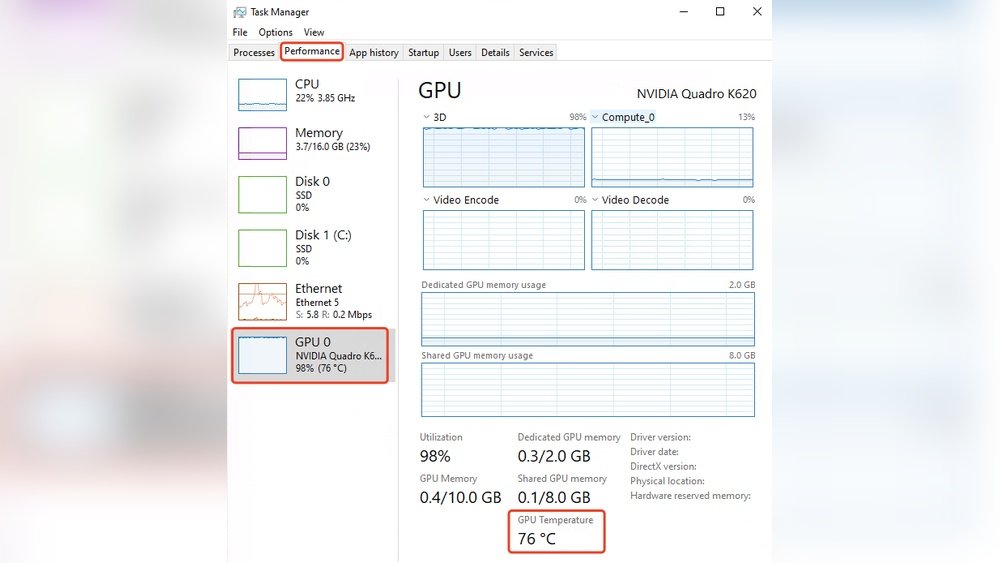
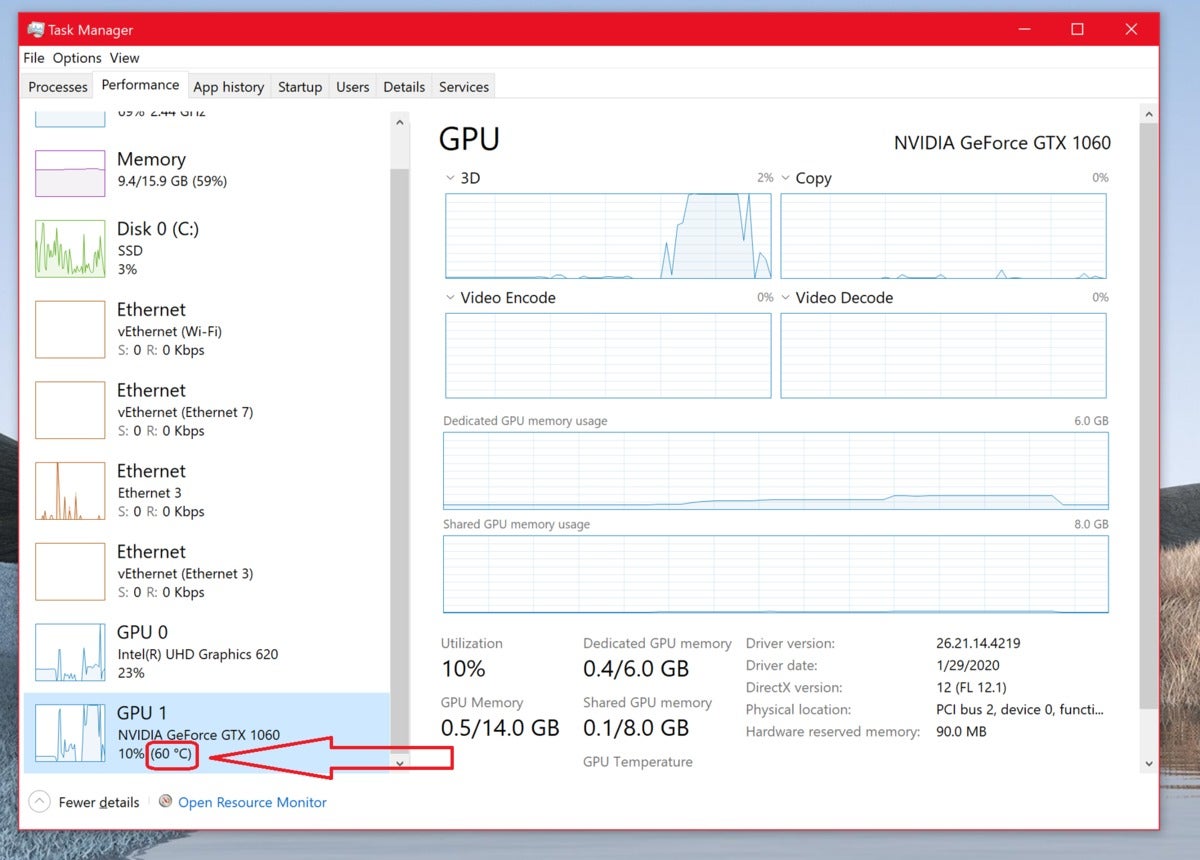
Many computers have built-in tools to check temperatures. Windows users can use Task Manager or BIOS settings. Mac users find temperature info in System Report or Activity Monitor. These tools show basic temperature data quickly. No extra software is needed.
Third-party Software Options
Third-party apps offer detailed temperature readings. Programs like HWMonitor and Core Temp give real-time data. They also track fan speeds and voltages. Most apps are free and easy to install. They work on many PC brands and models.
Hardware Monitoring Devices
Hardware devices measure temperatures outside the computer. Sensors attach to CPU or GPU parts. They connect to a display or smartphone app. These devices give very accurate readings. Ideal for users who want precise control.
Step-by-step Guide To Check Cpu Temps
Checking your CPU temperature helps keep your computer safe. Overheating can cause slowdowns or damage. This guide shows simple steps to check CPU temps. You will learn to use BIOS/UEFI and software apps. Also, how to understand the temperature readings.
Using Bios/uefi
Restart your computer and enter BIOS or UEFI settings. Usually, press Delete, F2, or F10 during startup. Look for the “Hardware Monitor” or “PC Health” section. This area shows CPU temperature and voltages. Note the temperature displayed as Celsius or Fahrenheit. Exit BIOS without saving changes.
Using Software Applications
Download free apps like HWMonitor, Core Temp, or SpeedFan. Install and open the software on your PC. The apps show real-time CPU temperatures for each core. Some also show fan speeds and voltages. Keep the app running while using your computer to watch changes.
Interpreting The Results
Normal CPU temps range between 30°C to 50°C at idle. Under heavy use, temps can rise to 70°C or slightly higher. Temperatures above 85°C may cause problems or crashes. If temps stay high, check cooling fans and clean dust. Good airflow inside the case helps lower temperatures.
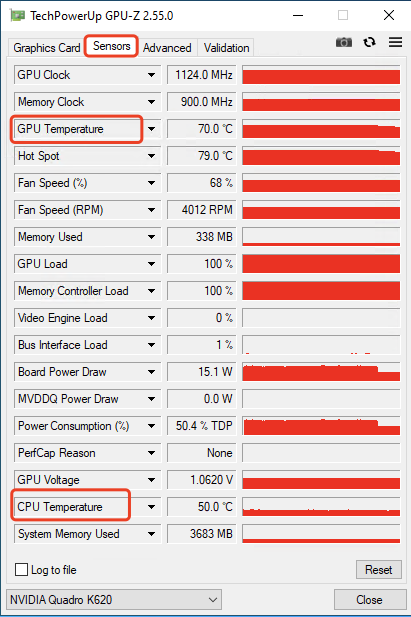
Credit: www.gpu-mart.com
Step-by-step Guide To Check Gpu Temps
Checking your GPU temperature helps keep your computer safe and fast. High temperatures can cause crashes or damage. This guide shows simple steps to find your GPU temps. Follow easy methods using software or tools. Learn what temperatures are safe too. Stay informed to protect your hardware.
Using Graphics Card Software
Most GPUs come with software to check temps. For example, NVIDIA has GeForce Experience. AMD offers Radeon Software. Open the software and find the performance tab. It shows real-time GPU temperature. You can also see usage and fan speed. This method is quick and reliable.
Using Third-party Tools
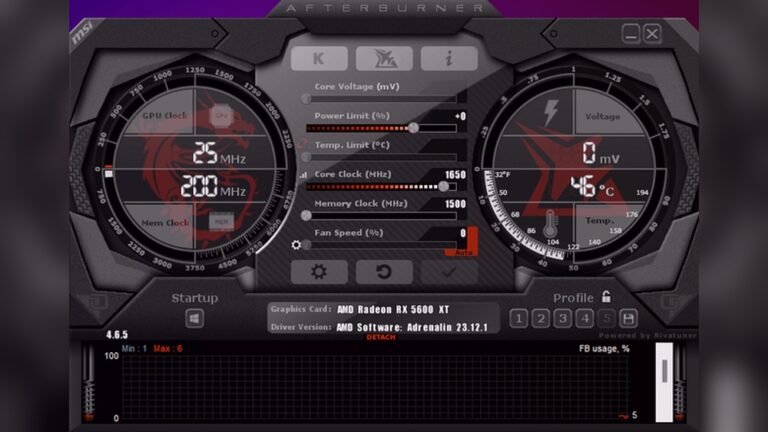
Third-party tools work with any GPU brand. Programs like HWMonitor, MSI Afterburner, and GPU-Z are popular. Download and install one. Open the program to view GPU temps. These tools often show more details than built-in software. They help track temperatures during gaming or heavy use.
Safe Temperature Ranges
GPU temps below 85°C are generally safe. Ideal temps are between 30°C and 60°C during normal use. Temps above 90°C can harm the GPU. If temps get too high, check your cooling system. Clean dust from fans and vents. Good airflow keeps your GPU cool and stable.
Tips To Maintain Safe Temperatures
Keeping your GPU and CPU temperatures safe is important for your computer’s health. High temperatures can slow down your system or cause damage. Simple steps can help keep your PC cool and running smoothly.
Here are some easy tips to maintain safe temperatures and protect your hardware.
Improving Airflow
Good airflow moves hot air out and cool air in. Arrange your computer parts to avoid blocking air paths. Use fans to push air through the case. Keep cables tidy to help air flow better.
Cleaning Dust And Debris
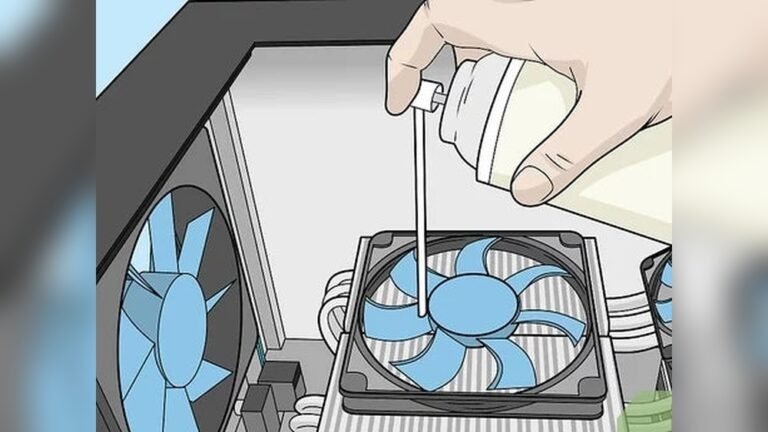
Dust blocks vents and fans, trapping heat inside. Regularly clean your computer with compressed air. Remove dust from fans, vents, and heatsinks. A clean PC cools more efficiently and lasts longer.
Applying Thermal Paste
Thermal paste helps transfer heat from your CPU or GPU to the cooler. Over time, paste can dry out and lose effectiveness. Reapply fresh thermal paste every couple of years for better cooling. Use a small amount and spread it evenly for best results.
When To Take Action On High Temps
High temperatures in your GPU and CPU can damage your computer parts. Knowing when to act helps protect your device. Watch for clear signs that tell you the heat is too much. Taking quick steps can stop further damage. Sometimes, expert help is necessary to fix serious problems.
Signs Of Overheating
Your computer might shut down suddenly. Fans run loudly and constantly. The system feels very hot to touch. Programs may freeze or crash often. Graphics or images show glitches or distortions. These signs mean your GPU or CPU is too hot.
Immediate Steps To Cool Down
Turn off your computer right away. Move it to a cooler place with good airflow. Clean dust from fans and vents carefully. Use a cooling pad or extra fans if possible. Avoid heavy tasks until temperatures return to normal. Restart your system only when it feels cooler.
Seeking Professional Help
If high temperatures continue, contact a technician. They can check for hardware problems or bad thermal paste. Professionals can replace or fix cooling systems if needed. Do not ignore repeated overheating as it can cause permanent damage. Proper diagnosis ensures your computer stays safe and runs well.
Frequently Asked Questions
How Do I Check My Cpu Temperature?
You can check CPU temperature using software like HWMonitor, Core Temp, or BIOS settings. These tools display real-time temperature readings accurately.
What Is A Safe Gpu Temperature Range?
A safe GPU temperature typically ranges between 30°C to 85°C. Temperatures above 90°C can cause overheating and performance issues.
Why Is Monitoring Cpu And Gpu Temps Important?
Monitoring temps prevents overheating, which can damage hardware and reduce performance. It helps maintain system stability and longevity.
Can High Cpu/gpu Temps Damage My Computer?
Yes, consistently high temperatures can cause hardware failure, system crashes, and reduced lifespan of components.
Conclusion
Checking your GPU and CPU temperatures helps keep your computer safe. It shows if your system runs too hot or works well. Simple tools can give you this information quickly. Watch your temps often to stop damage and slowdowns. Knowing how to check temps keeps your PC healthy and fast.
Stay aware, and your computer will serve you longer. Small steps lead to big benefits. Keep your hardware cool and enjoy better performance every day.