How to Check What Gpu U Have: Quick & Easy Steps Revealed
Wondering how to find out what GPU you have? Whether you’re gaming, working on graphic design, or just curious about your computer’s power, knowing your GPU is key.
But don’t worry—it’s easier than you think. You’ll learn simple steps to quickly check your GPU, even if you’re not tech-savvy. Ready to discover what’s under the hood of your machine? Keep reading, and by the end, you’ll have all the answers you need.

Credit: www.pcmag.com
Identify Gpu On Windows
Knowing your GPU is important for many tasks. It helps you understand your computer’s power. You can check your GPU details easily on Windows. There are several simple methods to find this information.
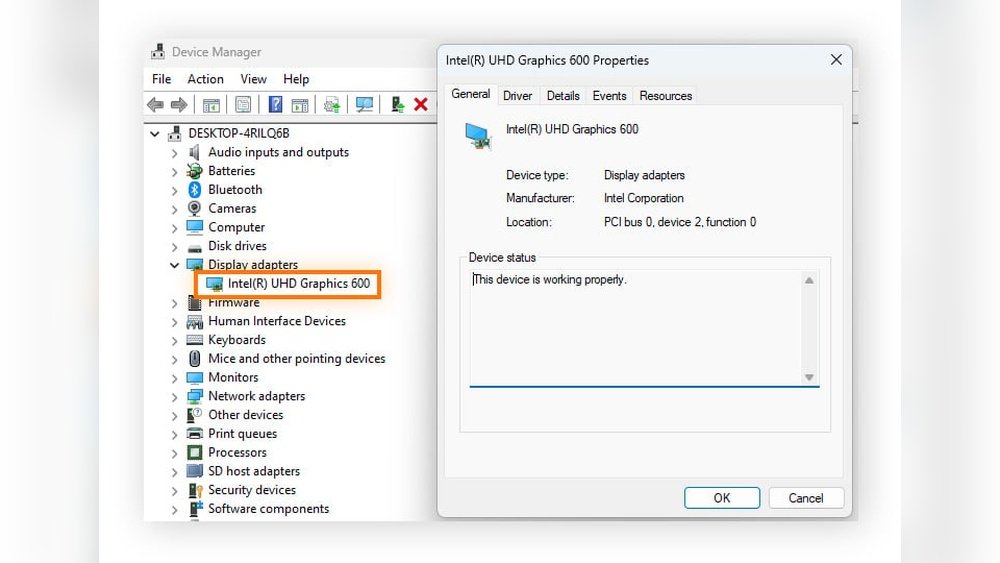
Using Device Manager
Open Device Manager by typing it in the search bar. Click on the “Display adapters” section to expand it. You will see the name of your GPU listed there. This method shows both integrated and dedicated GPUs.
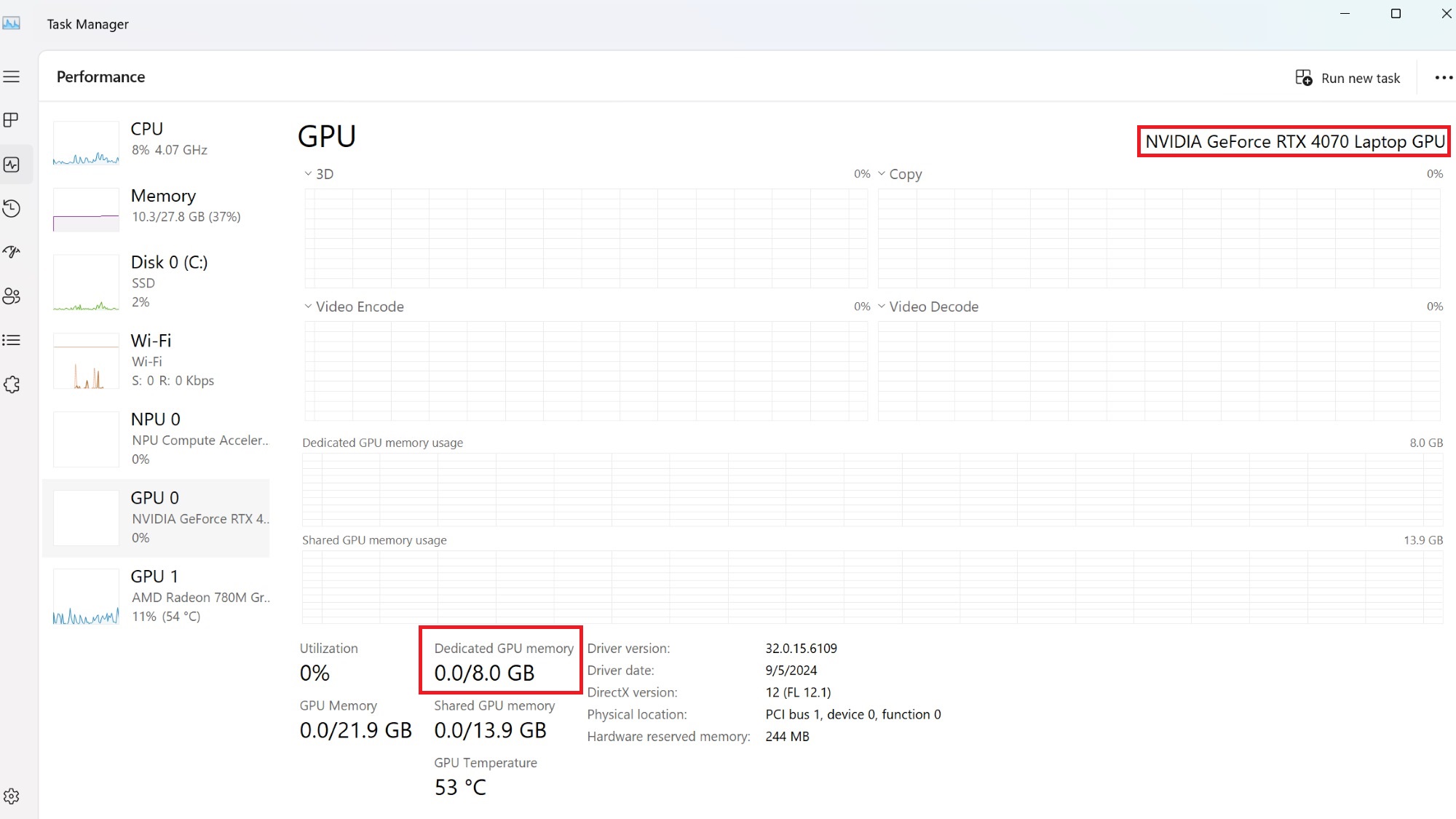
Through Task Manager
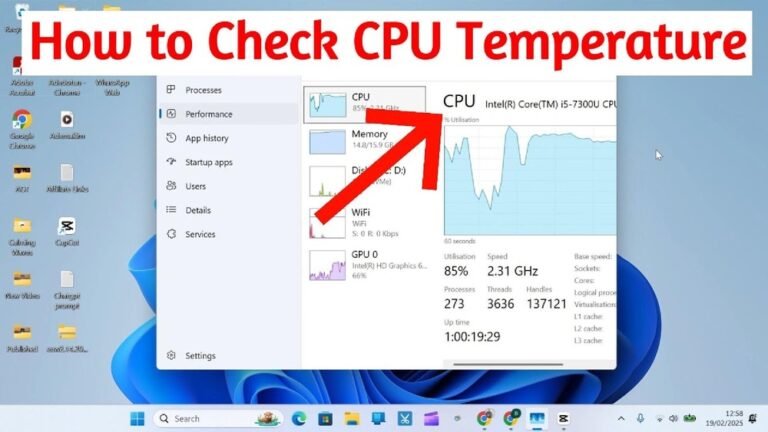
Press Ctrl + Shift + Esc to open Task Manager. Click on the “Performance” tab at the top. Select “GPU” from the left sidebar. Here, you see your GPU model and usage details.
Via Directx Diagnostic Tool
Press Windows + R to open the Run box. Type “dxdiag” and press Enter. Go to the “Display” tab in the tool. Your GPU name and manufacturer appear here clearly.
With System Information
Search for “System Information” in the Start menu. Open the app and expand “Components” on the left side. Click “Display” to see your GPU details listed on the right. This method offers detailed hardware information.

Credit: www.youtube.com
Find Gpu On Mac
Finding out which GPU your Mac has is simple. You do not need extra tools or apps. Just follow basic steps to see your graphics card details quickly.
Your Mac uses a Graphics Processing Unit (GPU) to handle images and videos. Knowing your GPU helps with software compatibility and performance checks.
About This Mac
Click the Apple icon in the top-left corner of your screen. Select “About This Mac” from the menu. A window will appear showing an overview of your Mac’s specs.
Look for the “Graphics” section. It lists the name and type of your GPU. This method is fast and works on all Mac models.
System Report Details
In the “About This Mac” window, click the “System Report” button. This opens a detailed system information app.
Choose “Graphics/Displays” in the sidebar. Here, you see complete details about your GPU, including VRAM size and vendor.
This option gives more technical data for advanced users. It is useful when you need to troubleshoot or upgrade your Mac.
Check Gpu On Linux
Checking your GPU on Linux is simple and quick. You can do it using commands in the terminal or with easy graphical tools. Both methods give clear details about your graphics card.
Using Terminal Commands
Open the terminal to start. Type lspci | grep VGA to see your GPU info. This command lists all video devices connected to your system.
Another useful command is glxinfo | grep "OpenGL renderer". It shows the exact name of your GPU. You might need to install mesa-utils to use glxinfo.
For detailed info, try lshw -C display. It provides a full description of your graphics hardware.
Graphical Tools For Gpu Info
Graphical tools make it easier to check your GPU. Tools like Hardinfo offer a user-friendly interface. It shows your hardware details, including the GPU.
GPU Viewer is another option. It displays all GPU data in a simple window. You can find it in most Linux software centers.
These tools help users who prefer not to use commands. They provide a clear and visual way to see GPU details.
Credit: rog.asus.com
Third-party Tools For Gpu Detection
Third-party tools help identify your GPU quickly and easily. These tools scan your system and show detailed information about your graphics card. They work on different operating systems and provide more data than built-in methods. Using these tools helps you understand your GPU better. This makes upgrading or troubleshooting simpler.
Popular Software Options
Many programs detect GPUs accurately. GPU-Z is a favorite among users. It shows details like GPU model, memory type, and clock speeds. Another good option is Speccy. Speccy provides an overview of all system parts, including the GPU. HWMonitor tracks hardware temperatures and voltages, useful for gamers and PC builders. MSI Afterburner offers real-time GPU stats and lets users adjust settings. These tools are easy to download and use.
Benefits Of Using Third-party Tools
Third-party tools give clear and detailed GPU info. They show specs not found in system settings. These tools help detect hidden or multiple GPUs. They are useful for troubleshooting graphic issues. Users can monitor GPU temperature and performance live. Many tools offer free versions with no cost. They save time by avoiding manual searches or disassembly. Overall, these tools make GPU detection fast and reliable.
Interpreting Gpu Information
Understanding your GPU information helps you make better decisions about your computer. It tells you how powerful your graphics card is and if it suits your needs. This section explains how to read and understand the details shown about your GPU.
Understanding Model Numbers
GPU model numbers show the brand, series, and power level. For example, in “NVIDIA GeForce RTX 3060,” “NVIDIA” is the brand. “GeForce RTX” is the series, and “3060” is the model number. Higher numbers usually mean newer or stronger GPUs. Knowing this helps you compare cards easily.
AMD GPUs work similarly. A model like “Radeon RX 6700 XT” tells you the brand, series, and model. The number “6700” indicates performance level. The “XT” often means a faster version of that model.
Checking Vram And Specifications
VRAM, or video memory, stores images and textures for your screen. More VRAM means better handling of high-resolution games and apps. Typical VRAM sizes range from 2GB to 12GB or more. Check this number to see if your GPU can handle your needs.
Other specs include clock speed and core count. Higher clock speeds allow faster processing. More cores mean better performance in complex tasks. These specs help you understand how your GPU performs in real life.
Troubleshooting Gpu Detection Issues
Sometimes, your computer may not show your GPU correctly. This can cause problems when you try to check what GPU you have. Troubleshooting GPU detection issues helps solve these problems. It makes sure your system sees your graphics card properly. Here are some common causes and fixes to try.
Driver Updates
Drivers help your computer talk to your GPU. Outdated or missing drivers stop your GPU from showing up. Check your GPU maker’s website for the latest drivers. Download and install the correct driver for your model. Restart your PC after updating. This often fixes detection problems fast.
Hardware Recognition Problems
Your PC might not recognize your GPU due to hardware issues. Open your computer case carefully and check if the GPU is seated right. Loose or dusty connections can cause detection failures. Clean the GPU and slot gently with compressed air. Reinsert the card firmly. Also, check cables and power connections. These steps help your PC detect the GPU correctly.
Frequently Asked Questions
How Can I Find My Gpu On Windows 10?
Open Device Manager, expand “Display adapters,” and see your GPU name listed there. This method is quick and built-in.
What’s The Easiest Way To Check Gpu On Mac?
Click the Apple menu, choose “About This Mac,” then view the “Graphics” section for your GPU details.
Can I Identify My Gpu Using Command Prompt?
Yes, type “dxdiag” in Run or Command Prompt, then check the Display tab for GPU information.
How To Check Gpu On Linux Systems?
Use the terminal command “lspci | grep VGA” to list your GPU details on most Linux distributions.
Conclusion
Knowing your GPU helps you choose the right software and games. It also helps with troubleshooting computer issues. Checking your GPU is quick and easy with the steps shared. Keep this guide handy for future reference. Now, you can confidently find out what GPU your computer has.
Stay curious and keep exploring your PC’s features. This simple skill makes using your computer more enjoyable.