

Are you worried that your computer might be running too hot? Knowing your CPU temperature is key to keeping your device safe and running smoothly.
If your CPU gets too warm, it can slow down or even cause permanent damage. But how do you check this important number? You’ll discover simple and effective ways to find out your CPU temperature quickly. By the end, you’ll have the tools and knowledge to protect your computer before it’s too late.
Keep reading—you don’t want to miss these easy tips that could save your PC!
Credit: www.youtube.com
Signs Of Cpu Overheating
Knowing the signs of CPU overheating helps protect your computer. Overheating can cause many problems. Detecting these signs early can save your device from damage.
Common Symptoms
Your computer may slow down without a clear reason. Fans running loudly often show the CPU is hot. Unexpected shutdowns or restarts also happen. Sometimes, the screen freezes or glitches during use. These are all signs your CPU is overheating.
Impact On Performance
High temperature makes the CPU work less efficiently. Programs might open slowly or stop responding. Games and videos can lag or drop frames. This reduces your computer’s speed and smoothness. Overheating forces the CPU to lower its speed to cool down.
Risks Of Ignoring Heat
Ignoring heat can cause permanent damage to the CPU. The computer’s lifespan shortens significantly. Overheating may lead to data loss from crashes. It can also damage other hardware parts nearby. Fixing these issues can be costly and time-consuming.

Credit: softwareg.com.au
Tools To Check Cpu Temperature
Checking your CPU temperature helps protect your computer from overheating. There are several tools available for this task. These tools range from simple built-in options to advanced hardware devices. Each tool has its strengths and works best in different situations.
Built-in Bios Options
Most computers have temperature monitoring in the BIOS settings. You can access BIOS by pressing a key during startup, like F2 or Delete. Inside BIOS, look for a section named Hardware Monitor or PC Health. It shows the current CPU temperature. This method does not need extra software and works even if your system is off.
Third-party Software
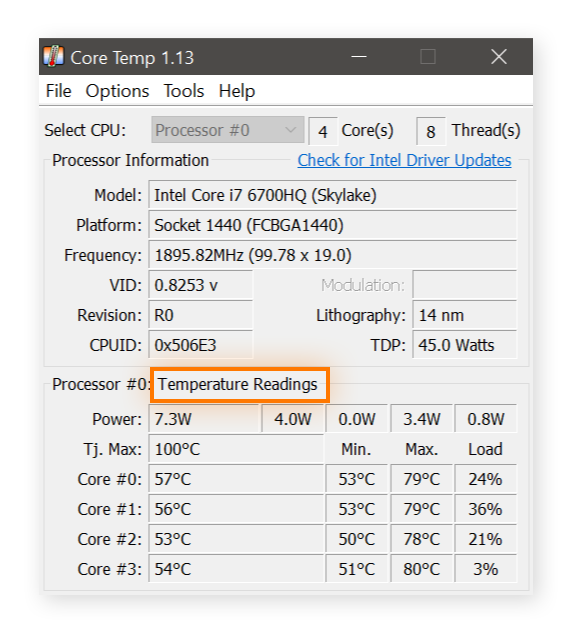
Many free programs show CPU temperature in Windows or macOS. Popular tools include HWMonitor, Core Temp, and SpeedFan. These apps display real-time temperature and other important data. They are easy to use and update often. These programs also provide alerts if the CPU temperature rises too high.
Hardware Monitoring Devices
External devices connect to your computer to monitor temperature and other stats. They often come with LCD screens showing live data. These devices are useful for custom builds and overclocked PCs. They provide precise readings without relying on software. Some models also control fans to cool your CPU better.
Steps To Monitor Cpu Temperature
Monitoring your CPU temperature helps keep your computer safe. High temperatures can cause damage and slow down your system. This guide shows simple steps to check your CPU temperature. You can use built-in tools or software programs. Understanding the data is key to making smart decisions.
Accessing Bios Temperature Readings
Turn off your computer. Then, turn it on and press the BIOS key. Common keys are F2, Delete, or Esc. The BIOS screen shows hardware information. Find the section labeled “Hardware Monitor” or “PC Health.” Here, you will see the CPU temperature. This reading updates in real time. Note that BIOS temperature is often lower than under full load.
Using Software Utilities
Download a reliable CPU temperature tool. Popular options include HWMonitor, Core Temp, or SpeedFan. Install and open the program. It shows CPU temperature in Celsius or Fahrenheit. Some programs display temperature for each CPU core. Run the software while using your computer. This gives a better idea of real-time temperature changes.
Interpreting Temperature Data
Normal CPU temperatures range from 30°C to 50°C. Temperatures above 70°C need attention. If the CPU reaches 90°C, it may overheat. High temperatures can cause crashes or slow performance. Check your cooling system if temperatures stay high. Clean dust from fans and vents. Replace thermal paste if needed.
Credit: www.avast.com
Ideal Cpu Temperature Ranges
Knowing the ideal CPU temperature ranges helps protect your computer. It ensures your CPU works well and lasts longer. Temperatures that are too high can cause damage or slow down your PC. Understanding safe and normal temperatures helps you keep your system healthy.
Normal Operating Temperatures
Most CPUs work best between 30°C and 50°C when idle. During normal use like browsing or watching videos, temperatures stay around 40°C to 60°C. These ranges show your CPU is running smoothly and not under stress.
Safe Temperature Limits
CPUs can handle heat up to 80°C to 85°C safely. Going above this for long times can harm your computer. It is smart to keep your CPU below 80°C to avoid problems and reduce wear over time.
Temperature Thresholds For Different Cpus
Different CPUs have different temperature limits. Intel CPUs usually max out around 100°C. AMD CPUs often have a safe limit near 95°C. Always check your CPU model’s guide for exact numbers. This helps you know when to cool your system better.
Tips To Prevent Cpu Overheating
Keeping your CPU cool is important for your computer’s health. Overheating can cause slowdowns or damage. Use simple tips to keep your CPU temperature low. These steps help your system run smoothly and last longer.
Improving Airflow
Good airflow moves hot air away from your CPU. Arrange your computer parts to avoid blocking air paths. Keep cables neat and out of the way. Use fans to push air in and out of the case. Proper airflow lowers temperature effectively.
Cleaning Dust And Debris
Dust blocks air vents and fan blades. It traps heat inside the case. Clean your computer regularly with a soft brush or compressed air. Focus on fans, vents, and heatsinks. Removing dust keeps the cooling system working well.
Upgrading Cooling Systems
Basic fans may not cool powerful CPUs enough. Consider better cooling options like larger fans or liquid cooling. These systems remove heat faster. Choose a cooling system that fits your computer case. Upgrading helps maintain low CPU temperatures.
Applying Thermal Paste
Thermal paste helps heat move from CPU to cooler. Old or dried paste loses effectiveness. Clean the old paste off carefully. Apply a small amount of new paste evenly on the CPU. Proper application improves heat transfer and cooling.
When To Seek Professional Help
Knowing your CPU temperature is important. Sometimes, the problem is simple to fix. Other times, it needs a professional’s help. Recognizing when to seek help can save your computer from damage. It also keeps your system running smoothly.
Persistent Overheating Issues
Overheating may happen once or twice. If it keeps happening, it is a serious sign. Your CPU might be damaged or dirty. Simple fixes like cleaning fans or reapplying thermal paste may not work. A technician can find the exact cause. They can also prevent further damage to your PC.
Hardware Replacement Considerations
Sometimes, parts need replacing. Old or broken fans, heat sinks, or thermal paste can cause heat issues. A professional can check if your hardware is still good. They can suggest the right parts to replace. This step helps avoid buying wrong or costly items.
Warranty And Support Options
Your device might still be under warranty. Contact the manufacturer before opening the case or fixing the PC yourself. Professional support can cover repairs or replacements. Using warranty services can save money and ensure quality repairs. Always check your warranty terms and conditions first.
Frequently Asked Questions
How Can I Check My Cpu Temperature On Windows?
You can check CPU temperature using software like HWMonitor, Core Temp, or SpeedFan. These tools display real-time temperature readings for each core. Download and install any trusted app, then open it to monitor your CPU temperature easily.
What Is A Safe Cpu Temperature Range?
A safe CPU temperature typically ranges between 30°C and 60°C during normal use. Temperatures above 80°C may indicate overheating, which can cause system instability or hardware damage. Always keep your CPU within the recommended temperature to ensure optimal performance.
Why Is My Cpu Temperature Suddenly High?
High CPU temperature can be caused by poor ventilation, dust buildup, or faulty cooling fans. Running heavy applications or overclocking also increases heat output. Check your cooling system and clean your PC regularly to maintain a safe temperature.
Can Bios Show Cpu Temperature?
Yes, most modern BIOS versions display CPU temperature under the hardware monitoring section. Restart your computer and enter BIOS setup by pressing a specific key (like F2 or Delete). Navigate to the health or monitoring tab to view real-time CPU temperatures.
Conclusion
Knowing your CPU temperature helps keep your computer safe. Watch the numbers often to avoid overheating. Use simple tools to check temperature anytime. Keep your system clean and cool for best performance. Small steps prevent big problems later. Stay aware, and your PC will work longer.
Easy to do, worth the effort.
