How to Remove Cpu: Easy Steps for Safe and Quick Removal
Are you looking to remove your CPU but unsure where to start? Taking out your CPU might seem tricky, but with the right steps, you can do it safely and confidently.
Whether you want to upgrade your system or fix a problem, knowing how to remove your CPU properly is key to avoiding damage. In this guide, you’ll discover simple, clear instructions that anyone can follow. By the end, you’ll feel ready to handle your CPU like a pro.
Keep reading to learn exactly what you need to do!
Credit: docs.oracle.com
Preparing Your Workspace
Preparing your workspace is the first step in removing a CPU safely. A clean and organized area helps prevent damage and makes the process smoother. Taking time to set up properly saves effort later.
Gathering Necessary Tools
Collect all tools before starting. You need a screwdriver, usually a Phillips-head, for opening the case. A small container to hold screws helps keep them safe. Thermal paste remover or isopropyl alcohol cleans old paste. Have a lint-free cloth or coffee filter ready for wiping the CPU surface.
Ensuring Static-free Environment
Static electricity can damage computer parts easily. Work on a hard, non-carpeted surface to reduce static. Use an anti-static wrist strap and connect it to a metal part of the case. Touch metal parts often to discharge static from your body. Avoid wearing clothes that create static, like wool or polyester.
Powering Down And Unplugging
Powering down and unplugging your computer is the first step before removing the CPU. It keeps you safe from electric shocks and stops damage to your parts. Taking time to do this properly helps protect your machine and your hands.
Shutting Down The Computer
Start by closing all open programs. Save any work to avoid data loss. Click the start menu and choose the shutdown option. Wait for the screen to go completely black. This ensures the system is off and safe to work on.
Disconnecting Power Sources
Unplug the power cable from the wall socket. Then, disconnect it from the computer’s power supply. Remove any battery if using a laptop. Also, unplug any other cables like monitors or USB devices. This cuts all electricity to your device.
Opening The Computer Case
Opening the computer case is the first step to remove the CPU. It gives you access to the inside parts. You must be careful to avoid damage. The case protects all components, so handle it gently. Follow simple steps to open it safely.
Locating Case Screws
Most computer cases have screws at the back. These screws hold the side panels in place. Look for small, round screws near the edges. Use a screwdriver to remove them. Keep the screws safe for reassembly.
Removing Side Panels
After removing screws, slide the side panel away. Some panels may lift or pull out gently. Do not force the panel to avoid damage. Set the panel aside on a soft surface. Now, the inside of the case is ready to work on.

Credit: www.youtube.com
Locating The Cpu
Finding the CPU inside a computer can seem tricky at first. The CPU is the main chip that runs your computer. Knowing where it sits helps you remove or replace it safely. This guide breaks down how to locate it step by step.
Identifying The Motherboard
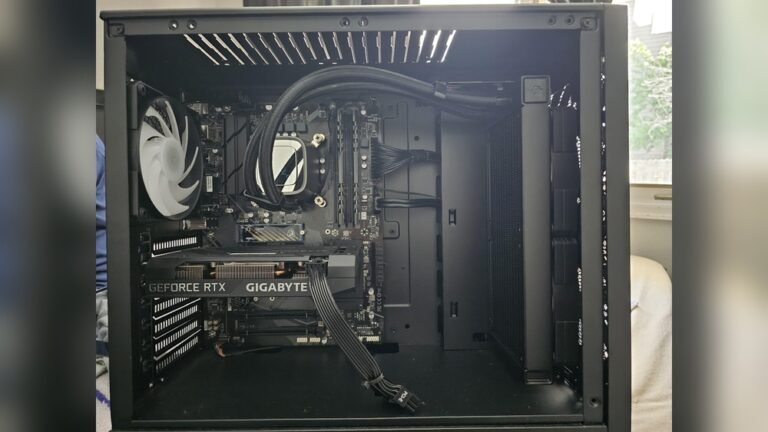
The motherboard is the large board inside your PC case. It connects all parts together. Look for a flat board with many chips and slots. It usually covers most of the inside area. The CPU sits on this board.
Motherboards come in different sizes and shapes. Check for a big square or rectangular chip area. This area holds the CPU. Sometimes, the motherboard model is written on the board. It helps if you want to check more details online.
Finding The Cpu Socket
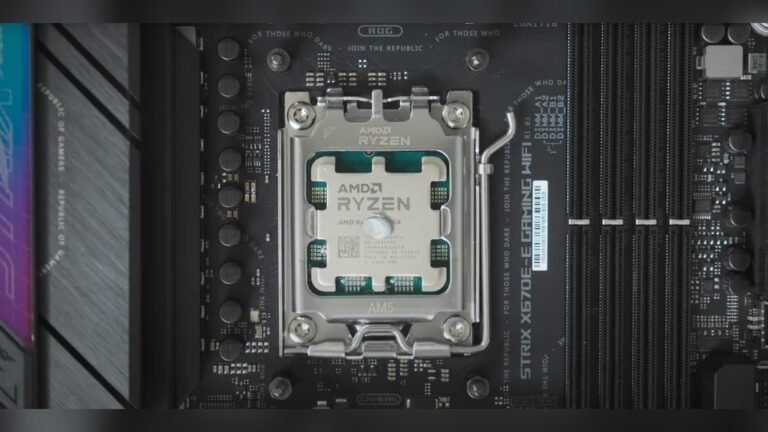
The CPU socket is a special spot on the motherboard. It holds the CPU securely. Look for a square or rectangular slot with a lever or latch. This lock keeps the CPU in place.
The CPU socket may have a cover or heat sink on top. You might need to remove the heat sink first to see the socket clearly. The socket has many tiny holes or pins. These connect the CPU to the motherboard.
Removing The Cpu Cooler
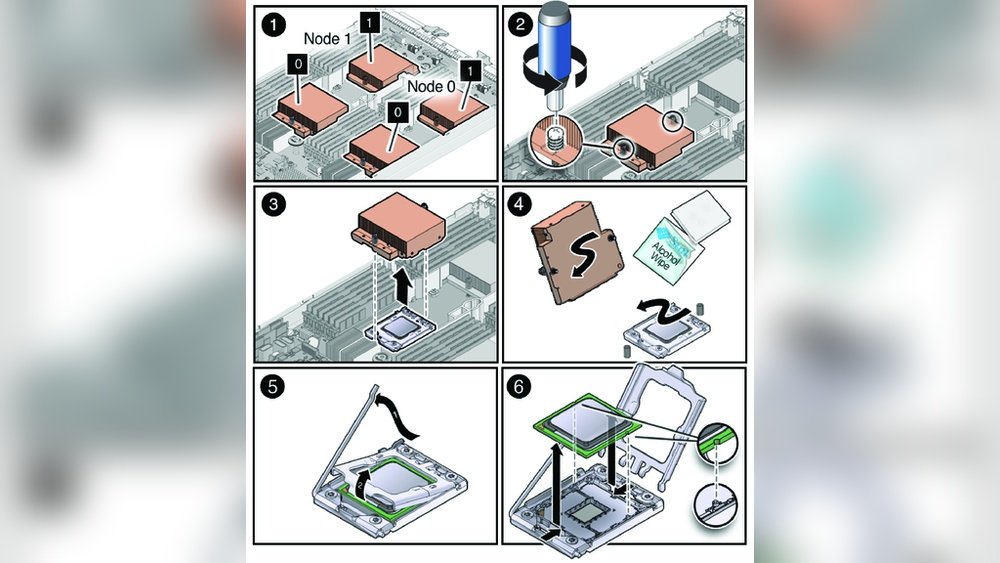
Removing the CPU cooler is a key step before taking out the CPU itself. The cooler keeps the processor cool and helps it work well. Over time, dust and old thermal paste can reduce its efficiency. Removing the cooler carefully is important to avoid damage.
Follow clear steps to detach the cooler safely. This process involves unplugging the fan, unscrewing the cooler, and cleaning the thermal paste. Each step prepares your CPU for maintenance or replacement.
Detaching Fan Connectors
Find the fan connector attached to the motherboard. Gently pull the connector straight out. Avoid pulling the wires to prevent damage. This stops the fan from running and makes it safe to remove the cooler.
Unscrewing The Cooler
Locate the screws or clips holding the cooler in place. Use the right screwdriver to loosen them carefully. Turn each screw a little at a time to avoid bending the CPU or motherboard. Lift the cooler slowly once all screws are free. If it feels stuck, wiggle it gently.
Cleaning Thermal Paste
Old thermal paste sticks the cooler to the CPU. Use a soft cloth or paper towel with isopropyl alcohol. Wipe the top of the CPU and the cooler base clean. Remove all residue for better heat transfer later. Let both parts dry before reapplying new paste or reinstalling the cooler.
Releasing The Cpu From Socket
Removing the CPU from its socket is a careful task. The CPU fits tightly to ensure good contact with the motherboard. Releasing it requires gentle steps to avoid damage. This section guides you through the process of freeing the CPU safely.
Unlocking The Retention Lever
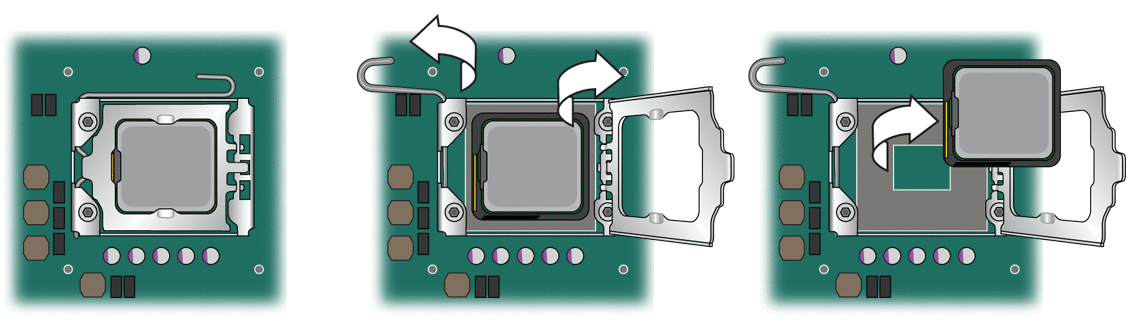
Start by locating the retention lever beside the CPU socket. This lever holds the CPU firmly in place. Gently push the lever down and away from the socket. Then, lift it up to release the locking mechanism. Avoid using too much force to prevent bending the lever or socket pins.
Carefully Lifting The Cpu
Once the lever is unlocked, the CPU can be lifted out. Use your fingers to grasp the edges of the CPU. Do not touch the gold pins or contacts underneath. Slowly and evenly lift the CPU straight up from the socket. Keep it level to avoid bending any pins. Place the CPU on an anti-static surface after removal.
Handling And Storing The Cpu
Handling and storing the CPU correctly is very important to keep it safe. The CPU is a delicate part of your computer. Damaging it can cause your computer to stop working.
Proper care helps avoid costly repairs or replacements. Small mistakes can break the CPU pins or circuits. Safe handling and storage protect the CPU from harm.
Avoiding Physical Damage
Hold the CPU by the edges only. Avoid touching the gold pins or contacts. These parts are fragile and can bend or break easily.
Do not drop the CPU. Even a small fall can damage it. Place it on a soft, clean surface during handling. Keep it away from liquids and dust.
Using Protective Packaging
Store the CPU in an anti-static container or bag. These protect against static electricity that can harm the CPU. Use the original packaging if available.
If you do not have the original box, use a small plastic case with foam padding. Wrap the CPU carefully to avoid movement inside the container. Label the package clearly to prevent mishandling.
Tips For Reinstallation Or Upgrade
Reinstalling or upgrading a CPU requires care and attention. Proper steps ensure your computer runs smoothly and stays cool. These tips help avoid common mistakes and improve performance.
Checking Compatibility
Check your motherboard’s socket type before buying a new CPU. Different CPUs fit different sockets. Also, verify your motherboard supports the CPU model. BIOS updates might be needed for newer CPUs. Ensure your power supply can handle the CPU’s requirements. Confirm RAM compatibility for the best performance.
Applying Thermal Paste
Clean old thermal paste off the CPU and cooler with isopropyl alcohol. Apply a small pea-sized amount of new thermal paste on the CPU center. Spread it evenly or let the cooler spread it when mounted. Proper thermal paste helps transfer heat from CPU to cooler. Avoid using too much paste; it can cause overheating.

Credit: www.youtube.com
Frequently Asked Questions
How Do I Safely Remove A Cpu From A Motherboard?
To remove a CPU safely, first power off and unplug your PC. Unlock the CPU socket lever carefully. Gently lift the CPU straight up without bending pins. Avoid touching the CPU contacts to prevent damage. Handle the CPU by its edges only.
What Tools Are Needed To Remove A Cpu?
Generally, no special tools are needed. Your hands and a screwdriver to open the PC case suffice. Use an anti-static wrist strap to prevent static damage. Avoid metal tools touching the CPU or socket pins during removal.
Can I Remove A Cpu Without Damaging It?
Yes, by following proper steps and handling gently. Power off, unplug, and ground yourself first. Unlock the socket lever slowly and lift the CPU straight up. Avoid bending pins or touching contacts. Store the CPU in an anti-static container afterward.
How Do I Avoid Static Damage When Removing A Cpu?
Use an anti-static wrist strap grounded to your PC case. Work on a non-conductive surface. Avoid carpeted rooms and synthetic clothing. Touch a metal object to discharge static before handling components. Handle the CPU by its edges only.
Conclusion
Removing a CPU is easier than it seems. Take your time and stay gentle. Handle the parts with care to avoid damage. Remember to ground yourself to stop static shocks. Keep track of screws and small pieces. Follow the steps one by one for best results.
Soon, you will feel more confident doing it. Practice makes this task less stressful each time. Now, you know how to remove a CPU safely and simply.