How to Monitor Cpu Heat: Essential Tips for Optimal Performance
Is your computer running hotter than usual? Monitoring your CPU heat is crucial to keep your device running smoothly and avoid unexpected crashes.
If you’ve ever experienced slow performance or sudden shutdowns, your CPU temperature might be the hidden culprit. You’ll discover simple and effective ways to track your CPU heat, helping you protect your computer and boost its lifespan. Keep reading to learn how easy it is to keep your CPU cool and your system healthy.

Credit: www.youtube.com
Why Cpu Heat Matters
Cpu heat is a critical factor that affects your computer’s health. It controls how well your system works and how long it lasts. Watching Cpu temperature helps avoid problems before they start. This section explains why Cpu heat matters.
Impact On Performance
High Cpu heat makes your computer slow down. The Cpu lowers its speed to cool off. This process is called throttling. Throttling stops your computer from doing tasks fast. It affects gaming, video editing, and daily work. Keeping Cpu heat low keeps performance high.
Risks Of Overheating
Too much heat can damage Cpu parts. It may cause sudden shutdowns or crashes. Over time, heat can shorten Cpu life. This can lead to costly repairs or replacements. Heat also affects other components like the motherboard. Monitoring Cpu heat lowers these risks.
Tools To Track Cpu Temperature
Tracking your CPU temperature helps keep your computer safe. Overheating can cause crashes and slow performance. You can use various tools to check your CPU heat. These tools show real-time temperature readings. Choose one that suits your needs and skill level.
Built-in Software Options
Many computers come with built-in tools to monitor CPU temperature. BIOS or UEFI settings often display this information. You can access these by restarting your PC and entering setup mode. Some operating systems have their own utilities. For example, Windows has Task Manager and Resource Monitor. These tools provide basic temperature data. They are easy to use and don’t require extra downloads.
Third-party Monitoring Apps
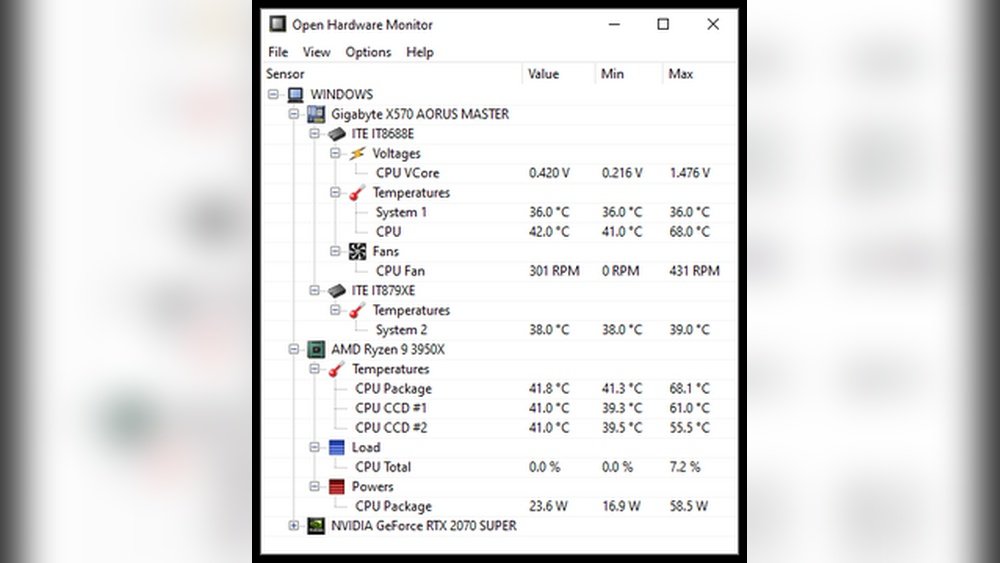
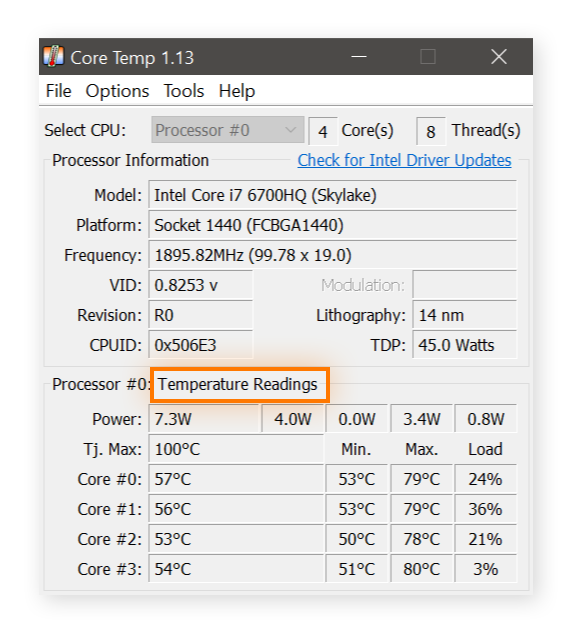
Third-party apps offer more detailed CPU temperature tracking. These apps show graphs, alerts, and historical data. Popular choices include HWMonitor, Core Temp, and SpeedFan. They work on most Windows PCs and some support Mac. Many are free or offer a free version. These apps help spot temperature spikes quickly. You can customize alerts to avoid overheating. They also show other hardware information like fan speed and voltage.
Setting Temperature Thresholds
Setting temperature thresholds is key for effective CPU heat monitoring. It helps protect your computer from damage. Thresholds alert you before the CPU gets too hot. This way, you can act quickly to cool it down. Understanding safe ranges and critical limits is essential for this process.
Safe Temperature Ranges
The safe temperature range for most CPUs is between 30°C and 60°C. Staying within this range ensures the CPU runs smoothly. It avoids overheating and reduces wear over time. Normal tasks like browsing or word processing usually keep temperatures low. Gaming or heavy programs can push temperatures closer to the upper limit.
Check your CPU model’s recommended safe range. Different CPUs handle heat differently. Use reliable monitoring software to track temperatures regularly. This helps you stay informed about your CPU’s health.
Warning And Critical Limits
Warning limits are set just below the critical temperature. They signal that the CPU is getting too hot. This gives time to cool down the system. Typical warning temperatures range from 70°C to 85°C. At this point, you should reduce heavy tasks or improve cooling.
Critical limits are the maximum safe temperatures for the CPU. These usually range from 90°C to 100°C. Passing this limit risks permanent damage and system crashes. The CPU may throttle performance or shut down automatically to protect itself.
Set alert notifications for both warning and critical limits. Immediate action is vital to avoid hardware failure. Proper threshold settings keep your CPU safe and extend its lifespan.
Credit: www.avast.com
Interpreting Temperature Readings
Understanding CPU temperature readings helps keep your computer safe and working well. You need to know what numbers are normal and which ones warn of problems. This section explains how to read these temperatures and what they mean for your device.
Idle Vs Load Temperatures
Idle temperature shows your CPU at rest. The computer is on but not doing much. This number should be low, usually between 30°C and 50°C. Load temperature shows the CPU working hard. It rises when you play games or run programs. Normal load temperatures range from 60°C to 85°C. A big difference between idle and load is normal. Watch these numbers to see if your CPU stays in safe limits.
Recognizing Unusual Spikes
Sudden jumps in temperature are a sign of trouble. These spikes happen quickly and are higher than normal load temperatures. They can mean your cooling system is failing or the CPU is working too hard. Check for spikes if your computer feels hot or slows down. Frequent spikes need fixing to avoid damage. Keep an eye on your temperatures to catch these changes early.
Improving Cpu Cooling
Keeping your CPU cool is important for its performance and life. High heat can slow down your computer and cause damage. Improving CPU cooling helps keep your system safe and running smoothly. Simple steps can make a big difference in temperature control.
Cleaning And Maintenance
Dust and dirt block airflow and trap heat. Clean your computer’s fans and vents regularly. Use a soft brush or compressed air to remove dust. Check thermal paste on the CPU. Old paste dries out and loses effectiveness. Replace it every few years for better heat transfer.
Upgrading Cooling Solutions
Stock coolers may not be enough for heavy use. Consider upgrading to better air coolers with larger fans. Liquid cooling systems offer efficient heat removal. They use water to carry heat away from the CPU. Choose a cooling solution that fits your computer case and needs.

Credit: www.alcpu.com
Optimizing System Settings
Optimizing system settings helps control CPU temperature efficiently. This step is vital to keep your computer running smoothly. Adjusting these settings can reduce heat and improve performance. It also extends the life of your hardware.
Adjusting Fan Speeds
Fans cool your CPU by moving hot air away. Many computers allow manual fan speed control. Increasing fan speed helps lower CPU temperature quickly. Use BIOS or software tools to adjust fan settings. Set fan speeds higher during heavy tasks for better cooling. Keep noise levels in mind when increasing fan speed.
Power Management Tweaks
Power settings affect how your CPU works and heats. Lowering the maximum processor state reduces heat output. Use power plans to balance performance and temperature. Set your computer to a balanced or power-saving mode. This limits CPU power use and keeps temperatures down. Regularly review power settings to maintain optimal CPU heat levels.
Preventing Long-term Damage
Preventing long-term damage to your CPU is crucial for your computer’s health. High temperatures can reduce performance and shorten its life. Watching CPU heat helps avoid costly repairs and keeps your system running smoothly. Understanding how to spot problems early is key to protection.
Regular Monitoring Habits
Check your CPU temperature daily or weekly. Use simple tools like HWMonitor or Core Temp. These programs show real-time heat levels in an easy way. Set alerts for high temperatures to catch issues fast. Clean your computer’s fans and vents often. Dust blocks airflow and raises heat. Keep your workspace cool and well-ventilated. Small habits prevent big problems over time.
When To Seek Professional Help
Some heat issues need expert attention. If your CPU temperature stays high despite cleaning, call a technician. Strange noises or frequent shutdowns also need checking. Professionals can replace thermal paste or fix hardware faults. Avoid opening your computer if unsure; it may cause more harm. Timely help stops damage before it worsens.
Frequently Asked Questions
How Can I Check My Cpu Temperature Easily?
You can check CPU temperature using software like HWMonitor or Core Temp. These tools provide real-time temperature readings. They are user-friendly and work on most Windows systems. Monitoring helps prevent overheating and improves performance.
What Is The Safe Temperature Range For Cpus?
Most CPUs operate safely between 30°C to 70°C under load. Temperatures above 80°C may cause damage or throttling. Always consult your CPU’s manufacturer for exact limits. Keeping temperatures low ensures system stability and longevity.
Can Bios Show Cpu Temperature Without Software?
Yes, many BIOS setups display CPU temperature in hardware monitor or PC health sections. Access BIOS by pressing a key during boot (like F2 or Del). It provides a quick, software-free way to check CPU heat.
Why Does My Cpu Temperature Spike Suddenly?
Temperature spikes can occur due to heavy workloads or poor cooling. Dust buildup, faulty fans, or thermal paste issues also cause spikes. Regular cleaning and proper ventilation help maintain steady CPU temperatures.
Conclusion
Monitoring CPU heat helps protect your computer from damage. It keeps your system running smoothly and fast. Use simple tools to check the temperature often. Watch for signs of overheating like slow speeds or crashes. Cooling fans and clean vents also help reduce heat.
Stay aware of your CPU’s heat to avoid big problems. Small steps now save you from costly repairs later. Keep your computer cool and working well every day.