

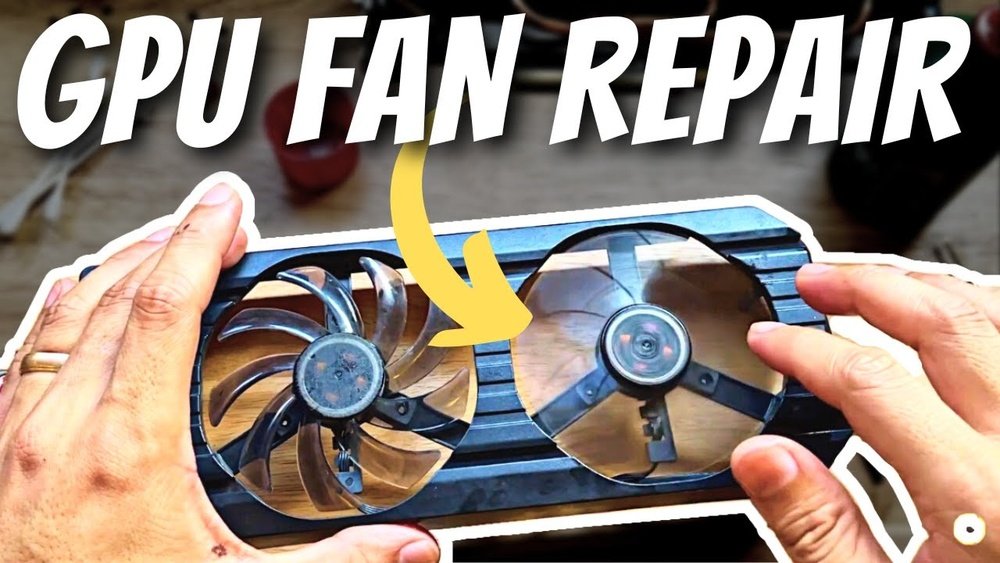
Is your GPU fan making strange noises or not spinning at all? If your graphics card is overheating or causing your computer to slow down, a faulty fan might be the culprit.
Replacing your GPU fan might sound tricky, but with the right steps, you can do it yourself and save money. In this guide, you’ll learn exactly how to replace your GPU fan quickly and safely. Stick with me, and by the end, you’ll have your graphics card running cool and smooth again.
Ready to fix your GPU fan? Let’s get started.
Credit: www.reddit.com
Signs Of A Failing Gpu Fan
Knowing the signs of a failing GPU fan helps protect your computer. The GPU fan keeps your graphics card cool during heavy use. When the fan stops working well, the card can overheat. This causes damage or poor performance. Watch for clear signals your GPU fan needs replacement.
Overheating Symptoms
Your computer may feel hotter than usual. The GPU temperature rises quickly under load. The system might shut down to avoid damage. You could see warning messages about temperature. Overheating affects the GPU’s lifespan and stability.
Unusual Noises
Strange sounds can come from the GPU fan. Listen for grinding, clicking, or buzzing noises. These sounds mean the fan bearings or blades are damaged. Noisy fans struggle to spin properly. Quiet operation is a sign of a healthy fan.
Performance Drops
Slow frame rates and lag can happen suddenly. The GPU may throttle speed to reduce heat. This lowers graphic performance in games or apps. Unexpected crashes or freezes might occur. Poor cooling causes the GPU to underperform.
Tools And Materials Needed
Replacing a GPU fan requires specific tools and materials for a smooth process. Having the right items helps avoid damage and saves time. Prepare everything before starting your repair.
Essential Tools
A small Phillips screwdriver is needed for screws. Tweezers help handle tiny parts safely. Thermal paste is useful if you remove the heatsink. A soft brush or compressed air cleans dust from the GPU. Anti-static wrist straps protect your components from static electricity. A clean, flat workspace keeps your parts organized. Use a flashlight or good lighting to see small details clearly.
Replacement Fan Options
Choose a fan made for your GPU model. Check the size and connector type before buying. OEM fans match original parts and fit perfectly. Aftermarket fans often cost less and may offer better cooling. Some fans come with adjustable speeds for quieter operation. Verify warranty and return policy for your replacement fan. Quality matters to keep your GPU safe and cool.
Preparing Your Workspace
Preparing your workspace is a key step before replacing your GPU fan. A clean and organized area makes the process smooth. It helps prevent mistakes and protects your computer parts. Take time to set up everything you need. This preparation saves time and reduces stress during the repair.
Safety Precautions
Ensure the computer is unplugged from power. Remove all cables connected to the PC. Work on a flat surface with good lighting. Avoid working on carpets or soft floors. Keep liquids away from your workspace. Use a small container to hold screws and small parts. This prevents losing important pieces during the repair.
Static Electricity Protection
Static electricity can damage computer components. Touch a grounded metal object before handling parts. Use an anti-static wrist strap if available. Place your computer on an anti-static mat. Avoid wearing clothes that create static, like wool. Work slowly and carefully to reduce static risks. Protecting your GPU from static keeps it safe and functional.
Removing The Gpu From The Pc
Removing the GPU from your PC is the first step to replace its fan. It requires care and patience. Follow each step carefully to avoid damage. Make sure you work in a clean, static-free area. This will protect your computer parts and ensure safety.
Shutting Down And Unplugging
Turn off your computer completely. Do not use sleep or hibernate modes. Next, unplug the power cable from the wall socket. Also, disconnect all other cables attached to your PC. This prevents electric shock and protects your components.
Detaching The Gpu
Open your PC case by removing screws or sliding panels. Locate the GPU, usually attached to the motherboard. Unscrew the bracket that holds the GPU in place. Carefully press the clip at the end of the PCIe slot. Gently pull the GPU straight out without twisting. Place the GPU on an anti-static surface to avoid damage.
Disassembling The Gpu Cooler
Disassembling the GPU cooler is the first step in replacing the fan. This process requires care and patience. The cooler holds the fan and heatsink together. Taking it apart safely helps avoid damage. Work on a clean, flat surface and keep track of all small parts.
Removing Screws And Clips
Start by locating all screws on the back of the GPU. These screws hold the cooler firmly in place. Use a small screwdriver that fits the screws well. Turn each screw slowly to avoid stripping it. Some coolers also use clips. Gently release these clips without forcing them. Keep screws and clips in a safe container.
Detaching The Fan And Heatsink
After removing screws and clips, the fan and heatsink can be separated. Lift the cooler carefully to avoid pulling on cables. The fan usually connects to the GPU board with a small plug. Unplug this connector gently. The heatsink may be stuck due to thermal paste. Twist it lightly to loosen before lifting. Place the cooler parts on a soft cloth to prevent scratches.

Credit: www.martinispa.com
Replacing The Gpu Fan
Replacing the GPU fan is a useful skill to keep your computer cool. A broken fan can cause your graphics card to overheat. Overheating can reduce performance or damage the GPU. This guide helps you swap the old fan with a new one safely.
Disconnecting The Old Fan
First, turn off your computer and unplug it. Open the case to access the GPU. Locate the fan connector on the card. Gently unplug the fan cable from the motherboard or GPU. Remove the screws holding the fan in place. Carefully lift the fan away from the GPU. Keep the screws for the new fan installation.
Installing The New Fan
Position the new fan on the GPU correctly. Align the screw holes with the GPU frame. Secure the fan with the screws you saved. Connect the fan cable back to the GPU or motherboard. Make sure the connection is tight. Close your computer case. Power on your system and check if the fan spins smoothly.
Reassembling The Gpu
Reassembling the GPU is a key step after replacing the fan. This process puts all parts back together safely. Careful handling keeps the GPU working well. Follow each step to avoid damage and ensure proper cooling.
Reattaching The Cooler
Place the cooler gently on the GPU chip. Align it exactly with the screw holes. Avoid shifting the cooler once it touches the chip. This ensures good contact for heat transfer.
Apply firm but even pressure to set the cooler. This prevents air gaps between the cooler and chip. Air gaps reduce cooling efficiency and cause overheating.
Securing Screws And Connectors
Insert the screws into their original spots. Tighten them in a diagonal pattern. This spreads pressure evenly on the cooler.
Reconnect all cables and connectors firmly. Loose connections can cause the fan to stop. Double-check each plug to confirm it fits snugly.
Take your time. Proper reassembly avoids future issues and keeps your GPU cool.
Testing The New Fan
Testing the new GPU fan is a key step. It confirms the fan works well and keeps your GPU cool. This phase helps avoid overheating and damage. Follow these steps carefully to check your new fan’s performance.
Reinstalling The Gpu
Place the GPU back into the motherboard slot. Make sure it fits firmly and clicks into place. Secure the card with screws to avoid movement. Connect the power cables to the GPU. Double-check all connections before powering on the PC.
Monitoring Fan Operation And Temperatures
Turn on the computer and watch the fan closely. The fan should start spinning smoothly without noise or wobble. Use software tools like GPU-Z or HWMonitor to track temperatures. Normal GPU temps range between 30°C and 70°C during use. If temperatures rise quickly or fan stops, shut down immediately. Confirm the fan adjusts speed based on GPU heat. This keeps your graphics card safe and running well.
Tips For Maintaining Gpu Cooling
Maintaining proper GPU cooling is key to keeping your graphics card running well. Good cooling helps avoid overheating and extends the life of your GPU. Simple steps can make a big difference in how your GPU stays cool and performs.
Regular Cleaning
Dust and dirt block airflow and cause heat buildup. Clean your GPU fan and heatsink often. Use a soft brush or compressed air to remove dust. Avoid touching sensitive parts directly. Regular cleaning keeps air moving freely.
Proper Ventilation
Place your computer in a spot with good airflow. Avoid tight spaces that trap heat. Ensure case fans work well and push hot air out. Proper ventilation lowers the temperature inside your PC. Cooler air means better GPU performance.
Software Fan Controls
Use software to adjust your GPU fan speed. Many graphics cards have built-in tools for this. Set fan speeds higher when playing games or running heavy tasks. Lower speeds work fine during light use. Balanced fan control keeps noise down and cooling effective.

Credit: www.youtube.com
Frequently Asked Questions
How Do I Know If My Gpu Fan Needs Replacement?
Signs include unusual noise, overheating, and poor performance. Check if the fan is spinning properly during heavy use. If it’s noisy or stopped, replacement is necessary to prevent GPU damage.
What Tools Are Needed To Replace A Gpu Fan?
You typically need a screwdriver set, thermal paste, and a clean workspace. Anti-static wristbands and tweezers can also help. Proper tools ensure safe and effective fan replacement.
Can I Replace The Gpu Fan Myself Safely?
Yes, if you follow detailed instructions and handle components carefully. Ensure your PC is powered off and grounded to prevent static damage. Take your time to avoid harming delicate parts.
How Long Does It Take To Replace A Gpu Fan?
The process usually takes 30 to 60 minutes. Time varies based on your experience and GPU model. Proper preparation and patience speed up the replacement.
Conclusion
Replacing a GPU fan can improve your computer’s cooling. It helps prevent overheating and keeps your system running smoothly. The steps are simple if you follow them carefully. Take your time and handle parts gently. Safety is important, so unplug the power before starting.
After replacing, check if the fan spins well. A working fan means better performance and longer GPU life. Now, your computer can stay cooler and work better.
