How to Clean Thermal Paste from Cpu: Easy Steps for Perfect Results
If you want your CPU to run smoothly and stay cool, knowing how to clean thermal paste is essential. Over time, old thermal paste can dry out and lose its effectiveness, causing your computer to overheat.
But don’t worry—you don’t need to be a tech expert to get this done right. In this guide, you’ll learn simple, step-by-step methods to safely remove old thermal paste from your CPU. By following these tips, you’ll improve your computer’s performance and avoid costly repairs.
Ready to give your CPU the care it deserves? Let’s dive in.
Why Clean Thermal Paste
Cleaning thermal paste from a CPU is a key task in computer maintenance. Old or dried thermal paste can cause problems. It stops the CPU from cooling properly. Keeping the CPU clean helps keep the system running well. It also extends the life of the CPU and other parts. Understanding why to clean thermal paste helps you care for your PC better.
Impact On Cpu Performance
Thermal paste helps move heat from the CPU to the cooler. Over time, paste can dry and crack. This reduces its ability to conduct heat. When heat builds up, the CPU slows down to avoid damage. This drop in speed affects overall computer performance. Cleaning old paste and applying fresh paste keeps the CPU cool and fast.
When To Replace Thermal Paste
Replace thermal paste every few years or when you remove the cooler. If the CPU runs hot or loud, check the paste. Dust and heat can make the paste less effective. Signs like high temperature or system crashes also suggest replacing paste. Fresh paste ensures good heat transfer and protects the CPU.
Tools You Need
Cleaning thermal paste from a CPU requires specific tools. These tools help remove old paste safely and prepare the surface for new application. Using the right materials makes the process easier and protects your components.
Cleaning Materials
Gather isopropyl alcohol with 90% or higher purity. It dissolves thermal paste effectively without damaging parts. Use lint-free cloths or coffee filters for wiping. Cotton swabs help reach tight spots gently. Avoid paper towels or tissues that leave fibers behind. Thermal paste remover solutions are optional but useful for stubborn residue.
Safety Precautions
Work in a clean, static-free area to protect the CPU. Ground yourself to prevent static electricity damage. Handle the CPU and motherboard carefully to avoid bending pins. Keep liquids away from electronic parts and avoid excess alcohol. Wear gloves to keep oils from your skin off the CPU surface. Ensure good ventilation when using alcohol or cleaning chemicals.
Preparing Your Workspace
Preparing your workspace is the first step in cleaning thermal paste from your CPU. A clean, organized area helps avoid mistakes. It also protects your computer parts from damage. Taking time to set up the right space makes the process smoother. It helps keep everything safe and easy to find.
Static Safety Tips
Static electricity can damage your CPU and other parts. Touch a metal object before handling components to discharge static. Work on a non-carpeted surface to reduce static buildup. Use an anti-static wrist strap if you have one. Avoid wearing clothes that create static, like wool or polyester. Keep your workspace dry and free of dust. These simple steps protect your computer parts.
Organizing Components
Keep screws and small parts in a container to avoid losing them. Place the CPU and cooler on a clean cloth or surface. Have all tools ready before you start, like screwdrivers and cleaning wipes. Arrange everything so you can reach it easily. Work in a well-lit area to see clearly. A tidy workspace helps you focus and finish faster.
Credit: koolingmonster.com
Removing The Cpu Cooler
Removing the CPU cooler is the first step in cleaning thermal paste from your CPU. This part sits on top of the processor and helps keep it cool. Before you can clean the paste, you must take off the cooler carefully. This allows you to access the CPU surface and remove old thermal paste safely.
Step-by-step Removal
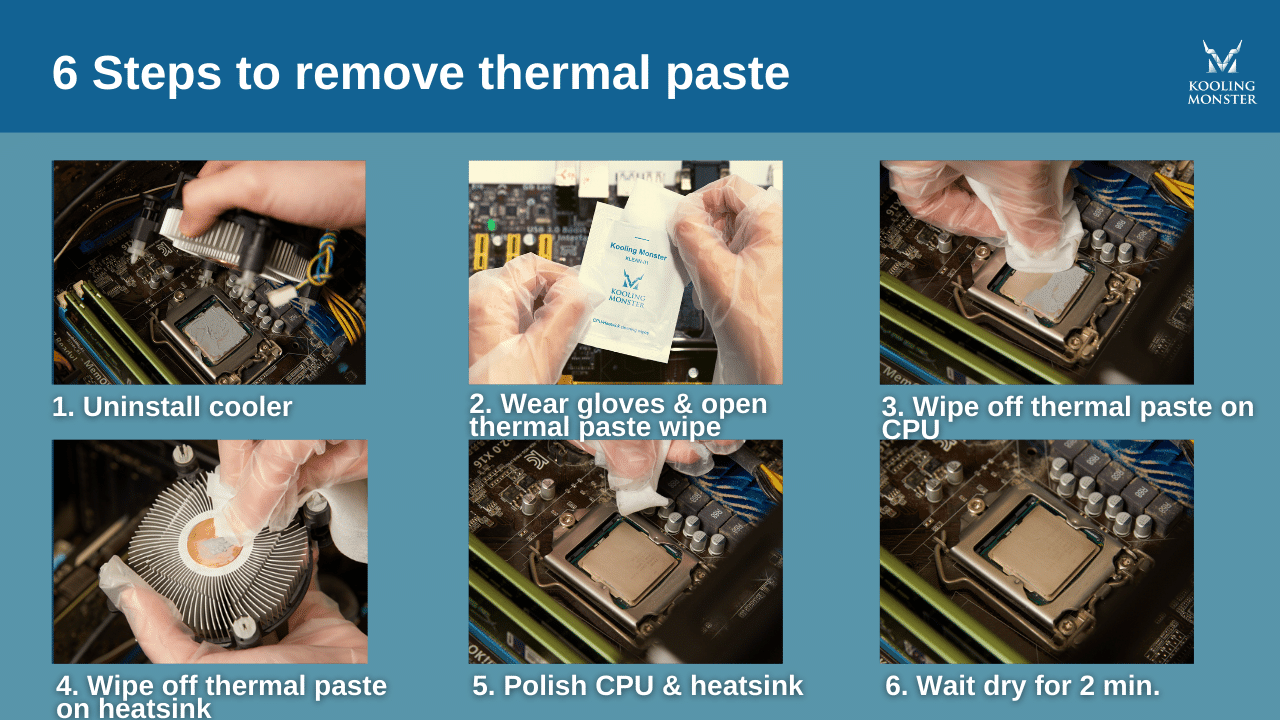
First, turn off your PC and unplug it from the power source. Wait a few minutes for the system to cool down. Next, disconnect the cooler’s fan cable from the motherboard. This cable is usually small and easy to spot.
Then, loosen the screws or clips that hold the cooler in place. Turn them gently and avoid forcing anything. After loosening, lift the cooler straight up. If it feels stuck, wiggle it lightly to break the seal of the thermal paste. Do not pull hard to avoid damaging the CPU or motherboard.
Avoiding Damage
Handle the CPU cooler with care. Avoid bending or twisting the cooler or its pipes. This can cause permanent damage. Do not touch the CPU pins or socket. They are delicate and easy to break.
Keep the cooler on a clean surface to avoid dust or dirt. Avoid using sharp tools to pry the cooler off. This can scratch the CPU or motherboard. Take your time and work slowly for the best results.
Cleaning Off Old Thermal Paste
Cleaning off old thermal paste is a key step before applying new paste on your CPU. Old paste can dry out and lose its ability to transfer heat. Removing it properly helps your CPU stay cool and work better. Use the right tools and methods to avoid damage.
Using Isopropyl Alcohol
Isopropyl alcohol is the best choice for cleaning thermal paste. Use 90% or higher concentration for quick drying. Apply a small amount on a soft cloth or cotton swab. Gently wipe the CPU surface until all paste is gone. Avoid pouring alcohol directly on the CPU. Let it dry completely before applying new paste.
Alternative Cleaning Methods
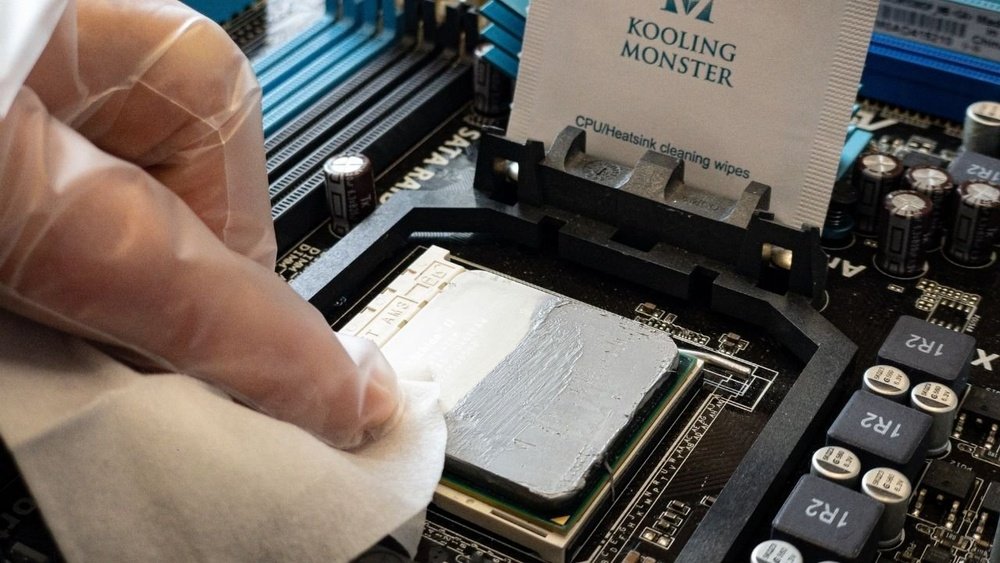
If isopropyl alcohol is unavailable, try other options. Use mild dish soap and warm water on a cloth. Wipe the CPU surface carefully, then dry it well. Another method is using special thermal paste remover wipes. These wipes are designed to clean without harming the CPU. Always be gentle to avoid scratching the surface.
Applying New Thermal Paste
Applying new thermal paste is an important step after cleaning the old paste from your CPU. It helps your processor stay cool and work well. Using the right amount and applying it correctly makes a big difference in performance. The goal is to create a thin, even layer that fills all small gaps between the CPU and the cooler.
Choosing The Right Amount
Use a small pea-sized drop of thermal paste in the center of the CPU. Too much paste can cause overheating and mess. Too little paste won’t cover the surface properly. The right amount spreads evenly when you attach the cooler. Keep the amount moderate for the best heat transfer.
Application Techniques
Place the thermal paste drop in the middle of the CPU. Avoid spreading it with tools or fingers. The pressure from the cooler will spread the paste evenly. Secure the cooler carefully to avoid shifting the paste. Check for any excess paste leaking out and clean it if needed.
Reassembling And Testing
After cleaning the thermal paste, carefully put the CPU cooler back. This step is important to keep your CPU cool and working well. Make sure the cooler fits tightly and connects properly. Loose coolers can cause high temperatures or damage.
Reattaching The Cooler
Place the cooler evenly on the CPU. Avoid sliding it around. Press down gently but firmly. Secure the screws or clips as needed. Follow the pattern recommended by the cooler manufacturer. Double-check all connections, including the fan cable. This ensures the fan will spin and cool the CPU.
Monitoring Cpu Temperatures
Turn on your computer and open a temperature monitor app. Watch the CPU temperature closely during the first minutes. Normal idle temperatures usually stay below 40°C. High temperatures may mean poor contact or too little thermal paste. Check the cooler placement and try again if needed. Good temperature control helps your CPU last longer and run smoother.

Credit: www.wepc.com
Common Mistakes To Avoid
Cleaning thermal paste from a CPU is simple but requires care. Many people make common mistakes that can harm the CPU or reduce cooling performance. Avoiding these errors helps keep your computer running smoothly and cool.
Overuse Of Thermal Paste
Using too much thermal paste is a frequent mistake. More paste does not mean better cooling. Excess paste can spill over and cause short circuits. It also creates a thicker layer that reduces heat transfer. Apply a small, pea-sized amount for best results.
Incomplete Cleaning
Not removing all old thermal paste causes poor contact between the CPU and cooler. This reduces cooling efficiency and raises temperature. Use a soft cloth or cotton swab with isopropyl alcohol to clean the CPU surface thoroughly. Check carefully until no residue remains.

Credit: www.youtube.com
Frequently Asked Questions
How Do I Safely Remove Thermal Paste From A Cpu?
Use isopropyl alcohol and a lint-free cloth or coffee filter. Gently wipe the paste without applying pressure. Avoid using water or abrasive materials to prevent damage.
What Materials Are Best For Cleaning Thermal Paste?
Isopropyl alcohol (70% or higher) and microfiber cloths work best. Coffee filters are also effective. Avoid paper towels or tissues that leave fibers behind.
Can I Reuse Thermal Paste After Cleaning?
No, always apply fresh thermal paste after cleaning. Reusing old paste reduces thermal conductivity and can cause overheating.
How Often Should Thermal Paste Be Cleaned From A Cpu?
Clean thermal paste during CPU maintenance or when replacing the cooler. Typically, this is every 2-3 years or if temperatures rise unusually.
Conclusion
Cleaning thermal paste from your CPU keeps your computer running cool. Use a soft cloth and gentle cleaner for the best results. Take your time to avoid damaging delicate parts. Clean surfaces carefully before applying new thermal paste. A clean CPU improves heat transfer and boosts performance.
Regular maintenance helps your PC last longer. Simple steps, big benefits. Keep your system fresh and working well.