How to Install a New Gpu: Easy Steps for Ultimate Performance
Are you ready to boost your computer’s power and experience smoother gaming, faster video editing, or improved graphic performance? Installing a new GPU (graphics processing unit) might sound tricky, but with the right steps, you can do it yourself quickly and safely.
In this guide, you’ll discover exactly how to install your new GPU without stress or mistakes. Keep reading, and you’ll unlock the full potential of your PC in no time. Your upgrade starts here!

Credit: www.wikihow.com
Choosing The Right Gpu
Choosing the right GPU is an important step before installing a new graphics card. The GPU affects your computer’s speed, graphics quality, and overall performance. Picking a suitable GPU saves money and avoids hardware problems. This guide helps you select the best GPU for your needs.
Compatibility With Your System
Check if the GPU fits your computer case. Some GPUs are large and need more space. Look at your motherboard to see if it supports the GPU slot type. Most modern GPUs use PCIe slots. Confirm your power supply can handle the new GPU’s power needs. Check the wattage and power connectors on the GPU. Make sure your CPU is strong enough to work well with the new GPU. A weak CPU can slow down the GPU’s performance.
Performance And Budget Considerations
Decide how you will use the GPU. For gaming, choose a card with high frame rates. For video editing, look for GPUs with more VRAM. Set a clear budget before shopping. More expensive GPUs offer better speed but cost more. Balance price with performance to get the best value. Look at reviews and benchmarks to compare models. Avoid overspending on features you don’t need.
Credit: www.asurion.com
Preparing Your Workspace
Preparing your workspace is the first step to install a new GPU safely and easily. A clean, organized area helps prevent damage and speeds up the process. Setting up the right environment protects your computer parts from harm. Follow these simple steps to get ready.
Gathering Necessary Tools
Collect all tools before you start. You will need a screwdriver, usually a Phillips head. Have a flashlight nearby if the space is dark. Keep your GPU and its manual close. Organize everything on a flat surface. This setup saves time and reduces mistakes.
Ensuring Static-free Environment
Static electricity can harm your GPU and other parts. Work on a hard, non-carpeted floor if possible. Avoid wearing wool or synthetic clothes. Use an anti-static wrist strap connected to your PC case. Touch a metal part of the case to discharge static. These steps protect your new GPU from damage.
Removing The Old Gpu
Removing the old GPU is the first step to install a new one. This process needs care and attention. A wrong move can damage your computer parts. Follow simple steps to remove the old GPU safely. Take your time and prepare your workspace well.
Powering Down And Unplugging
Turn off your computer completely. Press the power button until it shuts down. Unplug the power cable from the wall socket. Disconnect all other cables from the PC. This stops any electric flow that may harm you. Wait a few minutes to let the PC cool down.
Detaching Cables And Screws
Open the computer case by removing side panels. Find the GPU inside the case. Look for power cables connected to the GPU. Gently unplug these cables from the card. Locate the screws holding the GPU in place. Use a screwdriver to remove the screws carefully.
Careful Removal Techniques
Check for any locking mechanism on the GPU slot. Press or pull the lock to release the card. Hold the GPU firmly by its edges. Do not touch the gold connectors or chips. Slowly pull the GPU out of the slot. Place the old GPU on an anti-static surface.

Credit: www.youtube.com
Installing The New Gpu
Installing the new GPU is a crucial step in upgrading your computer. It needs care and attention to avoid any damage. Follow each step carefully for the best results.
Aligning And Securing The Card
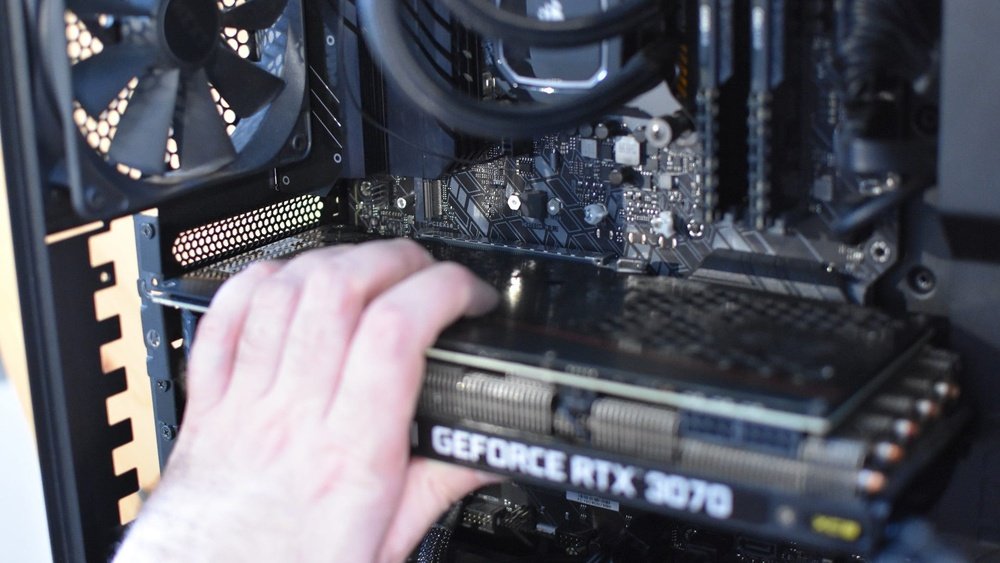
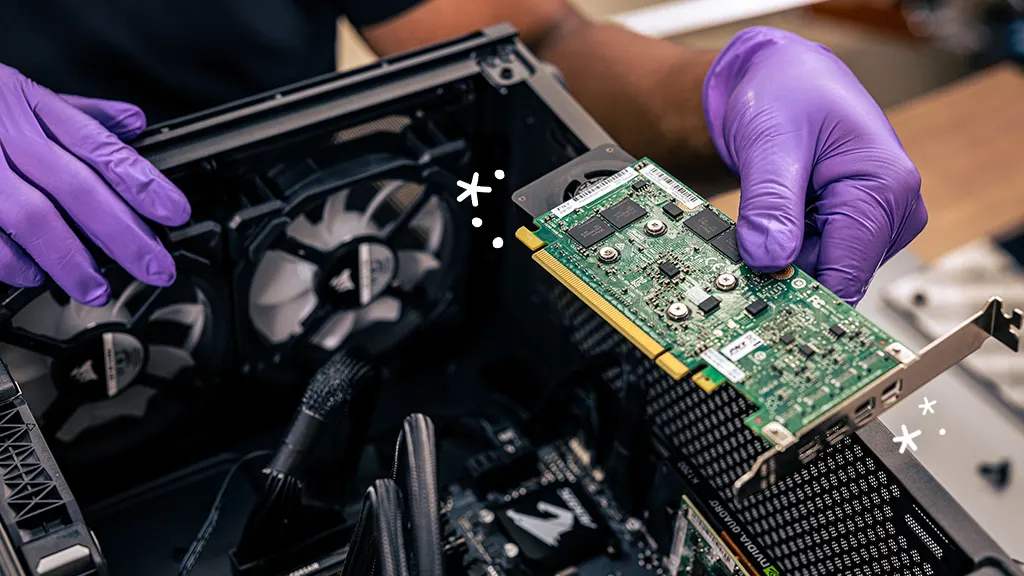
First, open your computer case and find the PCIe slot on the motherboard. Hold the GPU by its edges and align it with this slot. Push the card gently but firmly until it clicks into place. Check if the metal bracket fits snugly into the back of the case. Use screws to secure the card tightly to the case. This keeps the GPU steady and avoids damage during use.
Connecting Power Cables
Most new GPUs need extra power from the PSU (power supply unit). Locate the 6-pin or 8-pin power connectors from your PSU. Connect these cables firmly to the GPU’s power ports. Make sure cables are fully inserted and locked in place. Loose connections can cause your GPU to fail or the system to crash.
Double-checking Installation
After securing the card and connecting power, check your work carefully. Make sure the GPU is seated straight in the slot. Confirm all screws are tight but not over-tightened. Verify all power cables are connected properly. Close the case gently without forcing it. Your GPU is ready for the next step: installing drivers and testing.
Configuring Software Settings
After installing your new GPU, adjusting the software settings is crucial. These settings help your computer use the new hardware effectively. Proper configuration ensures smooth performance and better visuals.
Start by installing the correct drivers. Drivers are programs that let your system communicate with the GPU. Without the right drivers, the card may not work properly or at all.
Installing Drivers
Visit the GPU maker’s official website to download the latest drivers. Choose the driver version that matches your operating system. Download the file and run the installer. Follow the on-screen instructions to complete the process. Restart your computer to apply changes. Check the device manager to confirm the GPU is recognized.
Adjusting Display Settings
After installing drivers, adjust display settings for the best experience. Open your computer’s display settings or the GPU control panel. Set the screen resolution to the recommended level. Adjust refresh rate for smoother visuals. Configure multiple monitors if you use more than one screen. Save all changes before closing the settings window.
Optimizing Gpu Performance
Optimizing your new GPU is key to getting the best performance. A well-optimized GPU runs smoother and lasts longer. Small steps can make a big difference in gaming and work tasks.
Updating Firmware
Firmware controls your GPU’s basic functions. Manufacturers often release updates to fix bugs and improve speed. Check the official website for the latest firmware. Follow the instructions carefully to install updates safely. Updated firmware can reduce crashes and boost performance.
Using Performance Monitoring Tools
Performance tools help track your GPU’s temperature and speed. These tools show if the GPU runs too hot or slow. Use software like MSI Afterburner or GPU-Z for easy monitoring. Adjust fan speeds or settings based on the data. Monitoring helps keep your GPU healthy and efficient.
Troubleshooting Common Issues
Installing a new GPU may bring some common problems. Knowing how to fix these issues saves time and frustration. Troubleshooting helps your computer run smoothly and your GPU work well.
No Display Output
Check if the GPU is properly seated in the slot. Loose connection can cause no display. Make sure the monitor cable is connected to the GPU, not the motherboard.
Try using a different cable or port. Sometimes the cable is faulty. Also, check if the power connectors are attached firmly to the GPU.
Overheating Problems
Overheating can damage your GPU and reduce its performance. Ensure the fans spin freely and are clean from dust. Good airflow inside the case helps keep the GPU cool.
Apply new thermal paste if the GPU temperature stays high. Avoid overclocking until the temperature is stable. Use software to monitor the GPU temperature regularly.
Driver Conflicts
Driver conflicts can cause crashes or poor performance. Remove old GPU drivers before installing new ones. Use official websites to download the latest driver version.
Restart your computer after driver installation. If problems persist, try rolling back to a previous driver version. Keep your operating system updated for best compatibility.
Frequently Asked Questions
How Do I Prepare My Pc For A New Gpu Installation?
Turn off and unplug your PC first. Open the case and ground yourself to avoid static. Remove the old GPU carefully before installing the new one.
What Tools Are Needed To Install A New Gpu?
A Phillips-head screwdriver is usually required. Anti-static wristbands help prevent damage. Keep your screws and workspace organized for a smooth installation.
How To Connect Power Cables To A New Gpu?
Check your GPU’s power requirements. Connect the appropriate PCIe power connectors from the PSU. Ensure all connections are snug and secure before powering on.
How To Update Drivers After Installing A New Gpu?
Download the latest drivers from the GPU manufacturer’s website. Uninstall old drivers if necessary. Restart your computer after installation for optimal performance.
Conclusion
Installing a new GPU can improve your computer’s performance. Follow each step carefully to avoid mistakes. Make sure your PC is turned off before you start. Handle the GPU with care to protect its parts. Check all connections are secure before powering on.
Test your system to see if the GPU works well. Enjoy better graphics for games or work tasks. Taking time helps you install the GPU right the first time. You now have the tools to upgrade your PC confidently.