How to Keep a Gpu Cool: Essential Tips for Optimal Performance
Your GPU works hard every time you play games, edit videos, or run heavy software. When it gets too hot, performance drops, and your computer might even shut down unexpectedly.
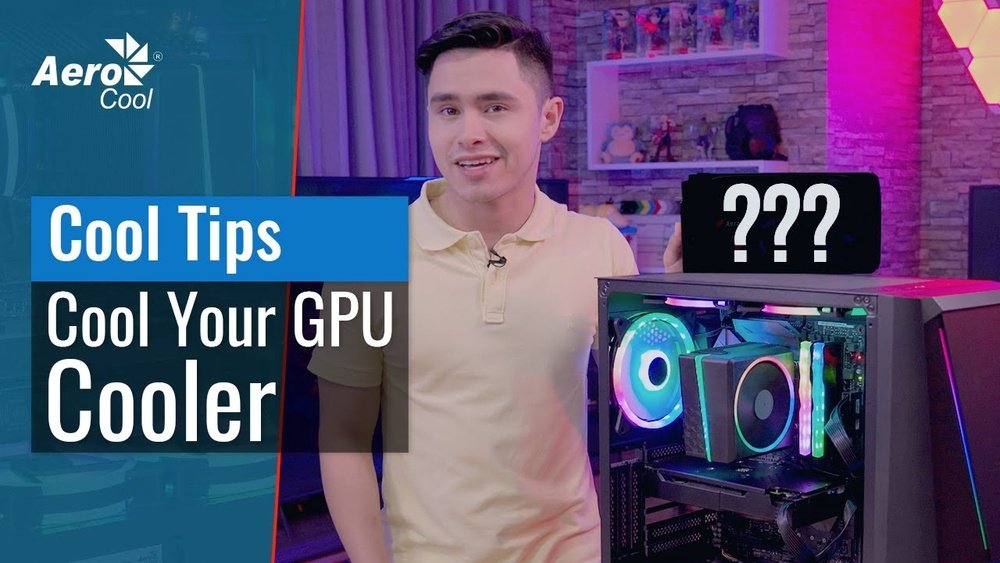
You don’t want that to happen, right? Keeping your GPU cool is essential to get the best speed and avoid costly damage. You’ll discover simple, effective ways to keep your GPU running smoothly and cool, so you can enjoy your computer without worry.
Ready to protect your investment and boost your system’s performance? Let’s dive in.
Signs Of Gpu Overheating
Keeping your GPU cool is important to avoid damage and keep it running well. Overheating can cause problems that affect your computer’s performance. Recognizing the signs of GPU overheating helps you act fast and protect your device.
Common Symptoms
One sign of overheating is the GPU fan running loudly or constantly. You may notice your computer crashing or freezing during use. Screen glitches or strange colors can also appear. Sometimes, your system may shut down without warning to protect itself.
Impact On Performance
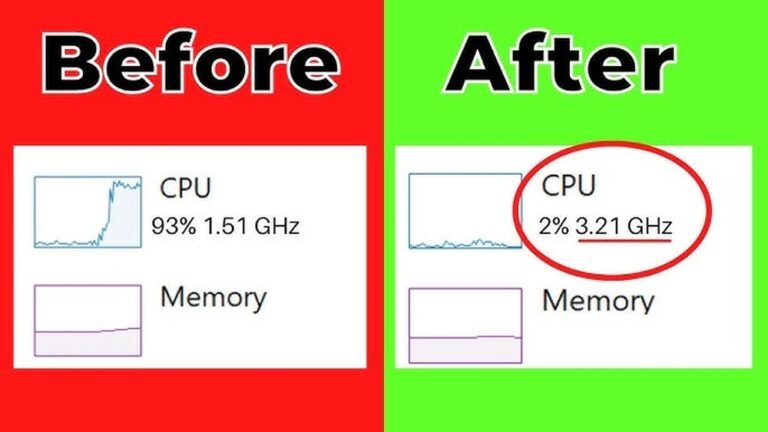
When the GPU gets too hot, it slows down to reduce heat. This causes lower frame rates and lag in games or apps. You might feel your computer is less responsive. Over time, overheating can shorten the GPU’s lifespan and cause permanent damage.
Choosing The Right Cooling System
Choosing the right cooling system for your GPU is very important. A good cooling system keeps your graphics card working well. It stops overheating and helps your computer last longer. Different cooling options fit different needs and budgets. Understanding the main types helps you pick the best one for your setup.
Air Cooling Solutions
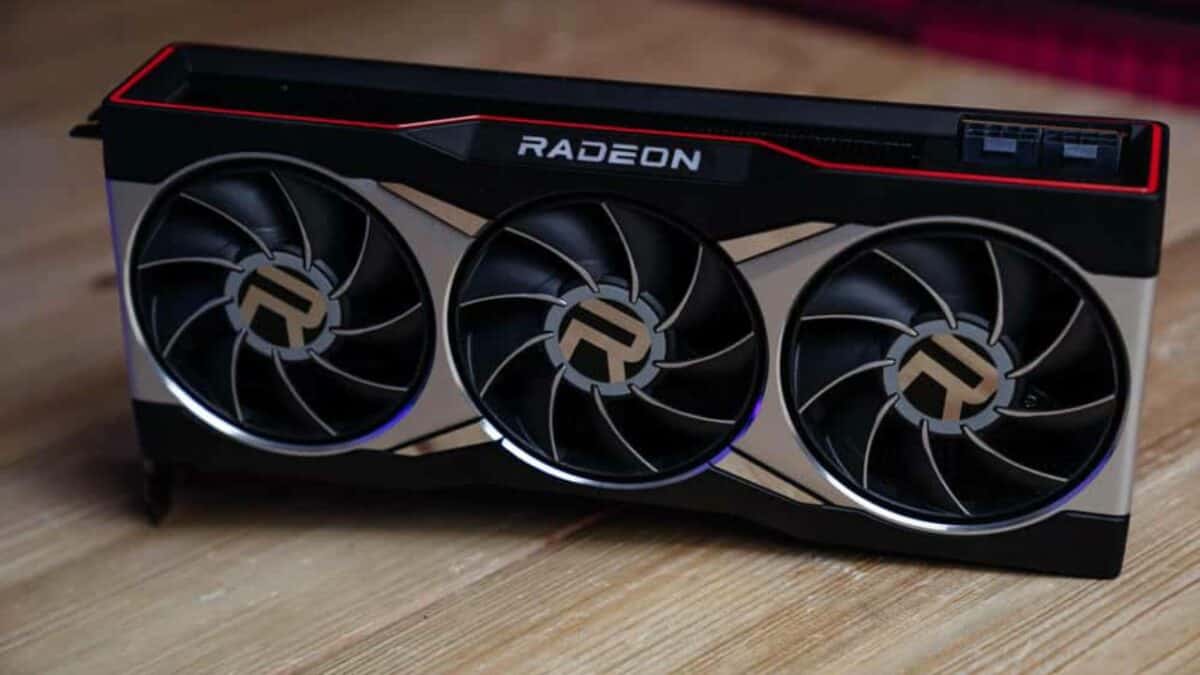
Air cooling is the most common method for GPUs. It uses fans to push hot air away from the card. These fans sit on heatsinks that absorb heat from the GPU chip. Air cooling is easy to install and usually cheaper than other methods. It works well for most users who do regular gaming or work. But, it can get noisy if the fans run fast. Also, air cooling may struggle with very powerful GPUs under heavy use.
Liquid Cooling Options
Liquid cooling uses water or special liquid to move heat away from the GPU. It has tubes and a radiator to cool the liquid before it returns. This method is very effective at lowering temperatures. Liquid cooling runs quieter than air cooling. It suits high-performance GPUs or overclocked systems that produce more heat. Installation is more complex and costs more. But it offers better cooling for serious users who want peak performance.
Improving Airflow In Your Case
Good airflow in your computer case helps keep your GPU cool. It moves hot air out and brings cool air in. This stops your GPU from getting too hot. Improving airflow is simple. It needs the right fan setup and neat cables. Both help air flow smoothly inside the case.
Optimal Fan Placement
Place fans where they move air well. Front fans should pull cool air inside. Rear and top fans push hot air out. This creates a flow that cools your GPU fast. Avoid blocking fans with big parts. Check that air can move freely around the GPU. Use enough fans to keep air moving but not too many.
Cable Management Tips
Keep cables tidy and out of airflow paths. Use cable ties or Velcro straps to bundle cables. Route cables behind the motherboard tray if possible. This clears space for air to move inside the case. Messy cables block airflow and cause heat spots. Good cable management improves cooling and makes your PC look clean.
Credit: www.overclock.net
Regular Maintenance Practices
Keeping a GPU cool requires regular care. Small habits help your graphics card run smoothly. Regular maintenance stops dust and heat from causing damage. It also improves performance and extends the GPU’s life.
Cleaning Dust And Debris
Dust blocks airflow and traps heat inside the GPU. Use a soft brush or compressed air to clean the fans. Clean the vents and heatsinks carefully. Do this every few months to keep the GPU cool. Avoid using a vacuum as it can damage parts.
Replacing Thermal Paste
Thermal paste helps transfer heat from the GPU chip to the cooler. Over time, it dries out and loses effectiveness. Remove the old paste gently with isopropyl alcohol. Apply a small, fresh layer of thermal paste evenly. This step lowers the GPU temperature significantly. Replace thermal paste every one to two years for best results.
Adjusting Gpu Settings
Adjusting your GPU settings helps control its temperature and performance. It allows you to reduce heat and keep the graphics card stable. Small changes in settings can lower power use and boost cooling. This keeps your GPU from getting too hot during heavy use.
Undervolting Techniques
Undervolting means lowering the voltage your GPU uses. It cuts power consumption without reducing speed much. This reduces heat and can extend your GPU’s life. Use software tools like MSI Afterburner or GPU Tweak to change voltage settings. Test stability after each change. Stop if your system crashes or shows errors. Undervolting is safe if done carefully and helps keep your GPU cool.
Fan Speed Controls
Controlling fan speed directly affects GPU temperature. Most GPUs let you adjust fan curves in their software. Set fans to spin faster at lower temperatures to cool sooner. This stops heat from building up inside your case. Beware of loud noise from high fan speeds. Find a balance between cooling and noise. Manual control often cools better than automatic settings.
Monitoring Gpu Temperature
Monitoring GPU temperature is vital to keep your graphics card safe. High temperatures can reduce performance and damage the hardware. Checking the temperature helps you act early and avoid overheating. You can track the heat using simple tools and set alerts for safety.
Using Software Tools
Many programs show your GPU temperature clearly. Tools like MSI Afterburner and HWMonitor display real-time data. These apps run in the background and update the temperature regularly. Some software also shows fan speed and usage, helping you understand your GPU better.
Setting Temperature Alerts
Temperature alerts warn you when the GPU gets too hot. You can set a safe limit, such as 80°C. The software will notify you with a sound or message. Alerts prevent damage by prompting you to cool down the system quickly.
Upgrading Hardware For Better Cooling
Upgrading hardware can improve your GPU’s cooling significantly. Better parts help move heat away faster. This keeps your GPU running cooler and longer. You can choose from several hardware upgrades that fit your needs and budget. Here are two effective options.
Aftermarket Gpu Coolers
Aftermarket GPU coolers replace the stock cooler on your graphics card. They usually have bigger fans and more heat pipes. This design moves heat away from the GPU more efficiently. Many models use quiet fans, reducing noise while cooling better. Installing one can drop temperatures by 10 to 20 degrees Celsius. These coolers suit gamers and creators who push their GPUs hard. Make sure the cooler fits your GPU model before buying.
High-performance Thermal Pads
Thermal pads sit between the GPU chip and the cooler. They help transfer heat from the chip to the cooler. High-performance thermal pads use better materials than the stock ones. They offer improved heat conductivity, reducing the chip temperature. Replacing old or damaged pads can fix overheating issues. These pads are easy to install with basic tools. Choose pads with the right thickness for your GPU to ensure a tight fit.
Credit: hone.gg
Credit: www.wepc.com
Frequently Asked Questions
How Can I Reduce Gpu Temperature Quickly?
To reduce GPU temperature quickly, improve airflow in your PC case. Clean dust from fans and heatsinks regularly. Lower in-game settings to reduce load. Applying high-quality thermal paste can also help dissipate heat efficiently.
What Is The Ideal Gpu Temperature Range?
The ideal GPU temperature range is between 65°C to 85°C during heavy use. Temperatures above 90°C can risk damage. Keeping your GPU cool improves performance and longevity. Use monitoring tools to track temperature consistently.
Does Gpu Fan Speed Affect Cooling?
Yes, GPU fan speed directly affects cooling efficiency. Higher fan speeds increase airflow, lowering temperatures. Adjust fan curves in software to balance noise and cooling. Ensure fans are clean and functioning properly for best results.
Can Ambient Room Temperature Impact Gpu Cooling?
Ambient room temperature significantly impacts GPU cooling. Higher room temperatures reduce heat dissipation efficiency. Keeping your room cool with air conditioning or fans helps maintain optimal GPU temperatures. Proper ventilation also supports better cooling.
Conclusion
Keeping your GPU cool helps it run better and last longer. Clean fans and good airflow make a big difference. Using the right thermal paste improves heat transfer. Monitor your GPU temperature to catch problems early. Small steps can prevent overheating and crashes.
A cool GPU means smoother gaming and faster work. Take care of your hardware to enjoy better performance daily. Simple habits keep your system safe and reliable. Stay mindful of your GPU’s heat for best results.