How to Monitor the Temperature of Your Cpu: Easy Steps to Prevent Overheating
Your CPU is the heart of your computer, working hard every second to keep things running smoothly. But did you know that if it gets too hot, it can slow down, crash, or even get damaged?
Knowing how to monitor your CPU temperature is essential to protect your device and keep it performing at its best. You’ll discover simple and effective ways to keep an eye on your CPU’s heat levels. By the end, you’ll have the confidence to prevent overheating before it becomes a problem.
Ready to learn how to safeguard your computer? Let’s get started.
Why Cpu Temperature Matters
Monitoring your CPU temperature is important for your computer’s health. The CPU works hard to process tasks, and it generates heat. Too much heat can cause serious problems. Keeping an eye on temperature helps avoid damage and keeps your system running smoothly.
Understanding why CPU temperature matters helps you protect your device. It also improves performance and prevents unexpected shutdowns. Here are key reasons to monitor your CPU temperature closely.
Preventing Overheating Damage
High temperatures can harm your CPU and other parts. Overheating may cause permanent damage or shorten the CPU’s life. By watching the temperature, you can stop overheating before it causes problems.
Maintaining System Performance
When a CPU gets too hot, it slows down to cool off. This reduces your computer’s speed and responsiveness. Keeping the temperature low helps maintain peak performance during work or play.
Avoiding Unexpected Shutdowns
Many computers shut down automatically if the CPU gets too hot. This protects the hardware but can interrupt your work. Monitoring temperature helps you fix heat issues before shutdown happens.
Saving Energy And Reducing Noise
A hot CPU needs more cooling power, which uses more energy. Fans run faster and louder to cool the system. Cooler temperatures help save energy and keep noise levels down.
Common Causes Of Cpu Overheating
CPU overheating is a common problem. It can cause your computer to slow down or shut off. Knowing the causes helps you prevent damage. Many factors can raise CPU temperature quickly.
Some causes are easy to fix. Others need more attention. Understanding these causes keeps your CPU safe and your PC running well.
Poor Airflow Inside The Computer Case
Airflow moves hot air out and cool air in. Dust and cables can block airflow. Without proper airflow, heat builds up fast. Clean your computer case regularly. Arrange cables neatly to avoid blocking air paths.
Faulty Or Inadequate Cooling System
The cooling system includes fans and heat sinks. Broken fans or bad thermal paste reduce cooling. Stock coolers may not be enough for powerful CPUs. Upgrade your cooling system if needed. Check fans often to ensure they spin well.
High Cpu Usage For Long Periods
Running many programs or heavy tasks heats the CPU. Games, video editing, and mining use more CPU power. High usage for hours raises temperature a lot. Close unused programs to reduce load. Monitor CPU usage with simple tools.
Overclocking Without Proper Cooling
Overclocking makes the CPU run faster than normal. This creates more heat. Without good cooling, the CPU overheats quickly. Use extra cooling solutions if you overclock. Watch the temperature closely during overclocking.
Old Or Dried Thermal Paste
Thermal paste helps heat move from CPU to cooler. Over time, it dries out and loses effectiveness. Old thermal paste causes poor heat transfer. Replace thermal paste every few years. This keeps your CPU cooler and safer.
Tools To Check Cpu Temperature
Keeping an eye on your CPU temperature helps protect your computer. High temperatures can cause slowdowns or damage. Several tools let you check how hot your CPU is running. These tools range from simple built-in options to advanced hardware sensors. Choose the right one based on your needs and skills.
Built-in Bios Monitoring
Your computer’s BIOS has a basic temperature monitor. You can access it by pressing a key during startup, like F2 or Delete. This tool shows CPU temperature in real-time. It does not need extra software and works even if your operating system is off. The BIOS monitor offers simple and direct temperature readings.
Third-party Software Options
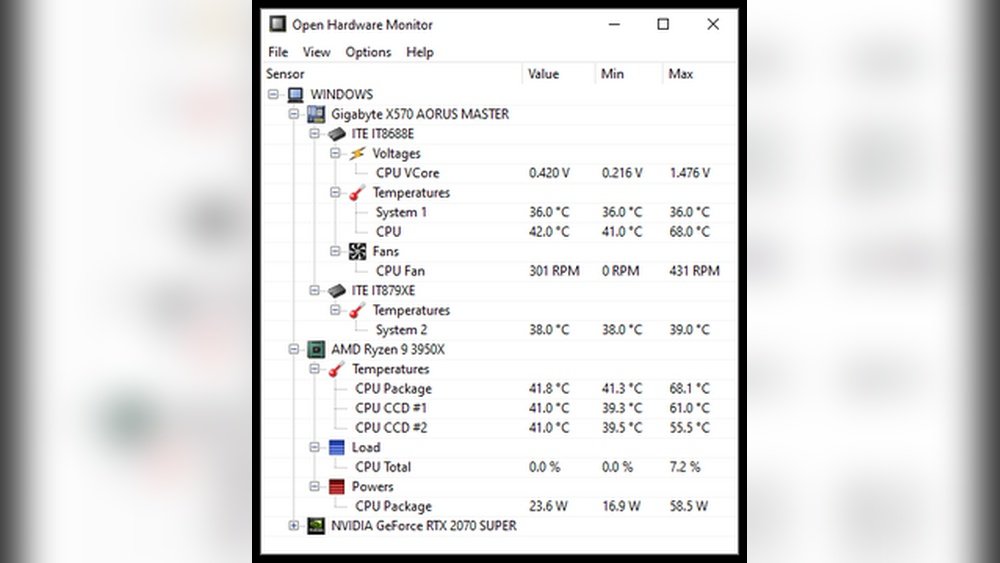
Many programs provide detailed CPU temperature data. Popular options include HWMonitor, Core Temp, and SpeedFan. These apps show temperatures for each CPU core. They often display other stats, like fan speed and voltage. You can set alerts to warn if temperatures rise too high. These tools are easy to install and use on Windows or Mac.
Hardware Temperature Sensors
External sensors connect to your CPU or motherboard. They offer accurate temperature readings. These sensors often come with a small display or connect to your PC via USB. They work independently from software. Hardware sensors are useful for overclockers and PC builders. They provide precise monitoring in real-time.

Credit: www.youtube.com
Step-by-step Temperature Monitoring
Monitoring your CPU temperature helps keep your computer safe and fast. Overheating can cause slowdowns or damage. You need to check the temperature regularly.
This step-by-step guide shows simple ways to watch your CPU heat. You can use the BIOS or software tools. Also, learn to set alerts for high temperatures. Follow these easy steps to protect your PC.
Accessing Bios Temperature Readings
Restart your computer and enter the BIOS setup. Usually, press the Delete or F2 key during startup. Look for a menu like “Hardware Monitor” or “PC Health.” Here, you find the CPU temperature readings. The numbers show current heat in degrees Celsius or Fahrenheit. Note the temperature and exit BIOS without changing settings.
Using Software To Track Cpu Heat
Download a trusted CPU temperature tool like HWMonitor or Core Temp. Install and open the program. It shows live temperature updates for each CPU core. You can watch the temperature while using your computer. Some programs also display fan speeds and voltage. Check the temperature during heavy tasks to ensure safety.
Setting Up Alerts For High Temperature
Many monitoring tools let you set alert limits. Choose a safe maximum temperature, usually below 85°C. Set the alert to notify you by sound or popup. This warning helps avoid overheating damage. Adjust the alert settings in the software preferences. Alerts keep you informed without constant checking.
Tips To Keep Cpu Cool
Keeping your CPU cool is important for your computer’s health. A hot CPU can slow down your system and cause damage. Simple steps help keep the temperature low and improve performance. Here are some easy tips to keep your CPU cool.
Improving Airflow Inside Your Case
Good airflow moves hot air out and fresh air in. Remove dust from fans and vents often. Use more case fans if needed. Arrange cables neatly to avoid blocking air. Place your computer in a well-ventilated area. These steps help air flow smoothly and reduce heat.
Applying Thermal Paste Correctly
Thermal paste helps transfer heat from the CPU to the cooler. Clean off old paste before applying new. Use a small, pea-sized amount in the center of the CPU. Spread it evenly by pressing the cooler down gently. Too much or too little paste lowers cooling efficiency.
Upgrading Cooling Systems
Stock coolers may not be enough for heavy use. Consider aftermarket air coolers with bigger fans or heat pipes. Liquid cooling systems offer better heat management. Choose a cooler that fits your case and CPU socket. Better cooling means lower temperatures and longer CPU life.

Credit: softwareg.com.au
Signs Of Cpu Overheating
Knowing the signs of CPU overheating helps protect your computer. Overheating can cause damage and reduce performance. Spotting problems early keeps your system safe.
Here are common signs that show your CPU is running too hot. Recognizing these signs helps you take action fast.
Unexpected Shutdowns Or Restarts
Your computer may turn off or restart without warning. This happens to protect the CPU from heat damage. Frequent shutdowns mean the CPU is too hot.
Slow Performance And Lag
The CPU may slow down when it gets too hot. Programs respond slowly or freeze. This is the CPU’s way to cool itself by reducing speed.
Unusual Noises From Fans
Fans may run louder or faster than usual. The system tries to cool the CPU by increasing airflow. Constant loud fans can mean high CPU temperature.
High Temperature Readings
Temperature monitoring tools show CPU heat levels. Readings above 80°C (176°F) are a warning. High temps need immediate attention to avoid damage.
Visual Artifacts Or Screen Flickering
Overheating can cause strange colors or flickers on screen. Graphics glitches may appear during heavy use. These are signs the CPU or GPU is too hot.

Credit: www.alcpu.com
Frequently Asked Questions
How Can I Check My Cpu Temperature On Windows?
You can check CPU temperature using software like HWMonitor or Core Temp. These tools provide real-time temperature readings and alerts. They are easy to install and user-friendly, helping you monitor your CPU’s health effectively.
What Is A Safe Cpu Temperature Range?
A safe CPU temperature typically ranges between 30°C and 70°C during normal use. Temperatures above 80°C can cause performance issues or damage. Always aim to keep your CPU cool for optimal performance and longevity.
Why Does My Cpu Temperature Suddenly Spike?
Sudden temperature spikes can happen due to heavy CPU usage, dust buildup, or poor cooling. Running demanding applications or games increases heat output. Regular cleaning and proper ventilation help maintain stable temperatures.
Which Tools Are Best For Cpu Temperature Monitoring?
Popular tools include HWMonitor, Core Temp, and SpeedFan. These apps offer accurate temperature readings, fan speed control, and logging features. Choose one based on your needs and operating system compatibility.
Conclusion
Monitoring your CPU temperature keeps your computer safe and running well. Use simple tools to check the heat often. Watch for signs of overheating, like slow performance or loud fans. Clean your computer to help cool it down. Stay aware, and your CPU will last longer.
Small steps can prevent big problems later. Keep checking, and enjoy a smoother, cooler computer experience.