How to Fix Overheated Cpu: Quick & Easy Cooling Solutions
Is your computer suddenly running slow or shutting down without warning? Your CPU might be overheating, and that can cause serious problems.
But don’t worry—you can fix this. You’ll learn simple, effective steps to cool down your CPU and keep your computer running smoothly. By the end, you’ll know exactly what to do to protect your device and avoid costly repairs. Keep reading—your computer’s health depends on it.

Credit: www.avira.com
Causes Of Cpu Overheating
CPU overheating happens when the processor gets too hot. This can cause slow performance and damage. Understanding the causes helps fix the problem early. Several factors lead to high CPU temperatures. These include airflow, dust, thermal paste, cooling fans, and heavy CPU use.
Poor Airflow
Airflow moves heat away from the CPU. Poor airflow traps hot air inside the case. This raises the CPU temperature quickly. Blocked vents or a small case limit airflow. Cases with few fans also struggle to keep cool air flowing.
Dust Accumulation
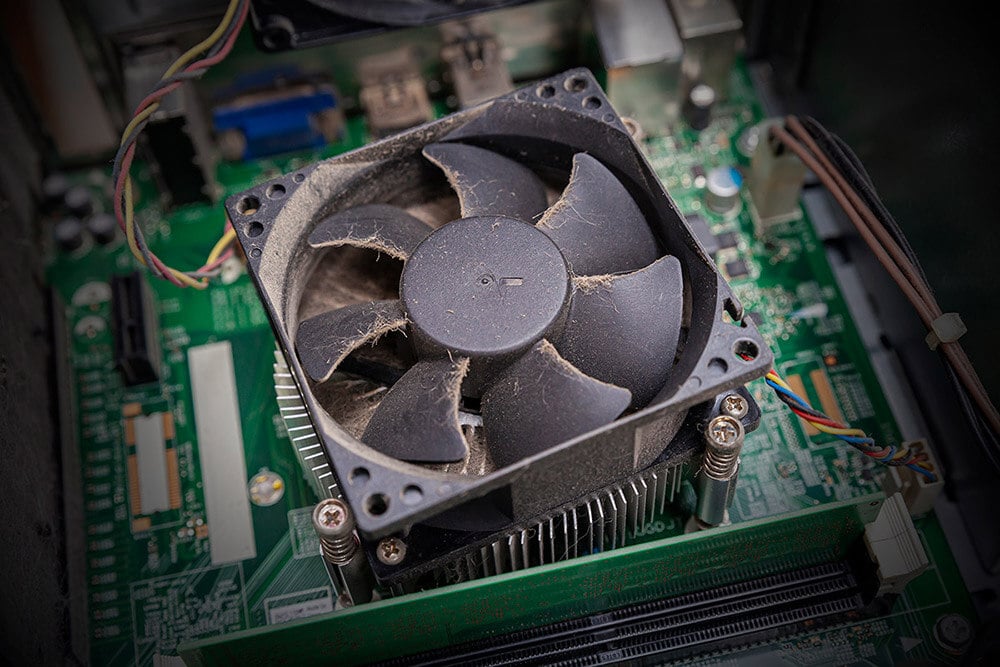
Dust builds up inside the computer over time. It blocks vents and covers cooling parts. Dust on fans stops them from spinning well. This reduces cooling power and causes heat to build. Regular cleaning helps avoid dust problems.
Thermal Paste Issues
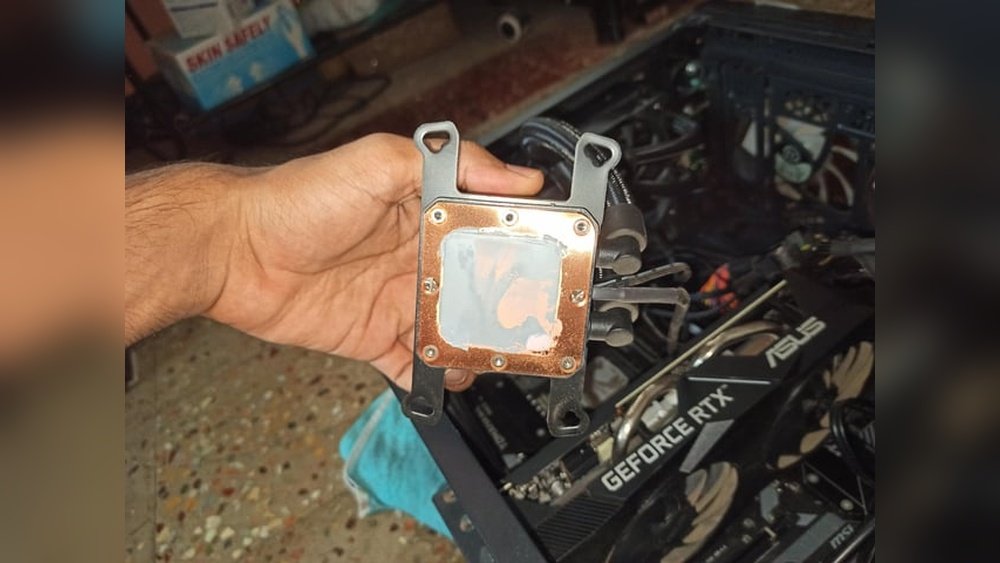
Thermal paste helps transfer heat from the CPU to the cooler. Old or dry thermal paste stops heat transfer. This makes the CPU hotter than usual. Applying fresh thermal paste improves cooling and lowers temperature.
Faulty Cooling Fans
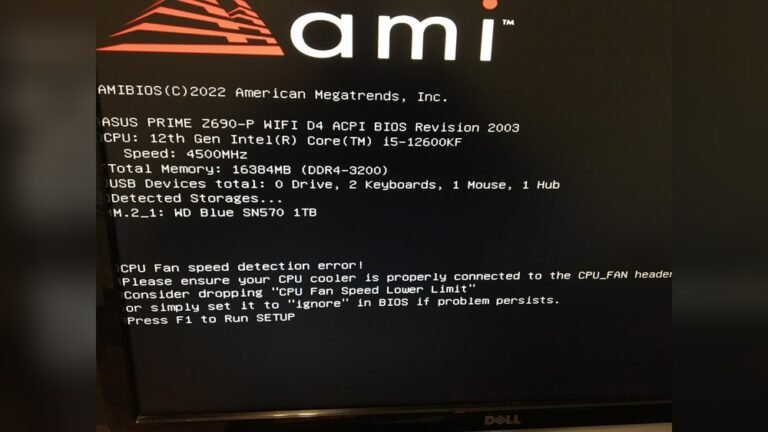
Fans cool the CPU by moving hot air out. Broken or slow fans cannot cool properly. This causes the CPU to overheat quickly. Checking fan function and replacing bad fans keeps cooling effective.
High Cpu Usage
Heavy CPU tasks generate more heat. Running many programs or demanding software raises CPU load. High CPU usage for long times causes overheating. Monitoring and reducing CPU load helps keep temperatures low.

Credit: www.reddit.com
Immediate Cooling Fixes
Overheating CPUs need quick action to prevent damage. Immediate cooling fixes help lower the temperature fast. These steps are easy and effective for most users.
Shut Down And Let It Cool
Turn off your computer right away. Let it rest for at least 15 to 30 minutes. This pause stops the heat buildup. It gives the CPU time to cool naturally.
Clean Dust From Components
Dust blocks air and traps heat inside the case. Use a soft brush or compressed air to clean fans and vents. Clear dust from the CPU heatsink for better cooling. Regular cleaning keeps air flowing freely.
Reapply Thermal Paste
Thermal paste helps transfer heat from the CPU to the cooler. Old paste can dry out and lose effect. Remove the cooler, clean off old paste, and apply new paste carefully. This improves heat transfer instantly.
Improve Airflow Setup
Good airflow moves hot air out and brings cool air in. Arrange cables neatly to avoid blocking fans. Add extra case fans if needed. Make sure intake and exhaust fans work well together. This keeps the CPU temperature down.
Upgrading Cooling Systems
Upgrading your computer’s cooling system can stop your CPU from overheating. Better cooling means your CPU runs cooler and lasts longer. Simple upgrades can make a big difference in temperature. Explore some easy and effective ways to cool your CPU below.
Installing Better Cpu Fans
Stock CPU fans often lack power and efficiency. Installing a high-quality fan improves airflow and cools the CPU faster. Choose fans with higher RPM and better blade design. Quiet fans keep noise low while cooling well. Make sure the fan fits your CPU socket and case.
Using Liquid Cooling
Liquid cooling uses water or coolant to move heat away from the CPU. It works faster than air cooling in many cases. Liquid cooling systems include a pump, radiator, and tubes. They are ideal for high-performance or overclocked CPUs. Installation can be tricky but worth it for better cooling.
Adding Case Fans
Case fans help move hot air out and bring cool air in. More fans create better airflow inside the computer case. Position fans at the front for intake and back or top for exhaust. Check your case for extra fan slots before buying. Proper airflow reduces overall CPU temperature effectively.
Upgrading To A Bigger Heatsink
Bigger heatsinks have more metal surface area to absorb heat. They transfer heat away from the CPU quickly. Choose a heatsink that fits your case and motherboard space. Larger heatsinks often come with better fans included. This upgrade lowers temperature without much noise increase.
Credit: www.avast.com
Software Solutions To Reduce Heat
Software solutions can help lower your CPU temperature without opening your computer. These methods control how your CPU works and how your computer cools itself. Using software tools lets you watch and manage heat easily.
These steps reduce stress on your CPU and help keep it cool. Let’s explore some key ways software can reduce CPU heat.
Monitoring Cpu Temperature
First, check your CPU’s temperature with monitoring software. Tools like HWMonitor or Core Temp show real-time heat levels. Watch the temperature during normal use and heavy tasks. Knowing the temperature helps you act before overheating happens.
Adjusting Fan Speeds
Use fan control software to change how fast your fans spin. Faster fans cool the CPU better but may be louder. Slower fans are quieter but can let heat build up. Find a good balance between cooling and noise for your system.
Managing Background Processes
Close unnecessary programs running in the background. Too many processes make the CPU work harder and heat up. Use Task Manager to see and stop apps you do not need. This frees CPU power and lowers heat.
Updating Bios And Drivers
Keep your BIOS and device drivers updated. Updates often include fixes for better CPU and fan control. Check your computer maker’s website for the latest versions. Installing updates can improve system stability and reduce overheating.
Preventing Future Overheating
Preventing future CPU overheating helps your computer run smoothly. It stops damage and keeps performance steady. Simple habits and small changes make a big difference. Follow these tips to keep your CPU cool and safe.
Regular Cleaning Schedule
Dust and dirt block airflow inside your PC. Clean your computer every few months. Use a soft brush or compressed air. Focus on fans, vents, and heat sinks. This keeps air moving and cools the CPU better.
Optimizing Pc Placement
Place your PC in a cool, open space. Avoid tight spots like cabinets or corners. Keep it away from direct sunlight and heat sources. A good spot helps air flow freely around your computer.
Using Quality Thermal Paste
Thermal paste helps heat move from CPU to cooler. Old or poor-quality paste can cause overheating. Use a good thermal paste and apply it correctly. Replace it every couple of years for best results.
Ensuring Proper Ventilation
Make sure your PC case has enough fans. Intake fans bring cool air in. Exhaust fans push hot air out. Keep cables tidy to avoid blocking airflow. Proper ventilation lowers CPU temperature effectively.
Frequently Asked Questions
How Can I Tell If My Cpu Is Overheating?
You can check CPU temperature using software like HWMonitor or Core Temp. Symptoms include sudden shutdowns, slow performance, and system crashes. Monitoring helps prevent damage and maintain optimal performance.
What Are The Main Causes Of Cpu Overheating?
Common causes include dust buildup, poor ventilation, dried thermal paste, and faulty cooling fans. Overclocking and high ambient temperatures also raise CPU heat levels, leading to overheating.
How Do I Clean My Cpu To Prevent Overheating?
Turn off your PC, open the case, and use compressed air to remove dust. Clean fans and heatsinks gently. Replace thermal paste if it’s dried out to improve heat transfer.
Can Software Settings Help Reduce Cpu Overheating?
Yes, adjusting power settings, limiting background processes, and updating drivers can reduce CPU load. Using cooling management software to control fan speeds also helps keep temperatures lower.
Conclusion
Keeping your CPU cool helps your computer work better and last longer. Clean dust from fans and vents often. Use good thermal paste to improve heat transfer. Make sure your computer has enough airflow. Check fan speeds and replace broken fans quickly.
Avoid running heavy programs for too long without breaks. Simple steps can stop overheating and protect your device. Stay alert to any signs of heat problems. A cool CPU means a happy computer.