How to Control Gpu Fan Speed Nvidia: Ultimate Guide for Optimal Cooling
Is your Nvidia GPU running hotter than you’d like? Controlling your GPU fan speed can make a big difference in keeping your graphics card cool and performing well.
If you’ve ever wished you could lower the noise or boost the cooling power, you’re in the right place. You’ll discover simple, effective ways to take control of your Nvidia GPU fan speed. Keep reading to learn how to protect your hardware, improve your gaming experience, and enjoy a quieter PC.
Why Control Nvidia Gpu Fan Speed
Controlling the Nvidia GPU fan speed helps manage your graphics card’s temperature and noise. It lets you balance cooling and sound levels. This control can improve your computer’s performance and lifespan. Knowing why to adjust fan speed is the first step to safer and better use.
Benefits Of Custom Fan Speeds
Custom fan speeds keep your GPU cool under heavy use. Cooler parts work faster and last longer. You can reduce noise by lowering fan speed during light tasks. This creates a quieter workspace or gaming setup. Adjusting fans also helps avoid overheating and sudden shutdowns.
Risks Of Improper Fan Settings
Setting fan speeds too low can cause your GPU to overheat. Heat damage may reduce your card’s performance or cause failure. High fan speeds all the time can wear fans out quickly. Loud noise may become distracting and annoying. Proper settings protect your GPU and keep it running smoothly.

Credit: forums.developer.nvidia.com
Tools For Adjusting Nvidia Gpu Fan Speed
Controlling the fan speed of your Nvidia GPU helps keep your system cool and quiet. Several tools allow you to adjust this speed easily. These tools range from built-in software to third-party programs. They give you options to customize the fan settings based on your needs. Understanding these tools helps you manage your GPU temperature better.
Nvidia Control Panel Features
The Nvidia Control Panel includes some basic fan control options. It mainly focuses on optimizing GPU performance and temperature. You can set the fan to run at a fixed speed or let it adjust automatically. The interface is user-friendly and easy to navigate. This tool is already installed with Nvidia drivers, so no extra downloads are needed. It suits users who want simple adjustments without complex settings.
Third-party Software Options
Third-party software offers more detailed control over GPU fan speeds. Popular tools include MSI Afterburner and EVGA Precision X1. These programs provide custom fan curves for precise temperature management. Users can create profiles for different tasks like gaming or video editing. Many third-party options also display real-time temperature and usage stats. They are useful for users who want advanced control and detailed monitoring.
Step-by-step Fan Speed Adjustment
Adjusting the GPU fan speed helps control temperature and noise levels. Nvidia software offers tools to change fan settings easily. Follow these steps to manage your GPU fan speed effectively.
Accessing Fan Controls In Nvidia Software
First, open the Nvidia Control Panel or Nvidia GeForce Experience. Look for the “Performance” or “Fan” section. If your software lacks fan controls, try third-party apps like MSI Afterburner. These tools connect directly to your GPU for better control.
Setting Manual Fan Curves
Manual fan curves let you set fan speed based on temperature. Start by enabling manual mode in the fan settings. Create points on the curve, matching fan speed to specific temperatures. For example, set low fan speed at 30°C and increase it as temperature rises. This balance keeps your GPU cool without too much noise.
Testing And Monitoring Fan Performance
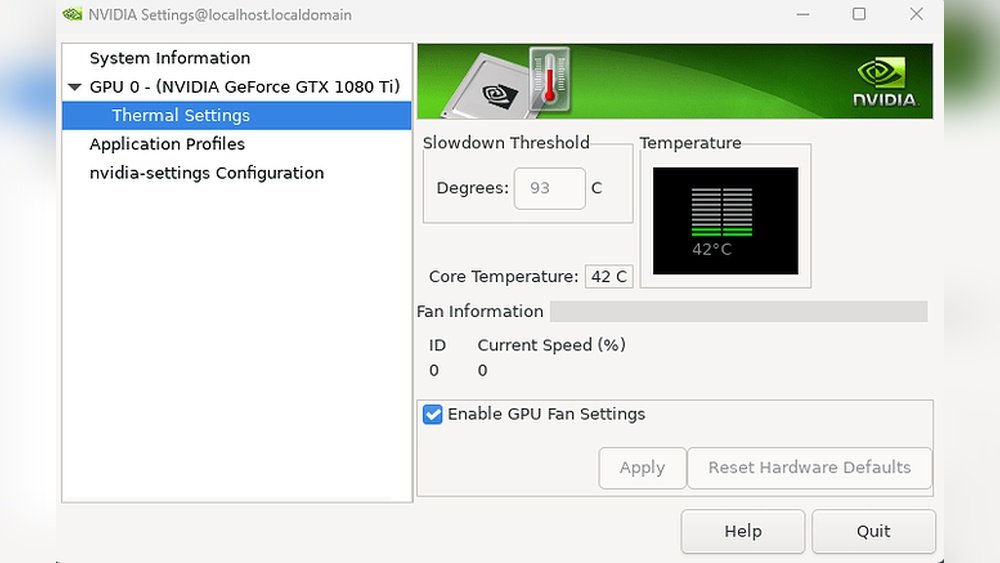
After setting the fan curve, monitor GPU temperature and noise. Use software like GPU-Z or HWMonitor to watch temperature changes. Run games or heavy applications to test fan response. Adjust the curve if fans run too loud or temperatures stay high. Proper testing ensures your GPU runs smoothly and quietly.

Credit: www.youtube.com
Optimizing Fan Speed For Cooling And Noise
Optimizing your Nvidia GPU fan speed helps keep your graphics card cool and quiet. Proper fan control prevents overheating and reduces noise. Adjusting fan speed balances cooling performance with sound levels.
Finding the right balance improves your computer’s lifespan and comfort. It also helps your GPU run smoothly under different workloads.
Balancing Temperature And Acoustics
GPU fans spin faster as temperatures rise. This cools the card but creates more noise. Running fans too slow risks overheating and damage. Running fans too fast makes your PC noisy.
Set fan curves to increase speed gradually with temperature. This keeps your GPU cool without loud noise spikes. Monitor your card’s temperature during use. Adjust fan speed to keep temps under 80°C for safety.
Profiles For Gaming Vs. Idle States
Gaming demands high GPU power and heat. Fans should spin faster to cool the card well. Use a profile that increases fan speed quickly during gaming.
At idle or low use, your GPU stays cooler. Fans can run slower or stop to reduce noise. Set a quiet profile for these times.
Switching between profiles lets you balance cooling and noise. Use software like Nvidia Control Panel or third-party tools. Customize fan speeds for different activities easily.
Troubleshooting Fan Speed Issues
Controlling your Nvidia GPU fan speed can help keep your system cool. Sometimes, the fan might not work as expected. Troubleshooting fan speed issues can save your GPU from damage. Understanding common problems helps fix them quickly.
Fan Not Responding To Changes
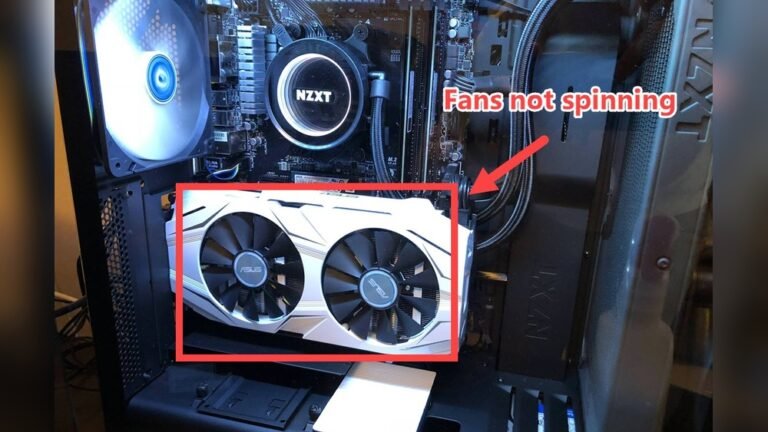
The fan may stay at the same speed despite adjustments. Check if your fan control software is running with admin rights. Make sure you use the latest version of the control program. Sometimes, a driver update can fix the problem. Restart your computer after making changes. If the fan still does not respond, the hardware might have a fault.
Overheating Despite Fan Adjustments
Your GPU may overheat even if the fan speed is high. Dust buildup can block airflow and cause heat. Clean the fan and vents carefully with compressed air. Check if the thermal paste between GPU and cooler is dried out. Replace the paste if needed for better heat transfer. Also, ensure your case has good ventilation. Poor airflow inside the case can raise temperatures. Monitor the GPU temperature with software to track improvements.

Credit: softwareg.com.au
Advanced Cooling Techniques
Advanced cooling techniques help keep your Nvidia GPU cool under heavy use. These methods go beyond standard software controls. They improve airflow and fan response for better heat management. Proper cooling extends your GPU’s life and maintains steady performance.
Using External Cooling Solutions
External cooling helps reduce GPU temperature efficiently. You can add cooling pads or external fans aimed at your GPU. These devices improve air circulation around the graphics card. A cooling stand with fans is useful for laptops with Nvidia GPUs. External cooling lowers heat without changing the GPU’s settings.
Bios Fan Curve Modifications
BIOS fan curve changes let you control fan speed at specific temperatures. This method requires entering your GPU’s BIOS settings. You can set the fan to spin faster at lower temperatures. It provides better cooling during intense tasks. Be careful when modifying BIOS to avoid system issues. Save the original BIOS before making changes.
Frequently Asked Questions
How Can I Manually Adjust Nvidia Gpu Fan Speed?
You can adjust Nvidia GPU fan speed using software like MSI Afterburner or Nvidia Inspector. These tools allow custom fan curves to control cooling efficiently.
Does Nvidia Control Panel Allow Fan Speed Changes?
No, the Nvidia Control Panel does not support fan speed adjustments. Use third-party tools like MSI Afterburner for manual control.
Why Is My Nvidia Gpu Fan Running Loudly?
Loud GPU fans usually indicate high temperature or heavy load. Cleaning dust and adjusting fan curves can reduce noise and improve cooling.
Can I Automate Nvidia Gpu Fan Speed Control?
Yes, software like MSI Afterburner lets you set automatic fan speed curves based on temperature for optimal cooling and noise balance.
Conclusion
Controlling your Nvidia GPU fan speed helps keep your system cool. This can improve performance and extend your GPU’s life. Using software tools makes adjusting fan speed simple and quick. Always monitor temperatures to avoid overheating. Remember, small changes can make a big difference.
Stay careful and enjoy smoother gaming or work sessions. Try these tips to manage your GPU fans with ease.