

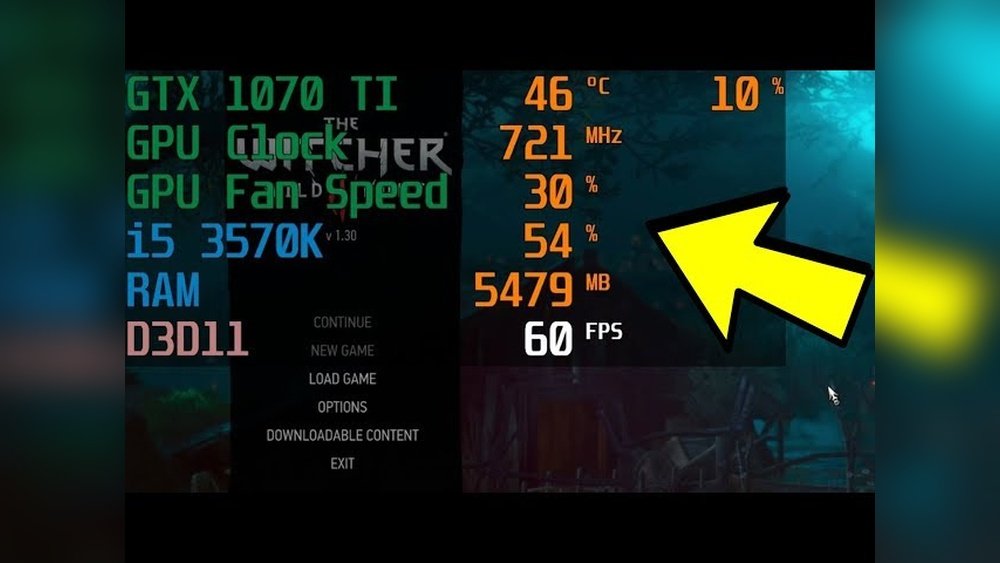
Are you worried your computer might be running too hot? Keeping an eye on your CPU and GPU temperatures is easier than you think—and it can save you from costly damage or slow performance.
You’ll learn simple ways to monitor your system’s heat levels quickly and effectively. By the time you finish reading, you’ll know exactly how to protect your hardware and keep your computer running smoothly. Ready to take control of your PC’s temperature?
Let’s dive in.
Credit: www.gpu-mart.com
Why Cpu And Gpu Temps Matter
Monitoring CPU and GPU temperatures is important for your computer’s health. These components generate heat while working. High temperatures can cause problems. Knowing why these temps matter helps you protect your device and keep it running well.
Effects On Performance
High temperatures slow down your CPU and GPU. They reduce the speed to avoid damage. This makes your computer work slower. Games and programs might lag or freeze. Keeping temps low helps maintain fast performance.
Risks Of Overheating
Overheating can damage your CPU and GPU permanently. It may cause crashes and unexpected shutdowns. Extreme heat can shorten the lifespan of parts. It can also lead to costly repairs. Monitoring temps helps spot problems early and prevents damage.
Tools To Check Cpu Temperature
Keeping an eye on your CPU temperature helps prevent overheating and damage. Several tools show real-time temperature data. Some come built into your system. Others are third-party programs offering more details. Choose the right tool for your needs.
Built-in System Utilities
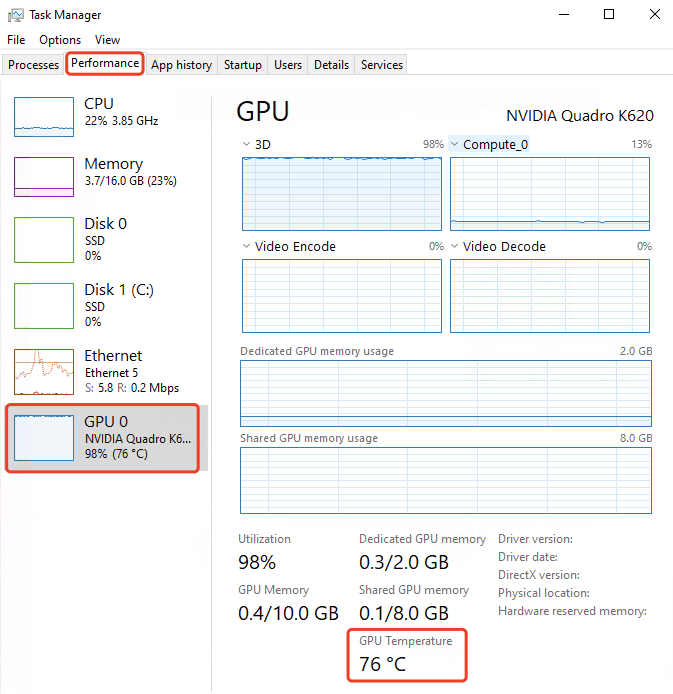
Most computers have built-in utilities to check CPU temperature. For Windows, the Task Manager shows basic info but not temperatures. The BIOS or UEFI firmware screen displays CPU temperature at startup. Mac users can rely on the Activity Monitor for system status but need extra software for temperatures. Linux users can use commands like lm-sensors to view CPU temps. These tools require no installation but offer limited data and no alerts.
Popular Third-party Software
Third-party programs provide detailed temperature readings and alerts. HWMonitor is a popular tool that shows CPU and GPU temps clearly. Core Temp focuses specifically on CPU temperature and load. SpeedFan monitors temps and can control fan speeds. MSI Afterburner works well for gamers, displaying CPU and GPU temps. These tools are easy to use and often free. They help track temperature trends and prevent overheating early.
Tools To Monitor Gpu Temperature
Monitoring your GPU temperature helps keep your computer safe and running well. High temperatures can cause crashes or slow performance. Using the right tools makes it easy to watch GPU heat levels in real time. These tools provide clear data and alerts to prevent damage.
Gpu Manufacturer Apps
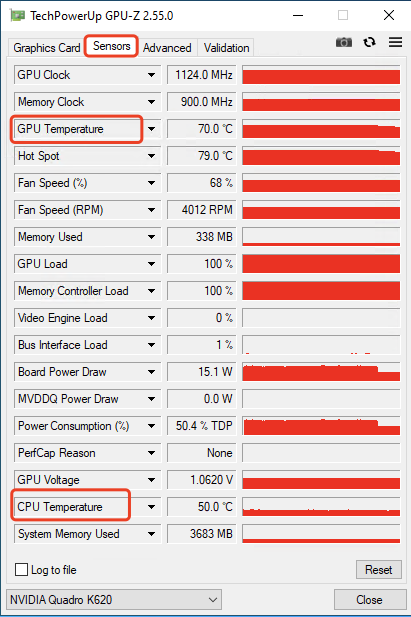
Many GPU makers offer their own apps to monitor temperature. These tools are designed for their specific hardware. They show detailed temperature data and other stats like fan speed and clock rate. Examples include NVIDIA’s GeForce Experience and AMD’s Radeon Software. These apps are simple to use and provide accurate readings.
Cross-platform Monitoring Tools
Some tools work on different brands and operating systems. These apps show GPU temperature along with CPU and other hardware info. Popular choices are HWMonitor, MSI Afterburner, and Open Hardware Monitor. They support Windows and sometimes Mac or Linux. These tools suit users with mixed hardware or those who want extra details.
Setting Up Real-time Temperature Alerts
Setting up real-time temperature alerts helps protect your CPU and GPU from overheating. These alerts notify you immediately when temperatures rise above safe limits. This gives you time to act before damage occurs. Real-time monitoring improves your computer’s performance and lifespan.
Configuring Notifications
Most hardware monitoring software lets you set temperature alerts. You can choose the temperature limit for both CPU and GPU. When the limit is reached, the software sends a notification. Notifications can appear as pop-ups or emails. You can also set sound alerts. Choose clear and loud alerts for quick response.
Using Hardware Monitoring Features
Many motherboards and graphics cards have built-in monitoring tools. These tools track temperature in real time. They often include options to create alerts inside BIOS or software apps. Use these features to avoid installing extra programs. They provide accurate data directly from your hardware. Check your device manual for setup instructions.
Interpreting Temperature Readings
Understanding your CPU and GPU temperature readings helps protect your computer. These numbers show how hot your computer parts get during use. Keeping an eye on them prevents damage and keeps your system running smoothly. Let’s explore what these temperatures mean and when to worry.
Safe Temperature Ranges
Most CPUs work well between 30°C and 50°C when idle. Under heavy use, temperatures up to 80°C are usually safe. GPUs often run a bit hotter, with normal ranges from 30°C to 60°C at rest and up to 85°C under load.
Staying inside these ranges keeps your parts healthy. High temperatures can cause slowdowns or crashes. Each CPU and GPU model may have slightly different limits. Check your manufacturer’s website for exact numbers.
When To Take Action
Temperatures above 85°C for long periods are a warning sign. If your CPU or GPU hits 90°C or more, stop using the computer immediately. High heat can cause permanent damage.
Look for signs like loud fans, system freezes, or sudden shutdowns. Clean dust from fans and vents to improve airflow. Ensure your cooling system works well. Replace thermal paste if temperatures stay high.

Credit: www.shoshitamam.com
Tips To Maintain Safe Temps
Keeping your CPU and GPU temperatures safe is key to your computer’s health. High temps can cause slowdowns and damage parts. Simple steps help keep your system cool and running well. Below are easy tips to maintain safe temperatures.
Improving Airflow
Good airflow moves hot air out and cool air in. Arrange cables neatly to avoid blocking fans. Use case fans to push air through the computer. Place the PC in a space with enough room around it. Avoid tight spaces that trap heat.
Regular Cleaning And Maintenance
Dust blocks air vents and fans, raising temperatures. Clean your computer every few months using compressed air. Focus on fans, heat sinks, and vents. Turn off and unplug the PC before cleaning. Regular cleaning keeps airflow smooth and cool.
Applying Thermal Paste
Thermal paste helps heat move from the CPU or GPU to the cooler. Over time, paste can dry and lose effectiveness. Remove old paste carefully before applying a new layer. Use a small amount and spread it evenly. Fresh paste improves heat transfer and lowers temps.
Adjusting System Settings For Better Cooling
Adjusting system settings can improve your computer’s cooling. This helps keep CPU and GPU temperatures low. Lower temperatures mean better performance and longer hardware life. Small changes in settings can make a big difference. Let’s explore easy ways to adjust your system for better cooling.
Fan Speed Controls
Fans help move hot air away from your CPU and GPU. Increasing fan speed can cool your system faster. Most computers let you adjust fan speeds in the BIOS or using software. Start with a moderate increase to avoid too much noise. Watch your temperatures as you change speeds. Find a balance between cooling and noise for comfort.
Underclocking And Undervolting
Underclocking lowers the speed of your CPU or GPU. This reduces heat generation and power use. Undervolting cuts the voltage to your processor while keeping speed. It also reduces heat and saves energy. Both methods can cool your system without extra hardware. Use trusted tools and test stability after changes. Small adjustments keep your system cool and stable.
Credit: www.gpu-mart.com
Frequently Asked Questions
How Can I Check My Cpu Temperature Easily?
You can monitor CPU temperature using software like HWMonitor, Core Temp, or SpeedFan. These tools provide real-time temperature data and alerts for overheating.
Why Is Gpu Temperature Monitoring Important?
Monitoring GPU temperature prevents overheating, which can damage hardware and reduce performance. It helps maintain system stability during gaming or heavy tasks.
What Is The Ideal Temperature For Cpu And Gpu?
Ideal CPU temperature ranges from 30°C to 50°C during idle and under 85°C under load. GPU temperatures should stay below 85°C for safe operation.
Can High Cpu Or Gpu Temperature Cause Damage?
Yes, excessive heat can cause hardware failure, reduce lifespan, and cause system crashes. Proper cooling and monitoring prevent these issues.
Conclusion
Monitoring CPU and GPU temperatures helps keep your computer safe. It shows if your system is too hot or working well. You can use simple tools to check temps anytime. Watching temperatures can stop damage and make your PC last longer.
Stay alert to changes and act fast if needed. Keeping an eye on temps means fewer problems later. A cool system runs better and feels faster. Try monitoring often for a smooth computer experience.
