How to Turn off Hardware Accelerated Gpu Scheduling: Quick Guide
If you’ve noticed your computer acting slower or your games not running as smoothly as before, the culprit might be Hardware Accelerated GPU Scheduling. While this feature is designed to boost performance, it can sometimes cause unexpected issues.
Knowing how to turn it off could be the quick fix you need to get your system running better. You’ll learn exactly how to disable Hardware Accelerated GPU Scheduling step-by-step, so you can take control of your computer’s performance and enjoy a smoother experience.
Keep reading—you’re just moments away from a simple solution that could make a big difference.
Credit: windowsreport.com
What Is Hardware Accelerated Gpu Scheduling
Hardware Accelerated GPU Scheduling is a feature in Windows that changes how the computer handles graphics tasks. It lets the graphics card manage its own memory and scheduling instead of the operating system doing it. This can help reduce latency and improve performance in some cases.
The feature works by giving the GPU more control over its processes. This can lead to smoother animations and faster rendering times. However, not all systems benefit from this feature. Some users may even experience problems or slower performance.
How Hardware Accelerated Gpu Scheduling Works
The GPU scheduling feature allows the graphics card to directly manage its own task queue. Normally, the CPU schedules GPU tasks, which can cause delays. By shifting this responsibility to the GPU, the system may run graphics more efficiently.
Benefits Of Hardware Accelerated Gpu Scheduling
This feature can reduce the time it takes for the GPU to start a task. It may lower input lag in games and improve smoothness in videos. Some users notice better power efficiency as well.
Why Some Users Turn Off This Feature
Not all computers handle GPU scheduling well. Some drivers or hardware may not support it properly. This can lead to crashes, stuttering, or other issues. Turning it off can sometimes solve these problems.
Credit: www.tenforums.com
Benefits And Downsides
Hardware Accelerated GPU Scheduling is a feature designed to improve how your computer handles graphics tasks. It can speed up some processes and reduce latency. Yet, it does not work perfectly for all setups. Knowing its benefits and downsides helps you decide if you should turn it off.
This section explains the main advantages and disadvantages of this feature. It helps you understand why some users choose to disable it.
Benefits Of Hardware Accelerated Gpu Scheduling
This feature can reduce the delay between your computer and the graphics card. It allows the GPU to manage its own memory more directly. This often leads to smoother gameplay and faster video processing. It may also lower CPU usage, freeing up resources for other tasks. Users with newer hardware might see better performance overall.
Downsides Of Hardware Accelerated Gpu Scheduling
Some older graphics cards do not support this feature well. It can cause crashes or freezing in certain games and apps. Performance might drop instead of improve on some systems. Users with incompatible drivers could face bugs or visual glitches. Turning it off can fix these issues and make the system more stable.
Check If Gpu Scheduling Is Enabled
Checking if Hardware Accelerated GPU Scheduling is enabled is the first step. This helps decide whether to turn it off or keep it on. The process is quick and simple. It only takes a few clicks on your Windows PC.
Open Graphics Settings
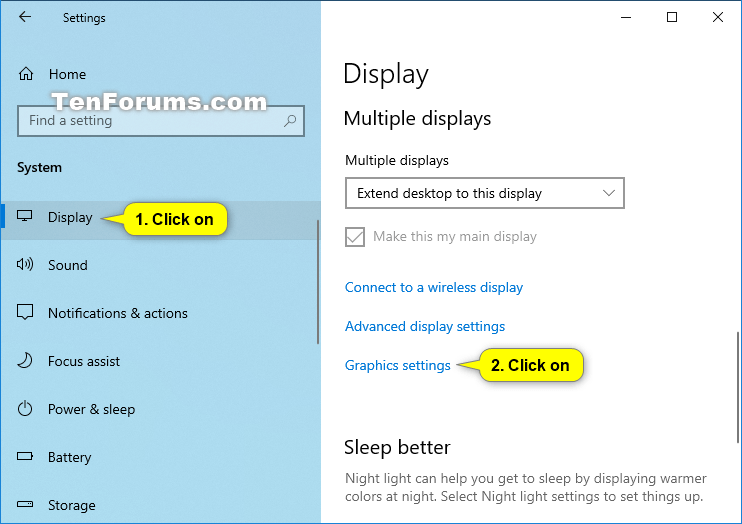
Start by opening the Settings app on your PC. Click on the “System” section. Then select “Display” from the menu on the left. Scroll down and click on “Graphics settings” at the bottom.
Find Hardware-accelerated Gpu Scheduling Option
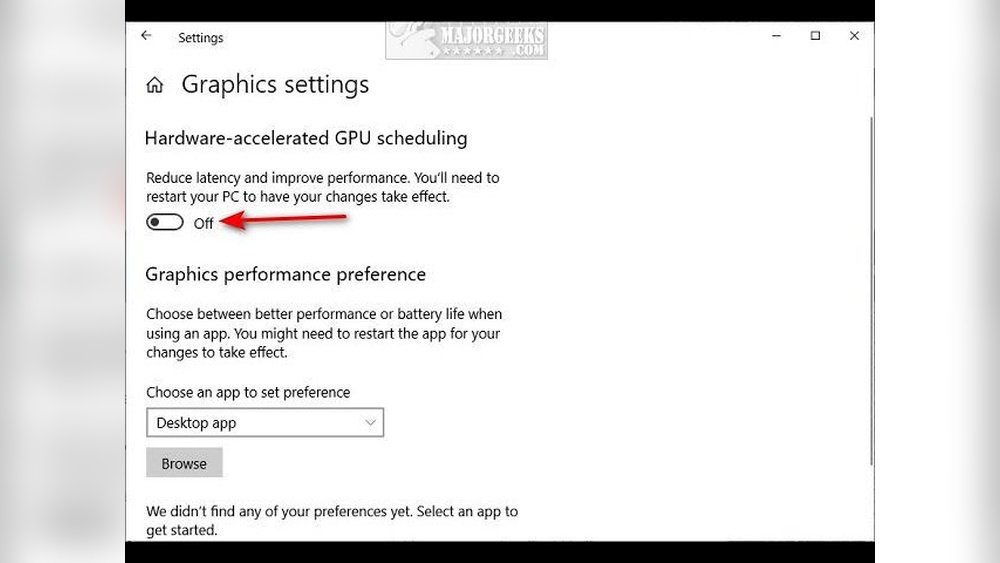
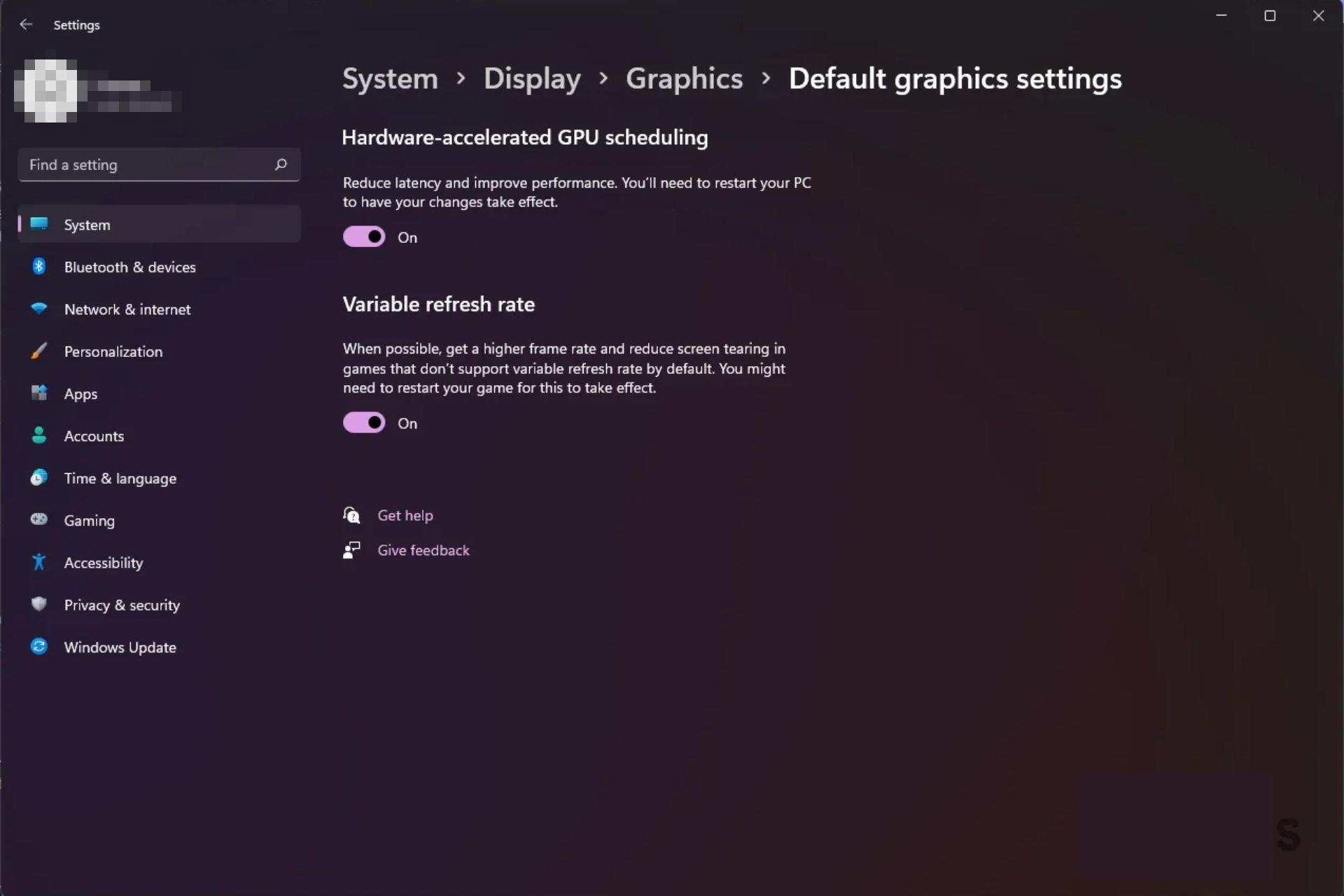
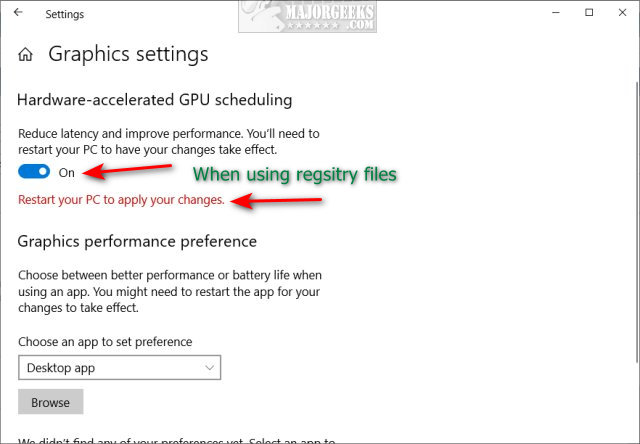
In the Graphics settings window, look for the “Hardware-accelerated GPU scheduling” toggle. This option controls GPU scheduling on your device. Check if this toggle is turned on or off.
Use Task Manager To Confirm
Open Task Manager by pressing Ctrl + Shift + Esc keys. Click the “Performance” tab. Select “GPU” from the left panel. Look for “Hardware-accelerated GPU scheduling” status in the GPU section. It shows if the feature is enabled or not.
Turn Off Via Windows Settings
Turning off Hardware Accelerated GPU Scheduling through Windows settings is a simple way to manage your system’s graphics performance. This feature helps your GPU handle tasks more efficiently. Still, some users prefer to disable it for better compatibility or troubleshooting.
The process involves just a few steps within the Windows interface. No need for complex commands or third-party tools. Follow along to learn how to access the right settings and disable this option easily.
Access Graphics Settings
Open the Start menu and select Settings. Click on System, then choose Display from the left menu. Scroll down and click on Graphics settings. This page allows you to control how Windows manages graphics performance.
Disable Hardware Acceleration
Look for the option labeled Hardware-accelerated GPU scheduling. Toggle the switch to Off. Restart your computer to apply the changes. This disables the feature and lets your system run without hardware acceleration.
Turn Off Via Registry Editor
Turning off Hardware Accelerated GPU Scheduling through the Registry Editor is a straightforward process. This method is useful when the usual settings menu does not work. Editing the registry lets you change system-level options directly. Be careful while making changes here, as wrong edits can cause system issues.
This guide walks you through the steps to safely disable GPU scheduling using the Registry Editor.
Open Registry Editor Safely
Press Windows + R to open the Run dialog box. Type regedit and press Enter. If a prompt appears, click Yes to allow Registry Editor to open. Before making changes, back up the registry. Click File then Export. Save a copy to a safe location. This step helps restore settings if needed.
Modify Gpu Scheduling Key
In Registry Editor, navigate to the following path:
Look for a value named HwSchMode. If it does not exist, create it. Right-click on the right pane, select New > DWORD (32-bit) Value. Name it HwSchMode. Double-click the value and set the data to 2 to disable GPU scheduling. Click OK to save changes.
Restart For Changes To Apply
Close Registry Editor. Restart your computer to apply the new settings. After reboot, Hardware Accelerated GPU Scheduling will be turned off. This change may improve compatibility or fix performance issues on some systems.
Use Device Manager To Disable
Disabling Hardware Accelerated GPU Scheduling through Device Manager is simple. This method helps control how your graphics card uses system resources. It can improve stability or fix display issues.
Follow the steps below to turn off this setting using Device Manager.
Locate Gpu Device
First, open Device Manager on your PC. You can do this by pressing Windows + X keys and choosing Device Manager from the menu.
Next, find the “Display adapters” section. Click the arrow to expand it and see your GPU device. It usually has a name like NVIDIA, AMD, or Intel.
Right-click your GPU and select “Properties.” This opens the device settings window.
Adjust Driver Settings
In the Properties window, go to the “Driver” tab. Here, you can manage the driver settings for your GPU.
Look for options related to Hardware Accelerated GPU Scheduling. If available, disable it by unchecking the box or clicking a disable button.
Click “OK” or “Apply” to save changes. Restart your computer to make sure the new settings take effect.
Troubleshooting Common Issues
Troubleshooting common issues with Hardware Accelerated GPU Scheduling is essential. Sometimes, turning it off can cause unexpected problems. These issues might affect your computer’s speed or cause glitches in your display.
Understanding how to fix these problems helps keep your system running smoothly. You can solve most issues with a few simple steps. Stay calm and follow the guide below to resolve common troubles quickly.
Fixing Performance Drops
Performance drops may happen after disabling Hardware Accelerated GPU Scheduling. Check your graphics driver version first. Outdated drivers often cause slowdowns.
Update your graphics driver through the device manager or the manufacturer’s website. Restart your computer after the update. This can restore normal performance.
Close any heavy programs running in the background. These can use extra resources and slow down your system.
Lower your screen resolution or graphics settings in games if needed. This reduces the load on your GPU.
Revert Changes If Needed
If problems continue, revert the changes to re-enable Hardware Accelerated GPU Scheduling. Open the graphics settings again. Turn the feature back on and save the settings.
Restart your computer to apply the changes fully. Check if performance and display issues are fixed.
Keep a note of any changes you make. This helps you track what works best for your system.
Credit: m.majorgeeks.com
Frequently Asked Questions
What Is Hardware Accelerated Gpu Scheduling?
Hardware Accelerated GPU Scheduling is a Windows feature that reduces latency by allowing the GPU to manage its own memory. It aims to improve performance in graphics-intensive tasks and games by offloading scheduling from the CPU to the GPU.
How Do I Turn Off Hardware Accelerated Gpu Scheduling?
To turn it off, open Windows Settings, go to System > Display > Graphics Settings. Then, toggle off Hardware Accelerated GPU Scheduling under the related settings and restart your computer for changes to apply.
Will Turning Off Gpu Scheduling Improve Performance?
Turning off GPU scheduling can help if you experience stuttering or crashes. However, it may reduce performance in some games. Testing both on and off settings is recommended to find what works best for your system.
Can I Disable Gpu Scheduling Without Affecting Other Settings?
Yes, disabling Hardware Accelerated GPU Scheduling only affects GPU memory management. Other display and graphics settings remain unchanged. This makes it safe to toggle without risking system stability or other performance features.
Conclusion
Turning off Hardware Accelerated GPU Scheduling can help fix some computer issues. It can improve performance in certain cases. Follow the steps carefully to change the settings. Always restart your PC after making changes. This simple adjustment might make your system run smoother.
Keep an eye on how your computer behaves afterward. Small changes like this can make a difference. Try it out and see if it helps you.