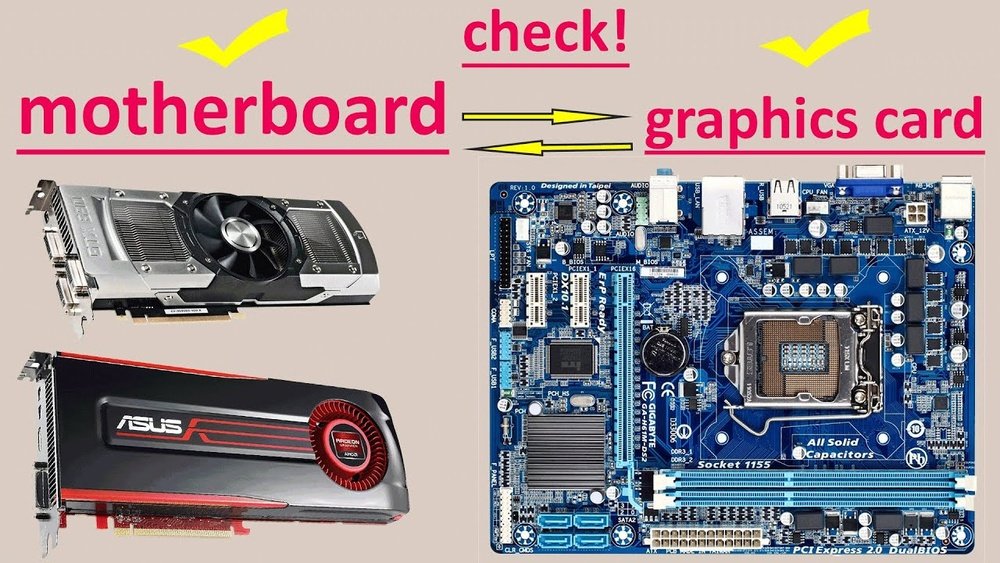
How to Know What Gpu is Compatible With Motherboard: Ultimate Guide
Choosing the right GPU for your motherboard can feel confusing. You want to boost your computer’s performance, but how do you know if your new graphics card will fit and work properly?
If you pick the wrong one, you might waste money or face frustrating compatibility issues. This guide will help you understand exactly what to look for. By the end, you’ll be confident in finding the perfect GPU that matches your motherboard and powers up your system without any headaches.
Keep reading—your ideal setup is closer than you think.
Check Motherboard Specifications
Checking your motherboard specifications is the first step to find a compatible GPU. Each motherboard has limits on what kind of graphics card it can hold. Knowing these details helps avoid buying a GPU that won’t fit or work properly. This section explains how to read your motherboard specs for GPU compatibility.
Identify Pcie Slot Types
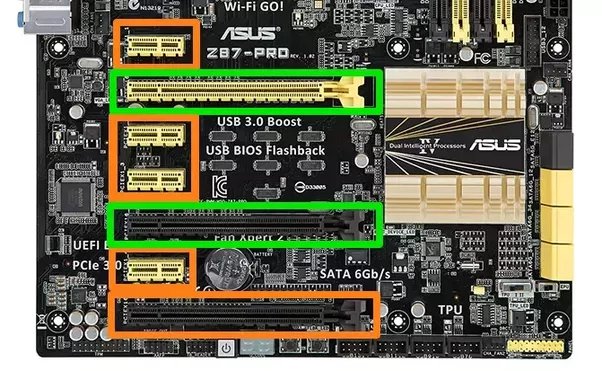
Motherboards have PCIe slots where GPUs connect. Most modern GPUs use PCIe x16 slots. Check your motherboard manual or website to find the slot type. Older motherboards may have PCIe 2.0 or 3.0, while new ones support PCIe 4.0 or 5.0. Higher versions offer faster speeds but newer GPUs often work on older slots too.
Review Supported Gpu Sizes
GPUs come in different sizes. Some are long and wide, needing more space inside your PC case. Your motherboard and case must have enough room for the GPU length and width. Measure the space around the PCIe slot. Check the motherboard specs for any size limits, like maximum card length or height.
Examine Power Requirements
GPUs need extra power beyond the PCIe slot. Check your motherboard specs for power connectors and limits. Also, see if your power supply unit (PSU) meets the GPU’s wattage needs. Some GPUs need one or more 6-pin or 8-pin power connectors. Make sure your PSU and motherboard support these connections safely.
Match Gpu Interface And Slot
Matching the GPU interface with the motherboard slot is essential for compatibility. The GPU must fit the motherboard’s physical slot and communicate properly. This ensures the system runs smoothly and the GPU performs well. Let’s explore key points to check before choosing a GPU.
Understand Pcie Versions
The PCIe (Peripheral Component Interconnect Express) slot connects the GPU to the motherboard. Different PCIe versions exist, like PCIe 3.0, 4.0, and 5.0. Each version offers different speeds and bandwidth.
Most modern GPUs use PCIe 3.0 or 4.0. Your motherboard should support at least the same version for best results. PCIe versions are backward compatible but may limit performance if mismatched.
Consider Slot Bandwidth Compatibility
The PCIe slot has lanes that carry data between the GPU and CPU. Common configurations include x16, x8, and x4 lanes. A GPU designed for an x16 slot needs enough lanes to work properly.
Using a GPU in a slot with fewer lanes reduces its speed. Check your motherboard’s slot bandwidth before buying. This ensures your GPU runs at full speed without bottlenecks.
Assess Power Supply Compatibility
Assessing power supply compatibility is a crucial step before installing a new GPU. Your power supply unit (PSU) must provide enough power for the GPU to work properly. Without the right power, the GPU may cause system crashes or perform poorly. This section explains how to check if your PSU can support your chosen graphics card.
Calculate Power Consumption
Start by finding the power requirements of the GPU. The manufacturer usually lists the recommended wattage. Add this to the power used by other components like the CPU, hard drives, and fans. Use an online power supply calculator for an easy total. Ensure your PSU wattage is higher than this total. It is best to have some extra power to handle peak loads.
Check Power Connectors
GPUs need specific power connectors from the PSU. Common connectors include 6-pin and 8-pin PCIe plugs. Check your GPU’s power connector type and number. Then, inspect your PSU cables to see if they match. If the PSU lacks the right connectors, the GPU will not get power. Adapters can help but are not always reliable. Using the correct connectors ensures stable power delivery and system safety.

Credit: softwareg.com.au
Look Into Bios And Firmware
Checking the BIOS and firmware is an important step to ensure GPU compatibility. BIOS controls how the motherboard and GPU communicate. Firmware updates can add support for new graphics cards.
Ignoring BIOS can cause installation problems or poor GPU performance. Some older motherboards need updates to work with newer GPUs. This section explains how to check and update BIOS for better compatibility.
Check For Bios Updates
Visit the motherboard maker’s website first. Search for your motherboard model. Look under the support or download section for BIOS updates.
Download the latest BIOS version available. Follow the instructions carefully to update your BIOS. A proper update can fix bugs and add new GPU support.
Before updating, back up your current BIOS. Avoid interruptions during the update process. A failed update can harm your motherboard.
Compatibility With Newer Gpus
New GPUs may need BIOS support to work correctly. Without this support, the system might not recognize the GPU. Performance may also suffer.
Check if the BIOS update mentions GPU compatibility. Read user reviews or forums for real experiences. This helps confirm if your motherboard can run the new GPU smoothly.
Sometimes, older motherboards limit GPU options. A BIOS update can extend compatibility but not always. Knowing this saves time and frustration.
Consider Physical Space And Cooling
Choosing the right GPU means checking more than just compatibility with the motherboard. Physical space and cooling are key factors. A large GPU might not fit in your case. Poor cooling can cause overheating and damage. Both affect performance and lifespan of your system.
Measure Available Case Space
Start by measuring the inside of your computer case. Measure the length, width, and height where the GPU will go. Check the space around the PCIe slot on the motherboard. Leave room for cables and other components. Compare these measurements with the GPU’s size. This step avoids buying a card that won’t fit.
Evaluate Cooling Solutions
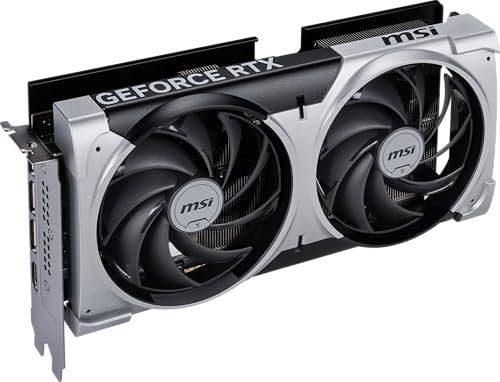
Cooling is critical for GPU health and speed. Look at the type of cooling the GPU uses. Some have one fan, others have two or three. More fans usually mean better cooling but also more space needed. Check if your case has good airflow. Fans or vents in the case help remove heat. Consider adding extra case fans if needed. Proper cooling keeps your GPU running smoothly without overheating.
Credit: www.esseg.eu
Research Gpu Compatibility Lists
Researching GPU compatibility lists helps find the right graphics card for your motherboard. These lists show which GPUs work well with specific motherboards. They prevent buying parts that don’t fit or function properly. Checking compatibility saves time and money.
Compatibility lists include details about supported GPU models and slot types. They also mention power requirements and BIOS support. Using these lists ensures your system runs smoothly and avoids hardware conflicts.
Manufacturer Recommendations
Motherboard makers often provide official compatibility lists. These lists show tested GPUs that fit perfectly. They also note any limitations or special settings needed. Manufacturer recommendations are reliable and easy to trust. They help avoid guesswork and risky purchases.
Check the motherboard’s website for the latest GPU compatibility updates. Some brands also offer tools to verify GPU support by model number. Following these guidelines leads to a stable and efficient system build.
Community Forums And Reviews
User forums and reviews offer real-world insights about GPU compatibility. Users share their experiences with different GPU and motherboard combinations. These stories reveal hidden issues or confirm smooth setups.
Forums are useful for learning about rare or new GPUs. Reviews often cover performance, installation tips, and potential problems. Reading community feedback helps make smarter decisions. It adds practical knowledge beyond official lists.
Test And Troubleshoot Compatibility
Testing and troubleshooting GPU compatibility is a crucial step after selecting a graphics card. It ensures the GPU works properly with your motherboard. This process helps identify any problems early. It saves time and prevents hardware damage. Follow simple steps to install the GPU and check if the system recognizes it. Fix common issues to achieve smooth performance.
Install And Verify Gpu Recognition
First, turn off your PC and unplug it. Open the case and insert the GPU firmly into the PCIe slot. Secure the card with screws to avoid movement. Connect the power cables from the power supply to the GPU. Close the case and turn on your computer.
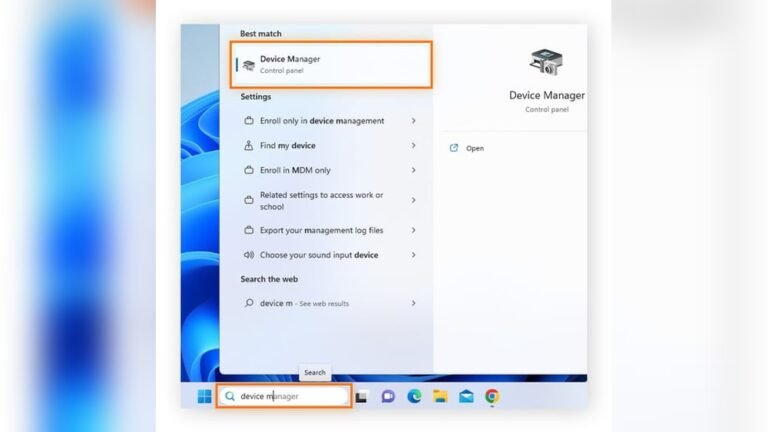
Watch the screen for display output. If you see the BIOS screen or operating system loading, the GPU is recognized. Next, open Device Manager in Windows or System Information on Mac. Check if the GPU appears under display adapters. No errors or warnings should show. This confirms the motherboard detects the GPU correctly.
Resolve Common Issues
No display or error messages may appear. Make sure the GPU is seated properly. Re-seat the card by removing and reinserting it. Check all power connections to the GPU. Ensure your power supply meets the GPU’s wattage needs.
Update your motherboard BIOS to support new GPUs. Install the latest GPU drivers from the manufacturer’s website. Clear CMOS if the system fails to boot. Try the GPU on another compatible PC to test the card itself. Replace any faulty cables or parts to resolve issues.

Credit: softwareg.com.au
Frequently Asked Questions
How Do I Check My Motherboard’s Gpu Compatibility?
Check your motherboard’s PCIe slot type and version. Match it with the GPU’s interface for compatibility. Also, review power supply wattage and physical space.
Can All Gpus Fit Any Motherboard?
No. GPUs need a compatible PCIe slot and enough physical space. Also, power supply and BIOS support matter for proper functioning.
What Motherboard Specs Affect Gpu Compatibility?
Key specs include PCIe slot type/version, BIOS support, power connectors, and physical slot size. These ensure proper GPU installation and performance.
Is Pcie Version Important For Gpu Compatibility?
Yes. PCIe versions affect data transfer speeds. Newer GPUs perform best with matching or higher PCIe versions on the motherboard.
Conclusion
Choosing the right GPU for your motherboard takes some checking. Start by knowing your motherboard’s slot type. Check the GPU size to fit inside your case. Power supply matters too; it must support the new GPU. Don’t forget to update your BIOS if needed.
These steps help avoid compatibility problems later. Take your time and review each detail carefully. This way, your computer will run smoothly and stay stable. Simple checks save you from big troubles down the road.