How to Make My Cpu Run Better: Ultimate Tips for Speed Boost
Is your computer feeling slow and struggling to keep up with your tasks? You’re not alone, and the good news is that you don’t need to buy a new CPU to boost your system’s performance.
Imagine your CPU running smoother, faster, and handling everything you throw at it without lag or frustration. You’ll discover simple, effective ways to make your CPU run better—whether you’re working, gaming, or just browsing. Ready to unlock your computer’s true potential?
Let’s dive in and get your CPU firing on all cylinders.
Credit: www.youtube.com
Optimize System Settings
Optimizing your system settings can help your CPU run more smoothly. Small changes can improve speed and reduce delays. Focus on key settings that affect CPU performance.
Adjust Power Options
Set your power plan to High Performance. This setting allows your CPU to use more energy for better speed. Avoid power-saving modes, as they limit CPU power. You can change this in the Control Panel under Power Options.
Manage Startup Programs
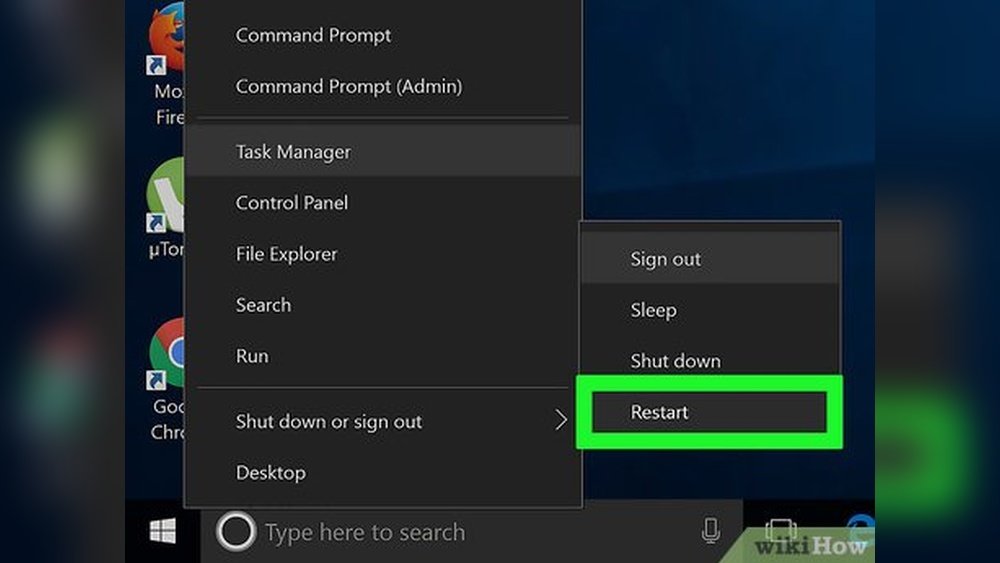
Many programs start automatically with Windows. Too many startup programs slow down your CPU. Disable unnecessary apps from starting up. Open Task Manager and go to the Startup tab. Turn off apps you don’t need right away.
Update Operating System
Keep your operating system up to date. Updates fix bugs and improve CPU efficiency. Check for updates regularly in Settings. Install all important updates to keep your system running well.
Clean And Maintain Hardware
Keeping your CPU clean and well-maintained helps it run smoothly. Dust and dirt can block airflow and cause overheating. Loose connections might slow down your computer or cause crashes. Regular care improves performance and extends the life of your hardware.
Remove Dust And Debris
Turn off your computer and unplug it before cleaning. Use a soft brush or compressed air to remove dust. Focus on fans, vents, and heat sinks. Avoid touching sensitive parts directly. Cleaning keeps air flowing and prevents overheating.
Ensure Proper Cooling
Check that all fans spin freely and work well. Replace or clean clogged air filters if needed. Apply fresh thermal paste between the CPU and cooler. Proper cooling stops your CPU from slowing down due to heat.
Check Hardware Connections
Open your PC case and gently press down on cables and cards. Make sure RAM sticks and graphics cards are seated firmly. Loose parts can cause errors and poor performance. Secure connections help your CPU work efficiently.
Upgrade Key Components
Improving your computer’s speed and performance often requires upgrading its key parts. These upgrades help your CPU work better and faster. Some parts affect speed more than others. Focus on the right components to see real results.
Increase Ram Capacity
RAM helps your computer handle many tasks at once. More RAM means your CPU can work without slowing down. If your computer feels slow during multitasking, adding RAM can help. Check your motherboard for the type and size of RAM it supports. Installing more RAM is usually simple and affordable.
Switch To Ssd Storage
Traditional hard drives are slower and can limit your CPU speed. SSDs (Solid State Drives) store data much faster. This upgrade cuts down loading times and speeds up programs. Your CPU spends less time waiting for data. Switching to an SSD makes your whole system feel quicker and more responsive.
Consider Cpu Upgrade
The CPU is the brain of your computer. A stronger CPU processes tasks faster and handles more complex work. Check if your motherboard supports a better CPU model. Upgrading your CPU can greatly improve performance but may require technical skill. Sometimes, a new CPU is the best way to boost speed.
Manage Software Efficiently
Managing software efficiently is key to improving your CPU’s performance. Software uses your CPU’s power. Too many programs slow it down. Clearing unnecessary software frees up resources. Running fewer apps helps the CPU focus on important tasks.
Uninstall Unnecessary Programs
Remove programs you no longer use. These take up space and slow your CPU. Go to your control panel or settings. Find the list of installed programs. Select the ones you don’t need and uninstall them. This frees memory and reduces CPU load.
Limit Background Processes
Many programs run in the background. They use CPU power even if you don’t see them. Open your task manager to check active processes. Disable or close those not needed. This helps your CPU focus on the tasks you want to do.
Use Lightweight Applications
Choose simple apps that need less CPU power. Heavy software slows down your computer. Look for basic versions of programs or alternatives that use fewer resources. This keeps your CPU running smoothly and speeds up your computer.
Enhance Cpu Performance
Enhancing your CPU performance can make your computer faster and more efficient. Small changes can help your processor work better without extra cost. This section explains simple steps to improve CPU speed and stability.
Enable Turbo Boost Features
Turbo Boost allows your CPU to run faster than its base speed. Most modern CPUs have this feature to improve performance during heavy tasks. Check your system settings or BIOS to make sure Turbo Boost is active. This can give your CPU a quick speed boost when needed.
Adjust Bios Settings
The BIOS controls how your CPU operates. Enter the BIOS menu during startup by pressing a specific key like F2 or Delete. Look for CPU-related settings such as clock speed and power options. Changing these settings can improve CPU performance but be cautious. Small adjustments can make a big difference.
Apply Thermal Paste Properly
Thermal paste helps transfer heat from the CPU to the cooler. Proper application prevents overheating and keeps your CPU running smoothly. Clean old paste with isopropyl alcohol before applying new paste. Use a small, pea-sized amount in the center of the CPU. Spread it evenly for best results.

Credit: www.reddit.com
Protect Against Malware
Protecting your computer from malware is important to keep your CPU running smoothly. Malware can slow down your system by using up CPU resources. It can also cause crashes and errors. Staying safe from malware helps your CPU work better and last longer.
Run Regular Antivirus Scans
Antivirus software finds and removes harmful files on your computer. Run scans often to catch threats early. Set your antivirus to scan automatically if possible. This keeps your CPU free from malware that can slow it down.
Avoid Suspicious Downloads
Downloads from unknown sources can carry malware. Only download files from trusted websites. Avoid clicking on strange links or pop-ups. Keeping downloads safe stops malware from entering your system and overloading your CPU.
Use Firewall Protection
A firewall blocks unwanted access to your computer. It stops hackers and malware from entering your system. Turn on your firewall for better protection. This helps keep your CPU safe and running at full speed.
Monitor And Test Performance
Monitoring and testing your CPU’s performance helps you keep it running smoothly. It shows how well your processor works under different tasks. You can spot problems early and fix them before they get worse. Regular checks help maintain speed and prevent crashes. Simple tools can do these checks for you.
Use Benchmarking Tools
Benchmarking tools measure your CPU’s speed and power. They run tests that mimic real tasks your computer does. These tools give scores to compare your CPU with others. Use popular tools like Cinebench or Geekbench. Run tests after upgrades or changes to see improvements. These scores help you know if your CPU performs as expected.
Track Cpu Temperature
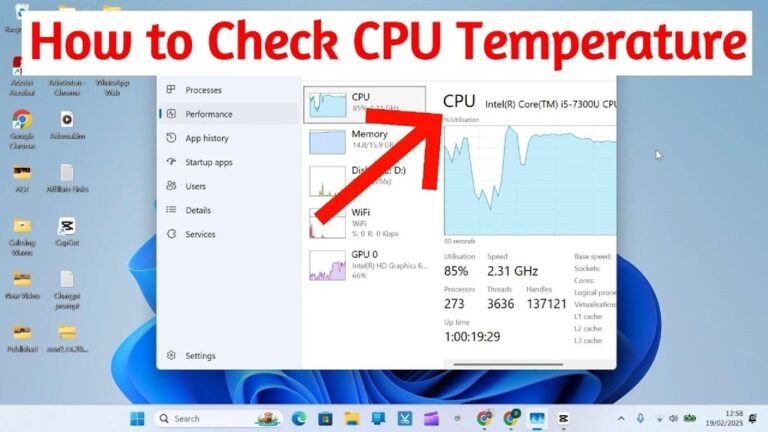
CPU temperature affects its performance and lifespan. Overheating can slow down your processor or cause shutdowns. Use programs like HWMonitor or Core Temp to check the heat levels. Keep the temperature below the maximum safe limit. Clean dust from fans and vents to improve cooling. Good airflow inside your PC case helps too.
Analyze Resource Usage
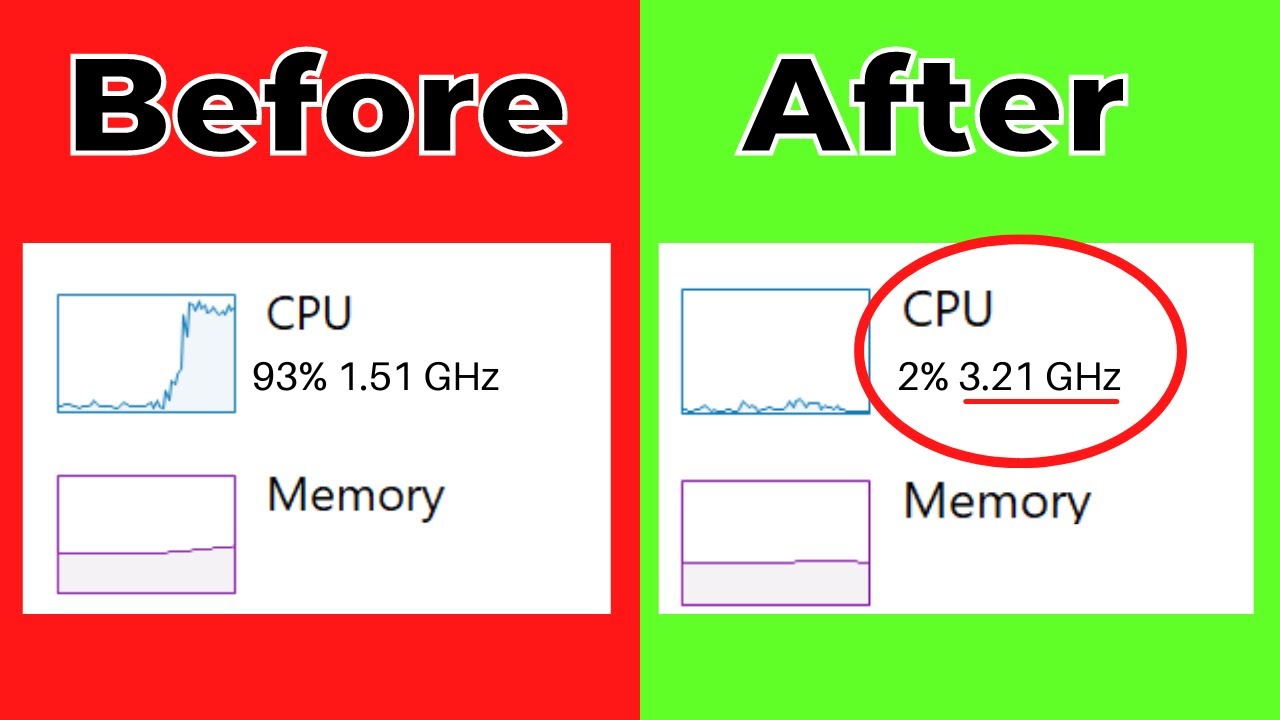
Resource usage shows how your CPU handles tasks in real-time. Tools like Task Manager or Resource Monitor display CPU load and memory use. Check for programs that use too much CPU power. Close unnecessary apps to free up resources. This keeps your CPU focused on important tasks. Watching resource use helps avoid slowdowns and crashes.
Credit: www.youtube.com
Frequently Asked Questions
How Can I Improve My Cpu Performance Quickly?
Close unnecessary programs and background processes to free CPU resources. Regularly update your operating system and drivers. Clean dust from CPU fans to prevent overheating. Consider upgrading your RAM or switching to an SSD for better overall speed.
What Software Helps Optimize Cpu Usage Effectively?
Use system optimization tools like CCleaner or Advanced SystemCare. These programs clean junk files and manage startup items. They also monitor CPU usage and improve system responsiveness. Always download software from trusted sources to avoid malware and performance issues.
Does Overheating Affect Cpu Speed And Stability?
Yes, overheating causes thermal throttling, reducing CPU speed to prevent damage. Ensure proper cooling with quality fans or liquid cooling systems. Clean dust from vents and maintain good airflow in your PC case. Monitor temperatures using software like HWMonitor or Core Temp.
Can Upgrading Hardware Boost Cpu Performance?
Upgrading your CPU can significantly increase performance, but compatibility matters. Adding more RAM or switching to an SSD also improves speed. Check your motherboard specifications before upgrading. Sometimes, a full system upgrade is the best option for better performance.
Conclusion
Improving your CPU’s performance is easier than it seems. Clean your computer often and close unused programs. Keep your software and drivers up to date. Use tools to check for viruses or malware. Small changes make a big difference in speed.
Take care of your hardware to avoid overheating. These steps help your CPU work faster and smoother. Stay patient and consistent with these tips. Your computer will thank you with better performance every day.