How to Restart Gpu: Quick and Easy Fixes for Smooth Performance
Is your GPU acting up, causing your games or programs to freeze or lag? Knowing how to restart your GPU can fix these issues quickly and get your system back on track.
Whether you’re a gamer, designer, or just someone who relies on your computer daily, a simple GPU restart can save you time and frustration. In this guide, you’ll learn easy steps to restart your GPU safely and effectively, so you can avoid costly repairs and keep your system running smoothly.
Keep reading—your GPU’s health depends on it!
Reasons To Restart Your Gpu
Restarting your GPU can solve several problems you might face while using your computer. Sometimes, the graphics card stops working smoothly or causes your screen to freeze. Restarting helps refresh the GPU and clear out any temporary issues. This simple step can improve your computer’s performance without needing complex fixes.
Common Performance Issues
Graphics glitches like flickering or artifacts can happen. Your screen may freeze or show black screens during use. Games and apps might lag or run slowly. Sometimes, the GPU driver crashes and stops responding. These problems affect your experience and can disrupt work or play.
When Restarting Helps
Restarting the GPU resets its functions and clears errors. It can fix driver crashes and restore normal display. This step often solves lag and freezing problems quickly. Restarting also helps after installing new drivers or updates. It is a fast way to get your GPU back to work.

Credit: www.wikihow.com
Quick Methods To Restart Your Gpu
Restarting your GPU can fix many display and performance problems quickly. Knowing fast ways to restart the GPU helps avoid long downtime. This section shows simple methods to reset your graphics card with ease.
Using Device Manager
Open Device Manager by pressing Windows + X keys. Find the “Display adapters” section and expand it. Right-click your GPU and select “Disable device.” Wait a few seconds, then right-click again and choose “Enable device.” This resets your GPU without restarting the whole system.
Keyboard Shortcut For Gpu Reset
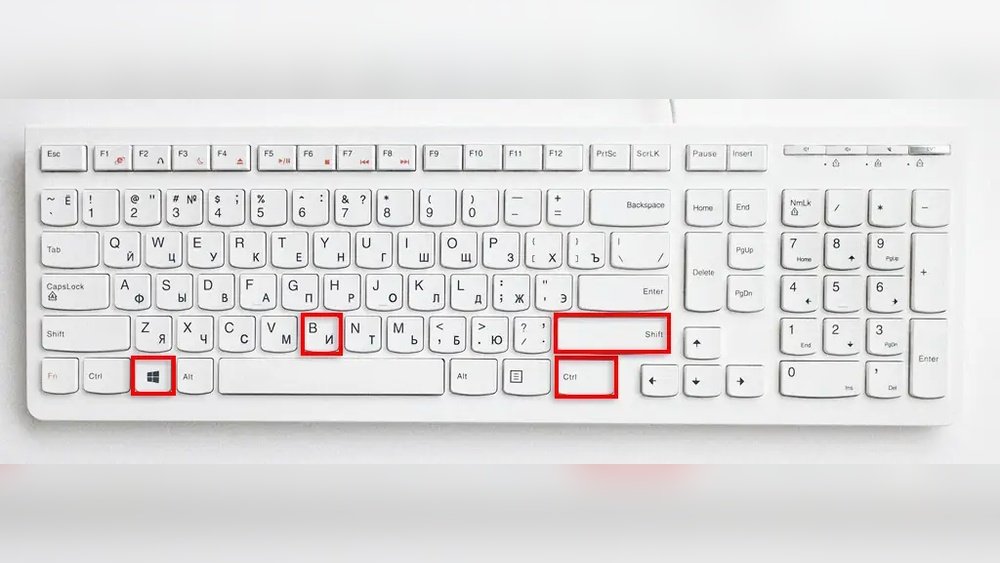
Press the keys Windows + Ctrl + Shift + B together. The screen will blink, and you will hear a beep sound. This shortcut forces Windows to reset the graphics driver quickly. Use this method to fix minor GPU glitches instantly.
Restarting Your Computer
Restarting your computer fully resets the GPU and all related processes. Save your work and click Start, then select Restart. This method is simple and effective for many GPU issues. It clears temporary errors and refreshes the system completely.
Advanced Gpu Restart Techniques
Advanced GPU restart techniques help fix deeper graphics problems. These methods go beyond basic restart steps. They are useful when simple fixes do not work. Understanding these techniques can save time and improve system stability.
Disabling And Enabling Gpu Driver
Disabling and enabling the GPU driver resets the graphics card without rebooting the PC. Open Device Manager, find Display Adapters, right-click your GPU. Choose “Disable device.” Wait a few seconds, then right-click again and select “Enable device.” This refreshes the driver and clears minor glitches.
Using Command Prompt Commands
The Command Prompt offers quick commands to restart GPU services. Run Command Prompt as administrator. Use the command net stop nvlddmkm to stop NVIDIA drivers or the equivalent for your GPU. Then enter net start nvlddmkm to start them again. This method resets the GPU driver through system commands.
Resetting Gpu Via Third-party Tools
Third-party software can reset GPUs with a single click. Tools like Display Driver Uninstaller (DDU) remove and reinstall drivers cleanly. Some GPU utilities offer reset or recovery options. These tools help fix driver corruption or conflicts without manual steps.

Credit: softwareg.com.au
Preventing Future Gpu Issues
Preventing future GPU issues saves time and keeps your computer running smoothly. Taking simple steps helps avoid crashes, freezes, and slowdowns. Careful maintenance extends the life of your graphics card.
Keeping Drivers Updated
GPU drivers control how the hardware works with your system. Old drivers cause bugs and poor performance. Check for driver updates regularly on the manufacturer’s website. Install updates to fix errors and improve stability. Updated drivers also add support for new games and software.
Managing Gpu Temperature
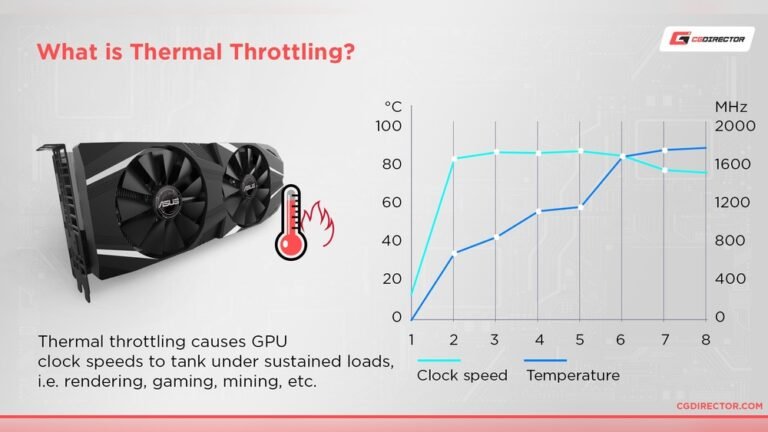
High GPU temperature damages components and lowers speed. Keep your computer in a cool, ventilated place. Clean dust from fans and vents often. Use software tools to monitor GPU temperature. If it runs too hot, adjust fan speeds or reduce workload. Proper cooling prevents overheating and hardware failure.
Optimizing System Settings
Adjust system settings to reduce GPU stress. Lower graphics quality in demanding applications. Close unused programs to free up resources. Disable unnecessary background tasks that use GPU power. Set power options to balanced or high performance. These changes help your GPU run efficiently and avoid crashes.
Troubleshooting Persistent Gpu Problems
Persistent GPU problems can cause frustration and slow down your work or play. Troubleshooting these issues helps find the cause and fix it. Start with simple checks, then move to more detailed steps. This guide will help you through the process to get your GPU running smoothly again.
Checking For Hardware Failures
Hardware failures often cause GPU problems. Look for loose cables or connectors. Make sure the GPU is properly seated in its slot. Check for dust or dirt that may block airflow. Overheating can damage your GPU. Use a tool to monitor the GPU temperature during use. If the GPU is physically damaged, you may need a replacement.
Reinstalling Gpu Drivers
Corrupt or outdated drivers cause many GPU issues. Uninstall the current GPU driver using your system’s device manager or a dedicated tool. Download the latest driver from the official GPU manufacturer’s website. Install the driver carefully, following all instructions. Restart your computer after installation. This step often solves many GPU problems without extra effort.
Consulting Manufacturer Support
If problems persist, contact the GPU manufacturer’s support team. Provide details about your GPU model and the issues you face. They can offer advice or repair services. Some problems may be covered under warranty. Manufacturer support may guide you through advanced troubleshooting steps or replacement options.

Credit: www.wikihow.com
Frequently Asked Questions
How Do I Restart My Gpu On Windows 10?
To restart your GPU on Windows 10, press Win + Ctrl + Shift + B. This command resets the graphics driver without rebooting. Your screen will flicker briefly. This method is quick and safe for resolving minor GPU issues.
Can Restarting The Gpu Fix Display Problems?
Yes, restarting the GPU often resolves display glitches or freezes. It refreshes the graphics driver and clears temporary errors. This helps restore normal screen performance without a full system reboot.
Is Restarting Gpu Safer Than Rebooting The Pc?
Restarting the GPU is faster and less disruptive than rebooting. It targets only the graphics driver, avoiding full system downtime. This method is ideal for quick fixes, maintaining workflow without losing unsaved data.
How Often Should I Restart My Gpu?
Restart your GPU only when you face display issues or driver errors. Frequent restarts are unnecessary and won’t improve performance. Regular updates to your graphics driver are more effective for stability.
Conclusion
Restarting your GPU can fix many common problems fast. Follow simple steps carefully and stay patient. This helps your computer run smoother and games work better. Always check for updates to keep your GPU healthy. If issues persist, consider asking for expert help.
Keeping your GPU in good shape saves time and stress. Try these tips next time your graphics slow down. A quick restart often makes a big difference.