How to Troubleshoot Gpu: Quick Fixes for Common Issues
Is your GPU acting up and slowing down your gaming or work? You’re not alone, and fixing it might be easier than you think.
Whether your screen flickers, games crash, or your graphics card just won’t perform, knowing how to troubleshoot your GPU can save you time and frustration. In this guide, you’ll discover simple steps to identify and solve common GPU problems—so you can get back to smooth, seamless graphics without the headache.
Keep reading, and you’ll learn how to take control of your GPU issues quickly and confidently.

Credit: www.reddit.com
Identify Common Gpu Problems
Identifying common GPU problems helps fix issues quickly. Knowing signs of GPU trouble saves time and prevents damage. Watch for clear symptoms to spot problems early.
Screen Artifacts And Glitches
Screen artifacts are strange shapes or colors on the display. These glitches show as lines, blocks, or flickers. Artifacts often mean GPU hardware or memory has issues. Check cables and connections first to rule out simple causes.
Driver Crashes And Freezes
Driver crashes cause sudden black screens or errors. Freezes make the computer stop responding for a moment. These problems may happen after driver updates or software changes. Reinstall or update drivers to fix many issues.
Overheating Symptoms
Overheating makes the GPU fan very loud or the system shut down. The screen may flicker or go black during heavy use. Dust buildup and poor airflow cause high temperatures. Clean fans and improve airflow to cool the GPU.
Performance Drops
Performance drops feel like slower game speeds or lag. The GPU may not reach its usual frame rates. Background programs or thermal throttling can reduce performance. Close extra apps and check temperatures to improve speed.
Check Hardware Connections
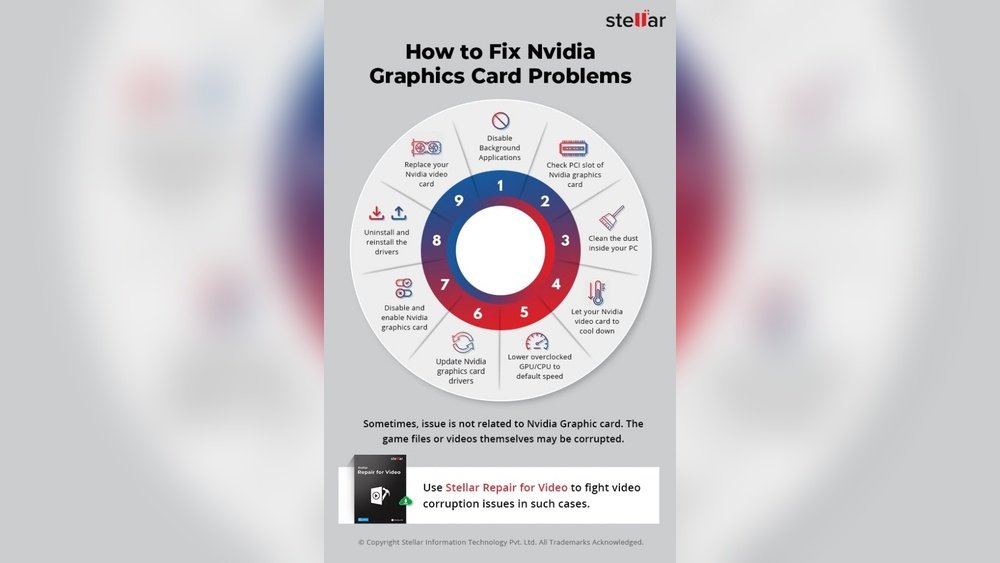
Checking hardware connections is a key step in troubleshooting your GPU. Loose or faulty connections often cause display issues or system crashes. Start by carefully inspecting each part to ensure everything fits well and works properly.
Inspect Gpu Seating
Turn off your computer and unplug it. Open the case and locate the GPU. Check if the GPU is fully inserted into the PCIe slot. A loose GPU can cause the computer to not detect the card. Press down gently but firmly to reseat the card. Make sure the retention clip clicks into place. This simple step often fixes many hardware problems.
Verify Power Supply
GPUs need power cables from the power supply unit (PSU). Check if the power connectors are firmly plugged into the GPU. Loose or missing power cables can stop the GPU from working. Confirm the PSU provides enough wattage for your GPU model. A weak power supply might cause instability or shutdowns.
Examine Cable Connections
Check all display cables connected to your GPU. Look for damaged or bent pins on HDMI, DisplayPort, or DVI cables. Ensure cables are tightly connected to both the GPU and monitor. Test with a different cable if needed. Faulty cables or bad connections can cause no display or flickering screens.
Update And Reinstall Drivers
Updating and reinstalling GPU drivers is a key step in fixing many graphics issues. Drivers control how your computer talks to the GPU. Old or corrupted drivers can cause crashes, poor performance, or display errors.
Keeping drivers fresh ensures your GPU runs smoothly. It also adds support for new games and features. Sometimes, a clean reinstall removes old driver files that cause conflicts.
Let’s explore how to download the latest drivers, perform a clean install, and roll back to previous versions if needed.
Download Latest Drivers
Start by visiting the official website of your GPU maker. Common brands are NVIDIA, AMD, and Intel. Find the support or driver download section.
Enter your GPU model or let the site detect it automatically. Download the newest driver version available. This ensures compatibility with the latest software.
Always avoid third-party sites to reduce risks of malware or wrong drivers.
Clean Driver Installation
Uninstall current drivers before installing new ones. This removes old files and prevents conflicts. Use a tool like Display Driver Uninstaller (DDU) for a thorough cleanup.
Run DDU in safe mode to fully remove driver traces. After cleanup, restart your computer. Then, install the downloaded driver fresh.
This process reduces errors and helps your GPU perform better.
Rollback To Previous Versions
Sometimes new drivers cause problems instead of fixing them. In such cases, rolling back to a previous version helps.
Open Device Manager on your PC. Find your GPU under “Display adapters.” Right-click and select “Properties.”
Go to the “Driver” tab and click “Roll Back Driver.” Choose a version that worked well before. This restores stability until a better update arrives.

Credit: forums.developer.nvidia.com
Monitor Gpu Temperatures
Monitoring GPU temperatures is essential for keeping your graphics card healthy. High temperatures can cause slowdowns, crashes, or permanent damage. Knowing your GPU’s temperature helps you spot problems early. It also shows if your cooling system works well. Let’s explore simple ways to track and manage GPU heat for better performance and safety.
Use Temperature Monitoring Tools
Many software programs show GPU temperature in real time. These tools run in the background and display heat levels easily. Popular options include MSI Afterburner, HWMonitor, and GPU-Z. They also track fan speed and clock rates. Use these tools to check if your GPU stays cool during games or heavy tasks.
Improve Cooling Solutions
Good cooling lowers GPU temperature and boosts lifespan. You can add extra case fans to increase airflow. Changing the thermal paste between the GPU and cooler helps heat transfer. Upgrading to a better GPU cooler or water cooling system reduces heat more effectively. Always ensure your PC case has space for proper air circulation.
Clean Dust And Debris
Dust buildup blocks airflow and traps heat inside the GPU. Cleaning the fans and heatsinks removes dirt and improves cooling. Use compressed air or a soft brush carefully to clear dust. Regular cleaning prevents overheating and keeps your GPU running smoothly. Check your PC every few months for dust accumulation.
Adjust Gpu Settings
Adjusting GPU settings can help fix many graphics problems. It lets you control how your GPU works. Small changes might improve performance or fix errors. This section covers key steps to adjust your GPU settings safely.
Reset To Default Settings
Start by resetting your GPU to default settings. This clears any wrong changes. Open your GPU control panel. Find the option to restore factory defaults. Click it to reset all settings. This step often solves many issues fast.
Optimize Overclocking
Overclocking boosts GPU speed but can cause crashes. Check if your GPU is overclocked. Use software tools to monitor clock speeds. Reduce overclock settings slightly if unstable. Lower speeds improve stability and prevent errors. Keep changes small and test each time.
Manage Power Options
Power settings affect GPU performance and heat. Open your GPU or system power settings. Set GPU to maximum performance mode. Avoid power-saving modes during heavy tasks. This ensures your GPU gets enough power. Stable power improves graphics quality and stops lags.

Credit: www.reddit.com
Test With Benchmark And Stress Tools
Testing your GPU with benchmark and stress tools helps find issues clearly. These tools push your GPU to work hard. They show how well your GPU performs and if it can handle heavy tasks. This process helps you spot problems like overheating or crashes.
Run Gpu Benchmarks
Benchmarks measure your GPU’s speed and power. Use popular tools like 3DMark or Unigine Heaven. These tests give you a score to compare with similar GPUs. A low score might mean your GPU has problems or outdated drivers. Run benchmarks in a quiet environment for best results.
Perform Stress Tests
Stress tests put your GPU under maximum load for a long time. Tools like FurMark or OCCT are good choices. These tests check if your GPU stays stable and cool. Watch for crashes, freezes, or screen glitches. Stop the test if temperatures get too high to avoid damage.
Analyze Test Results
After testing, review the scores and behavior carefully. Look for sudden drops in performance or errors during tests. High temperatures or fan speed spikes can indicate cooling problems. Compare your results with online benchmarks for your GPU model. Use this information to decide on repairs or upgrades.
Address Software Conflicts
Software conflicts can cause your GPU to act strangely or slow down. These issues happen when different programs try to use the GPU at the same time or interfere with its drivers. Fixing these conflicts helps your GPU run smoother and reduces crashes or errors.
Start by identifying which applications might clash with your GPU. Then, check your computer for harmful software. Finally, keep your operating system up to date. These steps clear most software problems affecting the GPU.
Disable Conflicting Applications
Some programs use your GPU in the background. These can slow down your system or cause errors. Open your task manager and see which apps use high GPU resources.
Close or disable apps that are not needed. This frees up GPU power for important tasks. Games, video editors, or crypto miners often conflict with GPU drivers.
Try running your GPU tasks after closing these apps. Notice if performance improves or errors stop.
Check For Malware
Malware can harm your GPU performance. It may use your GPU for hidden tasks without your knowledge. This causes slowdowns and overheating.
Run a full scan with trusted antivirus software. Remove any detected threats immediately. Keep your malware scanner updated for better protection.
Cleaning malware helps your GPU work efficiently and safely.
Update Operating System
Outdated operating systems often cause software conflicts. They may lack important fixes for GPU drivers and security.
Check for system updates regularly. Install all recommended patches and upgrades. This improves compatibility between your OS and GPU.
Updated systems reduce crashes and improve GPU stability during use.
Consider Hardware Replacement
Sometimes, fixing a GPU is not possible with simple steps. Hardware problems may need replacement. Knowing when to replace your GPU saves time and frustration. This section helps you decide if it is time for a new GPU. It also guides you through warranty and choosing a new card.
Diagnose Permanent Damage
Look for signs of physical damage on the GPU. Burn marks, broken parts, or unusual smells indicate permanent damage. Test the GPU in another computer if possible. If problems persist, the hardware is likely damaged beyond repair. Software fixes cannot solve these issues. At this point, replacement is the best option.
Warranty And Support Options
Check if your GPU is still under warranty. Most manufacturers offer repair or replacement for defective cards. Contact the seller or manufacturer for support. Keep your purchase receipt and warranty details ready. Warranty service can save you money on a new GPU. Some repairs might be free or discounted depending on coverage.
Choosing A New Gpu
Decide what you need in a new GPU. Consider performance, compatibility, and price. Check your computer’s power supply and case size. Pick a GPU that fits your system and budget. Reading reviews and comparisons helps make a better choice. A good GPU improves your computer’s speed and graphics quality.
Frequently Asked Questions
How Do I Identify Gpu Overheating Issues?
Check your GPU temperature using monitoring software. Temperatures above 85°C indicate overheating. Clean dust from fans and ensure proper airflow to prevent damage.
What Causes Gpu Driver Problems And How To Fix Them?
Outdated or corrupted drivers cause GPU issues. Update drivers from the manufacturer’s website. Use Display Driver Uninstaller (DDU) for clean installations.
Why Is My Gpu Not Detected By My Pc?
GPU might be improperly seated or power connections loose. Re-seat the card and check cables. Update BIOS and GPU drivers if needed.
How Can I Test If My Gpu Is Faulty?
Run stress tests with tools like FurMark. Watch for crashes, artifacts, or screen glitches. Persistent errors suggest a faulty GPU.
Conclusion
Troubleshooting a GPU can feel tricky at first. Start with simple checks like cables and drivers. Keep your system clean and updated. Test your GPU in different setups if possible. Small fixes often solve common problems fast. Stay patient and follow steps carefully.
Your GPU will work well again soon. Regular care helps avoid future issues. Keep these tips handy for smooth graphics performance.