How to Check Temperature of Gpu And Cpu: Easy Steps for Safety
Are you worried that your computer might be overheating? Knowing how to check the temperature of your GPU and CPU is key to keeping your system safe and running smoothly.
If your computer feels slow or shuts down unexpectedly, high temperatures could be the cause. But don’t worry—this guide will show you simple, step-by-step ways to monitor your hardware’s temperature. By the end, you’ll have the tools and confidence to protect your PC and boost its performance.
Keep reading to learn exactly how to keep your GPU and CPU cool and healthy.
Why Monitor Cpu And Gpu Temperatures
Monitoring the temperature of your CPU and GPU is important for every computer user. These parts handle most of the work inside your PC. Keeping an eye on their temperature helps avoid problems. It keeps your system running smoothly and safely.
Impact On Performance
High temperatures can slow down your CPU and GPU. They reduce the speed to cool down the parts. This means your computer runs slower than normal. Checking temperatures helps keep your device fast and responsive.
Risk Of Overheating
Overheating can cause damage to your computer parts. It may lead to crashes or sudden shutdowns. Monitoring temperature warns you before it gets too hot. You can act quickly to prevent serious damage.
Longevity Of Components
Heat wears out computer parts faster. Lower temperatures help your CPU and GPU last longer. Watching the temperature helps you keep your device healthy. It saves money by avoiding early repairs or replacements.
Tools To Check Cpu Temperature
Checking your CPU temperature helps keep your computer safe and fast. Overheating can cause slowdowns or damage. Several tools show your CPU temperature clearly. These tools work on different levels, from simple to advanced. Choose one based on your needs and comfort with technology.
Built-in Bios/uefi Monitoring
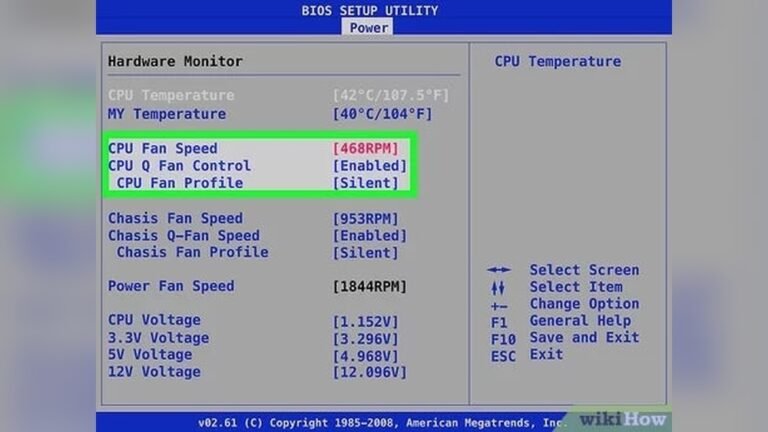
Most computers have temperature sensors inside the BIOS or UEFI. You can enter these settings when you start your PC. Look for the hardware or system health section. It shows real-time CPU temperature without extra software. This method is simple and reliable. No need to install anything. The downside is you must restart your PC to check.
Third-party Software Options
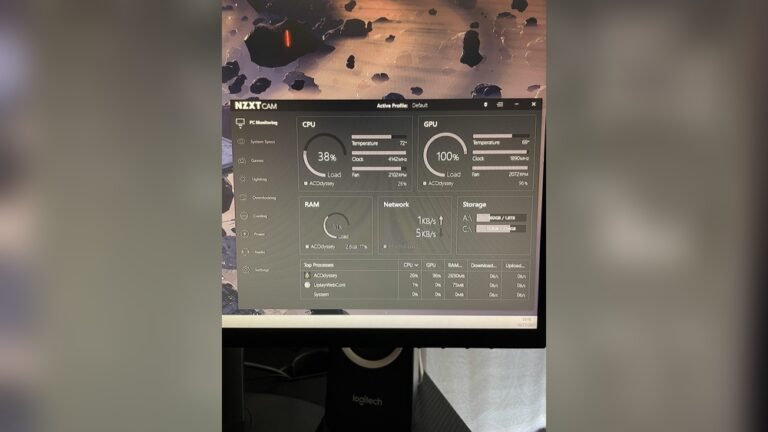
Many free programs show CPU temperature in Windows. Popular tools include HWMonitor, Core Temp, and SpeedFan. These apps display detailed temperature data. Some also track fan speed and voltage. They update in real-time while you use your PC. Easy to install and user-friendly. Ideal for regular temperature checks during work or gaming.
Using Manufacturer Utilities
CPU makers often provide their own monitoring tools. Intel’s Extreme Tuning Utility and AMD Ryzen Master are examples. These apps offer precise temperature readings and extra features. They help optimize CPU performance safely. Designed to match specific CPU models. Best for users who want official and detailed info.
Tools To Check Gpu Temperature
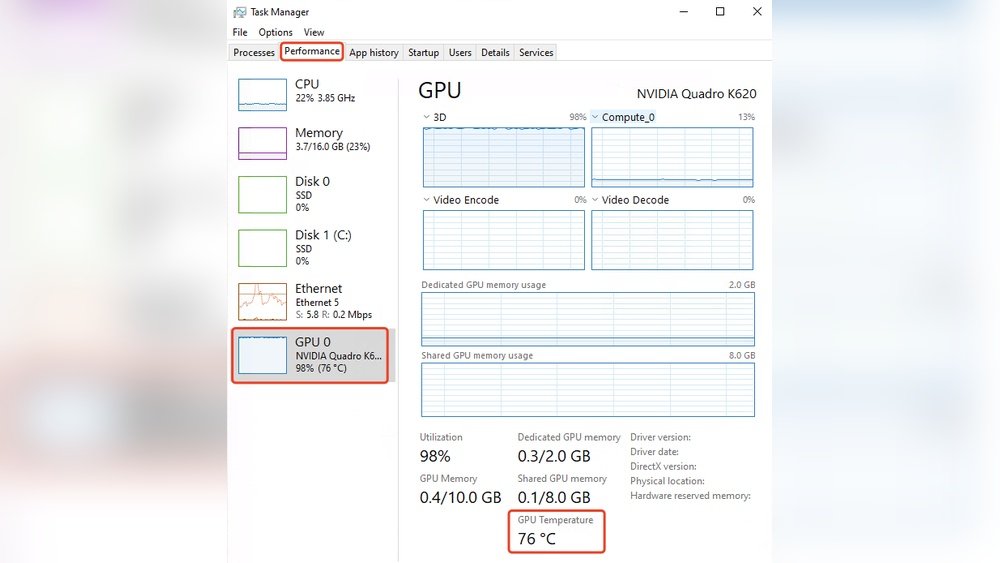
Checking the temperature of your GPU is important for keeping your computer safe. High temperatures can cause damage or reduce performance. Several tools help you see how hot your graphics card is running. These tools show real-time temperature and let you adjust settings if needed.
Some tools come from the graphics card maker, while others are third-party apps. You can also use command line methods for quick checks. Each option has its own benefits. Choose the one that fits your needs and skill level.
Graphics Card Software
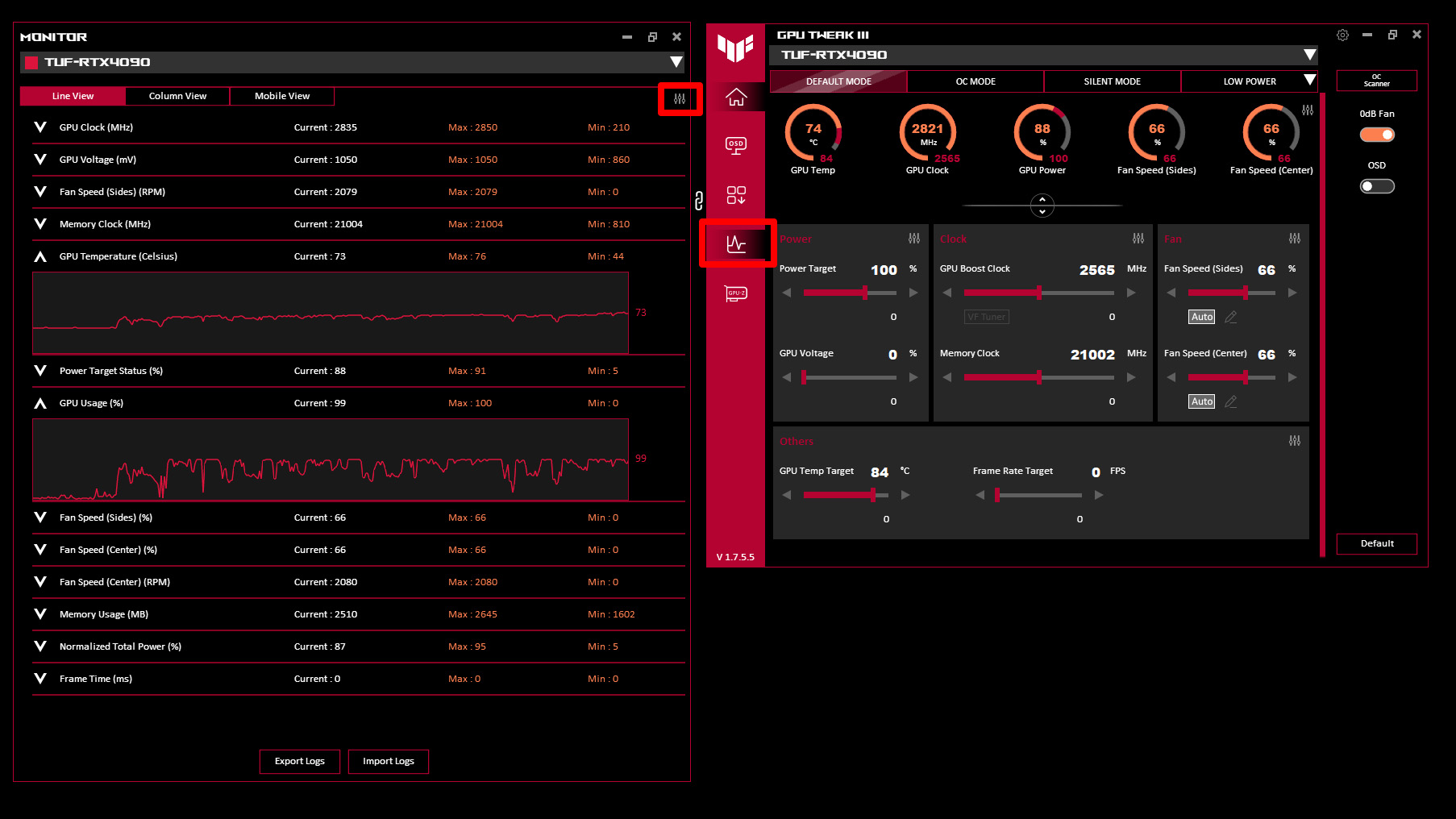
Most graphics card brands offer their own software. These apps show detailed temperature info and fan speeds. Examples include NVIDIA GeForce Experience and AMD Radeon Software. They also provide driver updates and performance settings. These tools are easy to use and accurate.
System Monitoring Apps
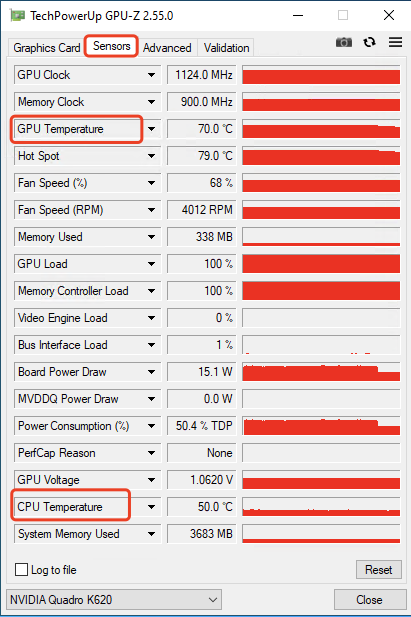
Several third-party apps monitor GPU temperature along with other system parts. Programs like HWMonitor, MSI Afterburner, and Speccy are popular choices. They offer more detailed stats and history graphs. These apps work with many hardware types and are good for general monitoring.
Command Line Methods
Advanced users can check GPU temperature using command line tools. On Windows, tools like “nvidia-smi” work for NVIDIA cards. Linux users can use commands like “nvidia-smi” or check files in /sys/class/drm/. Command line methods are fast and use fewer resources but need some technical knowledge.
Credit: www.gpu-mart.com
Step-by-step Temperature Checking Process
Checking the temperature of your GPU and CPU is important to keep your computer safe. High temperatures can cause damage or slow down your system. This process helps you find the current temperature and keep track of it easily. Follow these simple steps to check your hardware temperature.
Accessing Temperature Data
First, download a reliable temperature monitoring tool. Programs like HWMonitor, Core Temp, or MSI Afterburner work well. Install the software and open it. The tool will show the temperature of your CPU and GPU in real time. Look for the section labeled CPU or GPU temperature. Some computers also have built-in software to check these values.
Interpreting Temperature Readings
Normal CPU temperatures usually range from 30°C to 60°C when idle. Under load, they can reach 70°C to 85°C. GPU temperatures often stay between 30°C and 50°C when idle. When gaming or working hard, they may rise to 70°C to 85°C. Temperatures above 90°C can cause problems. Check your hardware manual for exact safe limits.
Setting Temperature Alerts
Many monitoring tools allow you to set alerts for high temperatures. Open the settings or preferences menu in your software. Find the option to create alerts or warnings. Set a temperature limit that you do not want to exceed. The tool will notify you if your CPU or GPU gets too hot. This helps prevent overheating and damage.
Ideal Temperature Ranges For Cpu And Gpu
Knowing the ideal temperature ranges for your CPU and GPU helps keep your computer safe. It also improves performance and extends hardware life. CPUs and GPUs have different temperature needs. They work best within certain temperature limits. Monitoring these limits prevents overheating and damage.
Normal Operating Temperatures
CPUs usually run between 30°C and 50°C when idle. GPUs stay around 30°C to 45°C while not doing heavy work. These temperatures show the system is cool and stable. Staying in this range means your cooling system works well.
Safe Maximum Limits
CPUs can safely reach up to 85°C during heavy use. Some models allow up to 100°C, but it is not recommended. GPUs often handle temperatures up to 85°C safely. Going above these limits can cause permanent damage and slow down the system.
Temperature Variations Under Load
Under load, both CPU and GPU temperatures rise. The CPU might reach 70°C to 85°C during gaming or video editing. GPUs can go as high as 80°C to 85°C when running games or 3D software. It is normal for temperatures to increase but not to exceed safe limits.
Credit: rog.asus.com
Tips To Keep Cpu And Gpu Cool
Keeping your CPU and GPU cool helps your computer run better and last longer. High temperatures can slow down your system and cause damage. Simple steps can lower heat and keep your parts safe. Follow these tips to maintain a cooler system.
Improving Airflow In The Case
Good airflow removes hot air and brings in cool air. Keep cables tidy to avoid blocking air paths. Add extra fans if your case supports them. Place intake fans at the front and exhaust fans at the back. This setup pushes air through the case efficiently.
Using Quality Thermal Paste
Thermal paste helps heat move from the CPU or GPU to the cooler. Old or poor-quality paste can dry out and stop working well. Replace the thermal paste every year or two. Use a small, even layer for best results. This simple step improves heat transfer and lowers temperatures.
Upgrading Cooling Solutions
Stock coolers may not be enough for heavy use. Consider better air coolers with bigger fans or heat pipes. Liquid cooling systems can cool parts more effectively. They use a pump and radiator to move heat away fast. Upgrading your cooling helps maintain stable and low temperatures.
When To Seek Professional Help
Knowing when to seek professional help is important for your computer’s health. Some temperature problems need expert care. Trying to fix serious issues alone can cause damage. Professionals have the tools and knowledge to diagnose and solve complex problems safely.
Persistent Overheating Issues
If your GPU or CPU keeps overheating even after cleaning and checking fans, it is a warning sign. Persistent high temperatures can harm your hardware and lower performance. A technician can test your cooling system and thermal paste properly. They find hidden faults you might miss. Don’t wait too long to get help.
Hardware Replacement Considerations
Sometimes, parts wear out or fail over time. If overheating continues, hardware replacement may be needed. Professionals can advise if your GPU or CPU needs swapping. They ensure new components fit and work well with your setup. This prevents future temperature problems and keeps your system stable.

Credit: www.sietesetenta.com.ar
Frequently Asked Questions
How Do I Check My Cpu Temperature On Windows?
You can check CPU temperature using software like HWMonitor or Core Temp. These apps show real-time CPU temps clearly.
What Is A Safe Gpu Temperature Range?
A safe GPU temperature usually ranges from 30°C to 85°C. Staying below 85°C prevents overheating and damage.
Can High Cpu Temperature Damage My Computer?
Yes, high CPU temperature can cause system crashes and hardware damage. Proper cooling helps maintain safe temperatures.
Which Tools Are Best For Monitoring Gpu Temperature?
Popular tools like MSI Afterburner and GPU-Z provide accurate GPU temperature readings. They are free and user-friendly.
Conclusion
Keeping an eye on your GPU and CPU temperature protects your computer. Use simple tools to check temperatures anytime. Watch for high heat to avoid damage or slowdowns. Regular checks help your system run smoothly and last longer. Stay safe, and keep your computer cool.