How to Check Cpu Usage Windows 10: Quick & Easy Guide
Are you noticing your computer slowing down or acting sluggish? One of the first things you should check is your CPU usage.
Understanding how much of your processor’s power is being used can help you spot problems before they get worse. You’ll learn simple and quick ways to check your CPU usage on Windows 10. By the end, you’ll know exactly how to keep your system running smoothly and avoid frustrating slowdowns.
Let’s dive in and take control of your PC’s performance!
Access Task Manager
Accessing Task Manager is the first step to check CPU usage on Windows 10. It shows real-time details about your computer’s performance. You can see how much CPU power your programs use. This helps find slow apps or heavy tasks easily.
Task Manager is built into Windows 10. It opens quickly and provides clear information. Let’s explore how to access it and find the CPU data.
Open Task Manager Quickly
Press Ctrl + Shift + Esc on your keyboard. This shortcut opens Task Manager right away. No need to click through menus.
Another way is right-clicking the taskbar. Then select Task Manager from the menu. Both methods work fast and simple.
Navigate To Performance Tab
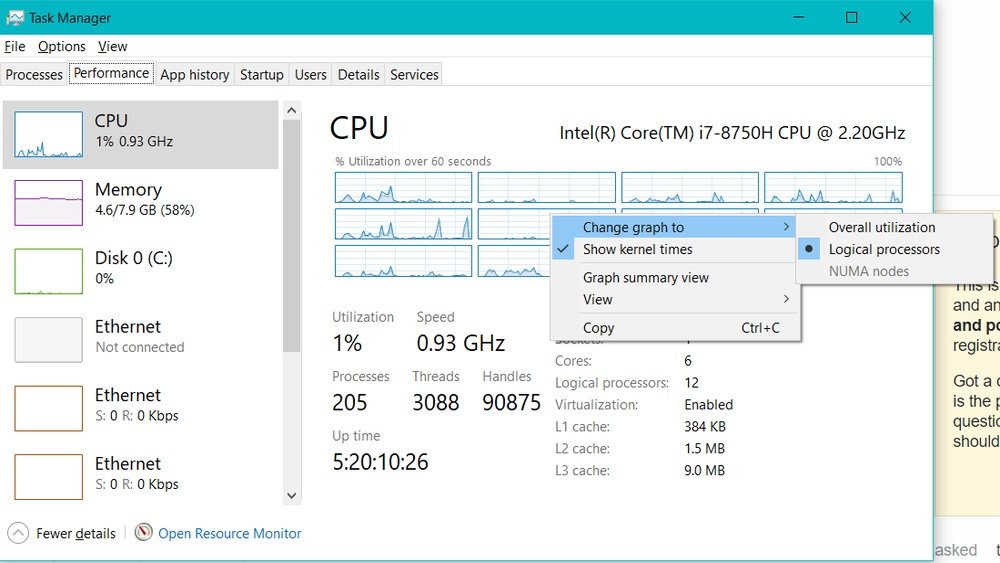
After opening Task Manager, click the Performance tab at the top. This tab shows CPU, memory, disk, and network usage.
Click CPU on the left side to see detailed CPU stats. Usage percentage, speed, and cores appear here. This view updates live.
Credit: softkeys.uk
Use Resource Monitor
Resource Monitor is a powerful tool in Windows 10. It shows detailed information about your CPU usage. This helps you see which programs use the most resources. You can monitor your system’s performance closely and make changes if needed.
Resource Monitor gives a clear view of CPU activity. It breaks down usage by process and service. This makes it easier to find the cause of slowdowns or high CPU load.
Launch Resource Monitor
Press Windows + R to open the Run box. Type resmon and press Enter. Resource Monitor will open in a new window. You can also search for “Resource Monitor” in the Start menu.
The tool loads several tabs. Click the CPU tab to see CPU usage details. This tab shows active processes and their CPU consumption.
Check Cpu Usage Details
Look at the graphs and lists in the CPU tab. The graph at the top shows total CPU usage over time. Below, you see each process and the percentage of CPU it uses.
Check the Processes section for high CPU users. The Services section shows background services using CPU. You can sort columns by clicking the headers for easier analysis.
Resource Monitor also shows CPU usage per core. This helps identify if one core is overloaded. Use this information to close or manage heavy programs.
Try Command Prompt
Checking CPU usage through Command Prompt is a quick and simple method. It lets you see your processor’s activity without extra software. This tool is built into Windows 10, so no installation is needed. You just need to enter a command and read the results.
Run Wmic Command
Start by opening Command Prompt. You can do this by typing “cmd” in the search bar and clicking the app. Next, type the command wmic cpu get loadpercentage and press Enter. This command asks Windows to show the current CPU load as a percentage. Wait a moment for the number to appear below the command.
Interpret Cpu Usage Output
The number you see shows how busy your CPU is. A low percentage means your CPU is mostly idle. A high percentage means the CPU is working hard. If the number stays high for a long time, your computer might be slow. This simple check helps you understand your PC’s performance at a glance.

Credit: softwareg.com.au
Monitor With Performance Monitor
Performance Monitor is a built-in tool in Windows 10. It helps you track CPU usage in real time. This tool shows detailed data about your processor’s activity. You can see how much power your CPU uses and find any issues slowing your PC.
Using Performance Monitor lets you watch CPU performance over time. It gives clear charts and numbers. This way, you can understand your computer’s workload better and make smart decisions.
Set Up Performance Monitor
Open the Start menu and type Performance Monitor. Click the app to launch it. The main window shows a graph and some options. This graph updates as your CPU works.
To start monitoring, look for Performance Monitor under Monitoring Tools in the left panel. Click it to open a fresh graph. This graph will display live data once you add counters.
Add Cpu Counters
Click the green plus sign (+) above the graph. A new window with counters appears. Scroll down to find Processor in the list.
Expand Processor and select % Processor Time. This counter shows the CPU usage percentage. Click Add and then OK to confirm.
The graph now shows your CPU usage in real time. You can watch it to see how busy your processor is. This helps spot heavy programs or errors affecting performance.
Third-party Tools
Third-party tools offer a simple way to check CPU usage on Windows 10. These apps often provide detailed information beyond the built-in options. They help users track CPU performance easily and spot problems fast.
Many third-party tools come with user-friendly interfaces. They show real-time CPU usage in graphs or numbers. Some tools also monitor temperature and other hardware details.
Popular Cpu Monitoring Apps
There are several popular apps to monitor CPU usage. One well-known option is HWMonitor. It shows CPU load, temperature, and voltage clearly. Another favorite is Core Temp, which focuses on CPU temperature and usage. For more detailed system info, try Speccy. It gives a full overview of your computer’s parts and their status. These apps are free or offer free versions.
Benefits Of Third-party Tools
Third-party tools provide more details than Windows Task Manager. They show CPU usage per core, not just total use. Some apps alert users when CPU temperature is too high. This helps prevent overheating and damage. Many tools also track historical data. This makes it easier to see patterns or spikes in CPU usage. Overall, these apps give better control and insight into your PC’s health.
Tips To Manage High Cpu Usage
High CPU usage slows down your computer and affects work. Managing it keeps your PC fast and stable. Simple steps help reduce CPU load effectively. Focus on finding heavy tasks and improving system settings.
These tips work well for Windows 10 users. They help keep the CPU from running too hard. Follow easy methods to check and control CPU use.
Identify Resource-heavy Processes
Open Task Manager by pressing Ctrl + Shift + Esc. Click on the “Processes” tab. Look for apps using high CPU percentage. Sort by CPU column to see the biggest users first. Close or restart programs that use too much CPU.
Some background apps may cause high CPU use. Check for updates or bugs in those apps. Ending unnecessary tasks frees up CPU power. Keep an eye on processes that spike often.
Optimize System Performance
Turn off startup programs you don’t need. Use Task Manager’s “Startup” tab to disable them. Run Windows Update to keep your system current. Updated drivers improve hardware efficiency.
Clear temporary files and run disk cleanup. Remove unused software to reduce background load. Adjust power settings for better CPU management. Set the power plan to “Balanced” or “Power Saver.”
Use antivirus software to check for malware. Malware can cause high CPU by running secretly. Regular scans keep your system safe and smooth.
:max_bytes(150000):strip_icc()/AA-3-CheckCPUUsageinWindows11-annotated-643c382be09f4cdbb511284cd2e872de.jpg)
Credit: www.lifewire.com
Frequently Asked Questions
How Do I Open Task Manager To Check Cpu Usage?
Press Ctrl + Shift + Esc to open Task Manager quickly. Navigate to the “Performance” tab to view real-time CPU usage. This tool shows detailed CPU activity and helps monitor system performance effectively.
Can I Check Cpu Usage Without Task Manager?
Yes, you can use the Resource Monitor by typing “resmon” in the Start menu. It provides detailed CPU usage data, including processes and services, giving deeper insights than Task Manager.
What Is A Normal Cpu Usage Percentage On Windows 10?
Normal CPU usage varies but generally stays below 20% during idle. High usage above 80% may indicate heavy tasks or background processes needing attention. Monitoring helps maintain smooth system performance.
How Often Should I Check Cpu Usage On Windows 10?
Check CPU usage when your computer slows down or freezes. Regular monitoring during intensive tasks can prevent overheating and identify software causing high CPU load.
Conclusion
Checking CPU usage on Windows 10 helps you keep your computer healthy. You can find out which programs use the most power. This helps you close apps that slow down your PC. Task Manager is an easy tool to use for this.
Regular checks prevent problems and improve speed. Try it now and see how your computer runs. Simple steps make a big difference. Stay in control of your system’s performance every day.