How to Increase Cpu Fan Speed: Ultimate Guide to Boost Cooling
Is your computer feeling hotter than usual or slowing down during heavy tasks? One simple fix could be increasing your CPU fan speed.
By boosting your fan’s performance, you can keep your processor cooler, improve overall system stability, and even extend your computer’s lifespan. You’ll discover easy and effective ways to take control of your CPU fan speed—no technical jargon, just clear steps you can follow right now.
Ready to give your PC the cool-down it deserves? Let’s dive in.
Why Cpu Fan Speed Matters
Cpu fan speed plays a key role in keeping your computer cool. It controls how fast the fan spins to remove heat. Proper fan speed stops the cpu from getting too hot. This helps the system run smoothly without damage.
Understanding why cpu fan speed matters helps you protect your device. It affects cooling, performance, and safety. Below are some main reasons to pay attention to fan speed.
Impact On Cooling Efficiency
The cpu fan moves air to cool the processor. Faster fan speed means better airflow. This helps lower the cpu temperature quickly. Good cooling stops heat from building up inside the case. Proper fan speed keeps parts safe and working well.
Effects On System Performance
Heat slows down the cpu. When the cpu gets too warm, it reduces speed to cool down. This is called throttling. Increasing fan speed lowers temperature and prevents throttling. The system stays fast and responsive without overheating.
Risks Of Overheating
Overheating can cause serious damage. It may shorten the lifespan of your cpu. High heat can cause crashes or sudden shutdowns. Increased fan speed lowers this risk by keeping the cpu cool. Safe temperatures help avoid costly repairs and data loss.
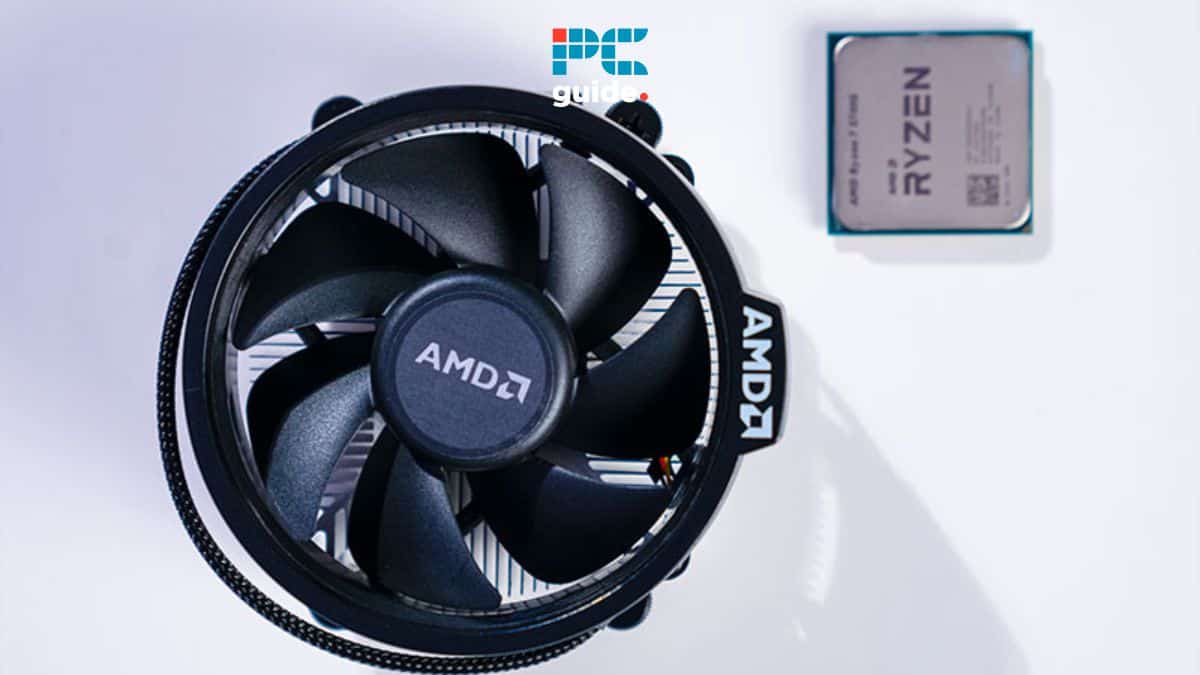
Credit: www.pcguide.com
Checking Current Fan Speed
Checking your CPU fan speed is the first step to control it properly. It helps you know if the fan runs too slow or too fast. This information is key to avoid overheating or loud noise from your computer. Use simple methods to check the current speed before changing settings.
Using Bios Settings
Restart your computer and enter the BIOS menu. Usually, press Delete, F2, or F10 during startup. Look for the hardware or fan section. Here you can see the CPU fan speed in RPM (revolutions per minute). BIOS shows real-time fan speed without extra software. This method works for most computers and is safe to use.
Third-party Software Tools
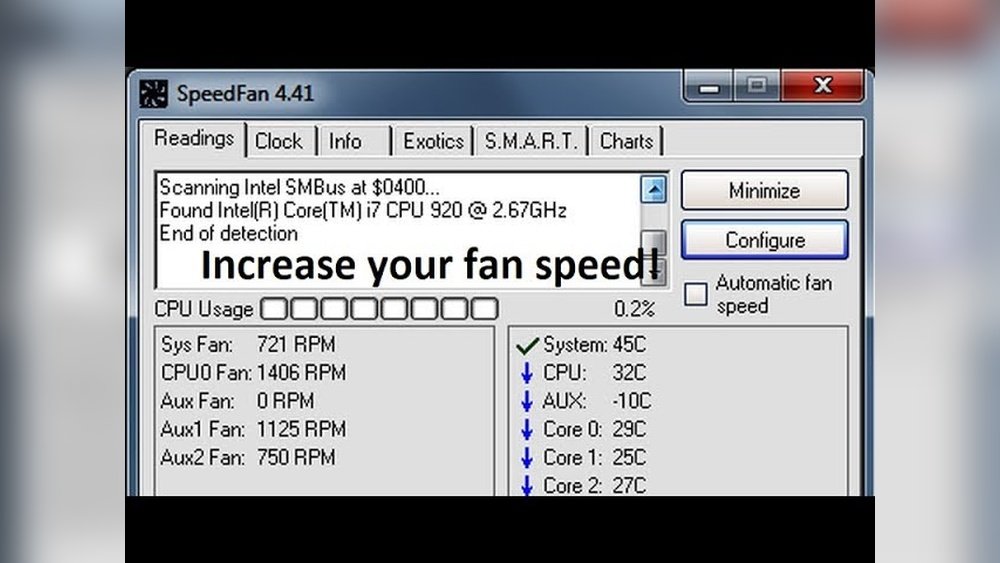
Several free tools show CPU fan speed inside Windows. Programs like HWMonitor, SpeedFan, or Core Temp are popular options. Download and install one from a trusted source. Open the program and find the CPU fan speed reading. These tools often show temperature and voltage too. They help monitor fan speed without restarting the PC.
Interpreting Fan Speed Readings
Fan speed is measured in RPM. A healthy CPU fan usually runs between 1000 and 3000 RPM. Very low speed can cause overheating. Very high speed might mean the fan is noisy or stressed. Compare your readings to your CPU’s normal range. Check the fan speed during different tasks for better insight.
Adjusting Fan Speed Through Bios
Adjusting your CPU fan speed through BIOS lets you control cooling directly from your computer’s hardware settings. This method offers precise fan speed management based on temperature changes. It helps keep your CPU cool and quiet by changing fan speed automatically.
Accessing fan speed controls in BIOS is simple but varies by motherboard brand. Once inside, you can create custom fan curves. These curves adjust fan speed at different temperature points. This way, the fan spins faster only when needed. Finally, save your changes and test the fan to confirm it works as expected.
Accessing Fan Control Settings
Restart your computer and press the BIOS key during startup. Common keys include Delete, F2, or F10. The screen will show BIOS or UEFI settings. Use arrow keys to find the “Hardware Monitor” or “Fan Control” section. Here, you can see current fan speeds and temperature readings. Some BIOS versions have a separate tab for fan settings. Explore menus carefully to locate fan control options.
Customizing Fan Curves
Fan curves let you set fan speed at different temperatures. You can create points on a graph inside BIOS. Each point links a temperature to a fan speed percentage. For example, set the fan to 30% at 30°C and 70% at 60°C. Adjust these points to suit your cooling needs. Smooth curves help avoid sudden fan noise changes. Custom curves balance cooling and noise efficiently.
Saving And Testing Changes
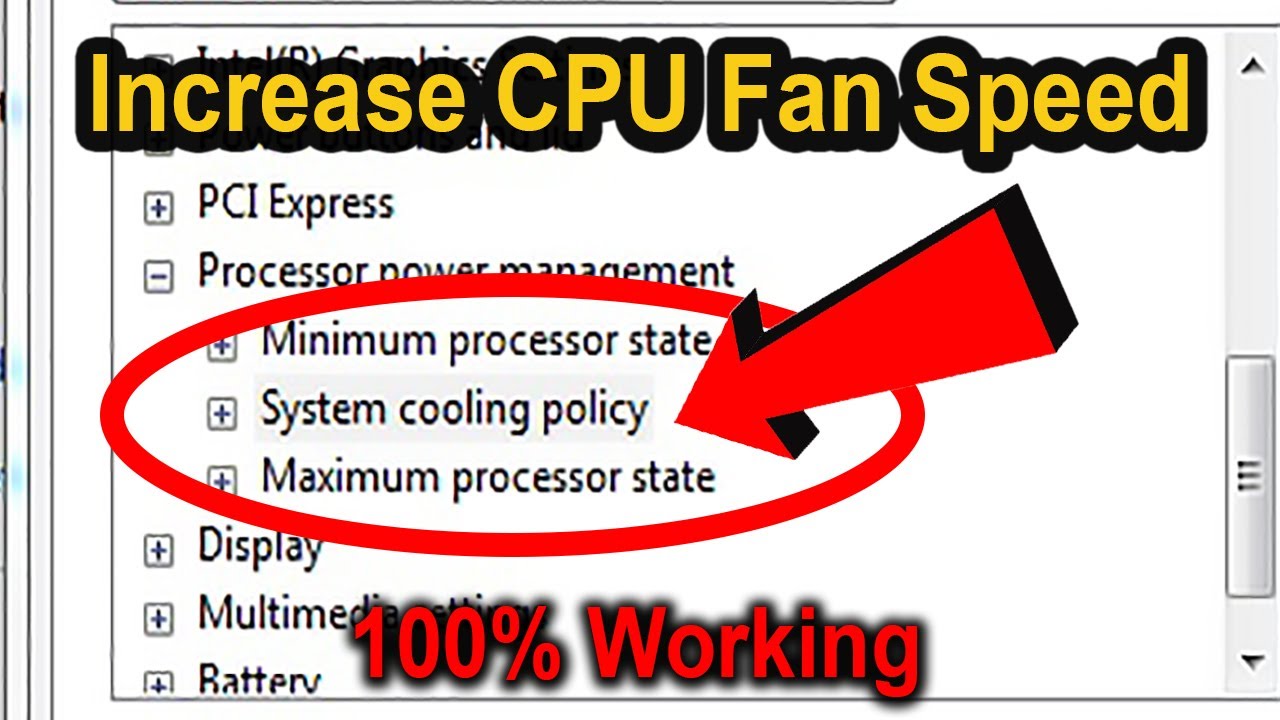
After adjusting fan settings, save your changes. Usually, press F10 or select “Save and Exit” in BIOS. Your computer will reboot with new fan speeds applied. Monitor your CPU temperature and listen to fan noise. Use stress tests or heavy tasks to check if the fan speeds up correctly. If needed, return to BIOS and tweak the fan curve again. Repeat until you find the best balance for your system.
Credit: www.youtube.com
Using Software To Boost Fan Speed
Using software to boost CPU fan speed is an easy way to control your computer’s cooling. It helps keep the CPU temperature low and prevents overheating. You can adjust fan speed without opening your computer case. This method gives you more control over your system’s performance and noise level.
Many programs let you change fan speed based on temperature or manually set the speed. These tools help extend your CPU’s life and improve system stability. Let’s explore some popular programs and how to use them.
Popular Fan Control Programs
SpeedFan is a free and widely used program. It works with many motherboards and shows temperature readings. Another option is HWMonitor, which tracks fan speed and system temperatures. MSI Afterburner is popular among gamers and offers fan control for some CPUs. Note that some software works only with specific hardware brands.
Step-by-step Configuration
First, download and install the fan control program. Open the software and find the fan control section. Check the current fan speed and temperature readings. Set your desired fan speed manually or create a temperature-based profile. Save the settings and apply the changes. Restart your computer to make sure the changes take effect.
Monitoring Temperature And Noise
After adjusting fan speeds, watch your CPU temperature closely. Keep it below the safe limit suggested by the CPU manufacturer. Listen to the fan noise level. Increase fan speed only if the noise is acceptable. Fine-tune the settings to balance cooling and quietness. Regularly monitor temperatures to avoid overheating or damage.
Hardware Solutions To Improve Cooling
Hardware solutions are key to improving your CPU cooling and fan speed. Good cooling keeps your computer running smoothly. It also stops overheating and damage. You can try several hardware fixes to boost fan speed and cool better.
Upgrading Cpu Fans
Old or weak CPU fans may not cool well. Replacing them with better fans helps. Look for fans with higher RPM and good airflow. Bigger fans often move more air quietly. Choose a fan that fits your CPU socket and case size.
Installing Additional Case Fans
Adding more fans inside your case improves airflow. Place intake fans at the front and exhaust fans at the back. This setup pushes hot air out and pulls cool air in. More fans reduce heat buildup around your CPU and other parts.
Applying Thermal Paste Correctly
Thermal paste helps heat transfer from the CPU to the cooler. Applying it wrong reduces cooling efficiency. Clean old paste off before adding new. Use a small pea-sized amount in the center of the CPU. This ensures good contact and better heat flow.

Credit: softwareg.com.au
Troubleshooting Common Issues
Troubleshooting common issues helps keep your CPU fan working well. Fans may not always respond or run smoothly. Small problems can cause big heat or noise issues.
Understanding common fan problems saves time and prevents damage. Check these signs and fixes before changing parts or settings.
Fan Not Responding To Speed Changes
Sometimes, the fan speed does not change when you adjust settings. This can happen due to software or hardware issues. Check if the fan control software is updated and compatible. Make sure the fan is properly connected to the motherboard. BIOS settings might also block speed changes. Resetting BIOS to default can help. Try another speed control tool to test the fan. A faulty fan may need replacement.
Unusual Noise And Vibrations
Noisy fans may have dust buildup or loose parts. Clean the fan blades and surrounding area carefully. Check if the fan is mounted tightly. Loose screws can cause vibrations and noise. Bent or damaged blades also make noise. Replace the fan if the noise persists after cleaning. Proper lubrication helps older fans run quietly. Avoid using too much oil, only a drop is enough.
Balancing Cooling And Noise Levels
Faster fans cool better but can be noisy. Slower fans run quiet but may cause higher temperatures. Find a speed that keeps the CPU cool and noise low. Use fan control software to create custom speed profiles. Set higher speeds only when the CPU gets hot. Monitor temperatures regularly to avoid overheating. Good airflow in the case reduces the need for high fan speeds.
Frequently Asked Questions
How Can I Manually Increase My Cpu Fan Speed?
You can increase CPU fan speed via BIOS settings or fan control software. Adjust fan curves for optimal cooling and noise balance. Always monitor temperatures to avoid overheating when increasing fan speed.
Does Increasing Cpu Fan Speed Improve Computer Performance?
Increasing fan speed helps keep CPU cool, preventing thermal throttling. Cooler CPUs maintain consistent performance under heavy workloads. However, it does not directly boost CPU processing power.
What Software Is Best For Controlling Cpu Fan Speed?
Popular software like SpeedFan, MSI Afterburner, and HWMonitor allow precise CPU fan speed control. Choose software compatible with your motherboard for accurate adjustments and real-time monitoring.
Can Increasing Cpu Fan Speed Cause Hardware Damage?
Properly increasing fan speed is safe and helps cooling. Excessively high speeds may wear out the fan faster but rarely cause immediate damage. Ensure balanced fan speeds to prolong hardware life.
Conclusion
Increasing your CPU fan speed helps keep your computer cool and safe. You can adjust settings in the BIOS or use software tools. Always monitor temperatures to avoid overheating. Clean your fan regularly to improve performance. Small changes can make a big difference in your PC’s health.
Keep your system running smoothly by managing fan speed well. Stay patient and careful when making adjustments. Your computer will thank you with better performance and longer life.