How to Know the Temperature of Cpu: Easy Tips to Prevent Overheating
Is your computer running slower than usual or suddenly shutting down? It might be your CPU overheating.
Knowing the temperature of your CPU is key to keeping your computer healthy and running smoothly. But how can you check it easily? You’ll discover simple ways to monitor your CPU temperature and understand what the numbers mean. By the end, you’ll have the confidence to protect your device from damage and boost its performance.
Keep reading to learn how to take control of your CPU’s temperature right now.
Why Cpu Temperature Matters
Cpu temperature matters for many reasons. It affects your computer’s health and performance. Knowing the temperature helps prevent damage and keeps your system running smoothly.
Too much heat can slow down your Cpu. It may cause errors or crashes. Over time, high temperatures reduce the Cpu’s lifespan. That means your computer might stop working sooner.
Protecting Your Cpu From Overheating
High Cpu temperature can cause permanent damage. The Cpu might stop working correctly. Overheating can burn internal parts. Keeping the Cpu cool protects your investment.
Maintaining System Performance
Cpu temperature affects speed. When too hot, the Cpu lowers its speed. This prevents damage but slows your work. A cool Cpu runs faster and better.
Preventing Unexpected Shutdowns
Computers shut down to avoid heat damage. Sudden shutdowns can cause data loss. Monitoring Cpu temperature helps avoid this problem.
Extending Cpu Lifespan
Lower temperature means longer Cpu life. Heat wears out parts faster. Keeping Cpu cool saves money on repairs and replacements.

Credit: softwareg.com.au
Common Causes Of Cpu Overheating
CPU overheating is a common issue that can slow down or damage your computer. It happens when the processor gets too hot and cannot cool down properly. Understanding the causes of overheating helps keep your CPU safe and working well.
Several factors can lead to high CPU temperatures. Some are easy to fix, while others need more attention. Knowing these causes can help prevent damage and improve your computer’s performance.
Inadequate Cooling SystemA weak or failing cooling system cannot remove heat efficiently. Dust inside fans and heat sinks blocks airflow. Old or dried thermal paste between the CPU and cooler reduces heat transfer. All these make the CPU temperature rise quickly.
Poor Airflow Inside the CaseBlocked vents or cables inside the computer case reduce airflow. Without enough air movement, hot air stays near the CPU. This causes the processor to heat up. Proper cable management and cleaning vents improve airflow and cooling.
High CPU UsageRunning many programs or heavy software pushes the CPU to work hard. This produces more heat than usual. Long hours of high usage without breaks cause the CPU temperature to rise. Closing unnecessary programs lowers CPU load and heat.
Overclocking the CPUOverclocking means running the CPU faster than its factory settings. It increases performance but also generates extra heat. Without better cooling, overclocking leads to overheating and can damage the processor.
Faulty Hardware ComponentsBroken fans, damaged heat sinks, or failing power supplies affect cooling. These hardware issues can cause the CPU to overheat. Regular hardware checks help spot problems before they cause damage.
Signs Your Cpu Is Too Hot
Knowing if your CPU is too hot helps protect your computer. High temperatures can cause damage or slow down your device. Watch for clear signs that show your CPU is overheating. These signs let you act fast and keep your computer safe.
Check these signals to spot heat problems early. Understanding them can save time and money on repairs.
Frequent Computer Crashes Or Freezes
Your PC may crash or freeze often if the CPU is too hot. Overheating causes the system to shut down to avoid damage. Sudden crashes during work or gaming can signal high CPU temperature.
Unexpected Slowdowns
When the CPU gets too hot, it slows down to cool off. Programs may take longer to open or respond. This slowdown helps prevent permanent damage but hurts your computer’s speed.
Loud Fan Noise
The CPU fan runs faster to cool a hot processor. You might hear louder or constant fan noise. This sound means the CPU temperature is high and the cooling system is working hard.
High Temperature Readings
Using software to check CPU temperature shows clear signs. Numbers above 80°C (176°F) often mean the CPU is too hot. Consistently high readings warn about overheating before damage occurs.
Unexpected Shutdowns
The computer may shut down without warning to stop heat damage. This safety feature protects the CPU from burning out. Sudden power-offs are a serious sign of overheating.
Tools To Check Cpu Temperature
Knowing your CPU temperature helps keep your computer safe and running well. Several tools make this task simple. These tools give real-time data and help you spot overheating early. Choose the best option based on your needs and skill level.
Built-in Bios/uefi Monitoring
Most computers have temperature monitoring inside the BIOS or UEFI. You can access it by pressing a key during startup, like F2 or Delete. This tool shows CPU temperature without extra software. It is basic but reliable. Use it for quick checks before the operating system loads.
Third-party Software Options
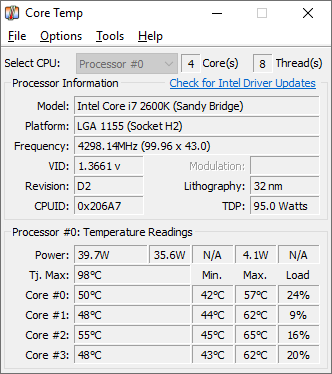
Many programs check CPU temperature with more details. Popular choices include HWMonitor, Core Temp, and SpeedFan. These apps run inside Windows and show temperature changes live. Some also give alerts when temperatures get high. They offer graphs and extra info about other parts too.
Hardware Temperature Sensors
External sensors attach to your CPU or motherboard. They provide accurate temperature readings. Some come as USB devices or small screens for your desk. These sensors work independently of software. Ideal for users who want constant monitoring without opening apps.
Steps To Monitor Cpu Temperature
Monitoring your CPU temperature is important to keep your computer safe. High temperatures can damage parts and slow down your system. Knowing how to check the temperature helps you act before problems start.
Follow these clear steps to monitor your CPU temperature easily. Use simple tools and methods that anyone can understand.
Check Bios Or Uefi Settings
Turn off your computer and restart it. Press the key to enter BIOS or UEFI during startup. Look for hardware or system health sections. Find the CPU temperature display. This method shows real-time temperature without extra software.
Use Built-in System Tools
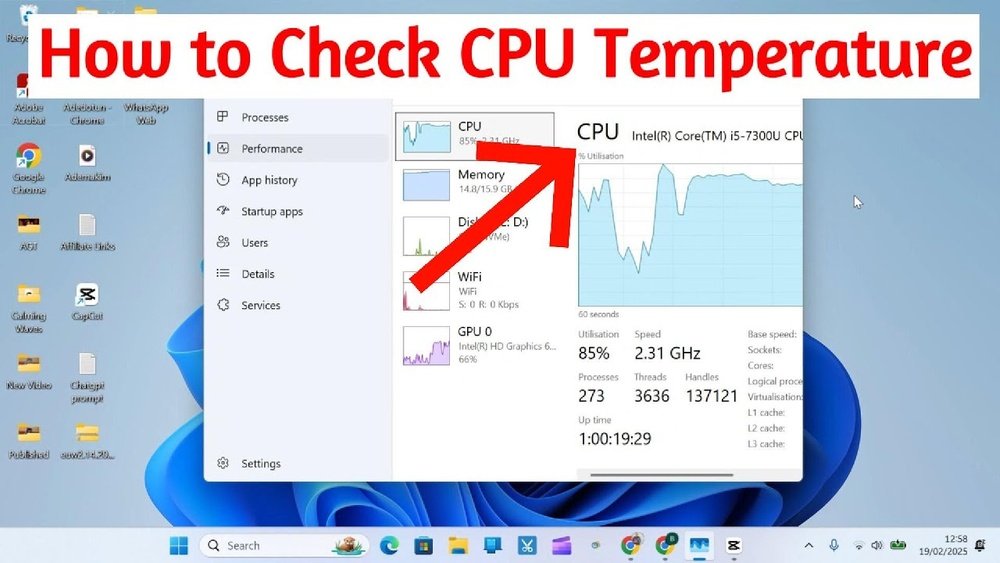
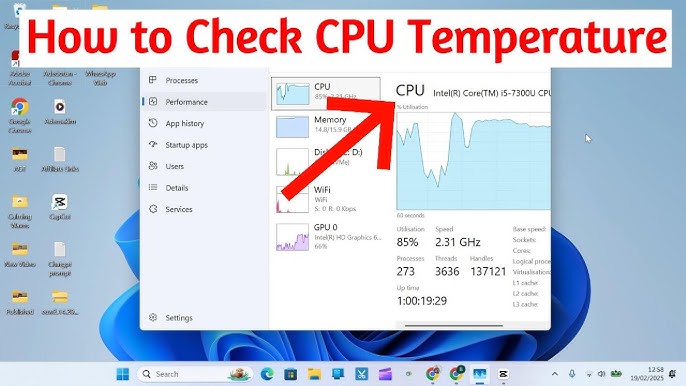
Windows and Mac have basic tools for checking system health. On Windows, open Task Manager and go to the Performance tab. Mac users can use Activity Monitor. These tools show general system info, but might not show exact CPU temperature.
Install Third-party Software
Download free programs like HWMonitor or Core Temp. These apps show detailed CPU temperature and other hardware data. Run the software and watch the temperature numbers. Many apps update the data every second for accuracy.
Monitor Temperature While Using The Computer
Keep the monitoring app open while you work or play games. Check if the temperature stays in a safe range. Notice any spikes during heavy use. This helps you understand how different tasks affect your CPU heat.
Set Alerts For High Temperatures
Some software lets you set warning limits. Choose a maximum temperature to avoid damage. The app will alert you if the CPU gets too hot. This feature protects your computer by prompting quick action.
Credit: www.youtube.com
Tips To Keep Cpu Cool
Keeping your CPU cool is important for good performance and long life. High temperatures can slow down your computer or cause damage. Simple steps can help your CPU run at a safe temperature. These tips help you avoid overheating and keep your system stable.
Improve Airflow Inside The Case
Good airflow moves hot air out and brings cool air in. Arrange cables neatly to avoid blocking air paths. Use enough case fans for intake and exhaust. Position your PC in a place with fresh air, not inside a closed cabinet.
Use Quality Thermal Paste
Thermal paste helps transfer heat from the CPU to the cooler. Use a good-quality thermal paste for better heat transfer. Apply a thin, even layer on the CPU surface. Replace the thermal paste every few years or if you remove the cooler.
Regular Cleaning And Maintenance
Dust buildup blocks airflow and traps heat. Clean your PC case and fans often using compressed air. Check and clean CPU cooler fins and fan blades. Keep vents and filters free from dust for better cooling.
Upgrade Cooling Solutions
Stock coolers may not be enough for heavy use. Consider upgrading to a larger air cooler or liquid cooling system. Better coolers reduce CPU temperature and noise. Choose a cooler compatible with your CPU and case size.
When To Seek Professional Help
Knowing when to seek professional help for your CPU temperature is crucial. Sometimes, the problem is simple to fix. Other times, it needs expert attention. Ignoring high CPU temperatures can cause damage to your computer. It can also lead to data loss or poor performance.
Understanding the signs that require a professional can save your device. It also helps avoid costly repairs later. Here are clear situations when calling a technician is the best choice.
Signs Of Persistent Overheating
If your CPU keeps overheating despite basic fixes, it is a warning. Constant shutdowns or restarts are signs of a serious issue. Overheating can damage internal parts quickly. A professional can find and fix hidden problems.
Unusual Noises From The Computer
Loud or strange sounds coming from fans or the case need checking. This might mean a failing fan or dust buildup inside. These issues can cause poor airflow and high temperatures. Experts clean and replace parts safely.
Errors And System Crashes
Frequent errors or blue screens can link to high CPU temperature. Software fixes may not help if hardware causes these crashes. A technician tests the CPU and cooling system carefully. They ensure your computer runs stable and cool.
Difficulty Monitoring Temperature
Sometimes, temperature software shows wrong readings or stops working. This can hide real CPU heat problems. Professionals use tools to measure temperature accurately. They help confirm if the CPU is overheating or not.
Upgrading Or Replacing Cooling Systems
Adding new cooling parts or replacing old ones can be tricky. Incorrect installation may cause more heat or damage. Professionals install cooling solutions correctly for best results. This protects your CPU and improves performance.
Credit: www.alcpu.com
Frequently Asked Questions
How Can I Check My Cpu Temperature On Windows?
You can check CPU temperature using software like HWMonitor or Core Temp. These tools provide real-time temperature readings. Open the software to view current CPU temperatures and monitor thermal performance easily.
What Is A Safe Cpu Temperature Range?
A safe CPU temperature typically ranges between 30°C and 70°C under normal load. Temperatures above 80°C may cause overheating and damage. Always keep your CPU cool to maintain optimal performance and longevity.
Why Is My Cpu Temperature Suddenly High?
High CPU temperature can result from dust buildup, poor ventilation, or heavy processing tasks. Check your cooling system, clean fans, and close unnecessary applications to reduce heat. Proper cooling prevents thermal throttling and hardware damage.
Can Bios Show Cpu Temperature?
Yes, most BIOS setups display CPU temperature. Restart your PC and enter BIOS by pressing a specific key (like F2 or Del). Navigate to the hardware monitor section to find real-time CPU temperature readings.
Conclusion
Knowing your CPU temperature helps keep your computer safe. Check it often to avoid overheating problems. Use simple tools or software to see the temperature. Stay alert to any sudden changes in heat. Keep your computer clean and well-ventilated for best results.
Watching your CPU temperature saves you from costly repairs. It’s easy and important for smooth computer use. Take small steps now to protect your device later.