

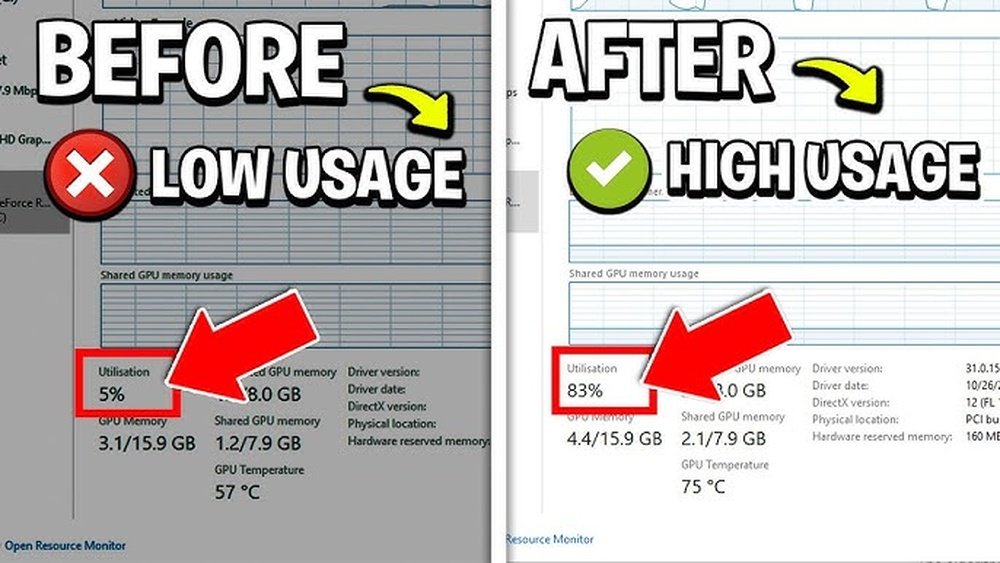
Is your GPU working overtime and causing your computer to slow down or overheat? High GPU usage can make your system lag and reduce its lifespan.
But don’t worry—you have the power to fix this. You’ll discover simple, effective ways to lower your GPU usage. By following these tips, you’ll keep your PC running smoothly and avoid unnecessary stress on your hardware. Ready to take control of your GPU?
Let’s dive in.
Causes Of High Gpu Usage
High GPU usage can cause your computer to slow down or overheat. It happens when your graphics card works harder than usual. Understanding the causes helps you manage and reduce GPU load. Several factors can lead to high GPU usage. Identifying them is the first step to fixing the problem.
Background Processes
Many apps run in the background without your knowledge. Some of these use the GPU to process graphics or videos. Background tasks like video players or software updaters increase GPU load. Closing unnecessary programs can lower GPU usage.
Graphics Settings
High graphics settings in games or software demand more from the GPU. Details like resolution, shadows, and effects affect performance. Setting graphics to medium or low reduces GPU strain. Adjust settings based on your hardware capability.
Driver Issues
Outdated or corrupt GPU drivers cause poor performance. Drivers connect your GPU to the operating system and apps. Without proper drivers, the GPU may run inefficiently. Updating drivers regularly ensures smooth GPU operation.
Malware And Viruses
Malware can use your GPU for harmful tasks without permission. Some viruses run hidden processes that increase GPU usage. Scanning your computer with antivirus software helps find and remove threats. Keeping your system clean prevents unwanted GPU load.

Credit: www.youtube.com
Monitor Gpu Usage
Monitoring your GPU usage helps you understand how your graphics card works. It shows which programs use the GPU the most. This knowledge helps reduce high usage and avoid overheating or slowdowns.
You can check GPU activity using built-in or third-party tools. Tracking usage often helps find issues early. It also improves your PC’s performance and lifespan.
Using Task Manager
Task Manager is a simple way to see GPU usage on Windows. Press Ctrl + Shift + Esc to open it. Click the “Performance” tab to find GPU details. You can watch real-time usage and memory use here. It shows which apps use your GPU the most.
Task Manager offers a quick overview without extra software. It is easy for beginners to use. You get instant feedback on GPU load and temperature.
Third-party Tools
Third-party tools provide more detailed GPU data. Programs like MSI Afterburner and GPU-Z track usage, temperature, and fan speed. They show graphs and logs for deeper analysis.
These tools help spot unusual spikes or constant heavy use. They give more control over GPU settings. Many are free and user-friendly for all skill levels.
Identifying Resource Hogs
Look for programs that use high GPU resources. Games, video editors, and browsers with many tabs often cause spikes. Background apps can also use GPU without notice.
Close or limit these apps to lower GPU usage. Check Task Manager or third-party tools to find them. Managing these programs keeps your GPU running smoothly and cool.
Adjust Graphics Settings
Adjusting your graphics settings is one of the simplest ways to lower GPU usage. It helps your computer run smoother and cooler. Changing a few settings can reduce the load on your graphics card without ruining your experience.
Start by finding the graphics or display settings in your game or software. Then, try these options to ease the pressure on your GPU.
Lower Resolution
Reducing the resolution means your GPU has fewer pixels to draw. This cuts down the work it needs to do. Choose a resolution lower than your screen’s native size. The image might be less sharp but your GPU will work less.
Reduce Texture Quality
Textures are the detailed surfaces on objects in games. High-quality textures need more GPU power. Set texture quality to medium or low to save GPU resources. This change lowers memory use and speeds up rendering.
Disable V-sync And Anti-aliasing
V-Sync limits frame rates to match your monitor’s refresh rate. Turning it off can reduce GPU strain. Anti-aliasing smooths jagged edges but demands extra GPU power. Disable anti-aliasing to cut down GPU usage. Both settings affect visual quality but help your GPU work less.
Optimize Software And Drivers
Optimizing software and drivers helps reduce GPU usage effectively. Proper software settings and updated drivers keep your graphics card running smooth. This lowers the load on your GPU and improves overall system performance.
Making sure your GPU software is up to date can fix bugs and boost efficiency. Closing apps you don’t need frees up GPU resources. Using special modes in games or apps helps control GPU power use.
Update Gpu Drivers
Old drivers may cause high GPU usage or crashes. Visit the official website of your GPU maker. Download and install the latest driver for your model. Updated drivers improve performance and fix bugs. Keep drivers current for the best GPU management.
Close Unnecessary Applications
Many apps run in the background without your notice. These apps use GPU power and slow your system. Check your task manager and close apps you do not use. This frees up GPU resources and lowers usage. Less running software means a cooler and quieter GPU.
Use Game Mode Or Performance Mode
Some systems have modes for better GPU control. Game Mode or Performance Mode limits background tasks during gaming. It focuses system power on the game only. This reduces GPU load from other apps. Activate these modes in your system settings for smoother gameplay.
Manage Background Tasks
High GPU usage can slow down your computer. Many apps and programs run in the background. They use GPU power without you knowing. Managing these background tasks helps lower GPU usage. It frees up resources for important work or gaming.
Start by controlling what runs when your computer boots. Next, limit apps running in the background. Finally, check for malware that uses your GPU secretly.
Disable Startup Programs
Many programs start automatically when you turn on your PC. These apps use GPU and other resources. Disable unnecessary startup programs to reduce GPU load. Open Task Manager and go to the Startup tab. Look for apps you do not need right away. Right-click and choose “Disable” to stop them from starting.
This simple step lowers GPU usage and speeds up boot time. Only keep essential programs enabled at startup.
Limit Background Apps
Apps running in the background use GPU power silently. Close apps you do not use. Check the system tray and taskbar for running programs. Use Task Manager to see all active apps and processes. End tasks that are not important. This stops them from using GPU resources.
Some apps run services even when closed. Adjust app settings to prevent them from running in the background. This saves GPU power and improves performance.
Scan For Malware
Malware can use your GPU for mining or attacks. It runs without your knowledge and causes high GPU usage. Use a trusted antivirus to scan your system regularly. Remove any threats found during the scan.
Keep your antivirus updated for the best protection. Clean systems run smoother and use GPU more efficiently.
Improve Hardware Cooling
Improving hardware cooling helps lower GPU usage by reducing its temperature. Cooler GPUs run more efficiently and avoid overheating. This lowers the stress on the graphics card, which can reduce power use and extend its lifespan.
Proper cooling also prevents the GPU from throttling, which slows down performance. Keeping your GPU cool keeps your system stable and smooth. Here are three ways to improve your GPU cooling.
Clean Dust From Gpu
Dust buildup blocks airflow and traps heat inside the GPU. Use compressed air to blow dust off the fans and heatsinks. Clean your GPU every few months to keep it running cool. Make sure to power off and unplug your PC before cleaning.
Enhance Case Ventilation
Good airflow inside your PC case helps remove hot air quickly. Add more case fans or arrange existing fans for better air circulation. Keep cables neat to avoid blocking airflow. Intake fans bring cool air in; exhaust fans push hot air out.
Use Aftermarket Cooling Solutions
Stock GPU coolers may not be enough for heavy use. Aftermarket coolers offer better fans, bigger heatsinks, or liquid cooling. These solutions lower temperatures significantly and reduce GPU workload. Choose a cooler compatible with your GPU model for best results.
Use Power Management Settings
Managing your GPU usage is important for better performance and longer hardware life. Power management settings control how much energy your GPU uses. Adjusting these settings can help lower GPU usage and reduce heat and noise.
Many devices offer simple options to save power without sacrificing much speed. These settings work by limiting the power your GPU can use or by changing how your system handles energy. This section explains easy ways to use power management settings to lower GPU usage.
Adjust Windows Power Plan
Windows offers power plans that control energy use. Choosing a balanced or power saver plan can reduce GPU workload. Open Control Panel, go to Power Options, and select a plan with lower energy use. This helps the GPU work less hard and saves battery on laptops.
Set Gpu Power Limits
Many graphics cards allow you to set power limits through their software. Lowering the power limit reduces energy consumption and heat output. Use your GPU’s control panel to find power limit options. Set a limit that keeps the GPU cool and quiet but still works well for your tasks.
Enable Battery Saver Modes
Battery saver modes are useful on laptops and tablets. They reduce power to the GPU and other components. Enable battery saver from the system settings to limit background activity and lower GPU usage. This mode helps extend battery life and keeps the device cooler.

Credit: softwareg.com.au
Overclocking And Underclocking
Overclocking and underclocking are ways to change your GPU’s speed. Overclocking means making it run faster than usual. Underclocking means slowing it down. Both methods affect GPU usage and power consumption.
Overclocking can boost performance in games and apps. Underclocking can reduce heat and save energy. Choosing the right method depends on your needs and hardware.
Benefits And Risks
Overclocking improves GPU speed and frame rates. It helps in demanding tasks like gaming and video editing. But it can cause higher heat and power use. This might shorten GPU life or cause crashes.
Underclocking lowers heat and power use. It can make your computer quieter and cooler. This helps in everyday tasks or to fix overheating. But it may reduce performance in games and apps.
Tools For Adjustment
Many tools let you overclock or underclock your GPU. MSI Afterburner is popular and user-friendly. EVGA Precision X1 works well for NVIDIA cards. AMD Radeon Software suits AMD GPUs. These tools show temperature and usage info.
Finding Stable Settings
Start with small changes to clock speeds. Test your GPU with games or benchmarks. Watch for crashes or artifacts on screen. If stable, try raising or lowering speeds a bit more.
Check GPU temperature closely. Keep it below safe limits to avoid damage. Save your settings once stable. Repeat tests to ensure consistent performance and safety.

Credit: softwareg.com.au
Frequently Asked Questions
How Can I Reduce Gpu Usage While Gaming?
Lower in-game graphics settings like resolution and texture quality. Close unnecessary background apps. Update GPU drivers regularly. Use power-saving modes if available to ease GPU load and improve performance.
What Causes High Gpu Usage On My Pc?
High GPU usage often results from demanding applications, outdated drivers, malware, or overheating. Running multiple apps simultaneously also increases GPU load. Identifying and managing these factors helps maintain optimal GPU performance.
Does Updating Gpu Drivers Lower Usage?
Yes, updating GPU drivers can optimize performance and fix bugs causing high usage. Manufacturers release updates to improve efficiency and compatibility, which can reduce unnecessary GPU load during tasks.
Can Lowering Screen Resolution Reduce Gpu Usage?
Lowering screen resolution reduces the number of pixels the GPU processes, easing its workload. This can significantly lower GPU usage, especially in graphic-intensive applications and games, leading to better system stability.
Conclusion
Managing GPU usage helps your computer run cooler and last longer. Simple steps like closing unused apps and adjusting settings make a big difference. Regular updates and cleaning your system keep performance smooth. Keep an eye on GPU use to avoid slowdowns.
Small changes can improve your experience every day. Stay patient and try different tips to find what works best. Lower GPU usage means better speed and less heat. Take control and keep your device running well.
