How to See Cpu Temp Msi Afterburner: Easy Steps for Accurate Monitoring
Wondering how hot your CPU really gets while gaming or working hard? Knowing your CPU temperature is key to keeping your computer running smoothly and avoiding costly damage.
If you’ve heard about MSI Afterburner but aren’t sure how to use it to check your CPU temp, you’re in the right place. This guide will walk you through simple steps to monitor your CPU temperature easily. By the end, you’ll have the power to protect your PC and boost its performance without any guesswork.
Keep reading to find out how!

Credit: softwareg.com.au
Installing Msi Afterburner
Installing MSI Afterburner is the first step to monitor your CPU temperature easily. This free tool helps track your CPU and GPU temperatures in real-time. It also offers features to control fan speeds and improve system performance. The installation process is simple and quick.
This guide will help you download and install MSI Afterburner safely. Follow the steps carefully to set it up on your computer.
Where To Download
Download MSI Afterburner from the official website to avoid fake versions. Visit the MSI website or trusted software platforms. Always choose the latest version for the best features and security. Avoid downloading from unknown sources to keep your PC safe.
Step-by-step Installation Guide
After downloading, open the installer file. Click “Next” to start the setup. Read and accept the license agreement to continue. Choose the installation folder or leave the default path.
Select additional components if needed, like RivaTuner Statistics Server. This helps with on-screen display features. Click “Install” and wait for the process to finish. Finally, click “Finish” to close the installer. Now, MSI Afterburner is ready to use for monitoring your CPU temperature.

Credit: www.reddit.com
Setting Up Temperature Monitoring
Monitoring your CPU temperature is crucial for keeping your computer safe. MSI Afterburner offers a simple way to track this. Setting up temperature monitoring helps prevent overheating and improves performance. Let’s explore how to set it up correctly.
Follow the steps below to enable temperature monitoring and view your CPU’s temperature in real time. This setup is easy and takes just a few minutes.
Enabling Hardware Monitoring
Open MSI Afterburner on your computer. Click the gear icon to access settings. Find the “Monitoring” tab in the settings menu. This section controls what data MSI Afterburner tracks.
Look for the list of hardware items available for monitoring. Make sure the box next to “CPU temperature” is checked. This action tells the program to gather temperature data from your CPU.
Check the option “Show in On-Screen Display” if you want to see the temperature while gaming or working. Save your changes by clicking “OK.” Now, MSI Afterburner is ready to track your CPU temperature.
Selecting Cpu Temperature
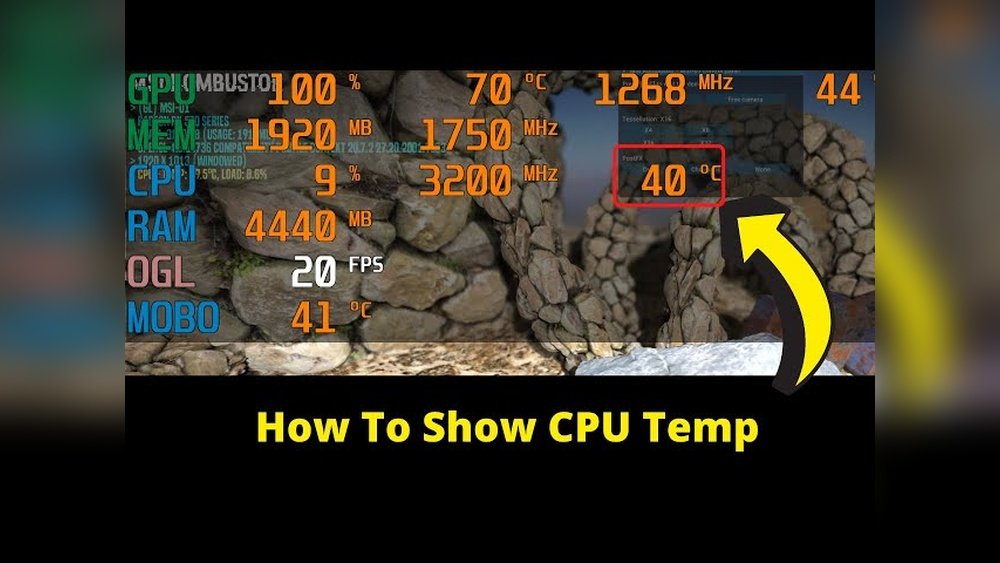
Return to the main MSI Afterburner window. On the right side, you will see the hardware monitoring graph. Find “CPU temperature” in the list of values shown.
If the temperature is not visible, go back to settings and verify the monitoring option is active. You can customize the display color and units for easier reading.
Keep MSI Afterburner running in the background to see live temperature updates. This setup helps you avoid overheating problems by alerting you early.
Customizing The Display
Customizing the display in MSI Afterburner helps you monitor CPU temperature clearly. You can change how the data shows on your screen. This makes it easier to track your system’s health.
Adjust the display to fit your needs. Show only important information. Make the graphs and alerts visible in a way that suits your style. Let’s explore how to do this step by step.
On-screen Display Settings
Open MSI Afterburner and go to the settings menu. Click on the “On-Screen Display” tab. Here, you can choose which items appear on your screen while gaming or working.
Turn on CPU temperature to see it live. You can also change the font size and color. This helps you read the numbers easily without distraction.
Use the toggle buttons to enable or disable different monitoring options. This lets you focus on the CPU temp only or add other stats if needed.
Adjusting Graphs And Alerts
Graphs show the temperature changes over time. Go to the “Monitoring” tab in settings. Select CPU temperature from the list and check “Show in On-Screen Display.”
You can set alerts to warn you if the CPU gets too hot. Find the alert settings and enter the temperature limit. The software will notify you if the CPU temp crosses this point.
Adjust the graph’s scale and colors to match your preferences. This makes it simple to spot sudden spikes or drops in temperature. Clear graphs help you keep your PC safe and stable.
Interpreting Temperature Readings
Understanding CPU temperature readings in MSI Afterburner helps protect your computer. It shows how hot your CPU runs during tasks. Knowing these numbers prevents damage and improves performance. Reading these numbers right guides you to take action when needed.
Normal Temperature Ranges
Idle CPU temperatures usually stay between 30°C and 45°C. Under light work, this is normal and safe. During heavy tasks, such as gaming, the CPU can reach 60°C to 80°C. These numbers show your CPU is working hard but still safe. Temperatures below 85°C are generally okay for short periods.
Different CPUs have unique safe ranges. Check your CPU model for exact numbers. MSI Afterburner helps watch these numbers in real time.
Identifying Overheating Signs
Temperatures above 85°C suggest overheating. This can cause slow performance or crashes. The computer might shut down suddenly to protect itself. High temps over long times damage CPU parts. Watch for these signs in MSI Afterburner readings.
Consistent temperatures over 90°C need immediate action. Clean dust from fans and check cooling systems. Lowering temperature improves the CPU’s life and performance.
Troubleshooting Common Issues
Troubleshooting common issues in MSI Afterburner helps keep your CPU temperature readings accurate. This guide covers typical problems users face. Fixing these problems ensures reliable monitoring and better PC performance.
No Temperature Data Showing
Sometimes, MSI Afterburner does not display CPU temperature data. This issue often happens due to missing sensor support or software conflicts. First, check if your CPU supports temperature monitoring. Update MSI Afterburner to the latest version to fix bugs. Restart the program and your computer to refresh system data. Ensure you enable hardware monitoring in the MSI Afterburner settings. Look for any other software that might block sensor data, such as other monitoring tools. Disabling or uninstalling conflicting apps can solve this problem.
Inaccurate Temperature Readings
Inaccurate CPU temperature readings can mislead you about your PC’s health. This usually occurs from outdated software or incorrect sensor calibration. Update MSI Afterburner and your motherboard drivers to fix this. Check the sensor source in the settings; select the correct CPU sensor. Avoid running too many background programs that may interfere with readings. If readings seem off, compare with other monitoring tools like HWMonitor. Consistent differences may point to a sensor fault or hardware issue. Adjust settings and test again for better accuracy.
Additional Tips For Effective Monitoring
Monitoring your CPU temperature with MSI Afterburner helps protect your PC. To get the best results, use some extra tips. These tips improve accuracy and keep your system safe. Understanding how to monitor well saves your hardware from damage.
Using Msi Afterburner With Other Tools
MSI Afterburner works well with other monitoring tools. Programs like HWMonitor or Core Temp give extra details. Use them together to compare readings. This helps confirm your CPU temperature is accurate. Different tools show different sensor data. Checking multiple sources avoids wrong info.
Combine MSI Afterburner with your system’s task manager. This tracks CPU usage and temperature side by side. Watch for high temperatures during heavy tasks. This combination gives a clear picture of system health. It helps you react quickly if the CPU gets too hot.
Maintaining Optimal Cpu Temperature
Keep your CPU cool to avoid damage. Clean dust from fans and vents often. Dust blocks airflow and raises temperature. Use a good cooling system like quality fans or liquid coolers. These reduce heat better than basic coolers.
Place your PC in a cool, open space. Avoid tight spots that trap heat. Monitor temperature regularly to spot problems early. Lower CPU temperature improves performance and extends your PC’s life. Small steps keep your system running smoothly.
Credit: www.overclock.net
Frequently Asked Questions
How Do I Check Cpu Temperature In Msi Afterburner?
Open MSI Afterburner, go to the settings, then the monitoring tab. Enable CPU temperature to display it on the main screen or in the hardware monitor graph.
Can Msi Afterburner Monitor All Cpu Temperatures?
MSI Afterburner supports most CPUs for temperature monitoring but may not detect some older or less common models. Check compatibility before relying on it.
How To Display Cpu Temp On-screen With Msi Afterburner?
In MSI Afterburner settings, enable “Show in On-Screen Display” for CPU temperature. Use RivaTuner Statistics Server to customize the overlay appearance.
Why Is My Cpu Temperature Not Showing In Msi Afterburner?
This usually happens if monitoring is disabled or hardware sensors aren’t supported. Update MSI Afterburner and check sensor options in settings.
Conclusion
Monitoring your CPU temperature with MSI Afterburner is simple and useful. It helps keep your computer safe from overheating. Just follow the steps to see your CPU temp clearly. Regular checks can improve your PC’s performance and lifespan. Stay aware of your system’s heat and act quickly if it gets too hot.
This small habit can save you from many problems later. Keep your computer cool and running smoothly every day.