How to Switch between Cpu And Gpu: Easy Steps for Optimal Performance
Are you wondering how to switch between your CPU and GPU to get the best performance from your computer? Whether you want faster gaming, smoother video editing, or improved battery life, knowing when and how to switch can make a huge difference.
You’ll discover simple steps to control your computer’s power and speed by choosing the right processor for the job. Keep reading to unlock the full potential of your device and boost your experience like never before.
Why Switch Between Cpu And Gpu
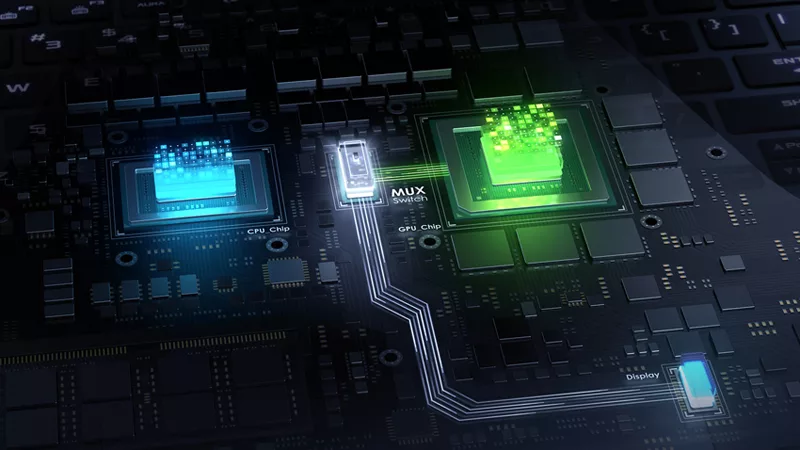
Switching between CPU and GPU is important for getting the best from your computer. Each has its own strengths. Knowing why to switch helps you use your device more smartly. It improves how fast tasks get done and saves power.
Performance Benefits
The CPU handles many tasks quickly and is great for simple jobs. The GPU works well with complex graphics and big data at once. Using the GPU can make video editing and gaming much faster. Switching lets you choose the best processor for your task. This means smoother and faster work on your computer.
Energy Efficiency
The CPU uses less power for easy tasks like browsing or writing. The GPU uses more energy but finishes hard tasks faster. Switching to the CPU for light work saves battery life. For heavy work, using the GPU is better even if it uses more power. This balance helps your device last longer on a charge.
Use Case Scenarios
Every task needs a different approach. For everyday tasks, the CPU is enough. Playing games or 3D modeling needs the GPU. Switching between them helps run programs smoothly. It also avoids slowing down your system. Knowing which to use fits your needs better.
Credit: rog.asus.com
Check Your Hardware Compatibility
Checking your hardware compatibility is the first step to switch between CPU and GPU. It ensures your system supports the switch smoothly. Without proper compatibility, the switch may cause errors or slow performance.
Knowing your hardware details helps you prepare for the switch. It also guides you in choosing the right drivers and settings.
Identifying Cpu And Gpu Models
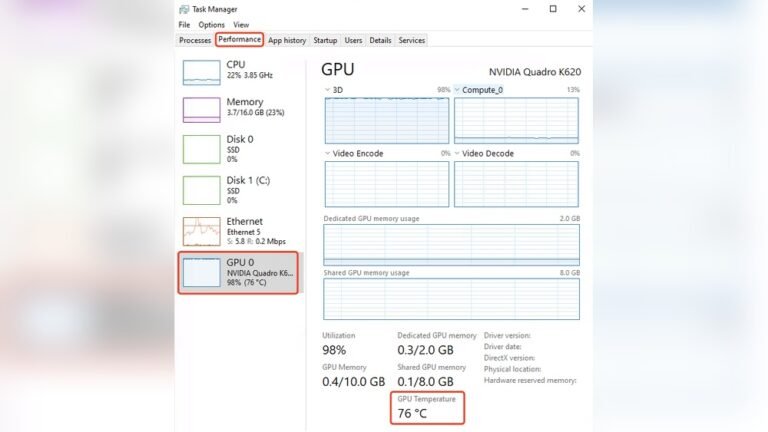
Find out which CPU and GPU your computer uses. On Windows, open Task Manager and go to the Performance tab. Here, you can see the CPU and GPU names.
On Mac, click the Apple logo and select About This Mac. It shows the processor and graphics card details. Knowing these models helps check if your system supports switching.
Supported Operating Systems
Some operating systems support CPU-GPU switching better than others. Windows 10 and 11 have built-in features for this task. MacOS also supports GPU switching on newer models.
Older systems may lack proper support, causing issues during switching. Confirm your OS version before proceeding to avoid problems.
Driver Requirements
Drivers are software that lets your hardware work with your operating system. Keep your CPU and GPU drivers up to date for smooth switching.
Visit the official websites of your CPU and GPU manufacturers to download drivers. Using outdated drivers can cause crashes or poor performance when switching.
Switching On Windows
Switching between your CPU and GPU on Windows helps manage your computer’s power and performance. Some apps run better on the GPU, while others need the CPU. Windows lets you choose which processor to use for each app. This guide shows simple steps to switch using different settings and control panels.
Using Graphics Settings
Open Windows Settings by pressing Win + I keys. Go to System, then click Display. Scroll down and select Graphics settings. Here, you can add apps to choose their preferred processor. Click Browse to find the app. After adding it, click Options. Pick either “Power saving” for CPU or “High performance” for GPU. Click Save to apply the changes. This method works for most apps without extra software.
Configuring Nvidia Control Panel
Right-click on your desktop and open NVIDIA Control Panel. Select Manage 3D settings from the left menu. Click the Program Settings tab. Choose the app from the drop-down list or add it manually. Under “Preferred graphics processor,” pick either Integrated graphics (CPU) or High-performance NVIDIA processor (GPU). Click Apply to save changes. This tool gives more control for NVIDIA GPU users.
Configuring Amd Radeon Settings
Right-click on the desktop and open AMD Radeon Settings. Go to System, then select Switchable Graphics. Find the app in the list or add it. Set the app’s mode to Power Saving for CPU or High Performance for GPU. Changes save automatically. This option helps AMD users control which processor runs their apps.
Switching On Macos
Switching between CPU and GPU on macOS helps balance power and performance. MacBooks with dual graphics can use either the integrated CPU graphics or the dedicated GPU. Knowing how to switch can save battery life or boost speed for demanding tasks.
macOS offers easy options to manage graphics use. You can let the system decide or choose manually. Both methods work well depending on your needs.
Automatic Graphics Switching
macOS has a built-in feature called Automatic Graphics Switching. It lets the system pick the best graphics processor for each task. This saves battery by using the integrated graphics most of the time. When you open apps that need more power, macOS switches to the dedicated GPU. This happens quickly without interrupting your work.
To enable this, open System Preferences and go to Battery or Energy Saver. Check the box for Automatic Graphics Switching. Your Mac will handle the rest.
Manual Gpu Selection
Some apps allow you to choose which GPU to use. This option is useful for specific workflows like video editing or gaming. To select the GPU manually, find the app in the Finder. Right-click and choose Get Info. Check the box labeled “Prefer External GPU” if available. This forces the app to use the dedicated GPU.
Keep in mind, not all apps support manual GPU selection. Also, using the dedicated GPU all the time may reduce battery life.
Switching On Linux
Switching between CPU and GPU on Linux can improve your system’s performance and save power. Linux offers several ways to manage this switch. Some methods use graphical tools, while others rely on the command line. Each approach fits different needs and skill levels. Below are the main ways to switch between CPU and GPU on Linux.
Using Prime
PRIME is a popular tool for managing hybrid graphics on Linux. It works well with NVIDIA and Intel GPUs. PRIME allows you to select which GPU to use for specific applications. The system uses the integrated GPU by default to save power. You can run demanding apps on the discrete GPU by switching with PRIME. This method is mostly easy and works on many distributions.
Using Bumblebee
Bumblebee is another option for managing hybrid graphics. It supports older NVIDIA Optimus laptops. Bumblebee runs the discrete GPU only when needed. This reduces battery drain and heat. You run programs on the GPU using the “optirun” command. Bumblebee requires installation and configuration but gives good control over GPU use.
Command Line Methods
Advanced users can switch GPUs using the command line. Commands like “xrandr” and “prime-select” help manage GPU settings. You can disable or enable GPUs manually. This method offers full control but requires Linux knowledge. It is fast and useful for scripting or remote systems.

Credit: www.reddit.com
Optimizing Performance After Switching
Switching between CPU and GPU can change how your computer works. To get the best results, you need to optimize performance after the switch. This helps your system run smoothly and fast. Small steps can make a big difference in how well your computer performs.
Check a few things to keep your system stable and efficient. These simple actions help avoid slowdowns or crashes. Focus on the key areas below to improve your computer’s power use and heat control.
Updating Drivers
Drivers are software that helps your CPU or GPU work with your system. After switching, update these drivers to the newest version. New drivers fix bugs and improve speed. Visit the official website of your CPU or GPU brand to download updates. Restart your computer after installing to apply changes.
Adjusting Power Settings
Power settings affect how your computer uses energy and speed. Set your device to high-performance mode for better results. This mode lets your CPU or GPU use more power when needed. Find power options in your system settings and select the best plan. This helps avoid slowdowns during heavy tasks.
Monitoring System Temperature
Temperature affects your CPU and GPU health. High heat can cause damage or slow down your system. Use tools to check the temperature regularly. Keep your computer clean and ensure good airflow. If it gets too hot, pause heavy tasks and let it cool down. This protects your hardware and keeps it running well.
Troubleshooting Common Issues
Troubleshooting common issues is important when switching between CPU and GPU. Many users face problems that stop their system from working well. Knowing how to fix these issues helps keep your computer fast and smooth. This section covers common problems and easy solutions. Follow these tips to get your system back on track quickly.
Display Problems
Switching from CPU to GPU can cause display problems. The screen may flicker or go black. Check the cable connections first. Make sure the monitor is set to the correct input. Update your display drivers to the latest version. Restart your computer to apply changes. If the problem stays, try using a different monitor or cable.
Performance Drops
Sometimes, performance drops after switching to the GPU. This happens if the GPU is not set as the main processor. Open your system settings and select the GPU as default for graphics tasks. Close background programs that use CPU power. Keep your GPU drivers updated. Lower graphics settings in heavy applications if lag continues.
Driver Conflicts
Driver conflicts cause crashes and errors during CPU/GPU switch. Remove old or unused drivers using a driver cleaner tool. Download the latest drivers from the official website. Install them carefully and restart your computer. Avoid mixing drivers from different manufacturers. Regular driver updates prevent conflicts and improve stability.

Credit: www.reddit.com
Frequently Asked Questions
How Do I Switch Between Cpu And Gpu On Windows?
To switch between CPU and GPU on Windows, open Graphics Settings. Choose the app, then select the preferred GPU under “Options. ” Save changes to apply the setting. This method optimizes performance for specific applications easily.
Can I Manually Switch Gpu And Cpu For Gaming?
Yes, you can manually switch between GPU and CPU for gaming. Use your system’s graphics settings or GPU control panel to select the preferred processor for better performance or battery saving.
Why Switch From Cpu To Gpu For Processing Tasks?
Switching to GPU enhances processing speed for tasks like gaming or rendering. GPUs handle parallel tasks better, improving performance and reducing CPU load. This switch boosts efficiency in graphics-intensive applications.
Is Switching Between Cpu And Gpu Safe For My System?
Yes, switching between CPU and GPU is safe if done via proper software settings. Avoid hardware changes without guidance. Always use official tools like Windows Graphics Settings or GPU control panels.
Conclusion
Switching between CPU and GPU can improve your computer’s performance. Choose the right processor based on your task needs. Simple tasks run well on the CPU. Heavy graphics or gaming work better on the GPU. Changing settings is easy and takes only a few steps.
Always check your system compatibility before making changes. Keep your drivers updated for smooth switching. Practice these steps to get the best from your hardware. Try switching to see which option works best for you.