How to Install Windows 11 on I5-6500 Cpu: Easy Step-by-Step Guide
Are you wondering if your i5-6500 CPU can run Windows 11? You’re in the right place.
Installing a new operating system can feel tricky, especially with specific hardware like yours. But don’t worry—this guide will walk you through every step clearly and simply. By the end, you’ll have Windows 11 up and running smoothly on your i5-6500, unlocking new features and better performance.
Ready to upgrade your PC without the hassle? Let’s get started!

Credit: www.amazon.com
Check System Requirements
Before installing Windows 11 on your i5-6500 CPU, check the system requirements. These rules help your PC run Windows 11 smoothly. Meeting them avoids errors during installation. It also ensures good performance after setup.
Cpu Compatibility
The i5-6500 is a 6th generation Intel processor. Windows 11 needs at least an 8th generation Intel CPU. The i5-6500 does not officially meet this CPU rule. This can cause issues during installation or updates. Some users try workarounds, but it is not guaranteed to work well.
Ram And Storage
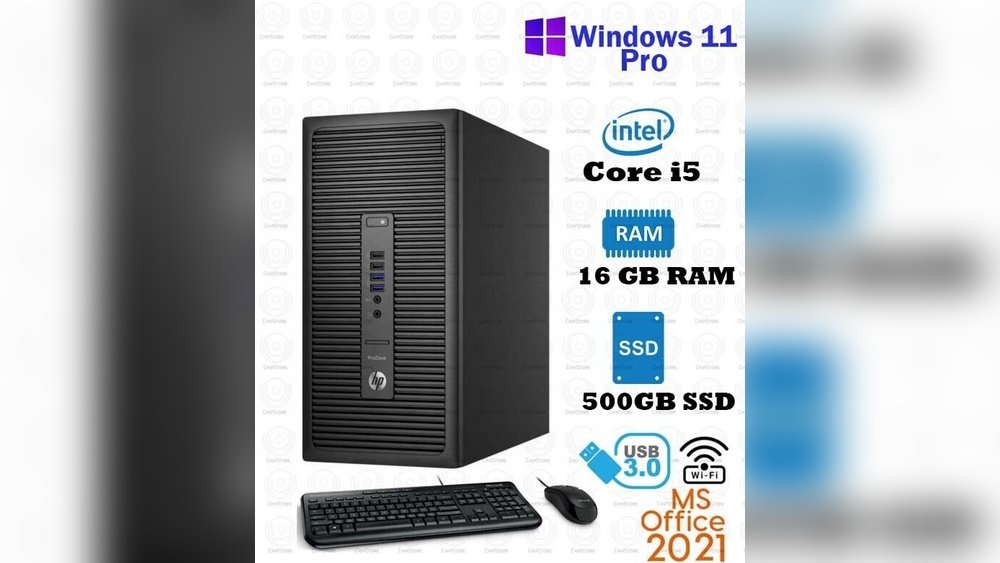
Windows 11 requires at least 4 GB of RAM. Your PC should have 64 GB or more of storage space. The i5-6500 system usually supports these needs. Check your PC memory and free storage before installing. Insufficient RAM or storage can block the installation.
Tpm And Secure Boot
Windows 11 needs TPM version 2.0 and Secure Boot enabled. TPM is a security chip on your motherboard. Secure Boot helps protect your system from malware. Check your PC’s BIOS settings to see if TPM 2.0 and Secure Boot are active. If not, Windows 11 may refuse to install or run properly.
Prepare Your Pc
Preparing your PC before installing Windows 11 on an i5-6500 CPU is crucial. This step ensures the installation process goes smoothly. It also protects your important files and helps avoid errors. Follow these key tasks to get your system ready.
Backup Important Data
Start by saving all your important files. Use an external hard drive or cloud storage. This prevents data loss during installation. Double-check that all critical documents, photos, and software keys are backed up. A simple mistake can cause permanent loss.
Update Bios And Drivers
Next, update your BIOS to the latest version. Visit your motherboard manufacturer’s website for instructions. Updated BIOS improves hardware compatibility and stability. Also, update all device drivers. This reduces conflicts and enhances performance after installation.
Create A Bootable Usb
Finally, create a bootable USB drive with the Windows 11 setup files. Use tools like Rufus or the Microsoft Media Creation Tool. A bootable USB is necessary to install the operating system. Make sure the USB has at least 8GB of free space.
Modify Bios Settings
Modifying BIOS settings is a key step to install Windows 11 on an i5-6500 CPU. BIOS controls hardware functions and security. Adjusting it allows your PC to meet Windows 11 requirements. These changes make the installation smooth and error-free.
Accessing BIOS is simple. Restart your PC and press the BIOS key, like F2 or Delete. Inside BIOS, you can enable TPM, activate Secure Boot, and set boot priority. These three steps prepare your PC for Windows 11.
Enable Tpm
TPM, or Trusted Platform Module, improves security. Windows 11 needs TPM 2.0 to install. In BIOS, find the Security tab or Advanced settings. Look for TPM or PTT option. Turn it on to enable TPM. Save changes before exiting BIOS.
Activate Secure Boot
Secure Boot protects your PC from harmful software. It must be on for Windows 11. Inside BIOS, go to the Boot or Security menu. Find the Secure Boot option and enable it. This step ensures Windows 11 installs without issues.
Set Boot Priority
Boot priority tells the PC which device to start from first. You need to boot from your Windows 11 USB or DVD. In BIOS, open the Boot menu. Move your USB or DVD drive to the top of the list. Save and exit BIOS to start installation.

Credit: www.amazon.com
Start Windows 11 Installation
Beginning the installation of Windows 11 on your i5-6500 CPU is simple. Prepare your PC and follow clear steps to ensure success. This part covers how to start the installation smoothly and correctly.
Careful attention during these steps helps avoid errors. Let’s get your system ready for Windows 11.
Boot From Usb Drive
Insert the Windows 11 USB installer into your PC. Restart the computer and enter the BIOS or boot menu. Select the USB drive as the boot device. This step lets your PC load the Windows 11 setup files. Wait a moment while the system loads the installation screen.
Follow Setup Prompts
Choose your language, time, and keyboard preferences on the setup screen. Click “Next” to continue. Press “Install Now” to start the installation process. Enter your product key if you have one, or skip this step to activate later. Read and accept the license terms to proceed.
Choose Installation Type
Select “Custom: Install Windows only (advanced)” for a fresh installation. This option lets you format or select the drive where Windows 11 will be installed. Choose the partition carefully to avoid losing important data. Click “Next” to begin copying files and installing Windows 11.
Troubleshoot Installation Issues
Installing Windows 11 on an i5-6500 CPU can sometimes cause errors. These issues can stop the setup from finishing. Troubleshooting helps fix these problems fast. It makes the installation smooth and easy. This section covers common fixes to try.
Bypass Tpm Check
Windows 11 needs TPM 2.0 for security. The i5-6500 may not have it or may not enable TPM. You can bypass the TPM check during installation. Edit the registry before setup starts. Add a key named BypassTPMCheck and set it to 1. This allows the install to continue without TPM.
Fix Boot Errors
Boot errors stop Windows from loading. They can be caused by wrong BIOS settings or corrupted files. Reset BIOS to default and enable UEFI mode. Use Windows installation media to run Startup Repair. This tool fixes damaged boot files automatically. Check the boot order and set the installation drive first.
Resolve Driver Problems
Driver issues cause hardware to stop working during setup. Download the latest drivers for your motherboard and devices. Use USB flash drive to load drivers during installation. If Windows does not detect the hard drive, add storage drivers. Updating drivers after install improves system stability and performance.

Credit: www.reddit.com
Post-installation Steps
After installing Windows 11 on your i5-6500 CPU, several important steps follow. These steps ensure your system runs smoothly and securely. They help update software, improve performance, and activate Windows properly.
Completing these post-installation tasks makes your computer ready for daily use. Each step is simple and quick. Let’s explore these essential actions.
Install Updates And Drivers
Start by checking for Windows updates. Updates fix bugs and improve security. Go to Settings > Update & Security > Windows Update. Click “Check for updates” and install all available updates.
Next, update your device drivers. Drivers control hardware like graphics and sound. Use Device Manager or visit your PC maker’s website. Download and install the latest drivers for your hardware.
Configure Settings
Adjust Windows 11 settings to match your preferences. Set your language, time zone, and keyboard layout. Personalize your desktop background and theme.
Review privacy settings carefully. Turn off options you do not want. This keeps your data safe and your system private.
Activate Windows 11
Activation confirms your copy of Windows is genuine. Open Settings > Update & Security > Activation. Enter your product key if needed. Activation unlocks full features and updates.
Without activation, some features may not work. Keep your Windows activated for best performance and security.
Frequently Asked Questions
Can I Install Windows 11 On An I5-6500 Cpu?
Yes, you can install Windows 11 on an i5-6500 CPU, but it may require bypassing TPM 2. 0 and Secure Boot checks. The i5-6500 is compatible but not officially supported by Microsoft. Follow specific installation steps to ensure smooth setup.
What Are The System Requirements For Windows 11 On I5-6500?
Windows 11 requires a 64-bit processor, 4GB RAM, and 64GB storage. TPM 2. 0 and Secure Boot are also needed. The i5-6500 meets most specs but lacks TPM 2. 0, so manual workarounds are necessary during installation.
How To Bypass Tpm And Secure Boot On I5-6500 For Windows 11?
You can bypass TPM and Secure Boot by modifying the Windows 11 installation media. Use registry tweaks or third-party tools to disable these checks. This allows installation on i5-6500 systems that don’t support TPM 2. 0 natively.
Will Windows 11 Run Smoothly On An I5-6500 Cpu?
Windows 11 runs adequately on an i5-6500 with 8GB RAM or more. Basic tasks and productivity apps perform well, but gaming or heavy multitasking may require better hardware. Keep drivers updated for optimal performance.
Conclusion
Installing Windows 11 on an i5-6500 CPU is simple with these steps. Make sure your device meets all the requirements first. Follow the instructions carefully to avoid errors during setup. A smooth installation helps your computer run better and stay secure.
Enjoy the new features and improvements Windows 11 offers. Keep your system updated regularly for the best experience. Now, your PC is ready for daily tasks and entertainment.