How to Overclock My Cpu: Boost Performance Safely and Easily
Are you looking to boost your computer’s speed without spending extra money? Overclocking your CPU might be the answer.
By pushing your processor beyond its default limits, you can unlock better performance for gaming, video editing, or everyday tasks. But how do you do it safely and effectively? You’ll discover simple steps to overclock your CPU, avoid common mistakes, and get the most out of your hardware.
Ready to make your computer faster? Keep reading, and let’s get started!
Basics Of Cpu Overclocking
CPU overclocking means making your processor run faster than its original speed. This can improve your computer’s performance for tasks like gaming or video editing. Overclocking is not very hard but needs some care and knowledge.
Understanding the basics helps you avoid damage and get better results. It involves changing settings in your computer’s BIOS or using special software.
What Is Cpu Overclocking
CPU overclocking is increasing the processor’s clock speed above the factory setting. The clock speed controls how many tasks the CPU can do per second. Higher speeds mean faster processing and better performance. Overclocking pushes the CPU to work harder and faster.
Benefits Of Overclocking
Overclocking can make your computer run programs more quickly. It helps in games by increasing frame rates and reducing lag. It also speeds up tasks like rendering videos or running complex software. You get more power without buying new hardware.
Potential Risks
Overclocking can cause your CPU to run hotter than usual. Too much heat may damage the processor or other parts. It can also make your system unstable, causing crashes or errors. Using improper settings might void your warranty. Cooling and careful adjustments are very important.

Credit: www.avast.com
Preparing Your System
Preparing your system is the first step to successful CPU overclocking. It helps avoid problems and keeps your hardware safe. Taking time here makes the process smoother and more effective.
Check Cpu Compatibility
Not all CPUs support overclocking. Check your processor model to see if it allows changes to speed. Some CPUs have locked multipliers and cannot be overclocked. Use the manufacturer’s website to find this information. Also, confirm your motherboard supports overclocking. Compatibility ensures your efforts will work.
Update Bios And Drivers
Old BIOS versions can cause errors during overclocking. Visit your motherboard maker’s site to download the latest BIOS update. Updating BIOS improves stability and adds new features. Update your system drivers too. New drivers help the CPU communicate better with your system.
Ensure Adequate Cooling
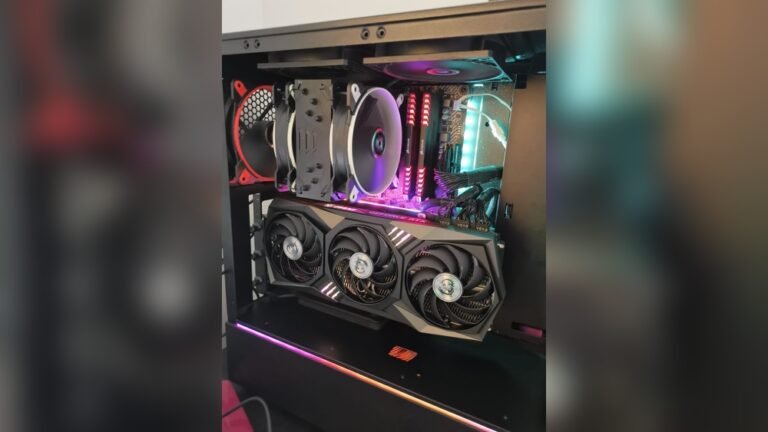
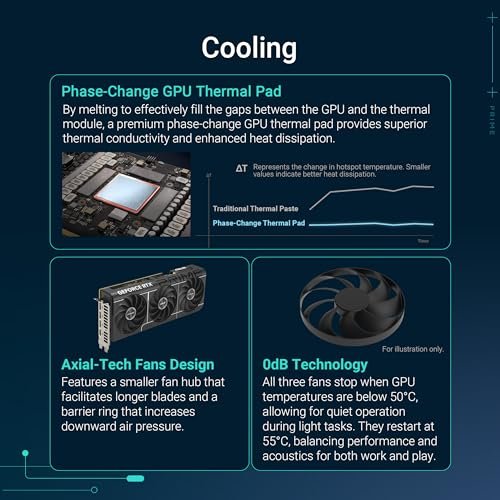
Overclocking makes your CPU hotter. Good cooling prevents damage and keeps performance steady. Use a quality air cooler or liquid cooling system. Clean dust from fans and heatsinks before starting. Monitor temperatures closely during overclocking to avoid overheating.
Tools Needed For Overclocking
Overclocking your CPU requires the right tools to ensure safety and success. These tools help adjust settings, check temperatures, and test stability. Using proper software and programs reduces risks during the process.
Some tools help you change the CPU speed easily. Others keep an eye on your CPU’s health. Stress testing tools make sure your CPU can handle the new speed without crashing.
Overclocking Software Options
Overclocking software lets you change CPU speed and voltage. Popular choices include BIOS settings, Intel Extreme Tuning Utility, and AMD Ryzen Master. These programs offer simple interfaces for beginners. They allow precise control over CPU parameters.
Monitoring Tools
Monitoring tools track CPU temperature, voltage, and clock speed. Core Temp, HWMonitor, and CPU-Z are widely used. They display real-time data to avoid overheating. Keeping your CPU cool protects it from damage.
Stress Testing Programs
Stress testing programs check CPU stability after overclocking. Prime95, AIDA64, and Cinebench are common examples. They push your CPU to its limits safely. Running these tests helps find the best stable speed.

Credit: www.wikihow.com
Step-by-step Overclocking Process
Overclocking your CPU can improve your computer’s speed and performance. The process needs care and patience. Follow each step carefully to avoid damage.
Start by changing settings in the BIOS. Then, adjust the clock speed and voltage. Finally, save your changes and test if your CPU runs stable.
Accessing Bios Settings
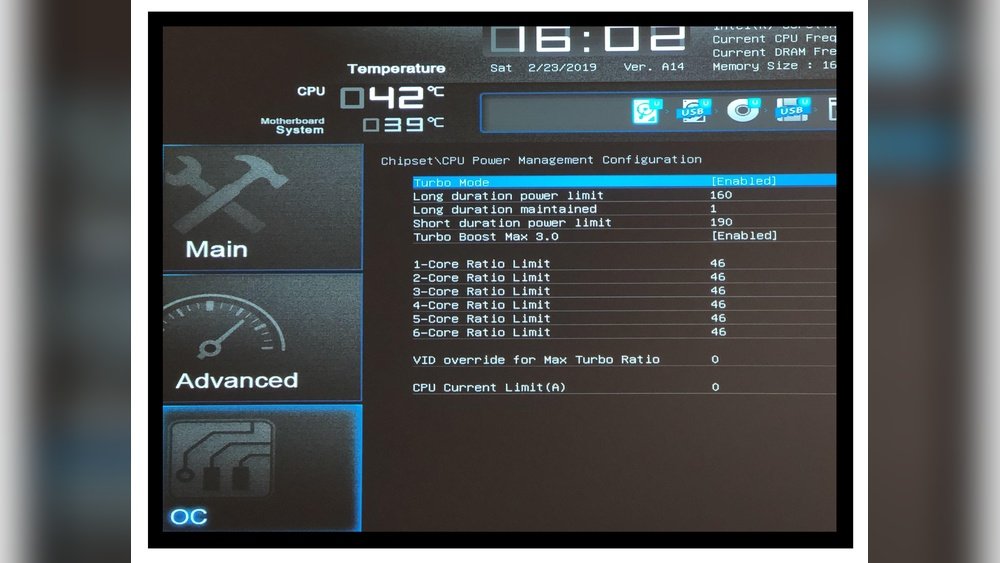
Restart your computer and press the BIOS key during boot. Common keys are Delete, F2, or Esc. Check your motherboard manual if unsure. Inside BIOS, find the CPU or overclocking section. Avoid changing other settings.
Adjusting Clock Speed And Voltage
Increase the CPU clock speed in small steps. Raise the voltage slightly to support higher speeds. Do not increase voltage too much. Watch CPU temperature to prevent overheating. Make small changes and note each one.
Saving And Testing Changes
Save your new BIOS settings and exit. Let your computer restart and load the operating system. Use stress test software to check CPU stability. Monitor temperatures and performance carefully. If problems occur, return to BIOS and adjust settings. Repeat testing until stable.
Troubleshooting Common Issues
Troubleshooting common issues is key to a successful CPU overclock. Problems often arise after changes in settings. These issues can cause crashes, freezes, or poor performance. Knowing how to fix them saves time and frustration. Here are some simple solutions to the most frequent problems during overclocking.
System Instability Solutions
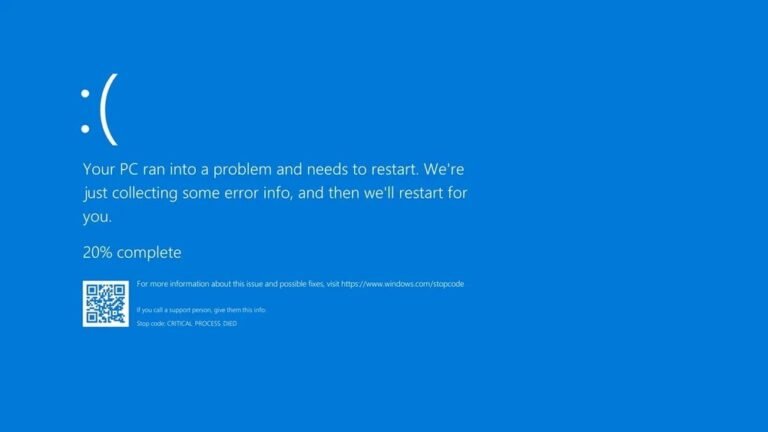
System instability shows as random crashes or blue screens. Lower the CPU frequency or increase the voltage slightly. Test stability using stress test programs. Stop increasing settings if crashes continue. Update your motherboard BIOS and drivers. Sometimes unstable RAM can cause problems. Run a memory test to check for errors. Stable settings mean a balanced overclock.
Temperature Management
High temperatures damage your CPU and reduce lifespan. Use a quality CPU cooler for better heat removal. Ensure your case has good airflow with enough fans. Clean dust from fans and heatsinks regularly. Monitor temperatures with software tools during stress tests. Reduce overclock if temperatures exceed safe limits. Keeping the CPU cool improves performance and stability.
Resetting Bios To Default
Resetting BIOS helps fix major overclock errors. Enter BIOS setup during system boot. Find the option to load default or optimized settings. Save and exit BIOS to apply changes. This returns all settings to factory defaults. Resetting fixes issues caused by wrong voltage or frequency. After reset, try a gentler overclock approach.

Credit: www.wikihow.com
Maintaining Overclocked Performance
Maintaining overclocked performance ensures your CPU runs fast and stable. Overclocking pushes your processor beyond its limits. This creates more heat and stress on components. Careful upkeep keeps your system healthy and avoids crashes. Regular checks and tweaks help maintain speed without damage.
Regular Monitoring
Track your CPU temperature daily. Use software tools like HWMonitor or Core Temp. Watch for spikes above safe limits. Check clock speeds to confirm stable overclocking. Monitor system stability during heavy use. Catch problems early to prevent damage.
Updating Cooling Solutions
Cooling is crucial for overclocked CPUs. Replace old fans and thermal paste regularly. Consider better coolers like liquid cooling or high-end air coolers. Clean dust from vents and fans every few months. Proper cooling stops overheating and keeps performance steady.
When To Revert Overclock
Reduce overclock if your system crashes often. Lower speeds if temperatures stay high despite good cooling. Revert if you notice frequent errors or freezes. Stability and safety matter more than speed gains. Always keep a backup of default CPU settings.
Frequently Asked Questions
What Is Cpu Overclocking And How Does It Work?
CPU overclocking means increasing the processor’s speed beyond factory settings. It boosts performance by running the CPU at higher clock rates. This improves gaming, rendering, and multitasking but may increase heat and power use. Proper cooling and BIOS adjustments are essential for safe overclocking.
Is Overclocking Safe For My Cpu And Hardware?
Overclocking is generally safe if done carefully. It can cause higher temperatures and stress on components. Use quality cooling solutions and gradually increase speeds. Monitor system stability and temperatures to prevent damage. Always research your CPU’s overclocking limits and warranties before starting.
What Tools Do I Need To Overclock My Cpu?
You need BIOS/UEFI access, a reliable motherboard, and monitoring software. Programs like CPU-Z and HWMonitor track speeds and temperatures. Stress-testing tools like Prime95 or AIDA64 verify system stability after changes. Good cooling hardware is also crucial for safe overclocking.
How Do I Know If My Cpu Overclock Is Stable?
Run stress tests like Prime95 or AIDA64 for several hours. Monitor temperatures and system responsiveness during tests. If your PC crashes or shows errors, reduce clock speeds or increase voltage carefully. Stability means no crashes, freezes, or overheating under load.
Conclusion
Overclocking your CPU can boost your computer’s speed. Start slow and test your system’s stability each time. Watch the temperature closely to avoid damage. Use good cooling to keep your CPU safe. Remember, small steps bring better results. Practice patience and learn from each attempt.
This way, you get better performance without risks. Enjoy a faster computer, but always stay cautious.