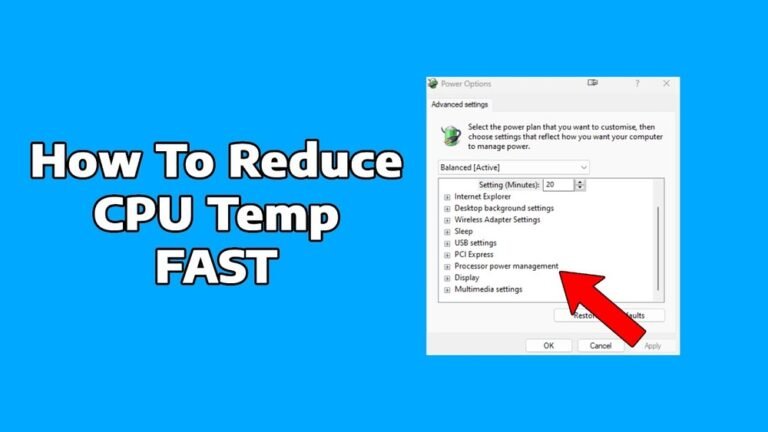
How to Check Cpu And Gpu Temp: Easy Steps for Accurate Monitoring
Are you worried that your computer might be running too hot? Knowing how to check your CPU and GPU temperature is key to keeping your system safe and running smoothly.
Overheating can slow down your device, cause crashes, or even damage important parts. But don’t worry—this guide will show you simple and effective ways to monitor your computer’s temperature. By the end, you’ll know exactly how to keep your CPU and GPU cool and protect your investment.
Let’s dive in and make sure your computer stays in top shape!
Why Monitor Cpu And Gpu Temps
Monitoring CPU and GPU temperatures helps keep your computer safe and fast. High temperatures can cause your system to slow down or even stop working. Watching these temps lets you fix problems early and avoid damage.
Impact On Performance
CPUs and GPUs slow down when they get too hot. This is called thermal throttling. It lowers your computer’s speed to cool down parts. Checking temperatures helps keep your system running smoothly.
Preventing Overheating
Overheating can cause crashes and data loss. It may also damage important parts inside your computer. By monitoring temps, you can spot heat problems fast and act before things get worse.
Extending Hardware Lifespan
Heat wears out your computer’s hardware over time. Keeping temps low protects your CPU and GPU from early failure. Regular checks help your device last longer and save money on repairs.
Credit: www.gpu-mart.com
Tools For Temperature Monitoring
Monitoring your CPU and GPU temperature is important to keep your computer running well. High temperatures can cause slowdowns or damage parts. Several tools help check these temperatures easily. Some tools come built into your system. Others are third-party programs. You can also use special hardware devices for more precise readings.
Built-in System Utilities
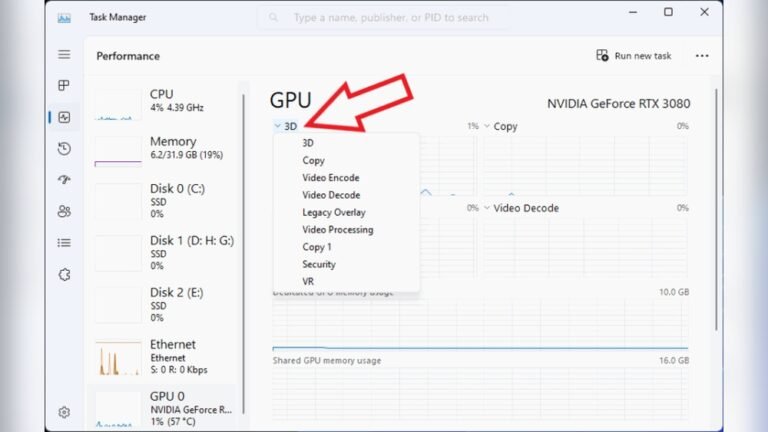
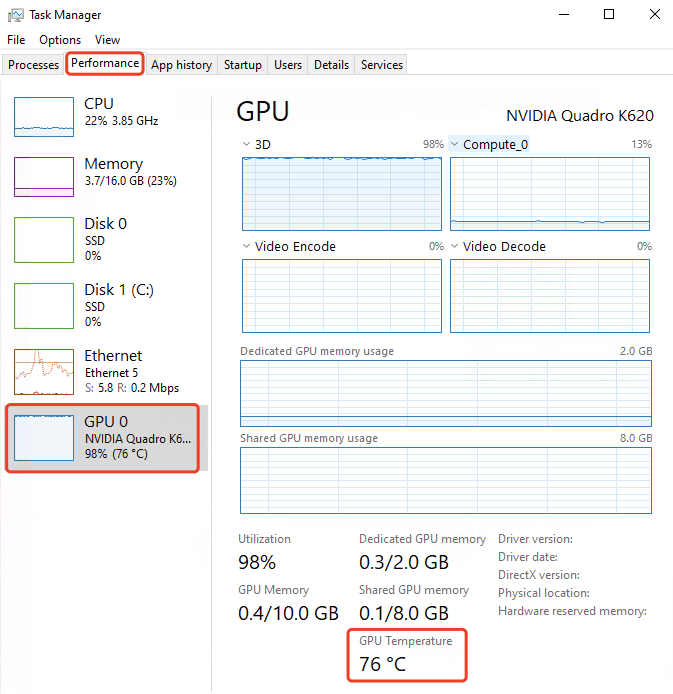
Many operating systems have built-in tools for temperature monitoring. Windows users can check the Task Manager or BIOS settings for basic info. macOS users can use the Activity Monitor or system diagnostics. These tools offer a simple way to see if your CPU or GPU is overheating. They require no extra downloads or installations. However, they might not show detailed temperature data.
Third-party Software Options
Third-party programs provide more detailed temperature readings and alerts. Popular tools include HWMonitor, Core Temp, and MSI Afterburner. These apps show real-time temperatures and let you track changes over time. They often include graphs and warning notifications. Many of them are free and easy to use. These tools help you understand your computer’s cooling performance better.
Hardware Monitoring Devices
External hardware devices offer precise temperature monitoring. These gadgets connect directly to your computer’s motherboard or sensors. They display temperature data on small screens or through apps. Hardware devices are useful for serious PC users and gamers. They provide accurate readings even during heavy use. These tools can be more reliable than software alone.
Checking Cpu Temperature
Checking the CPU temperature helps keep your computer safe. High temperatures can cause damage or slow down your system. Knowing how to check it lets you act fast. Several ways exist to monitor CPU temperature on different devices.
Using Bios Or Uefi
BIOS or UEFI provides a quick way to check CPU temperature. Restart your computer and press the setup key during boot. This key is often F2, Delete, or Esc. Inside the BIOS menu, look for “Hardware Monitor” or “PC Health.” Here, you will see the CPU temperature in real time. No extra software is needed for this method.
Windows Software Methods
Windows users can download free tools to check CPU temperature. Popular programs include HWMonitor and Core Temp. These apps show temperature readings and other hardware details. After installing, open the program to see the CPU temperature. Some apps also offer alerts if the temperature gets too high.
Macos Temperature Checks
Mac users can check CPU temperature using third-party apps. Macs do not have built-in temperature monitors. Apps like iStat Menus or Macs Fan Control display CPU temps. After installation, these apps show current temperature in the menu bar. This method helps Mac users track CPU heat easily.
Linux Monitoring Tools
Linux offers several tools to check CPU temperature. The command “sensors” from the lm-sensors package is common. Open a terminal and type “sensors” to see CPU temperature readings. You can also use graphical apps like Psensor. These tools provide real-time temperature monitoring on Linux.

Credit: openhardwaremonitor.org
Checking Gpu Temperature
Checking your GPU temperature helps keep your computer safe. High GPU heat can cause slowdowns or crashes. You can monitor the temperature using various tools. Many GPUs have built-in software to check their status. You can also use apps that work on many devices.
Nvidia Control Panel
NVIDIA GPUs come with the NVIDIA Control Panel. Open it from the desktop or start menu. Look for the “Performance” or “System Information” tab. The GPU temperature shows in real-time here. This tool is simple and works without extra downloads.
Amd Radeon Software
AMD users can check GPU temperature using Radeon Software. Open the app from your system tray or start menu. Click on the “Performance” tab to find temperature stats. It also shows fan speed and GPU load. This helps monitor your GPU while gaming or working.
Cross-platform Monitoring Apps
Apps like MSI Afterburner or HWMonitor work with most GPUs. These apps show detailed temperature readings and other data. Download and install the app from a trusted site. Open the app and check the GPU section for temperature. These tools provide extra control for advanced users.
Interpreting Temperature Readings
Understanding CPU and GPU temperature readings is important for keeping your computer healthy. These readings tell you how hot your components are during use. High temperatures can cause slowdowns or damage. Low or normal temperatures mean your system works well. Knowing what numbers are safe helps you decide if your PC needs cooling or repair.
Normal Temperature Ranges
For most CPUs, normal idle temperatures range from 30°C to 40°C. Under load, they can safely reach 60°C to 75°C. GPUs usually run a bit hotter. Idle GPU temperatures often sit between 30°C and 45°C. When gaming or using heavy software, 65°C to 85°C is common. Temperatures above these ranges might indicate a cooling problem.
Signs Of Overheating
Overheating shows through sudden crashes or freezes. You might hear loud fan noise or see high fan speeds. The computer case can feel very hot to touch. Performance might drop noticeably during tasks. If temperatures exceed 90°C, the risk of permanent damage rises.
When To Take Action
Take action if your CPU or GPU stays above 85°C for a long time. Clean your fans and vents to remove dust. Replace old thermal paste if temperatures remain high. Consider adding better cooling or adjusting fan settings. Persistent overheating needs attention to avoid hardware failure.

Credit: www.spec-school.org
Tips To Keep Temps Low
Keeping your CPU and GPU temperatures low helps your computer run smoothly. High temps can slow down your system and shorten its life. Simple steps can make a big difference. These tips help control heat and keep your PC cool.
Improving Airflow
Good airflow moves hot air out and brings cool air in. Place your PC where air can flow freely. Avoid tight spaces or closed cabinets. Use more fans if needed. Make sure fans blow air in and out properly. This helps cool your parts faster.
Cleaning Dust And Debris
Dust blocks airflow and traps heat inside your PC. Open your case and clean dust often. Use a soft brush or compressed air. Focus on fans, vents, and heatsinks. Clean parts work better and stay cooler. Regular cleaning keeps your system healthy.
Using Thermal Paste
Thermal paste helps heat move from CPU or GPU to the cooler. Old paste can dry out and lose effect. Replace it every year or two. Clean old paste with alcohol before applying new paste. This keeps your processor cool and prevents overheating.
Upgrading Cooling Solutions
Stock coolers are not always enough. Consider better air coolers or liquid cooling systems. These remove heat faster and lower temps. Choose a cooler that fits your PC and budget. Better cooling means longer life and steady performance.
Frequently Asked Questions
How Can I Check My Cpu Temperature Easily?
You can check CPU temperature using software like HWMonitor, Core Temp, or SpeedFan. These tools display real-time temperatures and are simple to use for monitoring your CPU’s health.
What’s The Best Way To Monitor Gpu Temperature?
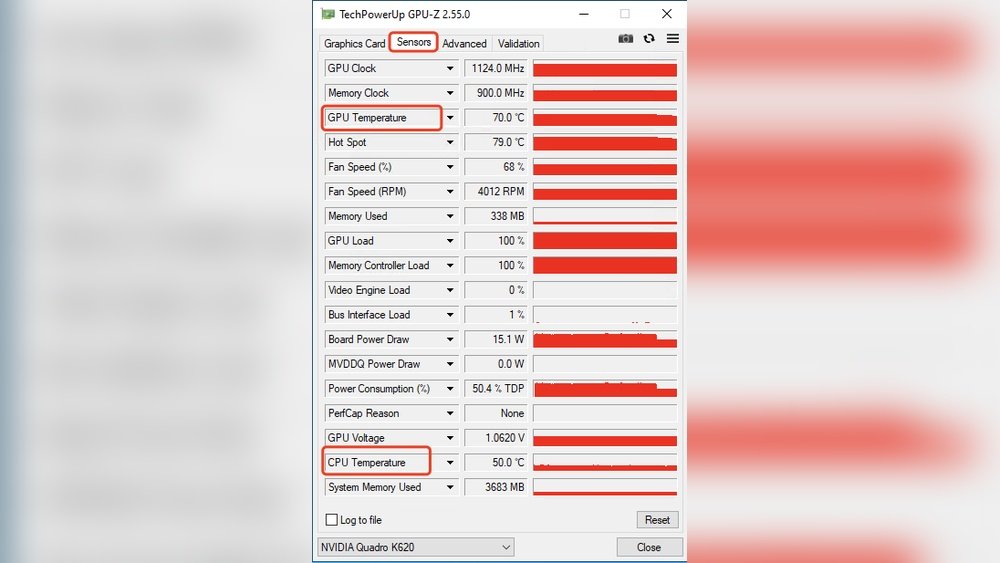
GPU temperature is best monitored with programs like MSI Afterburner or GPU-Z. They provide accurate readings and help you track your GPU’s performance and thermal status during use.
Why Is Monitoring Cpu And Gpu Temperature Important?
Monitoring temperatures prevents overheating, which can damage components. It ensures your system runs efficiently and helps identify cooling issues before they cause hardware failure.
Can I Check Cpu And Gpu Temperature Without Extra Software?
Some motherboards and laptops offer built-in BIOS or UEFI menus to check temperatures. However, software tools provide more detailed, real-time monitoring and logging capabilities.
Conclusion
Checking CPU and GPU temperatures helps keep your computer safe. High heat can cause problems and slow down your device. Use simple tools to monitor these temperatures often. Stay aware of normal temperature ranges for your parts. Act quickly if you see temperatures rising too much.
Regular checks protect your computer and improve its life. Taking these small steps keeps your system running smooth and cool. Easy to do, but very important. Keep your device healthy by watching its temperature.