How to Check If Cpu is Overheating: Quick & Easy Steps
Is your computer suddenly slowing down or crashing without warning? Your CPU might be overheating, and if you don’t catch it early, it can cause serious damage.
You might not know how to check if your CPU is running too hot, but don’t worry—this guide will show you simple, quick ways to find out. By understanding your CPU’s temperature, you can protect your computer and keep it running smoothly.
Keep reading to learn exactly how to check if your CPU is overheating before it’s too late.
Signs Of Cpu Overheating
CPU overheating can cause many problems in your computer. It is important to spot signs early. This helps prevent damage to your system. Watch closely for changes in performance and behavior.
Here are common signs that show your CPU might be overheating.
Unusual System Slowdowns
Your computer may run slower than usual. Tasks take longer to finish. Programs might lag or respond late. Overheating forces the CPU to reduce speed to cool down. This drop causes noticeable slowdowns during use.
Unexpected Shutdowns
Your PC might turn off without warning. This is a safety feature to stop damage. The CPU overheats and causes the system to shut down quickly. Frequent shutdowns mean the cooling system is not working well.
Frequent Crashes And Freezes
Programs may crash often or freeze on the screen. Overheated CPUs struggle to process tasks properly. This leads to errors and system instability. Random crashes or freezes show the CPU needs attention.
Credit: support.punchtechnology.co.uk
Tools To Monitor Cpu Temperature
Checking your CPU temperature is key to keeping your computer safe. Overheating can cause slowdowns or damage. Different tools help you watch your CPU’s heat levels easily. These tools range from built-in system features to free software. Choose the right one for your needs to catch problems early.
Built-in Bios/uefi Monitoring
Your computer’s BIOS or UEFI shows real-time CPU temperature. Restart your PC and enter BIOS/UEFI by pressing a key like F2 or Del. Look for “Hardware Monitor” or “PC Health” section. This tool gives basic but reliable temperature data. It works even if your operating system is not running.
Third-party Software Options
Many free programs show detailed CPU temperature and other stats. Popular choices include HWMonitor, Core Temp, and Speccy. These tools display temperature in degrees Celsius or Fahrenheit. They update in real-time and alert you if temps get too high. Install trusted software from official sites only.
Using Task Manager And Resource Monitor
Task Manager and Resource Monitor do not show CPU temperature directly. They help spot high CPU usage that might cause heat. Open Task Manager with Ctrl + Shift + Esc. Check the CPU tab for unusual spikes. Use Resource Monitor for deeper insight into CPU activity. High usage can hint at overheating risks.
Checking Cpu Temperature In Windows
Checking your CPU temperature in Windows helps protect your computer from damage. High temperatures can slow down your PC and cause crashes. You can easily monitor the CPU heat using free software tools. These tools show real-time temperature readings and help you spot overheating early.
Here are three popular tools to check your CPU temperature in Windows. Each has its own way to display the data. Choose the one that feels easiest for you.
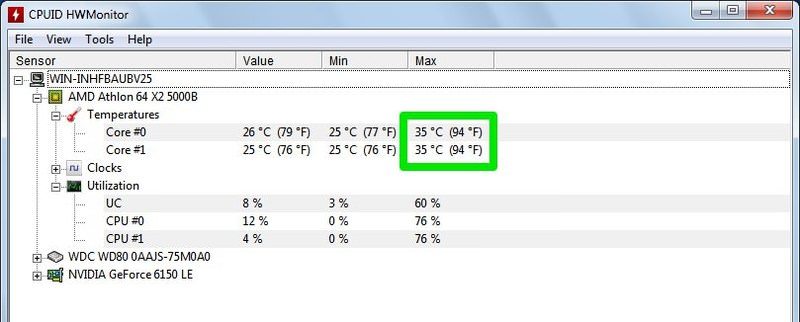
Using Hwmonitor
HWMonitor is a simple program that shows the temperature of all hardware parts. Download and install HWMonitor from the official website. Open the program to see a list of sensors and temperatures. Look for the CPU temperature under the “Temperatures” section. It updates automatically, so you can watch the numbers change as your CPU works.
Using Core Temp
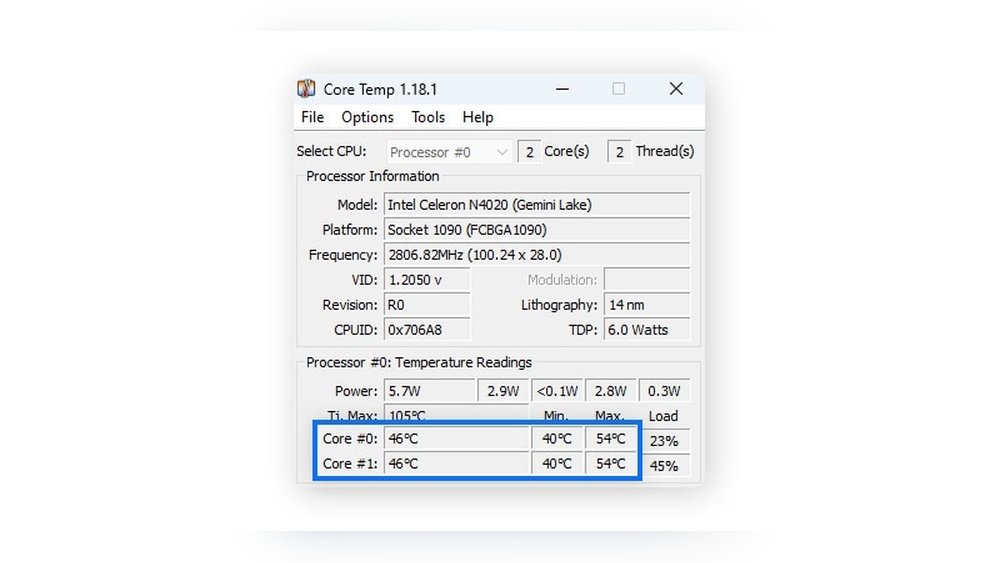
Core Temp focuses only on your CPU temperature. After installing, run Core Temp to view the current temperature of each CPU core. The program also shows the minimum and maximum temperatures. This helps you see if your CPU is getting too hot during heavy tasks or gaming.
Using Speedfan
SpeedFan is a tool that monitors temperature and controls fan speeds. Install SpeedFan and open it to check your CPU temperature. The interface lists temperatures for various parts, including the CPU. You can also adjust fan speeds to cool your system better if needed.
Credit: www.hongkiat.com
Checking Cpu Temperature On Mac
Checking the CPU temperature on a Mac is important to keep your computer running smoothly. High temperatures can slow down your Mac or cause it to shut down unexpectedly. Mac does not show CPU temperature by default, so using special apps is necessary. These tools help you see the exact temperature and protect your Mac from overheating.
Using Istat Menus
iStat Menus is a popular app for monitoring Mac’s hardware. It shows detailed CPU temperature data right in your menu bar. After installing, open the app and look at the “Sensors” section. Here, you will find the temperature of your CPU cores. The app also shows fan speeds and other system information. It updates temperature readings in real-time, helping you track any changes quickly.
Using Macs Fan Control
Macs Fan Control is another useful tool to check CPU temperature. It displays temperature sensors and fan speeds in an easy-to-read interface. You can see the current CPU temperature and adjust fan speeds if needed. This app helps prevent overheating by letting you control cooling manually. It works well on most Mac models and is simple to use.
Checking Cpu Temperature On Linux
Checking your CPU temperature on Linux helps you avoid overheating problems. High temperatures can slow your computer or cause damage. Linux offers tools that show your CPU temperature easily. These tools work in the background and give real-time data.
Using Lm-sensors
lm-sensors is a popular tool for monitoring hardware temperatures. Install it using your package manager. For example, use sudo apt install lm-sensors on Ubuntu. After installation, run sudo sensors-detect to find sensors on your system. Answer “yes” to all questions to enable detection.
Next, type sensors in the terminal. You will see CPU temperature readings and other sensor data. The output shows temperature in degrees Celsius. Check for high values above 70°C, which may indicate overheating.
Using Psensor
Psensor is a graphical tool that displays temperature readings. Install it with sudo apt install psensor on Ubuntu. Psensor shows CPU and GPU temperatures in real time. It also alerts you if temperatures rise too high.
After launching Psensor, the interface displays graphs and numbers for each sensor. This visual feedback helps track temperature changes easily. Psensor runs quietly in the background while you work.
Steps To Prevent Cpu Overheating
Preventing CPU overheating is key for your computer’s health and speed. Taking simple steps can keep the CPU cool and running well. These steps help avoid damage and improve performance over time.
Improving Airflow And Cooling
Good airflow moves hot air away from the CPU. Use fans to push cool air in and pull hot air out. Arrange cables neatly to avoid blocking air paths. Consider adding extra case fans if needed. Choose a case with good ventilation for better cooling.
Cleaning Dust And Debris
Dust blocks airflow and traps heat inside the case. Turn off your PC and open the case carefully. Use compressed air to blow dust off fans, vents, and components. Clean regularly to keep dust from building up. Avoid using a vacuum; it can cause static damage.
Applying Thermal Paste Correctly
Thermal paste helps transfer heat from the CPU to the cooler. Remove old paste with alcohol and a soft cloth before applying new paste. Apply a small, pea-sized amount in the center of the CPU. Attach the cooler firmly to spread the paste evenly. Too much or too little paste can reduce cooling.
When To Seek Professional Help
Knowing when to seek professional help for CPU overheating is important. Some issues need expert attention to avoid damage to your computer. Understanding the signs can save you time and money. It keeps your device safe and working well.
Persistent Overheating Issues
If your CPU keeps overheating even after cleaning and cooling fixes, it needs expert care. Persistent heat can cause serious damage to your computer parts. A professional can check for hidden problems like faulty fans or bad thermal paste. They use special tools to find issues you may miss. Don’t ignore repeated overheating; it can shorten your CPU’s life.
Hardware Replacement Options
Sometimes, parts like the CPU cooler or thermal paste must be replaced. Professionals know the right parts for your system. They install replacements correctly to avoid future problems. DIY replacements can be risky without the right skills. A technician also tests the hardware after installation to ensure proper cooling. This helps keep your CPU running at a safe temperature.
Credit: www.reddit.com
Frequently Asked Questions
How Can I Tell If My Cpu Is Overheating?
You can check CPU temperature using software like HWMonitor or Core Temp. High temps above 80°C indicate overheating. Symptoms include frequent crashes, slow performance, and loud fan noise.
What Are The Common Signs Of Cpu Overheating?
Common signs are system crashes, unexpected shutdowns, slow performance, and loud fan noise. These symptoms suggest your CPU is running too hot and needs cooling.
Which Tools Help Monitor Cpu Temperature Effectively?
Popular tools include HWMonitor, Core Temp, and SpeedFan. These programs show real-time CPU temperature and help you detect overheating early for timely action.
What Causes A Cpu To Overheat Quickly?
Causes include poor airflow, dust buildup, failing fans, old thermal paste, and heavy workloads. Regular cleaning and maintenance prevent rapid CPU temperature spikes.
Conclusion
Checking your CPU temperature helps keep your computer safe. High heat can slow down or damage parts. Use simple tools to watch the temperature often. Clean fans and improve airflow to cool your CPU. Fixing overheating early saves money and stress later.
Stay alert and keep your system running smoothly. Small steps make a big difference in performance. Keep your PC cool and enjoy better speed every day.