How to Turn off Cpu Fan: Simple Steps to Silence Your PC
Is your CPU fan running loudly and distracting you? You might be wondering how to turn off your CPU fan safely without harming your computer.
Knowing when and how to control your CPU fan can help you reduce noise, save energy, and even extend your PC’s life. You’ll discover simple steps to manage your CPU fan effectively. Keep reading, and you’ll learn exactly what to do to take control of your computer’s cooling system with confidence.

Credit: www.reddit.com
Reasons To Turn Off Cpu Fan
Turning off a CPU fan is not common but can be necessary in some cases. Understanding why you might want to stop the fan helps you avoid damage. It also helps you know the risks before making changes.
When To Consider Disabling The Fan
Sometimes, the CPU fan may make loud or unusual noises. This might mean the fan is broken or dirty. You may want to turn off the fan to clean it safely. Another reason is testing the CPU without the fan running. This helps check if the fan is the cause of a problem. Some users also disable the fan when using liquid cooling systems. These systems do not need a CPU fan to work well.
Risks Of Turning Off The Cpu Fan
Turning off the CPU fan can cause the CPU to overheat quickly. Overheating can damage the CPU and other parts of the computer. The computer may shut down suddenly to prevent damage. Long-term overheating reduces the life of the CPU. It can also cause slow performance or system crashes. Always monitor CPU temperature if you turn off the fan. Use alternative cooling methods to keep the CPU safe.
Identifying Your Cpu Fan Type
Knowing the type of CPU fan is key before turning it off. Different fans need different approaches. Some fans are simple, while others have more controls. This guide helps you find your fan type. It makes the process safer and easier.
Standard Fans
Standard CPU fans are common in many computers. They spin at a constant speed to cool the processor. You can hear them running all the time. These fans connect directly to the motherboard. They use a simple power source without extra controls.
Liquid Cooling Fans
Liquid cooling fans work with water or coolant. They help move heat away from the CPU faster. These fans usually come with a radiator. The fan speed depends on the liquid temperature. They are quieter than standard fans most of the time.
Smart Fans With Software Control
Smart fans adjust speed using software in your system. They can slow down or speed up based on CPU temperature. You can control them through special programs. These fans help save energy and reduce noise. They are common in newer computers and gaming rigs.
Using Bios To Control Fan Settings
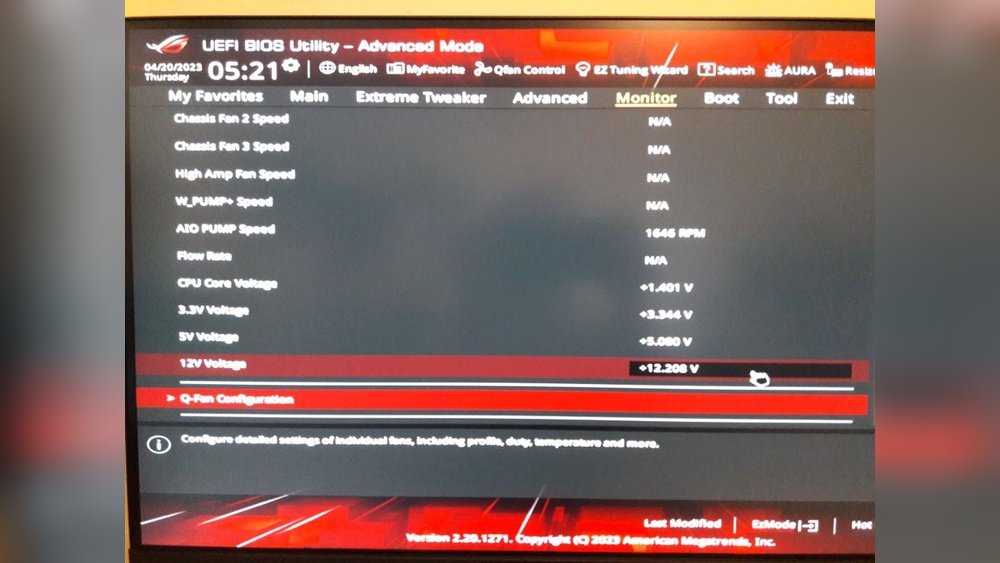
Controlling your CPU fan through the BIOS can help manage your computer’s temperature quietly. The BIOS offers direct access to hardware settings. You can adjust fan speed or even turn it off if needed. This method is safe and effective for fine-tuning your PC’s cooling system.
Accessing Bios
Restart your computer. Watch the screen carefully. Press the BIOS key shown during startup. Common keys include Delete, F2, or Esc. If unsure, check your motherboard manual. The BIOS menu will appear after pressing the key. Use arrow keys to navigate inside the BIOS.
Adjusting Fan Speed Settings
Look for a menu named “Hardware Monitor” or “Fan Control.” Inside, you will find CPU fan options. You can change the fan speed here. Set it to low, medium, or high based on your need. Some BIOS versions offer a custom curve for more control. Save changes before exiting the BIOS.
Disabling Fan Control
Not all BIOS versions allow you to turn off the fan completely. Find the fan control option in the BIOS. Choose “Disabled” or “Manual” if available. Be very careful. Disabling the fan can cause your computer to overheat. Always monitor your CPU temperature after making changes.
Software Tools For Fan Management
Software tools for fan management let you control your CPU fan speed. These tools help keep your computer cool and quiet. They offer easy ways to adjust fan settings without opening your PC case. This can improve performance and reduce noise levels. Many tools provide options for automatic or manual control of fan speed.
Popular Fan Control Software
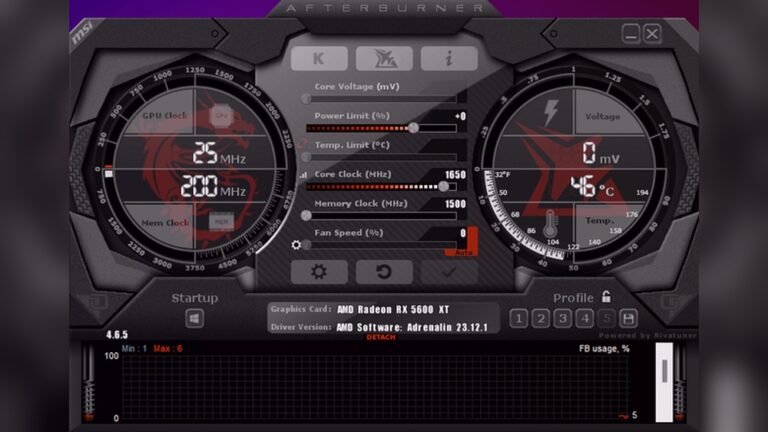
Several software programs are popular for managing CPU fans. SpeedFan is a free and widely used option. It supports many different hardware types and allows detailed fan control. Another good choice is HWMonitor, which monitors temperatures and fan speeds. For gamers, MSI Afterburner offers fan control with graphics card monitoring. Each software has unique features. Choose one that matches your needs.
Configuring Fan Profiles
Fan profiles help set how fast your CPU fan runs. Profiles can be set to keep the fan quiet or to cool aggressively. Most software lets you create custom profiles. You can set different speeds for different temperatures. For example, a slow speed at low temperature and a faster speed at high temperature. Switching profiles is simple and lets you balance noise and cooling.
Monitoring Temperature
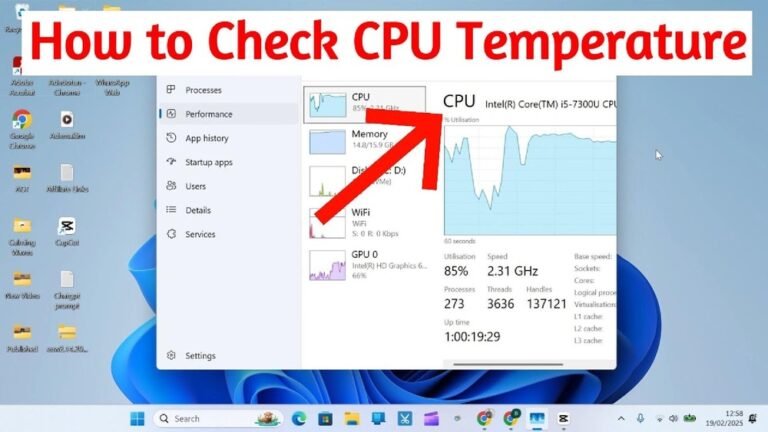
Temperature monitoring is key for safe fan control. Software tools show real-time CPU and system temperatures. They alert you if temperatures rise too high. This helps prevent overheating and hardware damage. Watching temperature lets you adjust fan speed quickly. It also improves your PC’s lifespan and performance.
Physical Methods To Stop The Fan
Physical methods to stop the CPU fan involve direct actions on the hardware. These ways can help reduce noise or fix fan problems. Take care to avoid damaging your computer parts.
Disconnecting The Fan
Unplugging the CPU fan from the motherboard stops it immediately. Find the fan cable connected to the CPU fan header. Gently pull the connector out without forcing it. This method cuts power to the fan. Use this only if your CPU has alternative cooling.
Using Fan Controllers
Fan controllers let you adjust fan speed manually. They connect between the fan and power source. Turn a knob or use buttons to slow or stop the fan. This keeps your system cool while lowering noise. Some controllers fit inside the computer case easily.
Replacing With Silent Cooling Solutions
Silent cooling uses parts that don’t make noise. You can replace the fan with a passive heatsink. This cools the CPU without moving parts. Another option is a liquid cooling system. These systems use water to move heat quietly. Choose the right solution for your computer’s needs.

Credit: netosec.com
Safety Tips When Disabling Cpu Fans
Disabling your CPU fan requires careful attention to safety. The CPU generates a lot of heat. Without proper cooling, it can overheat quickly. This can damage your computer’s hardware. Taking safety steps helps protect your system and keeps it running smoothly.
Monitoring System Temperatures
Keep an eye on your CPU temperature at all times. Use software tools to check the heat levels frequently. High temperatures can cause your system to shut down or slow down. Set alerts for critical temperature limits. This helps you act before damage occurs.
Avoiding Overheating Damage
Never leave your CPU fan off for long periods without cooling. Heat buildup can warp the processor or motherboard. Make sure your computer case has good airflow. Remove dust and blockages that trap heat. Turn off heavy tasks that stress the CPU during fan-off times.
Backup Cooling Options
Consider other cooling methods if you disable the CPU fan. Liquid cooling or external fans can help lower temperatures. A well-ventilated room also reduces heat. Using a cooling pad for laptops adds extra airflow. Always have a backup plan to protect your CPU.

Credit: softwareg.com.au
Frequently Asked Questions
How Can I Safely Turn Off My Cpu Fan?
To safely turn off your CPU fan, use BIOS settings or fan control software. Avoid physically disconnecting the fan to prevent overheating and damage.
Why Would I Need To Turn Off The Cpu Fan?
You might turn off the CPU fan temporarily for cleaning or troubleshooting. Continuous fan operation is crucial to avoid CPU overheating.
Can I Disable The Cpu Fan Without Harming My Computer?
Disabling the CPU fan without proper cooling can damage your CPU. Always ensure alternate cooling methods are in place before turning it off.
What Tools Help Control Cpu Fan Speed Or Turn It Off?
BIOS, motherboard software, and third-party apps like SpeedFan allow you to adjust or turn off CPU fan speeds safely.
Conclusion
Turning off your CPU fan is possible but needs care. Always check your system’s temperature first. Fans keep your computer cool and safe. Stopping the fan without proper steps can cause damage. Use the right tools and follow instructions closely.
Monitor your CPU’s heat after any changes. Keep your device clean to help the fan work well. Remember, safety comes before anything else in computer care. Take your time and stay cautious. Your computer will thank you for it.