How to Underclock Gpu: Boost Performance & Lower Heat Easily
Are you looking to make your GPU run cooler, quieter, and use less power? Underclocking your GPU might be the simple solution you need.
By lowering your graphics card’s clock speeds, you can reduce heat and extend its lifespan without sacrificing too much performance. In this guide, you’ll learn exactly how to underclock your GPU safely and effectively. Keep reading to discover easy steps that will help you get the most out of your hardware while keeping it cool and efficient.

Credit: rog.asus.com
Why Underclock Your Gpu
Underclocking your GPU means lowering its clock speed below the factory setting. This process can bring several benefits, especially for users who want a cooler, quieter, and more stable system. It also helps protect your hardware over time. Understanding why to underclock your GPU can help you decide if it suits your needs.
Reducing Heat And Noise
Lowering the GPU clock speed reduces its power use. Less power means the GPU produces less heat. Cooler hardware needs less fan speed to stay safe. Fans running slower create less noise. This makes your computer quieter during use. A cooler GPU also avoids sudden overheating issues.
Extending Hardware Lifespan
Heat is a main cause of hardware wear and tear. By underclocking, you keep the GPU cooler for longer. Lower temperatures reduce stress on components. This helps prevent early failures. Your GPU can last more years with less risk of damage. It is a simple way to protect your investment.
Improving System Stability
High clock speeds can sometimes cause crashes or errors. Underclocking lowers the GPU’s demand on power and cooling. This reduces the chance of system freezes or glitches. A stable system means fewer interruptions in your work or games. It also helps older PCs run smoother and safer.

Credit: www.youtube.com
Tools Needed For Underclocking
Underclocking a GPU requires specific tools to adjust its settings safely. These tools help control the clock speeds and voltages, ensuring your GPU runs cooler and uses less power. Choosing the right software and monitoring utilities is essential for a smooth underclocking process.
Popular Software Options
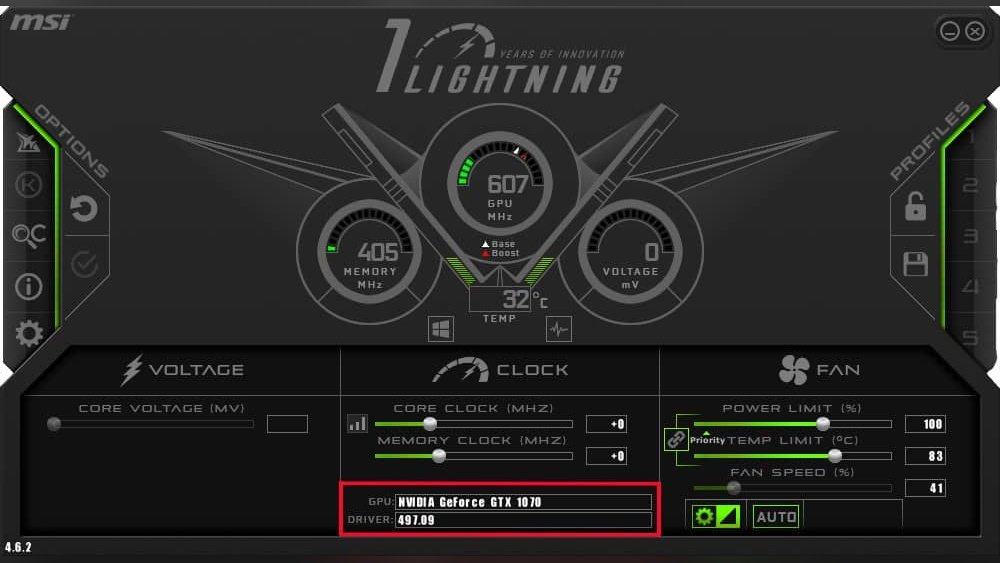
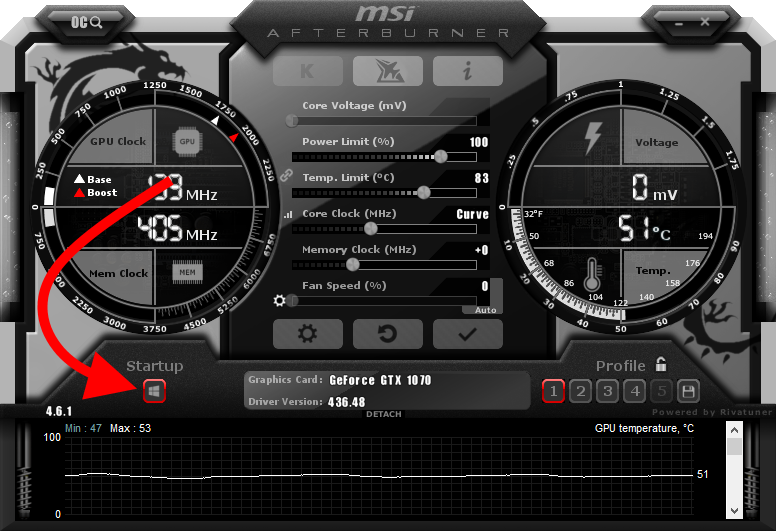
Several programs allow users to change GPU clock speeds easily. MSI Afterburner is a well-known free tool for both Nvidia and AMD cards. It offers sliders to reduce core and memory clocks quickly. Another option is EVGA Precision X1, designed mainly for Nvidia GPUs. AMD users can try Radeon Software, which has built-in tuning features. These tools provide user-friendly interfaces for safe adjustments.
Monitoring Utilities
Monitoring utilities track your GPU’s temperature, usage, and clock speeds in real time. HWMonitor is a simple and reliable program that shows all hardware data clearly. GPU-Z focuses specifically on graphics cards, giving detailed information about clocks and voltages. Another popular choice is Open Hardware Monitor, which supports many hardware types. These tools help ensure your GPU stays stable while underclocked.
Preparing Your System
Preparing your system is the first step before underclocking your GPU. This ensures the process goes smoothly. It helps protect your data and keeps your system stable. Small actions now save you trouble later. Take time to get ready.
Backing Up Settings
Backing up your GPU settings is very important. It allows you to restore original values if needed. Use software like MSI Afterburner or GPU tuning tools. Save profiles or screenshots of current settings. Store these backups in a safe place. This simple step prevents loss of your custom setup.
Updating Drivers
Updating your GPU drivers improves compatibility and stability. Visit your GPU manufacturer’s website. Download and install the latest drivers for your model. New drivers fix bugs and add support for new features. Restart your computer after installation. This ensures your system works well with underclocking tools.
Step-by-step Underclocking Process
Underclocking your GPU can help reduce heat and power use. It also extends the life of your hardware. The process needs care and patience. Follow these simple steps to adjust your GPU settings safely.
Adjusting Core Clock
Start by opening your GPU control software. Look for the core clock speed setting. Lower the core clock in small steps, like 10-20 MHz. Avoid large drops at once. Save the changes before moving on.
Lowering Memory Clock
Next, find the memory clock option. Reduce the memory clock speed slowly. Use small decreases similar to the core clock. Do not lower it too much. Save your settings after each change.
Testing Stability
After adjusting clocks, test your GPU’s stability. Run a stress test or play a game. Watch for crashes or glitches. If problems occur, raise clocks slightly. Repeat tests until your GPU runs smooth and cool.
Balancing Performance And Temperature
Balancing performance and temperature is key when underclocking your GPU. Lowering the clock speed reduces heat and power use. But too much lowering can hurt your gaming or work experience. You want a stable GPU that runs cool but still performs well. This balance saves your hardware and keeps your system quiet. Let’s explore how to find that perfect balance.
Finding The Sweet Spot
Start by reducing your GPU clock speed in small steps. Test your system after each change. Watch the temperature drop. Check if your games or apps still run smoothly. The goal is to find the lowest clock speed that keeps your GPU stable and cool. Too low means poor performance. Too high means more heat and noise. This “sweet spot” is different for every GPU and setup.
Benchmarking Your Gpu
Use benchmarking tools to measure your GPU’s performance and temperature. Run tests before and after underclocking. Compare frame rates, temperatures, and stability. Benchmarking shows if your changes help or harm your system. It gives clear data to guide your adjustments. Always test with the programs or games you use most. This ensures your GPU settings fit your needs perfectly.
Common Issues And Fixes
Underclocking your GPU can help reduce heat and power use. But it may cause some problems. Knowing common issues helps you fix them fast. This saves time and keeps your system stable.
Below are common problems when underclocking and ways to solve them.
System Crashes
System crashes happen if the GPU clock is too low. The hardware may not work well at unstable speeds. To fix this, raise the clock slightly. Test small changes one step at a time. Use reliable software to adjust settings. Also, update your GPU drivers to the latest version. This improves stability and reduces crashes.
Visual Artifacts
Visual artifacts are strange lines or colors on the screen. They appear when the GPU runs below safe speeds. Check the underclock settings and increase the clock a little. Lowering the clock too much can cause these errors. Run a graphics test after changes. Stop underclocking if artifacts persist.
Performance Drops
Underclocking lowers GPU speed and may reduce performance. If the drop is too big, your programs will lag. Balance power savings with performance needs. Adjust clock speeds gradually and monitor results. Use benchmarking tools to see if performance is still good. Find the best speed that fits both power and performance.
Additional Tips For Cooling
Cooling your GPU is key to better performance and longer hardware life. Lower temperatures reduce the risk of damage and keep your system stable. Beyond underclocking, several steps improve cooling and keep your GPU running cooler.
Improving Airflow
Good airflow inside your PC case helps remove hot air. Arrange cables neatly to avoid blocking air paths. Use case fans to push cool air in and pull hot air out. Keep dust filters clean to maintain smooth airflow. Position your PC in a well-ventilated area for fresh air intake.
Using Custom Fan Profiles
Custom fan profiles adjust fan speed based on GPU temperature. Set fans to spin faster when the GPU gets hot. This keeps the GPU cooler during heavy use. Use software tools from your GPU maker to create profiles. Balanced fan speeds reduce noise while maintaining good cooling.
Thermal Paste Replacement
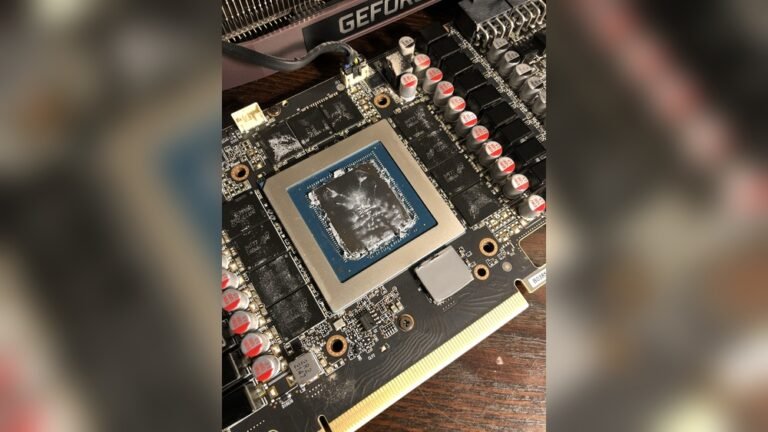
Thermal paste helps transfer heat from the GPU chip to the cooler. Old paste can dry out and lose effectiveness. Replacing it can lower GPU temperatures significantly. Use high-quality thermal paste and apply a thin, even layer. This simple step can improve cooling without extra costs.
Credit: sff.life
Frequently Asked Questions
What Does Underclocking A Gpu Mean?
Underclocking a GPU means lowering its clock speed below the factory setting. This reduces power consumption and heat output. It helps extend hardware lifespan and improve system stability during less demanding tasks.
Why Should I Underclock My Gpu?
Underclocking your GPU reduces heat and power usage. It can prevent overheating and lower fan noise. This is useful for quieter operation or when running less intensive applications.
How Do I Safely Underclock My Gpu?
Use reliable software like MSI Afterburner to lower GPU clock speeds gradually. Monitor temperatures and performance to ensure stability. Avoid drastic changes to prevent crashes or hardware issues.
Will Underclocking Affect Gaming Performance?
Yes, underclocking lowers GPU speed, which can reduce gaming frame rates. However, minor reductions often maintain smooth gameplay while improving temperature and noise levels.
Conclusion
Underclocking your GPU can help reduce heat and save energy. It also lowers noise from the cooling fans. This process can extend your GPU’s life. Always test stability after changing settings to avoid crashes. Keep an eye on temperatures and performance.
With careful adjustments, underclocking is a useful tool for quieter, cooler computers. Try small changes first and see what works best. It’s simple and can improve your PC’s comfort.