How to Cool down Your Cpu: Ultimate Tips for Fast Cooling
Is your computer feeling hotter than it should? When your CPU overheats, it can slow down your work, cause crashes, or even damage your system.
You don’t have to be a tech expert to fix this. You’ll discover simple and effective ways to cool down your CPU and keep your computer running smoothly. Keep reading, and you’ll learn how to protect your device and boost its performance with easy steps you can take right now.
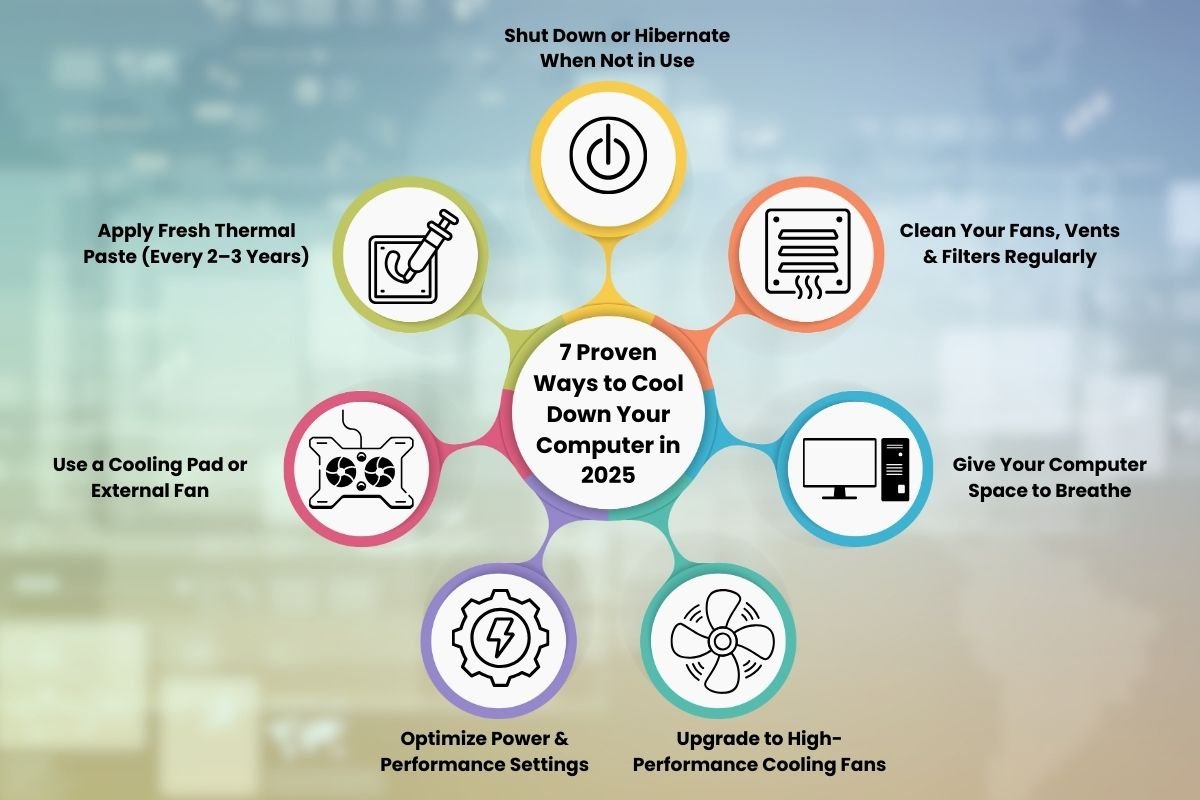
Credit: theenterpriseworld.com
Causes Of Cpu Overheating
CPU overheating happens for several reasons. Knowing these causes helps keep your computer safe and fast. Overheating can slow down your system or cause crashes. Let’s explore the main reasons behind high CPU temperatures.
High Processing Load
CPUs work harder during heavy tasks like gaming or video editing. This high processing load generates more heat. Running many programs at once also strains the CPU. The harder the CPU works, the hotter it gets.
Poor Airflow
Good airflow inside the computer case removes heat. Without it, hot air stays trapped near the CPU. Blocked vents or too many cables can reduce airflow. A crowded case means less cool air reaches the CPU.
Dust Accumulation
Dust builds up on fans and heat sinks over time. This layer blocks airflow and traps heat. Dusty components lose their cooling power. Cleaning dust regularly helps maintain a cool CPU.
Inadequate Thermal Paste
Thermal paste connects the CPU to its cooler. It helps transfer heat away efficiently. Old or poorly applied paste reduces heat transfer. Replacing thermal paste can lower CPU temperature significantly.

Credit: www.crucial.com
Choosing The Right Cooling System
Choosing the right cooling system is important for keeping your CPU safe. The cooling system controls the heat your processor makes. Without good cooling, your computer can slow down or get damaged. Picking the right cooler depends on your needs and budget. This guide helps you understand the main types and which one fits best.
Air Coolers Vs Liquid Coolers
Air coolers use fans and metal fins to move heat away. They are simple and easy to install. Most computers use air coolers because they work well for everyday tasks. Liquid coolers use a pump and liquid to take heat away faster. They are quieter and better for heavy use or gaming. Liquid coolers need more care but offer stronger cooling power.
Budget-friendly Options
Many air coolers are affordable and reliable. These coolers suit most users who want good performance without high cost. Basic models fit most computer cases and need little maintenance. Some budget liquid coolers exist but may not last as long. For simple use, a good air cooler saves money and keeps the CPU cool.
High-performance Solutions
High-performance cooling suits gamers and professionals. Liquid coolers offer fast heat removal and quiet operation. Big air coolers with multiple fans can also cool well. These systems cost more but protect powerful CPUs. Choose a cooler that matches your computer’s power and tasks. This prevents overheating and keeps your system stable.
Improving Case Airflow
Improving case airflow helps keep your CPU cool. Good airflow moves hot air out and brings cool air in. This lowers the temperature inside your computer case. Cooler air means your CPU works better and lasts longer.
Small changes in airflow can make a big difference. Focus on fan placement, fan quality, and cable management. These steps improve air movement and reduce heat buildup.
Optimizing Fan Placement
Place intake fans at the front or bottom of the case. They bring cool air inside. Exhaust fans go at the top or back. They push hot air out. This setup creates a smooth airflow path. Avoid blocking fans with other parts. Proper placement helps cool your CPU faster.
Using Quality Fans
Choose fans that move air quietly and efficiently. Look for fans with good airflow and low noise levels. Bigger fans can move more air at lower speeds. This means less noise and better cooling. Quality fans last longer and keep your system stable.
Cable Management Tips
Keep cables tidy and out of airflow paths. Use zip ties or Velcro straps to bundle cables. Avoid running cables across fans or vents. Clear space inside the case lets air flow freely. Good cable management helps reduce heat and improves cooling.
Applying Thermal Paste Correctly
Applying thermal paste correctly is key to cooling your CPU effectively. It helps transfer heat from the CPU to the cooler. Poor application can cause high temperatures and reduce performance. This section explains how to pick the right paste and apply it step-by-step. It also tells when to reapply for best results.
Selecting The Best Thermal Paste
Choose thermal paste that matches your needs. Look for high thermal conductivity values. Pastes with silver or ceramic particles work well. Avoid cheap or dried-out pastes. Check user reviews for reliability. A good paste lasts longer and cools better.
Step-by-step Application Guide
Start by cleaning the CPU surface with alcohol. Remove old paste completely. Apply a small pea-sized dot in the center. Spread it evenly using a plastic card or let the cooler spread it. Avoid too much paste; it can trap heat. Mount the cooler carefully and tighten screws evenly.
When To Reapply
Reapply thermal paste every 1 to 2 years. Also, reapply if you remove the cooler. High CPU temperatures or unstable performance signal a need. Clean the old paste fully before adding new. Regular reapplication keeps your CPU cool and safe.
Adjusting Cpu Settings For Lower Heat
Adjusting CPU settings can help lower its temperature effectively. By changing how your CPU uses power and speed, you reduce heat production. This method is simple and does not require extra hardware. It also helps your system run quieter and more stable.
Here are some key ways to adjust your CPU settings for less heat.
Undervolting Techniques
Undervolting means lowering the voltage that your CPU uses. It keeps the processor stable but uses less power. This reduces heat without slowing down your computer too much. You can use special software tools for undervolting. Always test your system after changes to ensure it runs smoothly.
Reducing Clock Speeds
Clock speed is how fast your CPU runs. Lowering the clock speed reduces power use and heat. This is called “underclocking.” It can make your computer a bit slower but cooler. Many BIOS or system settings allow you to change clock speeds easily.
Power Management Settings
Power management controls how your CPU uses energy. Setting it to balanced or power saver mode cuts heat. Windows and other operating systems have built-in options for this. Adjust these settings to keep your CPU cooler during light tasks.
Regular Maintenance For Cooling Efficiency
Keeping your CPU cool is key to better performance and longer life. Regular maintenance helps your cooling system work at its best. Small steps can stop overheating and avoid damage. Focus on cleaning, monitoring, and replacing parts to keep everything smooth.
Cleaning Dust Filters And Fans
Dust blocks airflow and traps heat inside your PC. Clean dust filters often using a soft brush or compressed air. Remove dust from fans carefully to keep them spinning freely. Clear fans and filters improve air movement and lower CPU temperature.
Monitoring Temperature
Check your CPU temperature regularly with simple software tools. Watch for spikes or high readings during heavy use. Early detection of heat issues lets you act before damage happens. Keep an eye on temperature to ensure your cooling works well.
Replacing Aging Components
Old fans and thermal paste lose efficiency over time. Replace worn-out fans to restore good airflow. Change thermal paste every year or two for better heat transfer. New parts keep your CPU cooler and protect your system from overheating.
Using Software Tools To Control Cpu Temperature
Controlling your CPU temperature with software tools helps keep your computer cool. These tools let you watch your CPU heat and adjust cooling settings. They make managing your system easier and safer. Lower CPU temperatures improve performance and extend hardware life.
Fan Speed Controllers
Fan speed controllers let you change how fast your fans spin. Faster fans cool the CPU better but can be louder. Slower fans are quieter but may not cool enough. These controllers give you control to balance noise and cooling.
You can set fan speeds manually or use presets. Many motherboards include software for fan control. Third-party apps also offer detailed fan speed settings. Adjusting fan speed helps reduce CPU temperature effectively.
Temperature Monitoring Apps
Temperature monitoring apps show your CPU’s heat in real time. They provide clear data on how hot your CPU gets. These apps alert you if the temperature rises too high. Early warnings help avoid overheating damage.
Popular apps display temperature in simple graphs or numbers. Some include extra info like voltage and fan speed. Monitoring temperature helps you spot problems fast. It also guides better cooling decisions.
Automated Cooling Profiles
Automated cooling profiles adjust settings based on CPU load. When the CPU works hard, fans speed up automatically. When the load is low, fans slow down to reduce noise. This balance keeps the CPU cool without constant manual control.
Many software tools let you choose or create cooling profiles. You can select profiles for gaming, normal use, or silent mode. Automated profiles save time and keep your system healthy.

Credit: www.reddit.com
Upgrading Components For Better Cooling
Upgrading your PC components can greatly improve CPU cooling. Better parts help lower temperatures. This keeps your computer stable and running fast. Changing key parts often gives the best results. Here are some upgrades that make a difference.
High-quality Cpu Coolers
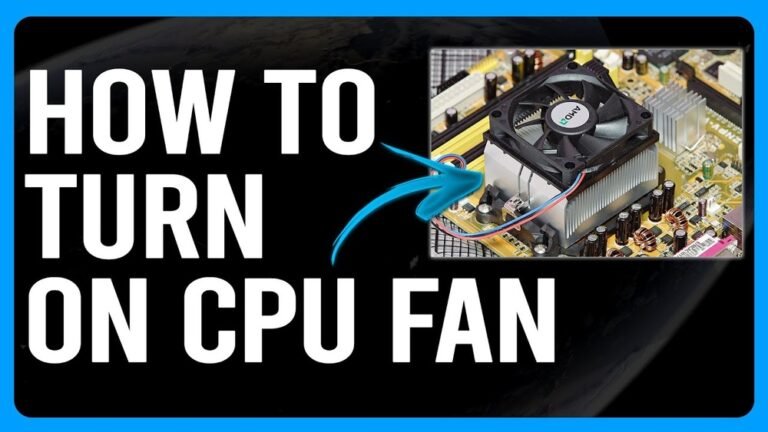
Stock coolers often struggle with heat. High-quality CPU coolers use bigger fans and better materials. They remove heat faster and keep your CPU cooler. Air coolers with large heatsinks work well. Liquid coolers move heat away quickly using water. Both types reduce noise and improve performance.
Thermally Efficient Cases
Cases affect airflow inside your PC. Thermally efficient cases have more vents and fans. They allow hot air to escape easily. Good cases guide cool air to key parts. This stops heat from building up. Choosing a case with good airflow lowers CPU temperature.
Additional Cooling Accessories
Extra fans add airflow where needed. Fan controllers help you adjust speeds for quiet or cool operation. Thermal paste improves heat transfer between CPU and cooler. Upgrading to a high-quality thermal paste helps a lot. These small changes add up to better cooling performance.
Frequently Asked Questions
How Can I Quickly Cool Down My Cpu?
To quickly cool down your CPU, close heavy applications and improve airflow. Use a cooling pad or external fan for instant relief. Regularly clean dust from vents and fans to maintain optimal cooling efficiency.
What Are The Best Cpu Cooling Methods?
Best CPU cooling methods include air cooling with quality fans, liquid cooling systems, and thermal paste application. Each method effectively dissipates heat, ensuring your CPU runs smoothly under load and preventing overheating.
Does Cleaning Dust Improve Cpu Cooling?
Yes, cleaning dust significantly improves CPU cooling. Dust blocks airflow and insulates heat, causing higher temperatures. Regularly clean fans, vents, and heat sinks to maintain efficient cooling and prolong your CPU’s lifespan.
Can Upgrading Thermal Paste Cool My Cpu Better?
Upgrading thermal paste enhances heat transfer between the CPU and cooler. High-quality thermal paste reduces temperatures by filling microscopic gaps. Reapplying it every few years can improve cooling performance noticeably.
Conclusion
Keeping your CPU cool helps your computer run smoothly. Clean fans and good airflow lower temperatures fast. Using thermal paste and quality coolers also makes a big difference. Watch your CPU’s heat to avoid damage or slowdowns. Small steps can protect your device and improve its life.
Stay mindful of temperature to keep performance steady. Cooling your CPU is simple with the right care.