How to Overclock Amd Gpu: Boost Performance Safely & Easily
If you want to squeeze more power from your AMD GPU without spending extra money, overclocking is the way to go. But the process can seem tricky and risky if you don’t know where to start.
What if you could boost your graphics card’s speed safely and easily, making your games run smoother and your system more responsive? In this guide, you’ll learn exactly how to overclock your AMD GPU step by step, with simple tips that anyone can follow.
Ready to unlock hidden performance and get the most out of your hardware? Keep reading, because your best gaming experience is just a few clicks away.
Benefits Of Overclocking Amd Gpus
Overclocking an AMD GPU can bring several benefits. It helps users get more from their hardware without spending extra money. By increasing the GPU’s clock speeds, the overall power and speed improve. This makes the system work faster and smoother for many tasks.
Understanding these benefits can help decide if overclocking is right for your setup. It affects gaming, productivity, and general performance in positive ways. Below are some key advantages of overclocking AMD GPUs.
Performance Improvements
Overclocking raises the GPU’s core and memory speeds. This leads to faster processing of graphics and data. The system can handle more complex tasks quicker. Programs and applications run smoother without delays. It also helps in reducing frame drops during heavy loads. Overall, it makes the GPU more efficient and responsive.
Gaming Experience Boost
Games benefit greatly from a higher GPU clock speed. Overclocking allows games to run at higher frame rates. This results in smoother motion and less stuttering. Visual quality can improve without sacrificing speed. Players enjoy more fluid and immersive gameplay. It also helps in playing newer games on higher settings.
Enhanced Productivity
Creative tasks like video editing and 3D rendering speed up. Overclocked GPUs process data faster, saving valuable time. Software that relies on GPU power runs more efficiently. This helps professionals complete projects quicker and with less waiting. Even multitasking improves as the GPU handles more work at once.
Credit: www.amd.com
Essential Tools For Overclocking
Overclocking an AMD GPU needs the right tools to work well. These tools help change settings safely and check how the GPU behaves. Using the correct software keeps your system stable and improves performance without damage.
Each tool has a role. Some let you adjust the GPU speed and voltage. Others show temperatures and clock speeds in real time. Together, these tools make overclocking easier and safer.
Amd Radeon Software
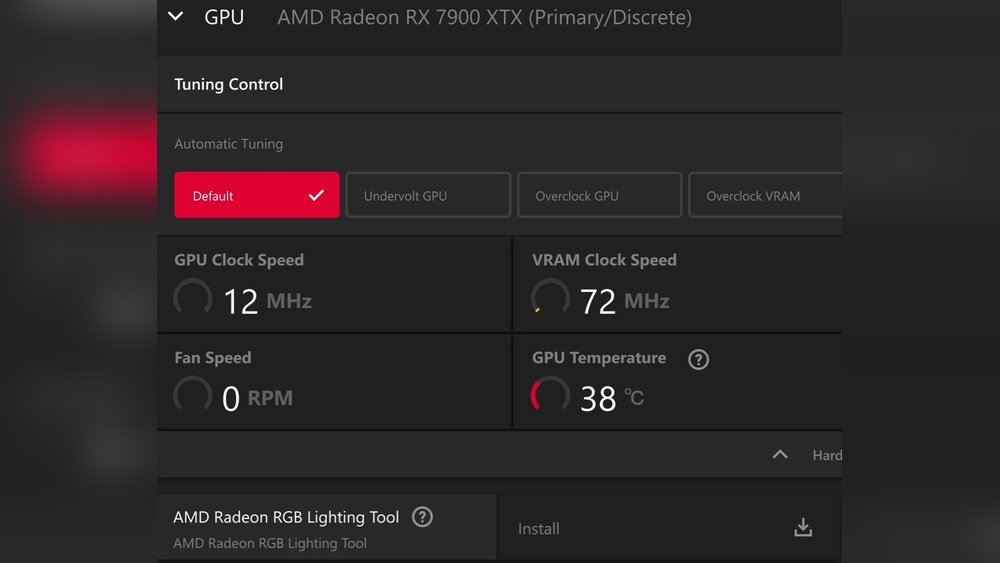
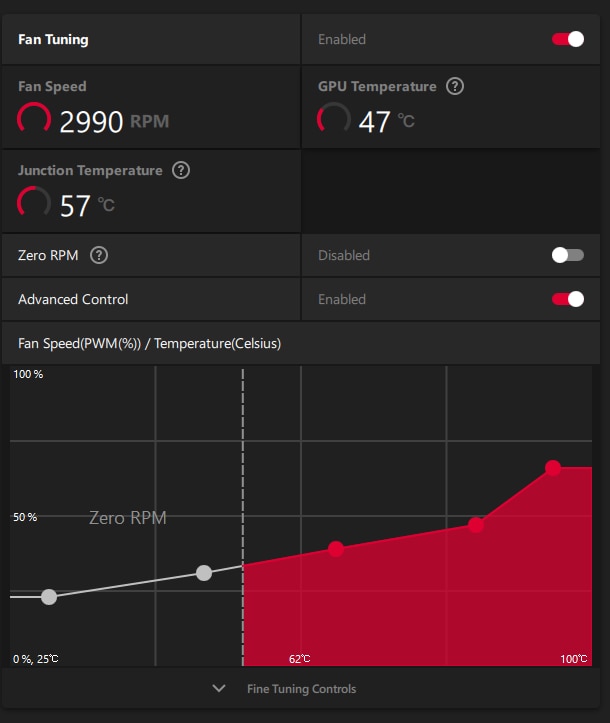
AMD Radeon Software is the main tool for AMD GPUs. It lets you increase clock speeds and control fan speeds. The software has a user-friendly interface for beginners. You can also save custom profiles for different games or tasks. It shows real-time performance stats and temperature readings. This tool is safe and supported by AMD, making it reliable for overclocking.
Third-party Utilities
Third-party utilities offer more control and features. Tools like MSI Afterburner and ASUS GPU Tweak work with many GPUs, including AMD. They allow fine adjustments of clock speeds, voltages, and fan curves. These programs also support custom profiles and on-screen displays. They are useful for users wanting more detailed control than the official software.
Monitoring Software
Monitoring software tracks GPU health during overclocking. Programs like HWMonitor and GPU-Z show temperature, voltage, and clock speed. Watching these numbers helps prevent overheating and crashes. Good monitoring keeps your GPU safe while pushing it to higher speeds. It gives instant feedback on how changes affect your system.
Preparing Your System
Preparing your system is the first step before overclocking your AMD GPU. It helps ensure the process is safe and effective. Taking time to get ready can prevent problems later. This section covers the key actions to take before you start.
Update Drivers
Check for the latest AMD GPU drivers. Updated drivers improve performance and fix bugs. Visit the official AMD website or use the Radeon Software to update. Restart your computer after installing new drivers. This ensures changes take effect correctly.
Ensure Proper Cooling
Good cooling is vital for overclocking success. Overclocking raises GPU temperature. Your system needs enough airflow to handle this heat. Clean dust from fans and vents. Consider extra cooling options like better fans or liquid cooling. Monitor GPU temperature during use to avoid overheating.
Backup Important Data
Overclocking can cause system crashes or errors. Backup important files before you begin. Use an external drive or cloud storage to save data. This step protects your work and personal files. You can restore data if something goes wrong during overclocking.
Step-by-step Overclocking Process
Overclocking an AMD GPU can boost its performance. The process needs care and patience. Follow clear steps to adjust settings safely. Keep track of each change for better results.
Adjusting Core Clock
Start by increasing the core clock speed slowly. Raise it in small steps, about 10 to 20 MHz. After each step, check if the GPU stays stable. Stop if you see crashes or artifacts. Use software like AMD Radeon Software or MSI Afterburner.
Modifying Memory Clock
Next, increase the memory clock speed. Like the core clock, raise it in small steps. Watch for signs of instability or errors. Memory overclocking helps improve texture loading and frame rates. Test after each change to ensure smooth operation.
Setting Power Limits
Adjust the power limit to allow more power for higher clocks. Increase it gradually but stay within safe limits. This lets the GPU maintain higher speeds without throttling. Monitor temperature closely to avoid overheating.
Testing Stability
Run stress tests to check GPU stability. Use tools like FurMark or 3DMark. Test for at least 15 minutes at each setting. Look for crashes, freezes, or graphical glitches. If any appear, lower clocks or power limits. Stable settings ensure a smooth gaming experience.
Safe Overclocking Practices
Overclocking your AMD GPU can boost performance, but safety is key. Pushing your hardware too hard causes damage or crashes. Follow safe overclocking steps to protect your GPU and keep it stable.
Incremental Changes
Make small adjustments to clock speeds and voltage. Increase values slowly, in tiny steps. Test stability after each change before moving on. This method prevents sudden crashes and hardware stress. Patience leads to better results and safer overclocking.
Temperature Monitoring
Track your GPU’s temperature constantly. Use software tools to see real-time heat levels. Stop overclocking if temperatures rise above 85°C. High heat can shorten GPU lifespan and cause errors. Cooling solutions like fans or liquid cooling help maintain safe temps.
Avoiding Hardware Damage
Never exceed the recommended voltage limits for your GPU. High voltage increases risk of permanent damage. Keep power settings within safe ranges. Avoid long periods of maximum load without breaks. Proper care keeps your AMD GPU running longer and faster.

Credit: vixencomposites.com
Troubleshooting Common Issues
Troubleshooting is key when overclocking your AMD GPU. Problems may arise due to settings that push your hardware too far. Knowing how to fix these common issues helps keep your system stable. It also protects your GPU from damage. Follow simple steps to solve crashes, freezes, and visual glitches. Stay calm and test changes slowly.
Crash And Freeze Solutions
Crashes and freezes often mean your GPU is unstable. Lower the clock speed or reduce the voltage slightly. Check your system’s temperature; overheating can cause shutdowns. Make sure your drivers are updated to the latest version. Close background apps to free up system resources. Use stress tests to find the highest stable settings. Save settings in small steps to avoid sudden failures.
Artifact Fixes
Artifacts are strange lines, colors, or shapes on the screen. They show your GPU is pushed too hard or too hot. Reduce the clock speed in small amounts. Increase the fan speed to cool the GPU better. Avoid using aggressive voltage increases as they cause artifacts. Run a benchmark to check for errors before playing games. If artifacts persist, try a different driver version.
Reverting To Default Settings
Resetting your GPU to default settings is simple and safe. Use AMD’s Radeon software to restore factory values quickly. This step helps if overclocking causes frequent crashes or errors. Default settings ensure your GPU runs within tested limits. Save your custom profiles separately before resetting. Revert settings if problems continue after troubleshooting. This protects your hardware and improves stability.
Maximizing Long-term Gpu Health
Maximizing long-term GPU health is crucial when overclocking an AMD GPU. Overclocking pushes the hardware beyond its standard limits. This extra stress can reduce the GPU’s lifespan if not managed well. Maintaining the GPU properly helps keep it running smoothly. It also protects your investment and improves performance stability over time.
Regular Maintenance
Clean the GPU and PC case regularly to remove dust. Dust blocks airflow and causes heat buildup. Check the GPU fans for dust and dirt. Replace or clean the fans if they are noisy or slow. Update GPU drivers often to improve performance and fix bugs. Keep your operating system up to date for best support.
Cooling System Upgrades
Stock coolers may not handle high overclock heat well. Consider upgrading to a better air cooler or liquid cooling system. Better cooling lowers GPU temperatures and reduces wear. Use high-quality thermal paste for better heat transfer. Make sure your PC case has good airflow with extra fans. Cooler GPUs perform better and last longer.
Monitoring Performance Over Time
Use software tools to track GPU temperature and clock speeds. Watch for sudden spikes in temperature or crashes. Lower clock speeds if the GPU gets too hot. Keep an eye on GPU voltage to avoid excessive power use. Regular monitoring helps catch problems early. This prevents damage and keeps your GPU stable.
Credit: vixencomposites.com
Frequently Asked Questions
What Is The Best Software To Overclock Amd Gpu?
AMD’s Radeon Software is the best for overclocking. It offers easy-to-use tuning tools and real-time monitoring. It supports manual frequency and voltage adjustments, enhancing GPU performance safely and effectively.
How To Safely Overclock Amd Gpu Without Damaging It?
Start with small frequency increases and test stability after each step. Monitor temperatures closely, keeping them below 85°C. Use AMD’s built-in tools for controlled voltage changes to avoid hardware damage.
Can Overclocking Amd Gpu Improve Gaming Performance?
Yes, overclocking boosts GPU clock speeds, increasing frame rates. This results in smoother gameplay and better graphics quality. Proper tuning balances performance gains with system stability.
Does Overclocking Amd Gpu Void The Warranty?
Generally, overclocking does not void AMD’s warranty if done using official software. However, excessive or unsafe overclocking that causes hardware damage may void warranty coverage.
Conclusion
Overclocking your AMD GPU can boost its performance effectively. Start slow and test your settings carefully each time. Keep an eye on temperature and stability to avoid damage. Using proper tools makes the process easier and safer. Remember, patience helps achieve good results without risks.
Enjoy better graphics and smoother gameplay with your tuned GPU. Stay safe and have fun experimenting with your AMD graphics card.