How to Fix Gpu Artifacting: Easy Steps to Restore Performance
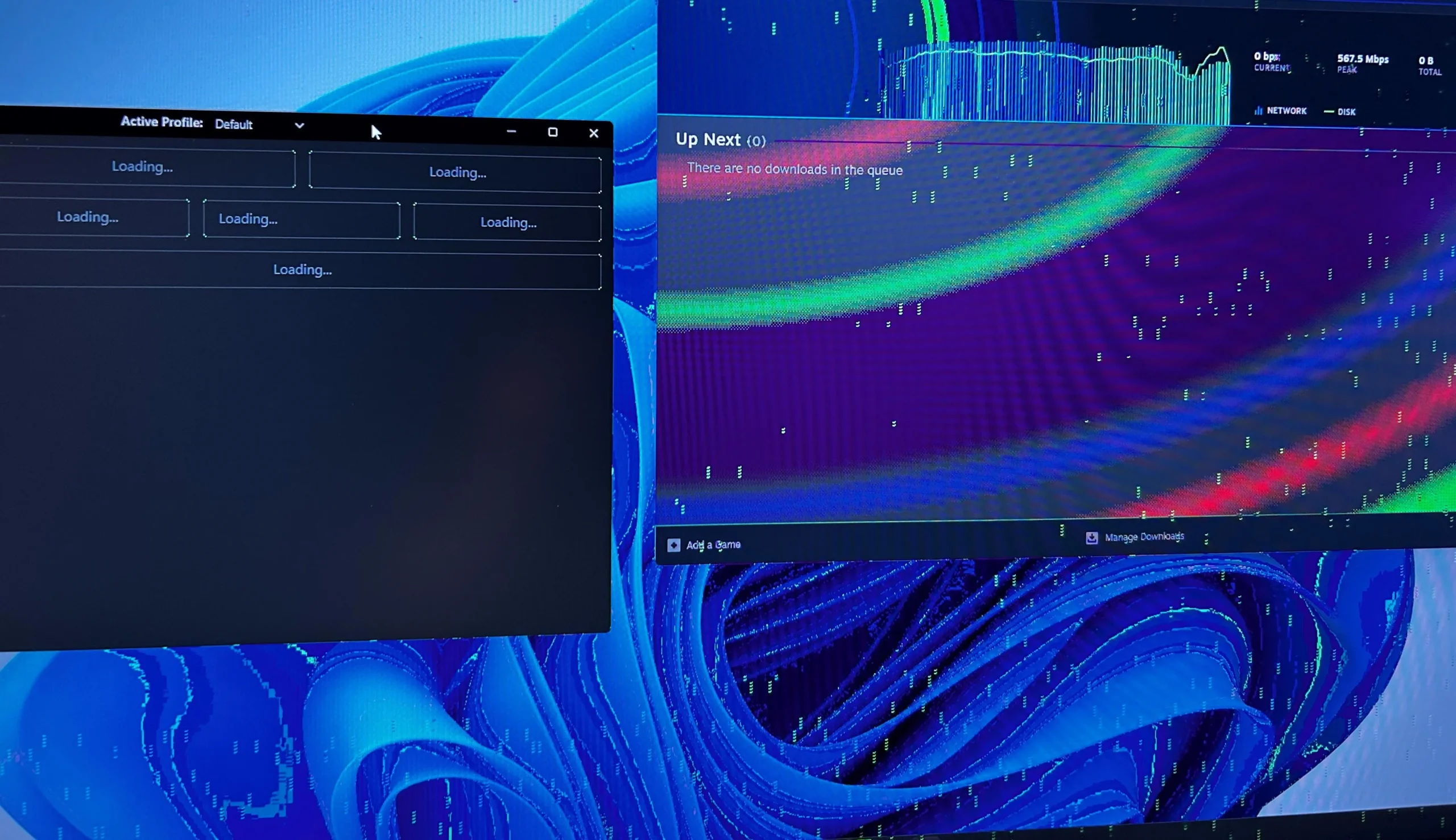
Have you ever noticed strange lines, colors, or shapes appearing on your screen while gaming or working? That annoying glitch is called GPU artifacting, and it can ruin your experience.
If your graphics card is showing these signs, you might be wondering how to fix it before it gets worse. You’ll discover simple and effective ways to stop GPU artifacting and get your system running smoothly again. Keep reading—you don’t want to miss these easy solutions that can save you time and frustration.

Credit: www.wikihow.com
Causes Of Gpu Artifacting
GPU artifacting happens when your graphics card shows strange visual errors. These errors can look like flickering, strange colors, or weird shapes on your screen. Understanding what causes GPU artifacting helps you fix the problem faster. Several common issues can lead to these visual glitches.
Overheating Issues
Too much heat can damage your GPU. When the card gets too hot, it cannot work properly. Dust buildup or poor airflow inside the case makes this worse. Overheating causes pixels to glitch and display wrong colors. Keeping the GPU cool is essential to prevent artifacting.
Driver Problems
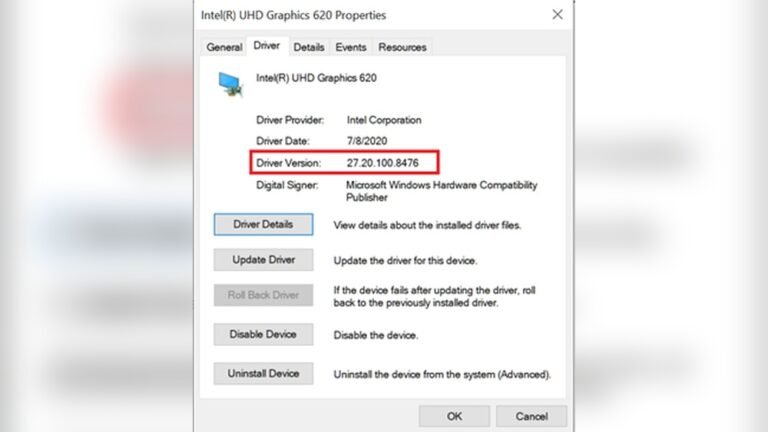
Outdated or corrupt drivers often cause artifacting. Drivers help your computer talk to the GPU. If they are broken, the GPU may not render graphics correctly. Installing the latest drivers can fix many display issues. Sometimes, a clean driver installation is needed to solve the problem.
Hardware Faults
Physical damage or defects in the GPU can cause artifacting. Memory chips and GPU cores might fail over time. Bad solder joints or loose connections also lead to errors. Hardware faults are harder to fix and may require professional repair or replacement.
Power Supply Concerns
A weak or failing power supply can cause GPU problems. The GPU needs steady power to run smoothly. If power drops or fluctuates, artifacting may appear. Ensuring your power supply delivers enough wattage helps keep your GPU stable.
Diagnosing Artifacting Problems
Diagnosing GPU artifacting problems requires careful observation and testing. Artifacting can show as strange colors, lines, or shapes on your screen. These visual glitches often mean the GPU is struggling or failing. Pinpointing the cause helps find the right fix. Start by checking the GPU’s temperature and performance. Then, move on to software and hardware checks. This step-by-step approach makes the process clear and manageable.
Monitoring Gpu Temperature
High temperatures often cause GPU artifacting. Use software tools to track your GPU’s heat levels. Keep an eye on the temperature while running games or heavy tasks. If the GPU gets too hot, it can cause errors and visual glitches. Make sure your cooling system works well. Clean dust from fans and vents. Lower temperature can stop artifacting and protect your card.
Running Stress Tests
Stress tests push the GPU to its limits. This reveals hidden problems causing artifacting. Use programs like FurMark or MSI Kombustor. Watch the screen closely during testing. Artifacting during stress tests confirms GPU issues. Stop the test if the screen shows glitches. Stress tests help check stability and performance under load.
Checking For Driver Updates
Outdated or corrupted drivers cause many GPU problems. Visit the GPU manufacturer’s website to find the latest drivers. Download and install updates carefully. New drivers improve performance and fix bugs. After updating, restart your computer. Test if artifacting continues. Regular driver updates keep the GPU running smoothly.
Inspecting Physical Hardware
Physical damage or loose connections can cause artifacting. Turn off and unplug your PC. Remove the GPU and check for dust or damage. Look for bent pins or broken parts. Re-seat the card firmly in its slot. Check the power cables and connectors. A clean and secure GPU setup reduces artifacting risks.
Basic Fixes For Artifacting
GPU artifacting can cause strange lines, colors, or shapes on your screen. These issues often point to overheating, poor connections, or driver problems. Basic fixes can resolve many artifacting problems without needing new hardware. Try these simple steps to restore your GPU’s performance and image quality.
Cleaning Gpu And Case
Dust buildup blocks airflow and raises GPU temperature. Open your computer case carefully. Use compressed air to blow dust off the GPU and fans. Clean other parts like vents and filters. Keep your PC in a clean, dust-free place. Clean components run cooler and work better.
Reapplying Thermal Paste
Thermal paste helps move heat from the GPU chip to the cooler. Old or dried paste can cause overheating. Remove the GPU cooler gently. Clean old paste off the chip and cooler base using isopropyl alcohol. Apply a small amount of new thermal paste. Reattach the cooler firmly. This lowers temperatures and reduces artifacting.
Updating Or Reinstalling Drivers
Drivers control how your GPU works with the system. Outdated or corrupted drivers cause errors and artifacting. Check the GPU manufacturer’s website for the latest drivers. Download and install them carefully. Use the device manager to uninstall old drivers first. Restart your computer. Updated drivers improve stability and fix bugs.
Adjusting Fan Speeds
Fans cool your GPU by moving hot air away. Slow or broken fans lead to overheating and artifacting. Use software tools to monitor GPU temperature. Increase fan speeds if temperatures rise too high. Set custom fan curves to improve cooling. Faster fans keep the GPU cooler and reduce visual glitches.
Credit: support.nzxt.com
Advanced Troubleshooting Steps
Advanced troubleshooting helps fix stubborn GPU artifacting issues. It involves deeper checks beyond basic fixes. These steps require some technical skill but can save your GPU.
Try each method carefully. Stop if any step causes more problems. These actions help identify hardware or software faults causing artifacting.
Underclocking The Gpu
Lower the GPU clock speeds to reduce strain. This can stop artifacting caused by overheating or unstable overclocking. Use software like MSI Afterburner to adjust clock rates. Reduce both core and memory clocks slowly. Test the GPU after each change. If artifacting stops, keep the clock lower or find better cooling.
Testing With A Different Power Supply
Artifacting can result from poor power delivery. Swap your current power supply with a known good one. Ensure it meets the GPU’s power needs. A weak or failing PSU causes voltage drops and instability. Testing with another PSU confirms if power is the issue. If artifacting stops, replace your power supply.
Using Gpu Diagnostic Software
Run specialized GPU tests to check for faults. Tools like FurMark or GPU-Z provide detailed info. These programs stress test your GPU and report errors. Look for temperature spikes, voltage drops, or memory errors. Diagnostic software helps find hidden hardware problems. Save the results for further analysis or support requests.
Reseating Or Replacing The Gpu
Remove the GPU from its slot and clean contacts. Dust or loose connections cause artifacting and crashes. Reseat the card firmly to ensure a good connection. If problems persist, try the GPU in another computer. Persistent artifacting means the GPU may be damaged. Consider replacing it to restore stable performance.
Preventing Future Artifacting
Preventing future GPU artifacting is key to keeping your graphics card healthy. Artifacting often signals overheating, power issues, or software problems. Taking simple steps can protect your GPU and improve its lifespan. These tips help avoid damage and keep your visuals clear.
Maintaining Proper Cooling
Heat causes most GPU artifacting problems. Keep your PC clean from dust. Dust blocks airflow and raises temperatures. Use good case fans to move air well. Check GPU fans regularly and replace if broken. Consider adding extra cooling if you overclock your card. Lower temperatures reduce the chance of artifacting.
Regular Driver Maintenance
Outdated or faulty drivers can cause display errors. Update your GPU drivers from official sources often. Remove old drivers fully before installing new ones. Use tools like DDU for clean driver removal. Updated drivers fix bugs and improve performance. Stable drivers keep your GPU running smoothly.
Avoiding Overclocking Risks
Overclocking boosts GPU speed but raises risks. Pushing your card beyond limits causes heat and stress. Run overclocking only with good cooling and power. Start with small increases and test for stability. Stop overclocking if artifacting starts. Safe settings protect your GPU from damage.
Ensuring Stable Power Delivery
Power issues can lead to artifacting and crashes. Use a quality power supply with enough wattage. Avoid cheap or old PSUs that deliver unstable power. Check all power connectors to your GPU are secure. A clean power source helps your graphics card work well. Consistent power prevents many graphics errors.
Credit: www.cyberpowerpc.com
Frequently Asked Questions
What Causes Gpu Artifacting During Gaming Or Rendering?
GPU artifacting often results from overheating, driver issues, or hardware faults. Overclocking can also stress the GPU and cause visual glitches.
How Can I Fix Gpu Artifacting By Updating Drivers?
Updating your GPU drivers can resolve compatibility and software bugs. Always download the latest drivers from your GPU manufacturer’s official website.
Can Cleaning My Gpu Help Reduce Artifacting Issues?
Yes, cleaning dust from the GPU and improving airflow can lower temperatures. Cooler GPUs run more stable, reducing artifacting chances.
Is Gpu Artifacting A Sign Of Hardware Failure?
Artifacting can indicate failing GPU hardware, especially if persistent after driver updates. Consider testing your GPU with diagnostic tools to confirm.
Conclusion
GPU artifacting can often be fixed with simple steps. Check your hardware connections first. Keep your graphics drivers up to date. Monitor your GPU temperature and clean any dust. Adjusting settings or lowering clock speeds helps too. Sometimes, replacing thermal paste improves cooling.
Persistent problems may need professional help or hardware replacement. Taking care of your GPU extends its life. Stay patient and follow these tips carefully. Your graphics should look clear and smooth again soon.