How to Fix Bottleneck Cpu: Ultimate Tips to Boost Performance
Is your computer feeling slow, even when running simple tasks? You might be facing a CPU bottleneck, where your processor can’t keep up with the rest of your system.
This can cause frustration, lag, and wasted time. But don’t worry—fixing a bottleneck CPU is easier than you think. You’ll discover clear, practical steps to identify and solve this problem, so your computer runs smoother and faster. Keep reading, and take control of your PC’s performance today.
Credit: www.partitionwizard.com
Identify Cpu Bottlenecks
Identifying a CPU bottleneck is the first step to fixing it. This problem slows down your computer and affects all tasks. Finding the exact cause helps you decide the best solution. Use simple tools and methods to check your CPU’s health and performance.
Check Cpu Usage
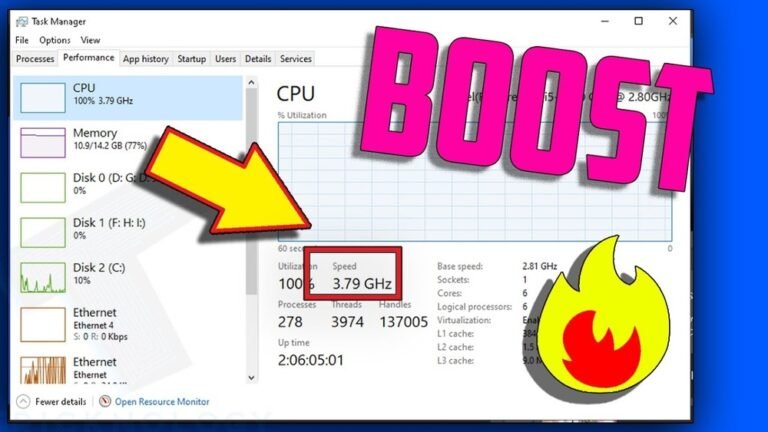
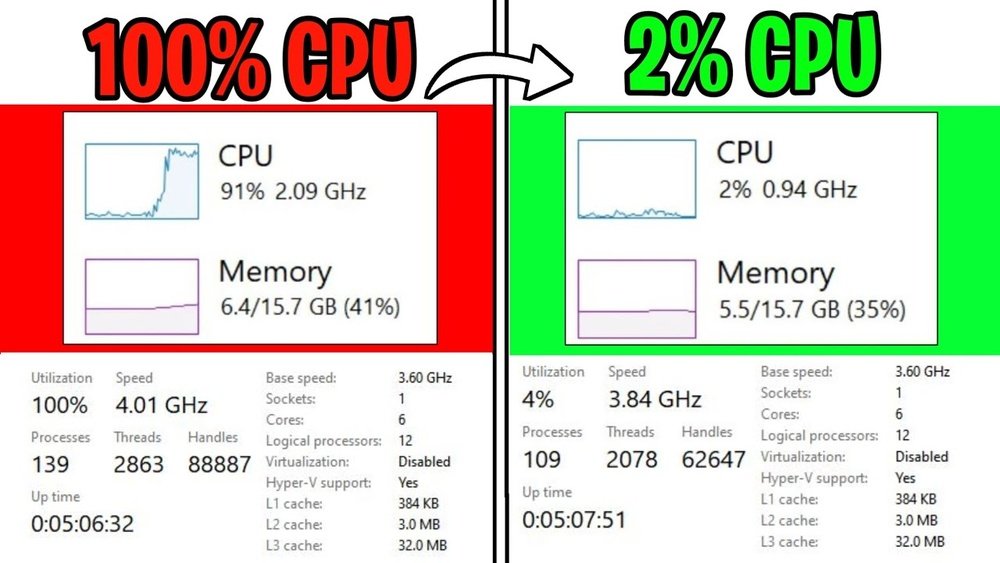
Start by checking how much your CPU is working. High usage means your CPU is busy and may be a bottleneck. Use built-in tools to see the percentage of CPU use. Look for long periods of 80% or higher usage. This shows your CPU struggles with current tasks.
Monitor System Performance
Watch your system’s overall performance during normal use. Notice if programs run slowly or take time to open. See if the computer freezes or lags when many tasks run at once. These signs often point to CPU issues. Use performance monitors to track CPU speed and temperature.
Analyze Task Manager Data
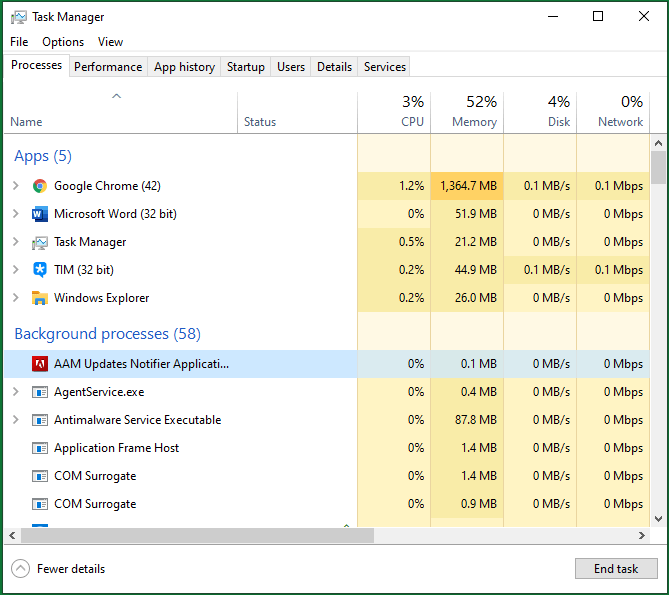
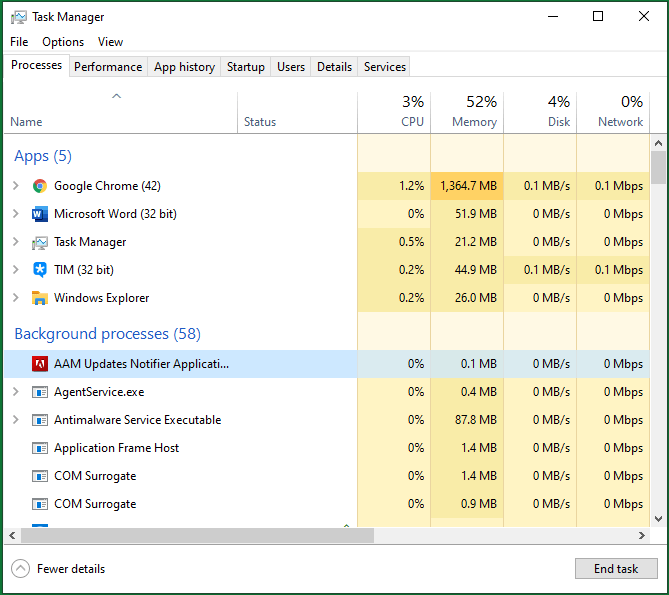
Open Task Manager to see which programs use the most CPU. Sort processes by CPU usage to find heavy users. Check if any app consistently uses a lot of CPU power. This data helps identify if software or background tasks cause the bottleneck. Close or update these apps to improve CPU performance.
Credit: www.youtube.com
Optimize Software Settings
Optimizing software settings helps reduce CPU bottlenecks. This process improves how your computer uses its resources. It also makes your system run smoother and faster. Simple changes can lead to better CPU performance without extra costs.
Adjust Background Processes
Background processes use CPU power even when you do not see them. Close or disable apps running without need. Check your task manager to find heavy processes. Stop any programs that are not important. This frees CPU resources for important tasks.
Update Drivers And Bios
Outdated drivers and BIOS can slow down your CPU. Visit your computer or motherboard maker’s website to find updates. Updated drivers fix bugs and improve hardware communication. A newer BIOS version can optimize CPU performance. Keep these updated to avoid bottlenecks.
Configure Power Settings
Power settings affect how your CPU runs. Set your computer to high-performance mode in the control panel. This mode lets your CPU work at full speed. Avoid power-saving modes during heavy tasks. Proper power settings help your CPU avoid slowdowns.
Upgrade Hardware Components
Upgrading hardware components can solve CPU bottleneck issues effectively. It boosts overall system speed and balance. Improving key parts lets your CPU work without limits. This section covers three main upgrades for better performance.
Choose A Better Cpu
Replacing your CPU with a faster model improves processing power. A better CPU handles more tasks at once. Check your motherboard compatibility before buying a new CPU. Choose one with more cores and higher clock speed. This upgrade reduces bottlenecks caused by slow processing.
Increase Ram Capacity
Adding more RAM helps your CPU access data faster. More memory reduces delays when running many programs. Aim for at least 8GB of RAM for smooth performance. Match RAM speed with your motherboard and CPU for best results. Increasing RAM lowers the chance of your CPU waiting on data.
Use Faster Storage Solutions
Switching to an SSD or NVMe drive speeds up data access. Faster storage reduces load times for software and files. This helps your CPU get data quickly without waiting. Avoid slow hard drives that create bottlenecks. Upgrading storage balances your system and enhances CPU efficiency.
Improve Cooling Solutions
Improving cooling solutions can help fix a bottlenecked CPU. Heat makes the CPU slow down to protect itself. Keeping the CPU cool helps it run faster and smoother. Simple steps can improve your PC’s cooling and reduce bottlenecks.
Clean Dust And Debris
Dust blocks airflow inside your computer case. It covers fans and heatsinks, stopping them from working well. Use a can of compressed air to blow out dust. Clean your PC every few months. This keeps air flowing and cools the CPU better.
Install Better Cooling Fans
Basic fans might not cool the CPU enough. Upgrade to fans with higher airflow and quiet operation. Larger fans move more air at lower speeds. Place fans to push hot air out and bring cool air in. This lowers CPU temperature and improves performance.
Apply Quality Thermal Paste
Thermal paste helps transfer heat from the CPU to the cooler. Old or cheap paste can dry out and lose effectiveness. Remove old paste carefully and apply a fresh, good-quality thermal paste. This improves heat transfer and keeps the CPU cooler during heavy use.
Manage Overclocking Safely
Managing overclocking safely is crucial for fixing a bottleneck CPU. Overclocking can boost your processor’s speed, but it also raises risks. You must take steps to protect your hardware and keep your PC stable. Follow simple rules to enjoy better performance without damage.
Understand Overclocking Risks
Overclocking pushes your CPU beyond its normal limits. This causes higher heat and power use. Your system may become unstable or crash. It can also shorten your CPU’s life. Knowing these risks helps you avoid serious problems.
Use Reliable Overclocking Software
Choose trusted software to overclock your CPU safely. Good tools offer clear settings and easy controls. They prevent accidental damage by limiting extreme changes. Reliable programs also help you test stability after each adjustment.
Monitor Temperatures Regularly
Heat is the biggest enemy during overclocking. Watch your CPU temperature closely. Use software to check temps while running tasks. Stop or reduce overclocking if temperatures get too high. Keeping cool protects your CPU and ensures smooth operation.
Balance Workload Distribution
Balancing workload distribution is key to fixing a bottleneck CPU. It helps the processor handle tasks more efficiently. Without balance, some cores may be overloaded while others stay idle. This causes slow performance and delays. Spreading tasks evenly improves speed and responsiveness.
Optimize Multi-threading
Multi-threading lets your CPU run many tasks at once. Optimizing it means using software that supports multiple threads. This allows the CPU to share work across cores. Programs designed for multi-threading run faster and smoother. Check if your apps can use this feature for better performance.
Limit Resource-heavy Applications
Some applications use a lot of CPU power. Running many of these apps together slows down your system. Close or pause apps you don’t need right now. This frees up CPU resources for important tasks. Manage your apps carefully to avoid overloading the processor.
Use Task Scheduling Tools
Task scheduling tools help assign CPU time to different processes. They ensure no single task takes too much CPU power. This spreads the workload evenly across the cores. Use built-in tools like Task Manager or third-party programs. They keep your CPU running balanced and efficient.
Leverage System Upgrades
Upgrading your system can greatly reduce CPU bottlenecks. Simple changes to your operating system and settings improve performance. These upgrades help your CPU run tasks more smoothly and quickly. Focus on three key areas to boost your system’s efficiency.
Switch To 64-bit Os
Using a 64-bit operating system allows your computer to use more memory. This helps programs run faster and smoother. A 64-bit OS handles large files and multitasking better than 32-bit. Many modern CPUs are designed to work best with 64-bit systems. Switching can unlock your CPU’s full potential.
Enable Virtualization Features
Virtualization improves CPU efficiency by letting multiple systems run on one machine. Many CPUs support virtualization technology but keep it turned off by default. Enabling it in your BIOS can boost performance for virtual machines and software. This feature helps manage resources better and reduces bottlenecks in some tasks.
Keep Software Updated
Software updates often fix bugs and improve CPU usage. Updated drivers and system patches ensure your CPU runs with fewer errors. Developers optimize software over time to better match hardware capabilities. Regular updates keep your system stable and efficient.
Credit: www.partitionwizard.com
Frequently Asked Questions
What Causes A Cpu Bottleneck In Gaming?
A CPU bottleneck happens when your processor can’t keep up with the GPU. This slows down overall performance and causes frame drops. It usually occurs if the CPU is older or weaker than the graphics card. Balancing hardware helps prevent this issue.
How Can I Identify If My Cpu Is Bottlenecking?
Use performance monitoring tools like Task Manager or MSI Afterburner. Look for high CPU usage near 100% while GPU usage is low. This indicates the CPU is limiting your system’s performance. Benchmark tests can also reveal bottlenecks.
What Steps Fix A Bottlenecked Cpu?
Close unnecessary background apps to free CPU resources. Update drivers and BIOS for better compatibility. Overclock your CPU cautiously to boost speed. If needed, upgrade to a more powerful processor. These steps improve performance and reduce bottlenecks.
Does Upgrading Ram Help Reduce Cpu Bottlenecks?
Upgrading RAM can help if your system has insufficient memory causing slowdowns. However, RAM alone won’t fix CPU bottlenecks caused by processor limitations. It’s best to balance CPU, GPU, and RAM to avoid bottlenecks.
Conclusion
Fixing a CPU bottleneck improves your computer’s speed and performance. Start by checking your CPU usage during tasks. Upgrade your processor or adjust software settings to reduce the strain. Balance your system by matching your CPU with other parts like the GPU and RAM.
Keep your drivers and system updated for best results. Small changes can make a big difference in how your PC runs. Stay patient and test different solutions until you find what works best for you. Your computer will thank you with smoother, faster operation.