How to Tell Gpu Temp: Easy Steps to Monitor and Optimize Performance
Are you worried your GPU might be running too hot? Knowing how to tell your GPU temp is key to keeping your computer safe and running smoothly.
If your graphics card overheats, it can slow down your games, cause crashes, or even damage your hardware. But don’t worry—checking your GPU temperature is easier than you think. You’ll learn simple ways to monitor your GPU’s heat and keep your system cool and efficient.
Keep reading to protect your investment and boost your computer’s performance!
Credit: www.cholsamaj.com
Why Monitor Gpu Temperature
Monitoring your GPU temperature helps keep your computer running well. The GPU works hard for games and videos. It creates heat while working. Too much heat can cause problems. Knowing the temperature helps you avoid these issues. Here is why checking GPU temperature matters.
Impact On Performance
High GPU temperature lowers performance. The GPU slows down to cool itself. This is called thermal throttling. It makes games and programs lag. Keeping the GPU cool keeps speed steady. Monitoring temperature helps maintain smooth performance.
Risks Of Overheating
Overheating can damage your GPU. It may cause permanent hardware failure. The computer can crash or freeze often. Overheated parts wear out faster. Checking temperature helps catch problems early. This protects your GPU and saves money.
Tools To Check Gpu Temperature
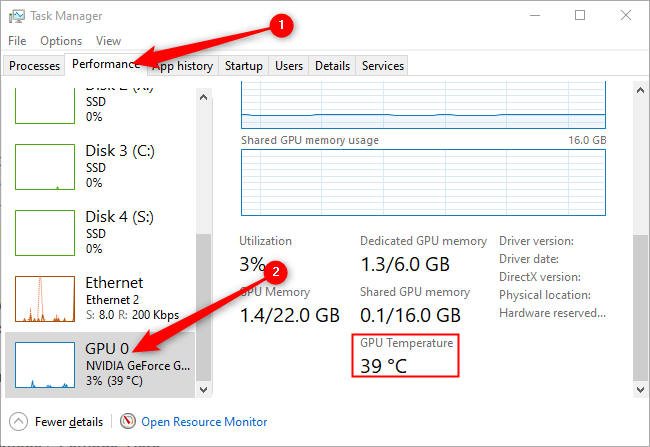
Knowing your GPU temperature helps keep your computer safe and fast. High temperatures can cause damage or slow down your system. Several tools show your GPU temperature easily. These tools range from built-in software to third-party apps. Each has its own benefits and features. Choose the one that fits your needs best.
Built-in Software Options
Many graphics cards come with software that shows GPU temperature. For example, NVIDIA uses GeForce Experience. AMD offers Radeon Software. These programs display temperature in real time. They also provide other useful data like fan speed and usage. Built-in software is easy to use and reliable. It does not require extra downloads or setups. Just open the software and find the temperature section.
Third-party Monitoring Apps
Third-party apps offer detailed GPU temperature monitoring. Popular ones include MSI Afterburner and HWMonitor. These tools track temperature and other hardware data continuously. They often show charts and alerts for high temperatures. Third-party apps work with most GPU brands. They provide more options than built-in software. Some apps also let you control fan speeds. This helps keep your GPU cooler during heavy use.
Step-by-step Temperature Check
Checking your GPU temperature is important to keep your computer safe. High temperatures can cause damage or slow down your system. This step-by-step guide shows you how to find your GPU temperature easily. Follow these simple steps for a quick temperature check.
Accessing Gpu Settings
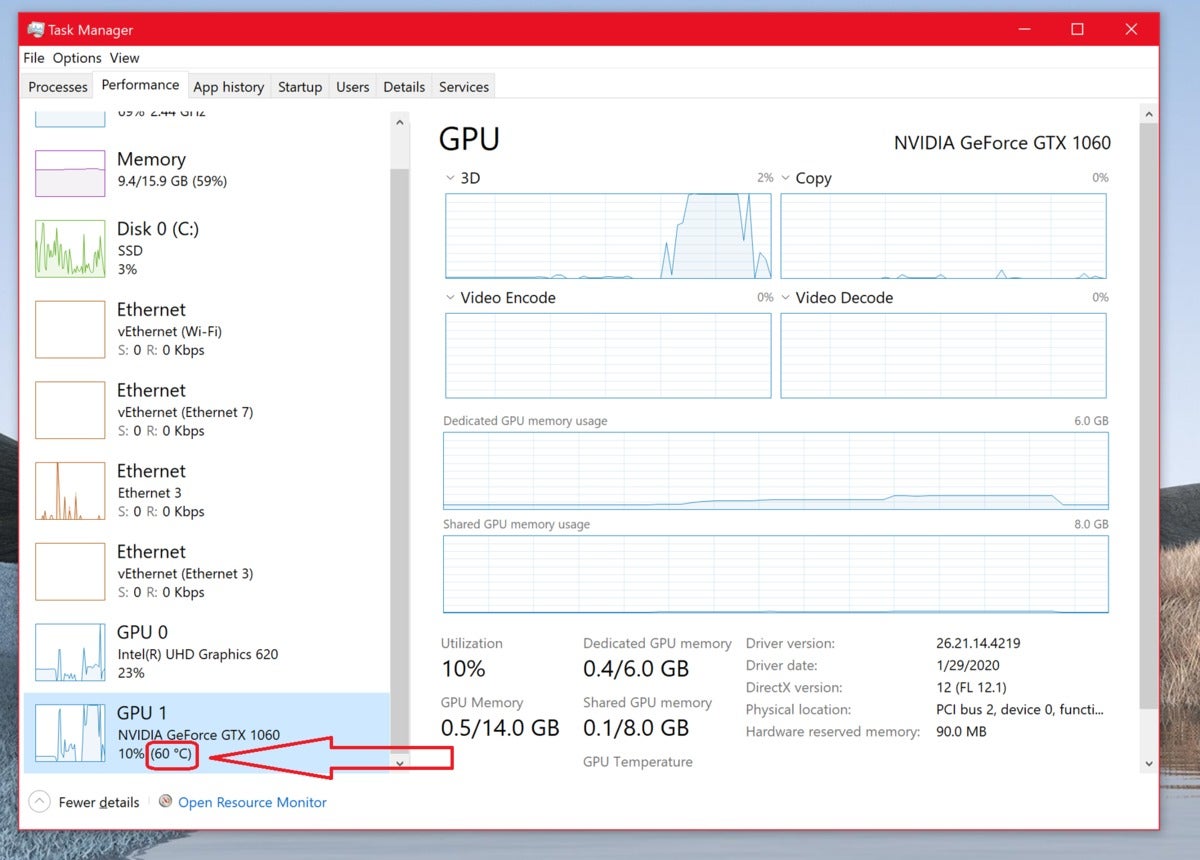
First, open your GPU control panel. For NVIDIA cards, right-click the desktop and select “NVIDIA Control Panel.” For AMD, choose “AMD Radeon Settings.” Look for a section called “Performance” or “Hardware Monitoring.” Some GPUs show temperature directly in these settings. This method works without extra software.
Using Monitoring Software
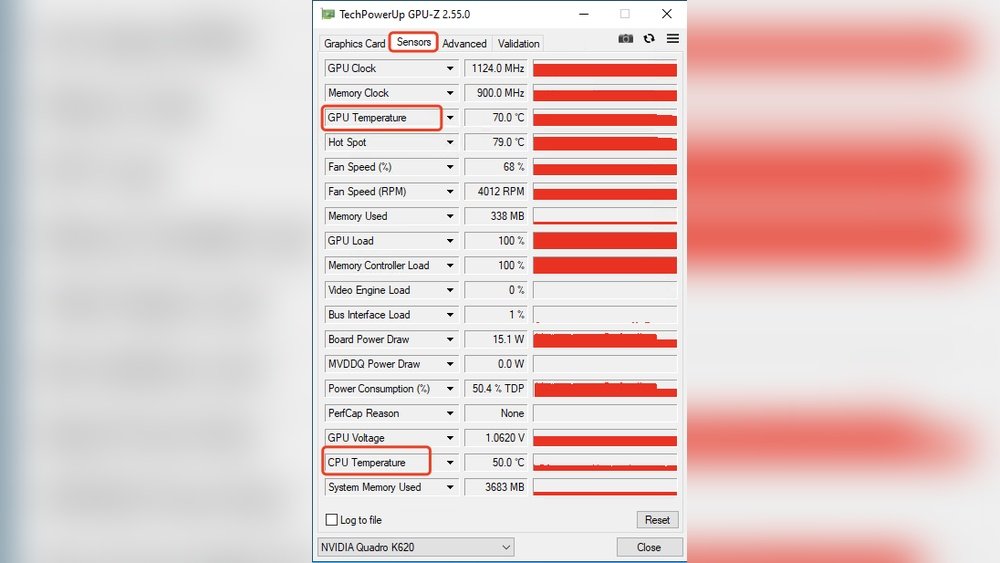
Download a free program like MSI Afterburner or HWMonitor. Install and run the software. These tools show real-time GPU temperature on your screen. They also display other details like fan speed and clock rates. Monitoring software helps track temperature during heavy use, such as gaming or video editing.
Interpreting Temperature Readings
Normal GPU temperatures range from 30°C to 70°C while idle or under light load. Temperatures above 80°C under load may need attention. Consistently high temperatures can reduce GPU lifespan. Check if fans are working and clean any dust. Keep your system cool for better performance.
Optimal Temperature Ranges
Understanding the optimal temperature range for your GPU helps keep it safe and working well. GPUs generate heat during use, and knowing the right temperatures avoids damage and slows down aging. Temperatures change based on what the GPU is doing, so it’s important to check both idle and load temperatures.
Idle Vs Load Temperatures
Idle temperature means the GPU is on but not working hard. Usually, this is when the computer is resting or doing light tasks. A typical idle temperature falls between 30°C and 45°C. If it is higher, your cooling system might need checking.
Load temperature happens when the GPU runs games, videos, or heavy programs. This can push the temperature to 60°C to 85°C. Some GPUs can handle up to 90°C, but it’s best to stay below that to avoid damage.
Safe Limits For Different Gpus
Different GPUs have different safe temperature limits. Older models usually run cooler and need to stay below 80°C. Newer GPUs can often go up to 85°C or 90°C without problems.
Check the manufacturer’s guide for exact numbers. Brands like NVIDIA and AMD list safe temperatures for each model. Staying within these limits helps your GPU last longer and perform better.
Ways To Lower Gpu Temperature
Keeping your GPU cool is important for better performance and longer life. High temperatures can cause your GPU to slow down or even get damaged. There are simple ways to lower the temperature and keep your graphics card running smoothly. These methods help your GPU stay cool during heavy use or gaming.
Improving Airflow
Good airflow inside your computer case helps lower GPU heat. Make sure cables are tidy and not blocking air paths. Use case fans to push hot air out and bring cool air in. Position your PC in a place with enough space around it. Avoid placing it in tight or enclosed areas.
Cleaning Dust And Debris
Dust buildup can block air and trap heat. Clean your GPU and case regularly using compressed air. Remove dust from fans, vents, and heatsinks. Do this gently to avoid damaging parts. Regular cleaning helps your GPU cool down faster.
Adjusting Fan Speeds
Many GPUs let you control fan speed with software. Increasing fan speed cools the GPU but may make more noise. Find a balance between cooling and noise that suits you. Set fan curves to make fans spin faster when the GPU gets hot.
Applying Thermal Paste
Thermal paste helps transfer heat from the GPU chip to the cooler. Over time, paste can dry out and lose effectiveness. Removing old paste and applying fresh thermal paste can improve cooling. Do this carefully or ask a professional if unsure.
Credit: www.pwmachineservices.com
Optimizing Gpu Performance
Keeping your GPU running well is key to good computer performance. The GPU can get hot during use, and this affects how fast it works. Watching the temperature helps you keep the GPU safe and fast. Adjusting settings right can improve speed without causing damage.
Understanding how to balance speed and heat helps you get the best from your GPU. There are tools to help change settings safely. This lets you push your GPU a little more while keeping it cool.
Balancing Temperature And Speed
GPU speed and temperature are linked. When the GPU runs fast, it makes more heat. Too much heat can slow it down or cause damage. Keep the GPU cool by cleaning fans and checking airflow in the case. Lowering the speed can reduce heat but also lowers performance.
Find a balance between speed and temperature that fits your needs. Use monitoring tools to check the temperature during use. Aim to keep the GPU below its maximum safe temperature. This balance helps avoid crashes and keeps games or programs running smoothly.
Using Gpu Overclocking Tools Safely
Overclocking means making your GPU run faster than usual. It can improve performance but also raises the temperature. Use overclocking tools with care. Increase speed in small steps and check the temperature each time.
Stop if the GPU gets too hot or unstable. Make sure your cooling system works well before overclocking. Use trusted software that shows temperature and speed clearly. Safe overclocking helps you get more from your GPU without causing damage.
Monitoring Gpu Temperature Regularly
Monitoring GPU temperature regularly helps keep your computer safe. High temperatures can damage your graphics card. Checking the temperature often prevents overheating. It also keeps your system running smoothly. Simple tools and software can track your GPU’s heat levels. This way, you can act before problems start.
Setting Up Alerts
Setting up alerts tells you when your GPU gets too hot. Many programs let you set temperature limits. When the heat passes that limit, the alert sounds or shows a message. This helps you stop intense tasks or cool your PC quickly. Alerts save your GPU from damage and reduce crashes.
Keeping Logs For Analysis
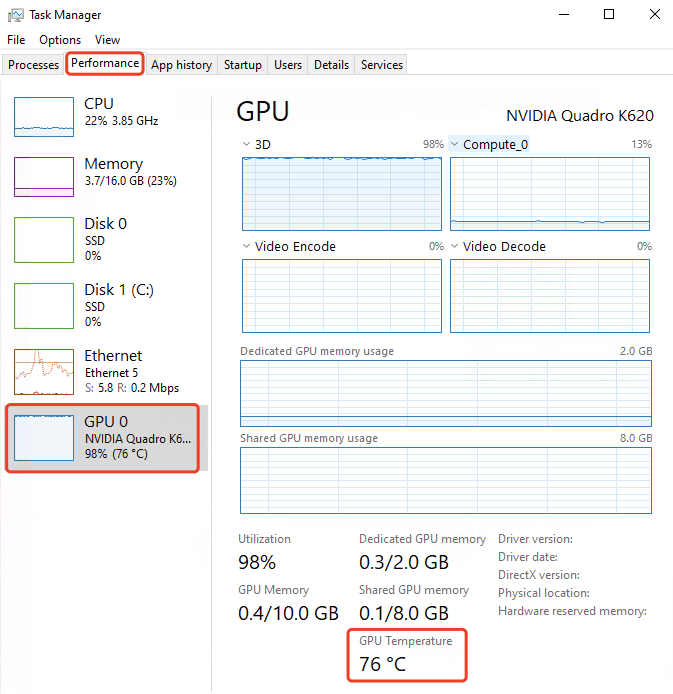
Keeping logs records your GPU temperature over time. Logs show patterns of heat during use. You can find out if your GPU heats up during certain tasks. This information helps improve cooling or adjust settings. Logs also help diagnose problems before they get worse.
Credit: www.gpu-mart.com
Frequently Asked Questions
How Can I Check My Gpu Temperature Easily?
You can check GPU temperature using software like MSI Afterburner or HWMonitor. These tools display real-time temperature data. They are free, user-friendly, and provide accurate readings for most GPUs. Monitoring helps prevent overheating and maintains optimal performance during gaming or heavy tasks.
What Is The Safe Temperature Range For Gpus?
A safe GPU temperature range is usually between 30°C and 85°C. Idle temps should be around 30-40°C. Under load, temperatures up to 85°C are acceptable. Consistently higher temperatures may cause damage or throttling, so cooling solutions should be improved if temps exceed this range.
Why Is Monitoring Gpu Temperature Important?
Monitoring GPU temperature prevents overheating, which can damage hardware. High temperatures reduce performance and cause system instability. Keeping temperatures in check extends GPU lifespan and ensures smooth operation during gaming or heavy workloads. Regular checks help identify cooling issues early.
Can Gpu Temperature Affect Gaming Performance?
Yes, high GPU temperatures can cause thermal throttling, reducing gaming performance. When the GPU overheats, it lowers clock speeds to cool down. This results in lower frame rates and stuttering. Maintaining optimal temperatures ensures stable and smooth gameplay.
Conclusion
Checking your GPU temperature helps keep your computer safe. It shows if your graphics card runs too hot or cool. Use simple tools to see the temperature on your screen. Watch for numbers that are too high to avoid damage.
Keeping your GPU cool can make your games and apps run better. Regular checks help spot problems early. Stay aware and protect your computer easily. Simple steps make a big difference for your PC’s health.