How to Check If Your Cpu is Overheating: Easy Steps to Protect It
Is your computer acting slow or shutting down unexpectedly? These can be signs that your CPU is overheating.
Knowing how to check if your CPU is overheating is crucial to keep your device running smoothly and avoid costly damage. You’ll learn simple and effective ways to monitor your CPU temperature. By the end, you’ll have the confidence to spot overheating issues early and protect your computer before it’s too late.
Keep reading to find out how to keep your CPU cool and your system healthy.
Signs Of Cpu Overheating
CPU overheating can cause many problems for your computer. It can make your system act strange or stop working. Knowing the signs helps you catch overheating early. This way, you can protect your CPU and keep your computer running well.
Performance Slowdowns
Your computer may start running very slowly. Programs take longer to open or respond. Tasks that were easy before become hard. This lag can mean your CPU is too hot.
Unexpected Shutdowns
The computer might turn off without warning. This happens to protect the CPU from damage. Sudden shutdowns are a clear sign of overheating.
Unusual Fan Noise
The cooling fan may sound louder or work harder. It tries to cool the hot CPU. Strange fan noise can mean your CPU temperature is high.
System Freezes And Crashes
Your system may freeze or crash often. Programs stop working or the screen goes blank. These crashes can result from an overheated CPU.
Credit: www.avast.com
Tools To Monitor Cpu Temperature
Monitoring your CPU temperature is key to keeping your computer safe. Overheating can cause slowdowns or damage. Various tools help track the heat inside your CPU. Some tools come built-in with your system. Others are easy-to-install software. Command line tools offer quick checks without extra programs. Choose the tool that fits your comfort and needs.
Built-in Bios/uefi Monitoring
Every computer has BIOS or UEFI firmware. It controls hardware and system settings. You can access CPU temperature there. Restart your PC and press a key like F2 or Delete. Look for a “Hardware Monitor” or “PC Health” section. It shows the current CPU temperature. No extra software needed. Good for quick checks but not for constant monitoring.
Third-party Software Options
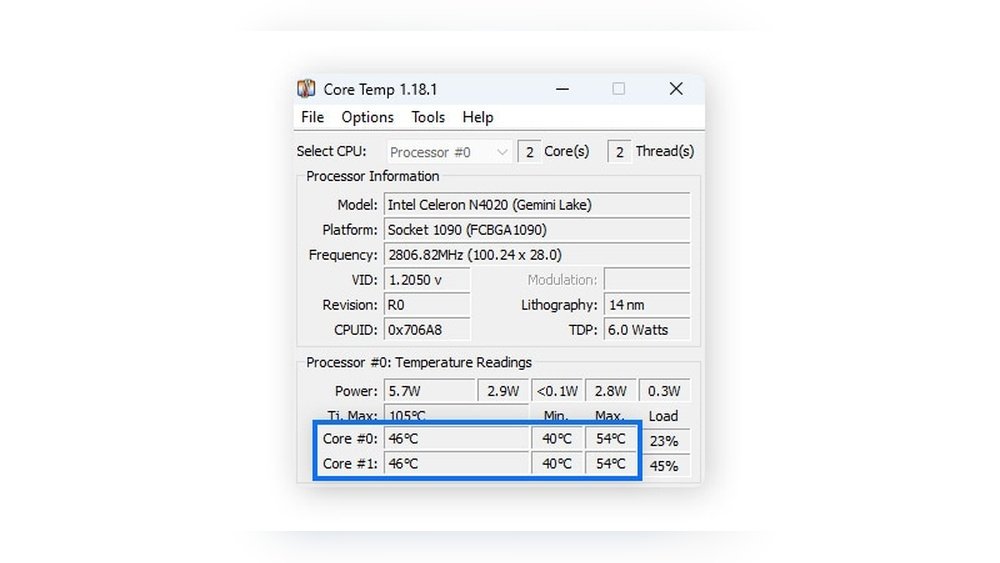
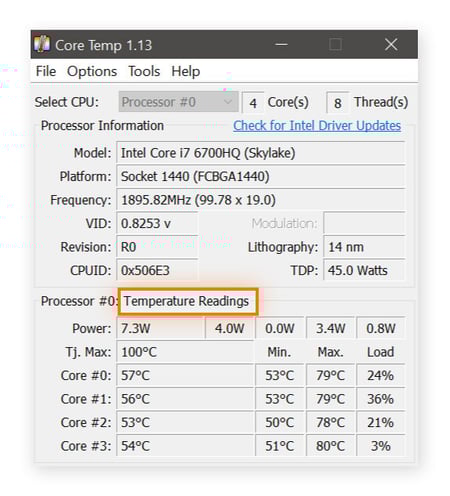
Many apps provide detailed CPU temperature reports. Popular choices include HWMonitor, Core Temp, and SpeedFan. These tools display real-time temperature and fan speeds. Some show warnings when temperatures get too high. Most are free and simple to use. They run in the background while you work or play. Perfect for regular monitoring and alerts.
Using Command Line Utilities
Command line tools suit users who like simple interfaces. On Windows, use “wmic” commands to get temperature data. Linux offers “sensors” from the lm-sensors package. Mac users can try “powermetrics” or install extra tools. These commands quickly show CPU temperature without a graphic interface. Great for fast checks or scripting tasks.
Checking Temperature In Real-time
Checking your CPU temperature in real-time helps prevent overheating. It shows how hot your processor runs while using your computer. Watching these numbers keeps your PC safe and fast.
Many tools can show CPU temperatures live. They give instant updates on heat levels. This lets you act quickly if temperatures rise too high.
Installing Monitoring Software
Choose a CPU monitoring tool that fits your needs. Popular options include HWMonitor, Core Temp, and SpeedFan. Download and install the software from trusted sites only. Run the program to start seeing your CPU temperature.
These tools often show other data like fan speed and voltage. They run quietly in the background while you work or play.
Setting Temperature Alerts
Set alerts to warn you when the CPU gets too hot. Most software lets you pick a temperature limit. The alert pops up or sounds when the CPU passes that limit.
This feature helps avoid damage by letting you cool your PC quickly. It keeps your computer stable and prevents sudden shutdowns.
Interpreting Temperature Readings
Understand what CPU temperatures mean for your system. Idle temps usually range between 30°C and 50°C. Under heavy use, temps can rise to 70°C or 80°C.
Temperatures above 85°C may cause problems or damage. Consistently high temperatures need attention. Clean your fans or improve airflow to cool your CPU.
Credit: www.reddit.com
Common Causes Of Cpu Overheating
CPU overheating happens for many reasons. Knowing the common causes helps you fix the problem fast. Overheating can slow down your computer or cause damage. Watch out for these usual issues to keep your CPU cool and running well.
Dust And Dirt Accumulation
Dust and dirt gather inside your computer over time. This buildup blocks air vents and fans. The blocked airflow traps heat inside the CPU area. Cleaning dust regularly helps your CPU stay cool and work better.
Poor Airflow
Good airflow moves hot air away from the CPU. Poor airflow happens if fans are not placed well. Wires and other parts can also stop air from moving freely. Arrange cables neatly and check fan positions to improve airflow.
Aging Thermal Paste
Thermal paste sits between the CPU and its cooler. It helps move heat from the CPU to the cooler. Over time, thermal paste dries out and loses its power. Replacing old thermal paste keeps the CPU temperature down.
Overclocking Risks
Overclocking makes the CPU run faster than designed. This extra speed creates more heat than normal. Without better cooling, overclocking can cause serious overheating. Use caution and proper cooling if you choose to overclock.
Steps To Cool Down Your Cpu
Keeping your CPU cool is important for your computer’s health. High temperatures can slow down your system. It can also cause crashes or damage parts. Follow these simple steps to lower your CPU temperature and keep your PC running smoothly.
Cleaning Dust From Components
Dust blocks airflow inside your computer. It makes the CPU hotter. Use a soft brush or compressed air to clean fans and vents. Clean the heat sink and other parts too. Do this carefully to avoid damage. Regular cleaning helps your CPU stay cool.
Improving Case Ventilation
Good airflow inside the case lowers temperature. Make sure cables are neat and not blocking air paths. Add extra fans if your case has space. Position fans to bring cool air in and push hot air out. Proper ventilation keeps heat away from your CPU.
Reapplying Thermal Paste
Thermal paste helps heat move from the CPU to the cooler. Old or dried paste loses effectiveness. Remove the old paste with a soft cloth and alcohol. Apply a small, even layer of new thermal paste. This improves heat transfer and cools your CPU better.
Adjusting Fan Speeds
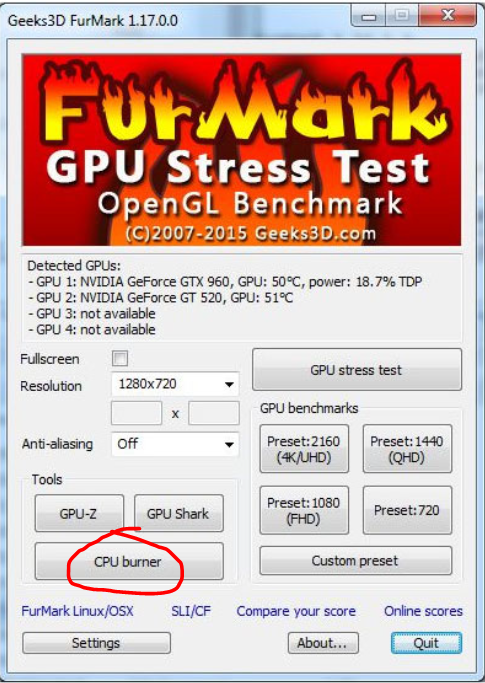
Fans can run faster to cool the CPU more. Use your computer’s BIOS or software to change fan speeds. Set fans to increase speed when the CPU gets hot. Faster fans push more air, reducing heat quickly. This helps protect your CPU from overheating.
Credit: support.punchtechnology.co.uk
Preventive Measures For Long-term Protection
Protecting your CPU from overheating starts with good habits. Taking simple steps now helps avoid damage later. These preventive measures keep your computer running smoothly and extend its life. Understanding and applying these tips reduces risks linked to heat buildup.
Regular Maintenance Schedule
Clean dust and dirt from your computer often. Dust blocks airflow and traps heat. Check fans and vents regularly for buildup. Replace old thermal paste every year. This paste helps move heat away from the CPU. A clean system cools better and lasts longer.
Avoiding Excessive Overclocking
Overclocking pushes your CPU to work faster than normal. This creates extra heat. Avoid pushing your CPU beyond safe limits. Keep overclocking mild or skip it. Running your CPU at standard speeds helps maintain safe temperatures and reduces wear.
Using Quality Cooling Solutions
Use good fans or liquid cooling systems. Cheap coolers often fail to keep the CPU cool. Choose cooling devices designed for your CPU model. Proper cooling stops heat from reaching dangerous levels. Invest in reliable cooling to protect your computer.
Monitoring Temperature Consistently
Check your CPU temperature often using software tools. Monitoring alerts you to rising heat early. Set alarms for high temperatures if possible. Early detection prevents damage and unexpected shutdowns. Keep an eye on temps to catch problems fast.
Frequently Asked Questions
How Can I Check My Cpu Temperature Easily?
You can check your CPU temperature using software like HWMonitor or Core Temp. These tools show real-time temperature readings and alert you if overheating occurs.
What Are Common Signs Of Cpu Overheating?
Common signs include frequent shutdowns, slow performance, and unusual fan noise. High CPU temperatures can cause system instability and crashes.
How Often Should I Monitor My Cpu Temperature?
It’s best to monitor your CPU temperature regularly, especially during heavy use. Weekly checks help prevent overheating and maintain optimal performance.
Can Bios Show Cpu Temperature Without Software?
Yes, most BIOS setups display CPU temperature. Access BIOS during boot to view temperature data without needing extra software.
Conclusion
Checking your CPU temperature helps keep your computer safe. Watch for signs like slow speed or unexpected shutdowns. Use simple tools to monitor heat levels often. Clean your fans and vents to improve airflow. Replace old thermal paste for better cooling.
Stay alert to avoid damage and costly repairs. Taking small steps protects your device and saves money. Keep your CPU cool, and your system runs smoothly. Easy habits make a big difference in computer health.