How to Cool Cpu down: Ultimate Tips for Faster Performance
Is your computer running hot and slowing down? Overheating CPUs can cause your system to lag, crash, or even get damaged.
You don’t have to put up with this frustration. Knowing how to cool your CPU down can make your computer faster, more reliable, and longer-lasting. You’ll discover simple, effective ways to keep your CPU temperature in check—so you can get the best performance without the heat.
Ready to stop worrying about your computer’s temperature? Let’s dive in.
Causes Of Cpu Overheating
CPU overheating happens when the processor gets too hot during use. This can cause slowdowns, crashes, or even permanent damage. Understanding what causes this heat buildup helps in keeping your CPU cool and running well.
Heat Generation In Cpus
CPUs produce heat as they process data. The faster they work, the more heat they create. Heavy tasks like gaming or video editing raise the temperature quickly. Without proper cooling, this heat builds up inside the computer case.
Impact Of Poor Airflow
Airflow moves hot air away from the CPU and other parts. Poor airflow traps heat inside the case. Blocked vents or wrong fan placement reduce airflow. This causes the CPU temperature to rise and stay high.
Effects Of Dust And Dirt
Dust and dirt collect on fans and heat sinks over time. This blocks airflow and stops heat from escaping. Dust also makes fans work harder and wear out faster. Cleaning your PC helps keep the CPU cool and efficient.

Credit: www.youtube.com
Choosing The Right Cooling Solution
Choosing the right cooling solution helps keep your CPU safe and fast. It stops the computer from getting too hot and slowing down. Different cooling methods fit different needs and budgets. Understanding these options makes it easier to pick the best one for your setup.
Air Cooling Options
Air cooling uses fans and heatsinks to move heat away from the CPU. It is simple and cost-effective. Most computers use air cooling because it works well for everyday tasks. Larger heatsinks and multiple fans can improve cooling performance. Air cooling is easy to install and maintain.
Liquid Cooling Systems
Liquid cooling uses water or special liquid to transfer heat. It cools the CPU faster than air cooling. This option suits powerful computers and gamers. Liquid cooling systems can be quiet and efficient. They require more care during installation and use.
Passive Cooling Methods
Passive cooling has no fans or pumps. It uses metal heatsinks to spread heat naturally. This method is silent and needs no power. Passive cooling suits low-power CPUs and small devices. It may not cool well under heavy use.
Improving Case Airflow
Improving case airflow plays a key role in cooling your CPU. Good airflow moves hot air out and pulls cool air in. This keeps your system running at safe temperatures. Simple changes inside your case can make a big difference. Focus on how fans are placed, the quality of fans, and managing cables.
Optimizing Fan Placement
Place intake fans at the front or bottom of the case. They bring cool air inside. Exhaust fans go at the top or rear to push hot air out. This creates a steady flow of air across components. Avoid blocking airflow paths with large parts. Balanced fan placement stops heat from building up.
Using High-quality Fans
Choose fans that move more air quietly. High-quality fans last longer and work better. Look for fans with good airflow (measured in CFM) and low noise levels. PWM fans adjust speed based on temperature. This saves energy and reduces noise. Replacing old fans improves case cooling a lot.
Cable Management Tips
Keep cables tidy and out of airflow paths. Use zip ties or Velcro straps to bundle cables. Route cables behind the motherboard tray if possible. Loose cables block air and trap heat. Good cable management improves airflow and makes your PC look clean. It also helps with easier upgrades later.

Credit: www.reddit.com
Applying Thermal Paste Correctly
Applying thermal paste correctly is key to keeping your CPU cool. Thermal paste fills tiny gaps between the CPU and the cooler. This helps heat move better from the CPU to the cooler. Poor application can cause high temperatures and reduce performance. Follow simple steps to apply thermal paste right and improve cooling.
Role Of Thermal Paste
Thermal paste acts as a bridge for heat. The CPU surface and cooler have small bumps. These bumps trap air, which blocks heat. Thermal paste fills these gaps to remove air pockets. This allows heat to pass smoothly to the cooler. Good heat transfer lowers CPU temperature and stops overheating.
Step-by-step Application Guide
Start by cleaning the CPU and cooler surfaces with alcohol. Use a lint-free cloth to remove old paste. Apply a small pea-sized dot of thermal paste on the CPU center. Do not spread it manually; pressure from the cooler will spread it evenly. Attach the cooler carefully to avoid air bubbles. Tighten screws evenly to secure the cooler. Check that the paste spreads thin and covers the CPU surface.
When To Replace Thermal Paste
Replace thermal paste every 2-3 years for best cooling. Also replace if you remove the cooler for any reason. Old paste dries out and loses its ability to conduct heat. High CPU temperatures can signal that paste needs replacement. Regular checks help maintain good cooling and CPU health.
Managing Cpu Load And Settings
Managing CPU load and settings plays a key role in keeping your processor cool. Controlling how much work the CPU does reduces heat generation. Adjusting settings can improve performance and lower temperatures at the same time.
Simple tweaks in power options and voltage can make a big difference. Monitoring your CPU usage helps catch high loads early. This way, you can prevent overheating and keep your system stable.
Adjusting Power Settings
Lowering your CPU’s power plan reduces heat output. Choose balanced or power saver modes in your system settings. These modes limit the CPU’s maximum speed during light tasks. This helps keep the temperature down without hurting performance.
Windows and Mac both offer easy ways to change power options. Setting a lower maximum processor state in advanced settings helps control heat. This method works well for laptops and desktops alike.
Undervolting For Lower Temperatures
Undervolting means reducing the voltage supplied to your CPU. Less voltage means less heat generated inside the chip. This process keeps performance stable while cutting temperatures.
Special software tools allow safe undervolting. It requires careful testing to avoid system crashes. Many users find it effective to cool the CPU without extra hardware.
Monitoring Cpu Usage
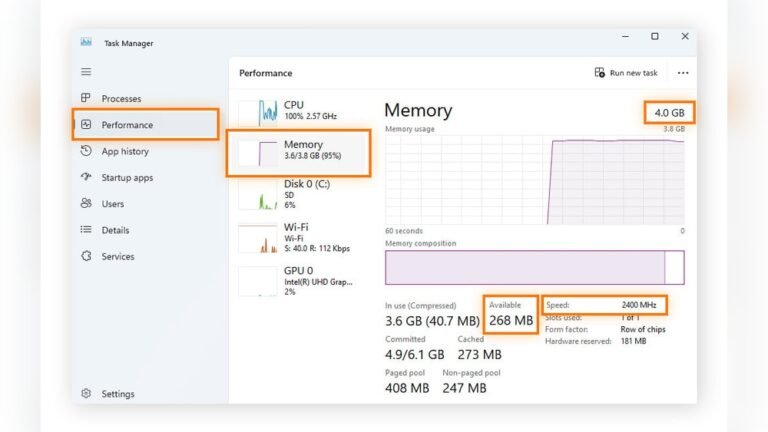
Keeping an eye on CPU activity helps spot problems early. High CPU usage causes more heat and can slow your computer. Task Manager on Windows or Activity Monitor on Mac shows real-time usage.
Watch for programs that use too much CPU power. Closing or limiting those can reduce heat quickly. Regular monitoring helps maintain a cooler, smoother-running system.

Credit: www.youtube.com
Regular Maintenance Practices
Keeping your CPU cool is key for a fast and healthy computer. Regular maintenance helps stop overheating and keeps your system running smoothly. Simple checks and cleaning can make a big difference.
Cleaning Dust From Components
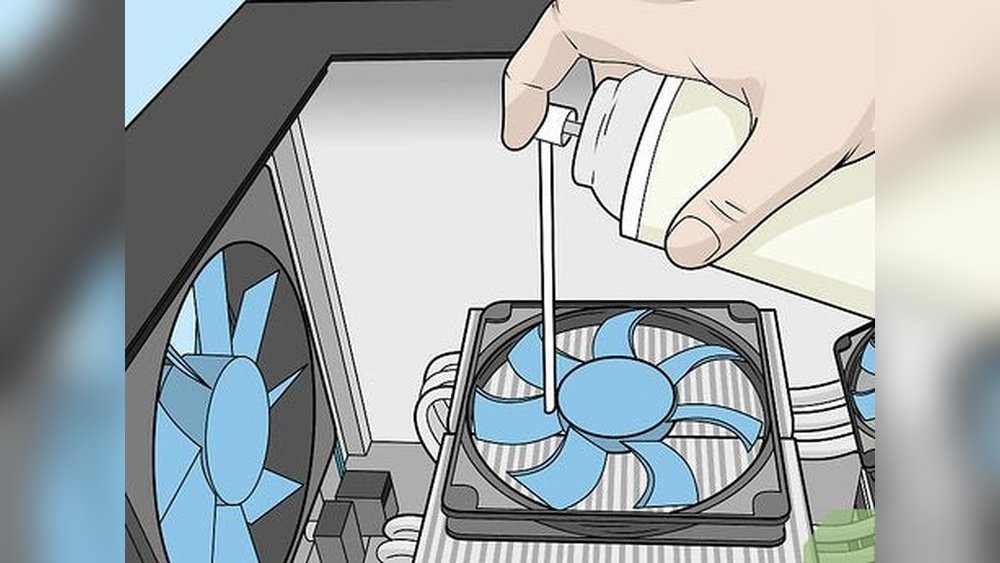
Dust blocks airflow and traps heat inside your computer. Use a soft brush or compressed air to remove dust from fans, vents, and other parts. Clean your PC every few months to prevent dust buildup.
Checking Fan Functionality
Fans move hot air away from the CPU. Check if all fans spin well without strange noises. Replace broken or slow fans quickly. Good airflow lowers temperatures effectively.
Updating Bios And Drivers
BIOS and drivers control hardware performance and cooling. Update them regularly from the official website. New versions improve fan speed control and system stability. This helps keep CPU temperatures down.
Advanced Cooling Techniques
Advanced cooling techniques help keep your CPU temperature low. They improve performance and protect your computer parts. These methods go beyond basic fans and heatsinks. You can use extra tools and parts to cool your CPU better. Here are three effective ways to cool your CPU efficiently.
Using External Cooling Pads
External cooling pads are simple devices placed under laptops or desktops. They have built-in fans that blow air to cool the computer. These pads reduce heat by increasing airflow. They are easy to use and do not require technical skills. Cooling pads also help lower fan noise inside your computer.
Installing Additional Case Fans
Adding more case fans improves airflow inside the PC case. Fans at the front bring cool air in. Fans at the back or top push hot air out. This creates a constant flow of air to keep parts cool. Installing extra fans is cost-effective and increases cooling power. Make sure fans are placed to balance intake and exhaust.
Custom Water Cooling Loops
Water cooling loops use liquid to carry heat away from the CPU. The liquid flows through tubes and a radiator to cool down. Custom loops allow you to cool multiple parts like CPU and GPU. They offer better cooling than air and run quietly. Setting up water loops needs some knowledge and care to avoid leaks.
Frequently Asked Questions
How Can I Effectively Cool My Cpu?
Use high-quality thermal paste and clean dust regularly. Improve airflow with additional fans. Consider aftermarket coolers or liquid cooling for better heat dissipation.
What Causes Cpu Overheating Issues?
Overheating often results from poor ventilation, dust buildup, or dried thermal paste. High workloads and inadequate cooling also contribute to rising CPU temperatures.
Is Liquid Cooling Better Than Air Cooling?
Liquid cooling offers superior heat transfer and quieter operation. However, air cooling is simpler, less expensive, and easier to maintain for most users.
How Often Should I Clean My Cpu Cooler?
Clean the CPU cooler every 3 to 6 months. Dust accumulation reduces cooling efficiency and raises CPU temperatures, risking hardware damage.
Conclusion
Keeping your CPU cool helps your computer work better and last longer. Clean fans and good airflow stop heat from building up. Using the right thermal paste also helps move heat away fast. Choosing a good cooler fits your needs and budget.
Small changes can make a big difference in temperature. Pay attention to signs of overheating to avoid damage. Stay patient and check your setup often. A cool CPU means a happy, healthy computer.