How to Connect Two Monitors to Cpu: Easy Steps for Dual Display Setup
Are you ready to boost your productivity and make multitasking a breeze? Connecting two monitors to your CPU can change the way you work, game, or browse.
Imagine having twice the screen space to organize your tasks, compare documents side by side, or enjoy immersive gaming. If you’ve ever wondered how to set this up but felt unsure where to start, you’re in the right place. This guide will walk you through simple, clear steps to connect two monitors to your CPU, so you can unlock a whole new level of efficiency and comfort.
Keep reading—you’ll be amazed at how easy it is!
Check Your Cpu Ports
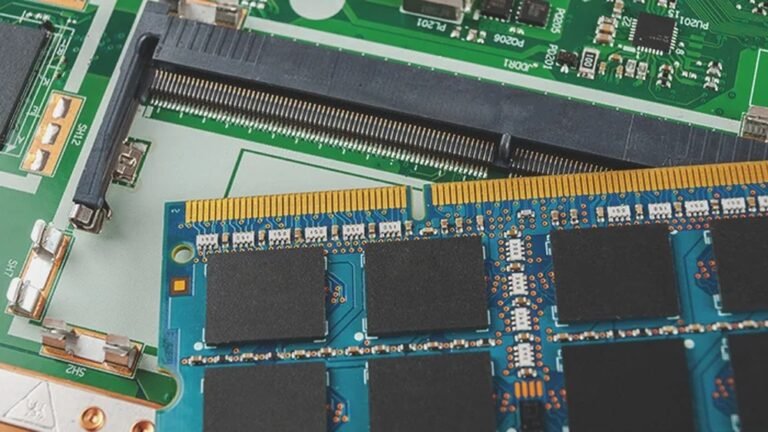
Before connecting two monitors to your CPU, check your CPU ports. This step ensures compatibility and helps avoid connection problems. Your CPU has different video output ports. Knowing these ports helps you pick the right cables and adapters for your monitors.
Not all CPUs support two monitors. Checking your ports and graphics card capabilities is essential. This process makes setting up dual displays easier and faster.
Identify Video Output Types
Look at the back of your CPU to find video output ports. Common types include HDMI, DisplayPort, DVI, and VGA. HDMI and DisplayPort offer better video quality. DVI and VGA are older and less common now. Each port looks different, so identify them carefully. Match your monitor cables to these ports for a smooth connection.
Verify Gpu Support For Dual Displays
Your graphics card or integrated GPU must support two monitors. Most modern GPUs support multiple displays. Check your GPU model online or in your system settings. Some CPUs with integrated graphics may limit display outputs. Dedicated graphics cards usually allow more monitors. Confirm this to avoid setup issues and ensure both monitors work properly.
Credit: www.dell.com
Choose Compatible Cables
Choosing the right cables is key to connect two monitors to your CPU. The cables carry the video signal from the computer to your screens. Each monitor and CPU port supports certain cable types. Using the wrong cable can cause no display or poor quality. Knowing which cable fits your devices saves time and avoids frustration.
Hdmi
HDMI cables are common and easy to use. They carry both video and audio signals. Most modern monitors and CPUs have HDMI ports. HDMI supports high definition and is good for most users. Choose a cable that matches your monitor and CPU ports exactly.
Displayport
DisplayPort is popular for high-resolution and fast refresh rates. Many newer computers and monitors include DisplayPort. It supports multiple monitors from one port. DisplayPort cables have a secure connection and work well for video quality. Check if both devices support DisplayPort before buying.
Dvi
DVI cables are older but still useful. They carry video signals but no audio. Many older monitors and CPUs have DVI ports. DVI supports high-quality video but not as high as HDMI or DisplayPort. Use DVI if your devices have matching ports.
Vga Options
VGA cables are the oldest option. They carry analog video signals only. VGA works with older monitors and CPUs. The picture quality is lower compared to digital cables. Use VGA only if your devices do not support digital connections.
Using Adapters For Different Ports
Adapters help connect cables to different ports. For example, HDMI to DVI or DisplayPort to VGA. They solve compatibility problems when ports do not match. Choose high-quality adapters to avoid signal loss. Check the adapter type matches your cable and port.
Prepare Your Monitors
Preparing your monitors is the first step to connect two screens to your CPU. Proper setup ensures clear display and smooth operation. Take time to check each monitor carefully before connecting.
This preparation avoids common problems like no signal or wrong display settings. It also makes the next steps easier and faster.
Check Monitor Input Ports
Look at the back or side of your monitors for input ports. Common types include HDMI, DisplayPort, VGA, and DVI. Each port supports different cable types and quality.
Match these ports with your CPU’s video output ports. Using the right cables is important for good picture quality. Note which cables you need before starting the connection.
Adjust Monitor Settings
Turn on each monitor and open its menu using the buttons on the monitor. Find settings like brightness, contrast, and input source. Set the input source to the correct port you will use.
Adjust brightness and contrast for comfort and clarity. Save these settings to avoid problems once connected. Proper monitor settings help reduce eye strain and improve your viewing experience.

Credit: www.youtube.com
Connect The Monitors To Cpu
Connecting two monitors to your CPU can improve your work and entertainment space. It lets you see more content at once. This guide shows how to connect monitors to your CPU safely and correctly.
Before starting, make sure your CPU has two video ports. These ports might be HDMI, DisplayPort, VGA, or DVI. Also, check that your monitors support the same type of connection.
Plugging In The First Monitor
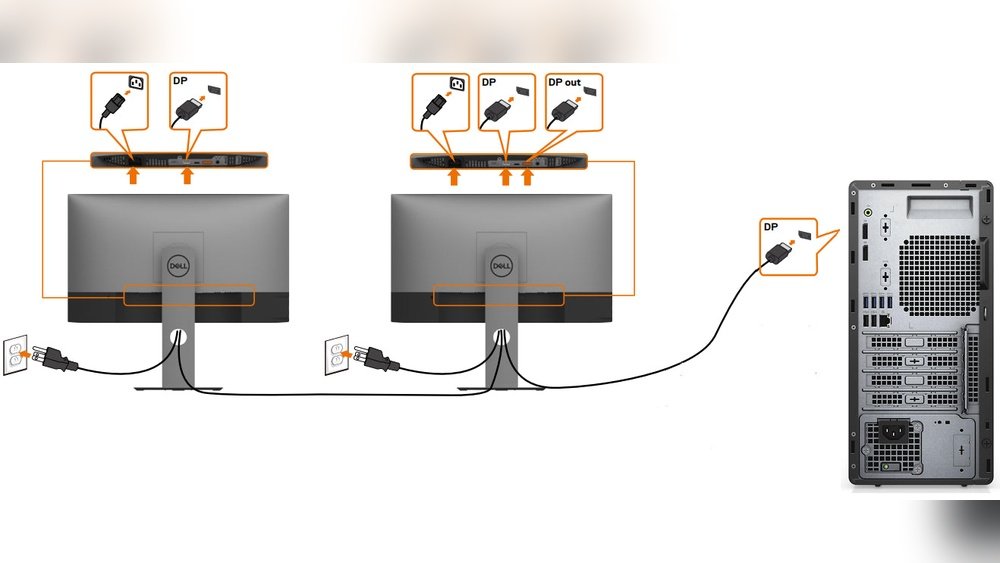
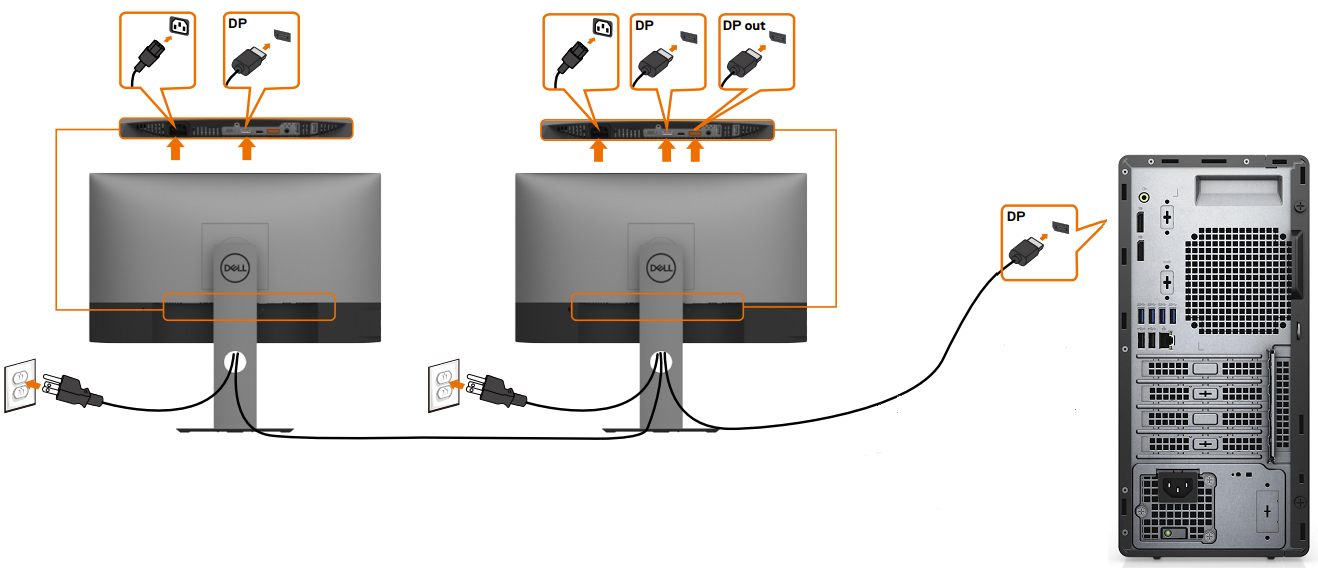
Locate the video port on your CPU for the first monitor. Use the correct cable for this port. Connect one end of the cable to the CPU port. Plug the other end into the first monitor’s video input. Secure the connection to avoid loose cables. Turn on the first monitor to check if it works.
Connecting The Second Monitor
Find the second video port on your CPU. Use a matching cable for this port as well. Connect one end to the CPU’s second port. Attach the other end to the second monitor’s input. Make sure both monitors are plugged in and powered on. Your CPU should detect the second screen automatically.
Configure Dual Display Settings
Configuring dual display settings is a key step after connecting two monitors to your CPU. It lets you control how your screens work together. This helps boost productivity and create a better workspace. Adjusting these settings is simple and takes just a few clicks.
Access Display Settings On Windows
Right-click on the desktop and select “Display settings.” This opens the display control panel. You see both monitors listed here. Windows detects connected screens automatically. If not, click “Detect” to find the monitors. This menu is where you manage all dual display options.
Set Display Mode: Extend, Duplicate, Or Second Screen Only
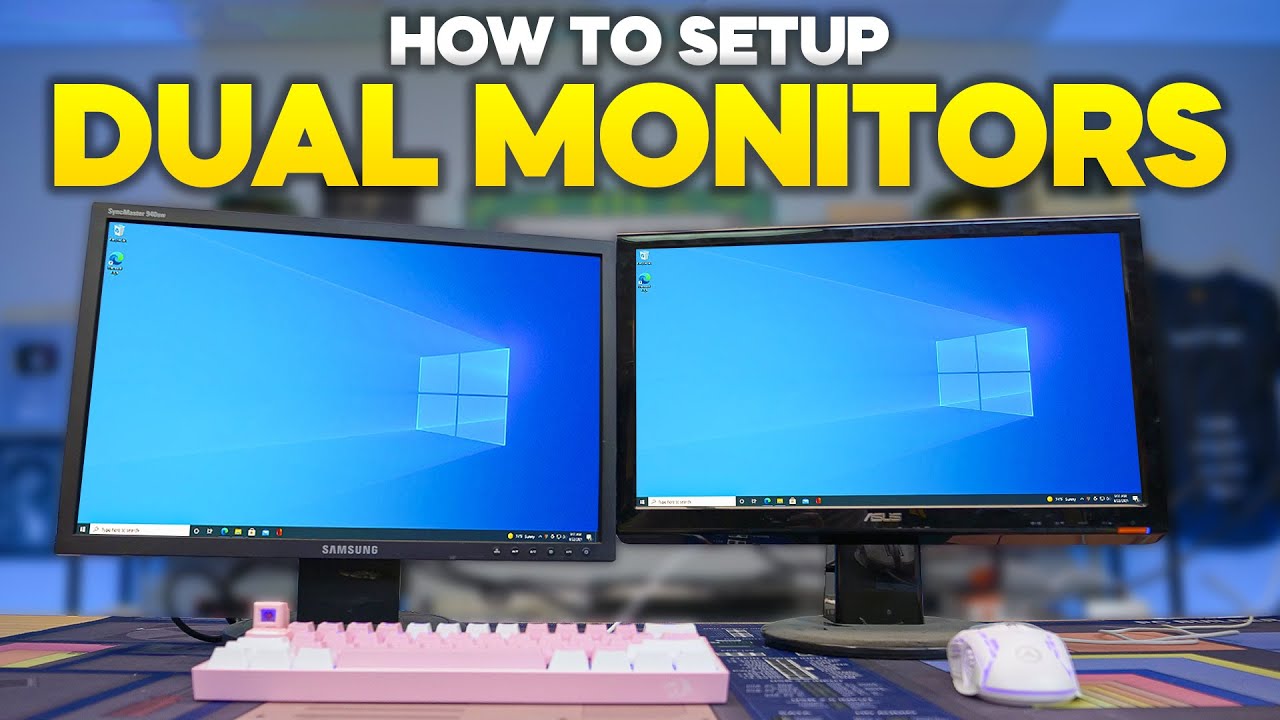
Choose how your screens display content. “Extend” spreads your desktop across both monitors. It gives more space to work. “Duplicate” shows the same screen on both monitors. Useful for presentations or sharing. “Second screen only” turns off the main monitor. Only the second monitor shows the display.
Arrange Monitor Order
Drag the monitor icons to match your physical setup. This makes moving the mouse between screens smooth. Align the top and bottom edges as needed. Click “Apply” to save the arrangement. Correct order helps avoid confusion while working.
Troubleshoot Common Issues
Troubleshooting common issues helps you fix problems fast. Connecting two monitors to a CPU can face small glitches. These problems might stop the second monitor from working right. Knowing how to solve these issues saves time and frustration.
No Signal On Second Monitor
Check the cable connection between the monitor and CPU. Make sure the cable is fully plugged in at both ends. Try a different cable to rule out a broken one. Confirm the monitor is set to the right input source. Restart the computer to refresh the connection.
Display Resolution Problems
Sometimes the screens show blurry or stretched images. Open the display settings on your computer. Adjust the resolution to match the monitor’s native resolution. Use the recommended resolution for best picture quality. Avoid resolutions that the monitor cannot support.
Update Graphics Drivers
Old drivers can cause display issues on the second monitor. Go to the graphics card manufacturer’s website. Download and install the latest driver version. Restart the computer after updating drivers. Updated drivers improve compatibility and performance.
Optimize Your Dual Setup
Optimizing your dual monitor setup improves your work and entertainment experience. Proper settings help reduce eye strain and boost productivity. Small adjustments make a big difference in how your screens look and feel.
Adjust Brightness And Color
Set brightness levels for each monitor to match your room lighting. Bright screens tire your eyes quickly. Dim screens make it hard to see details. Find a balance that feels comfortable for long use.
Check color settings to ensure both monitors display similar tones. Different colors on each screen can distract and confuse. Use your monitor’s menu to tweak color temperature and contrast.
Use Display Calibration Tools
Calibration tools help fine-tune color accuracy on your monitors. Windows and Mac have built-in options for this task. Follow simple steps to adjust gamma, brightness, and color balance.
For better results, consider free software like Calibrize or DisplayCAL. These tools guide you through the process and improve screen consistency. Calibrated monitors show true colors and sharper images.
Credit: www.youtube.com
Frequently Asked Questions
How Do I Connect Two Monitors To A Cpu?
To connect two monitors, check your CPU’s video ports. Use HDMI, DisplayPort, VGA, or DVI cables. Connect each monitor to a separate port on your CPU’s graphics card or motherboard. Then, configure display settings in your operating system for dual monitors.
Can I Use Different Monitor Brands Together?
Yes, you can use different brands together. Compatibility depends on available ports and resolution support. Adjust display settings to match resolution and orientation for a seamless experience across both monitors.
What If My Cpu Has Only One Video Output?
If your CPU has one output, use a docking station or a USB to HDMI adapter. These devices allow multiple monitors through a single USB port, expanding your display options without upgrading the CPU.
How To Set Up Dual Monitors In Windows?
Right-click the desktop, select Display Settings. You’ll see both monitors detected. Choose “Extend these displays” to use both screens independently. Adjust resolution and orientation for each monitor as needed, then click Apply to save changes.
Conclusion
Connecting two monitors to your CPU improves work and play. It gives you more screen space to see many things at once. Follow simple steps to plug in cables and adjust settings. Check your CPU ports and monitor types before starting.
This setup makes multitasking easier and boosts productivity. Try different screen arrangements to find what fits you best. Enjoy the comfort of a bigger, clearer view every day. Keep your workspace tidy for better focus and style. Two screens can change how you use your computer.