How to See Cpu Heat: Easy Ways to Monitor Temperature Safely
Are you worried about your computer running too hot? Knowing how to see your CPU heat can save you from unexpected crashes and slowdowns.
If your CPU gets too hot, it can damage your computer or make it work poorly. But don’t worry—checking your CPU temperature is easier than you think. You’ll learn simple ways to monitor your CPU heat, so you can keep your computer running smoothly and avoid costly repairs.
Keep reading to find out how to protect your device and improve its performance right now.
Credit: www.alcpu.com
Why Monitor Cpu Temperature
Monitoring CPU temperature is important for your computer’s health and performance. The CPU works hard and produces heat. Too much heat can cause problems. Watching the temperature helps prevent damage and keeps your system running smoothly.
Understanding why CPU temperature matters can save you from costly repairs. It also helps you know when your computer needs better cooling. Here are key reasons to monitor CPU temperature.
Prevent Overheating Damage
High CPU temperatures can damage hardware parts. Overheating may shorten the life of your processor. It can cause permanent damage to your computer. Monitoring temperature helps you avoid these risks.
Maintain System Performance
When the CPU gets too hot, it slows down. This is called thermal throttling. It reduces speed to cool down the processor. Keeping the temperature low keeps your computer fast and responsive.
Improve Cooling Efficiency
Checking CPU temperature shows if your cooling system works well. Fans or liquid coolers might need cleaning or replacement. Monitoring helps keep the cooling system in good shape.
Detect Hardware Issues Early
Sudden temperature changes can signal hardware problems. It might mean a failing fan or poor thermal paste application. Early detection helps fix issues before they get worse.

Credit: softwareg.com.au
Signs Of Overheating
Knowing the signs of CPU overheating helps protect your computer. Overheating can cause damage and slow down your system. Early detection keeps your CPU safe and your device working well.
System Slowdowns And Freezing
Your computer may slow down or freeze without warning. This happens because the CPU reduces speed to cool down. Frequent freezes or lagging can mean high CPU heat.
Unexpected Shutdowns
The computer might turn off by itself. This is a safety step to prevent damage. Sudden shutdowns often point to overheating problems inside the CPU.
Unusual Fan Noise
Loud or fast-spinning fans show the CPU is very hot. The cooling system works harder to lower the temperature. Noisy fans often mean your CPU is overheating.
High Cpu Temperature Readings
Temperature monitoring tools show the CPU heat level. Readings above 80°C (176°F) are a warning sign. Consistently high temperatures indicate the CPU is too hot.
Built-in Tools For Temperature Check
Checking your CPU temperature helps protect your computer from overheating. Many devices have built-in tools for this task. These tools offer a quick and easy way to monitor CPU heat without extra software. They show real-time temperature data, helping you keep your system safe. Here are some common built-in tools for different systems.
Bios/uefi Temperature Display
BIOS or UEFI settings show CPU temperature during startup. Restart your computer and enter BIOS/UEFI by pressing keys like F2 or Delete. Look for a section named “Hardware Monitor” or “PC Health.” You can see the current CPU temperature there. This method works without any operating system running. It gives a basic but reliable temperature check.
Windows Task Manager
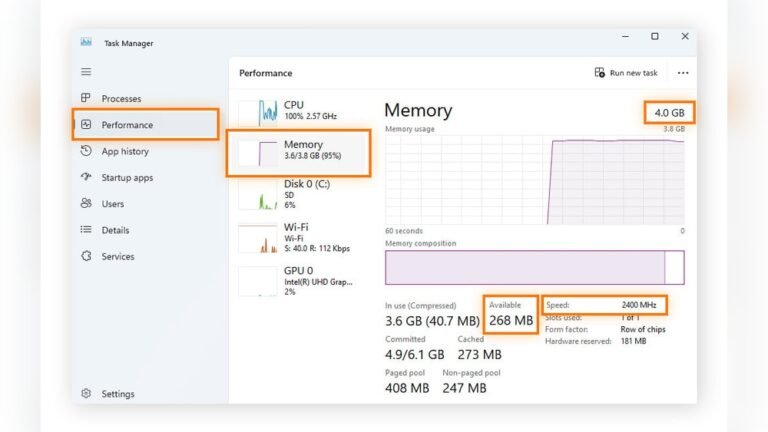
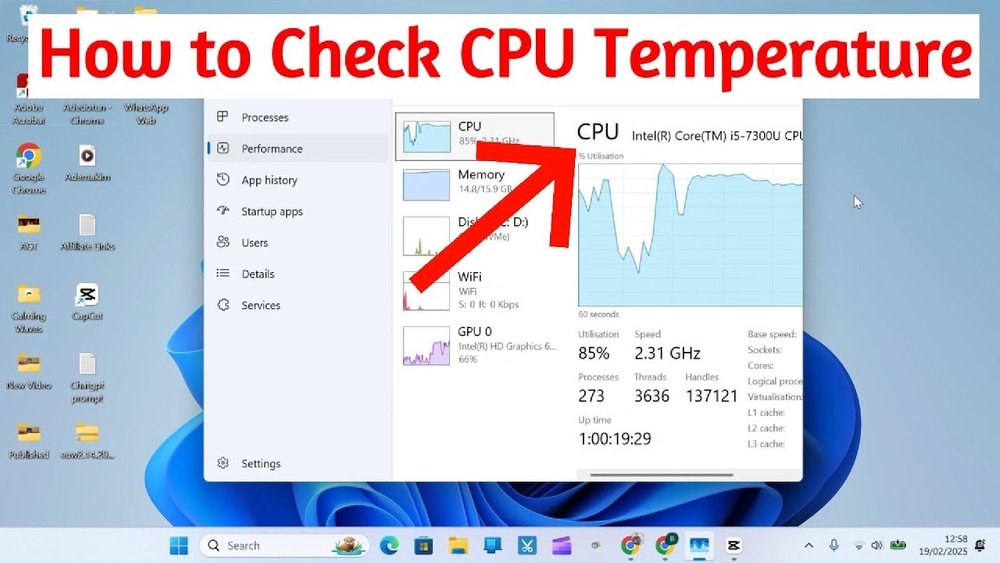
Windows Task Manager shows CPU usage but not temperature by default. Some newer Windows versions include temperature info. Open Task Manager by pressing Ctrl + Shift + Esc. Go to the “Performance” tab and select “CPU.” Look for the temperature reading on the right side. If it is not visible, your system may not support this feature. This tool is easy to access and useful for basic monitoring.
Macos Activity Monitor
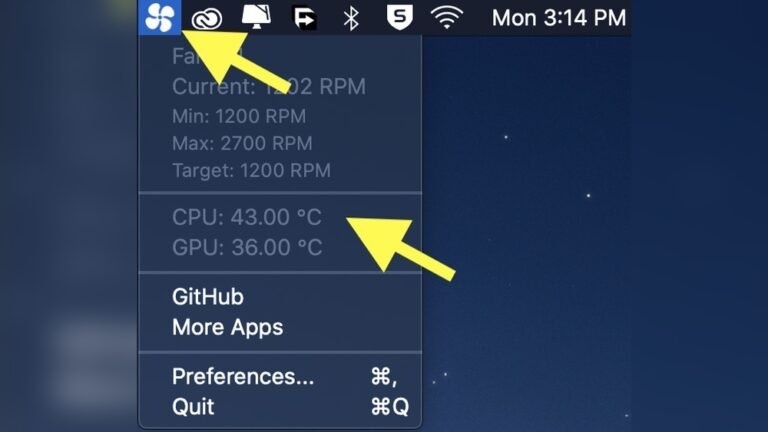
macOS Activity Monitor tracks system performance but does not show CPU temperature. Apple does not include temperature display in Activity Monitor. You must use third-party apps for detailed temperature info on Mac. Still, Activity Monitor helps watch CPU usage and system health. It is a built-in tool for general performance checks.
Third-party Software Options
Third-party software offers simple ways to check your CPU temperature. These tools show real-time heat levels and help avoid overheating. They work on most Windows computers and provide clear readings. Some also track other system parts like GPU and hard drives.
Core Temp
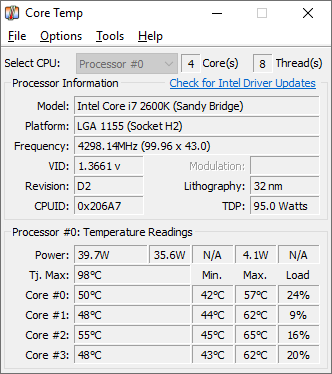
Core Temp is a small program that shows CPU temperature per core. It updates every second for precise monitoring. The interface is clean and easy to read. Core Temp also supports alerts when temperatures get too high. It works well on most Intel and AMD processors.
Hwmonitor
HWMonitor displays detailed temperatures, voltages, and fan speeds. It reads data from various sensors inside the PC. The layout is simple but packed with useful info. Users can track CPU heat alongside other hardware stats. It suits those who want a full hardware overview.
Speedfan
SpeedFan monitors CPU temperature and controls fan speeds. It helps reduce noise by adjusting fans automatically. The program shows temperature trends over time. SpeedFan supports many motherboard models and sensors. It is useful for users who want to manage cooling actively.
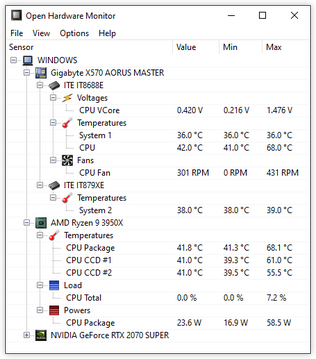
Open Hardware Monitor
Open Hardware Monitor is an open-source tool that shows CPU heat and more. It displays temperature, load, and clock speeds in real-time. The program works with most hardware types and sensors. Users appreciate its straightforward design and reliability. It also runs without installation, making it portable.
Using Command Line To Check Cpu Heat
Checking your CPU heat using the command line is quick and effective. It helps you monitor your computer’s temperature without extra software. This method works well for users who like simple, direct tools.
You can use built-in commands on Windows or Linux to see your CPU temperature. These commands give real-time data and help you avoid overheating problems. Let’s explore how to do this on both systems.
Windows Powershell Commands
Windows does not have a direct command to show CPU temperature. But you can use PowerShell with some scripts. Open PowerShell as an administrator. Type the following command and press Enter:
Get-WmiObject MSAcpi_ThermalZoneTemperature -Namespace "root/wmi"This shows temperature in tenths of degrees Kelvin. To convert it to Celsius, use:
($temp = (Get-WmiObject MSAcpi_ThermalZoneTemperature -Namespace "root/wmi").CurrentTemperature) / 10 - 273.15This command returns the CPU temperature in Celsius. It may not work on all systems, but it is a good start.
Linux Terminal Tools
Linux offers several tools to check CPU temperature. One popular tool is lm-sensors. Install it using your package manager, for example:
sudo apt-get install lm-sensorsAfter installation, run this command to detect sensors:
sudo sensors-detectThen, check your CPU temperature by typing:
sensorsThis shows detailed temperature readings for your CPU and other hardware. It updates live and helps you track heat easily.
Safe Practices For Temperature Monitoring
Monitoring your CPU temperature is important for keeping your computer safe. High heat can damage parts or cause your system to slow down. Using safe practices helps you get correct readings. This way, you can act before problems grow worse. Here are some simple tips to follow for safe temperature monitoring.
Avoiding False Readings
False readings can cause confusion and wrong actions. Dust on sensors or poor software can give wrong numbers. Use trusted tools to check your CPU temperature. Restart your computer before checking to clear errors. Make sure your sensors are clean and not blocked. Avoid running heavy programs while checking for stable results.
Regular Monitoring Schedule
Set a regular time to check your CPU heat. Daily checks help you spot sudden temperature spikes fast. Weekly checks work if you use your PC lightly. Keep a log of temperature readings to notice patterns. Early action can stop damage and keep your PC healthy. Make monitoring part of your routine for best results.
Cooling Solutions To Manage Heat
Managing CPU heat is important to keep your computer running well. High temperatures can slow down your system and cause damage. Using the right cooling solutions can help control heat effectively. Here are some common methods to cool your CPU and improve performance.
Air Cooling
Air cooling uses fans to push heat away from the CPU. It is the most common and cost-effective method. A heat sink sits on the CPU, pulling heat away. Then, fans blow the warm air out of the computer case. This method is easy to install and maintain. Regular cleaning of dust from fans keeps them working well.
Liquid Cooling
Liquid cooling uses water or coolant to absorb heat from the CPU. It moves the heat through tubes to a radiator. The radiator then cools the liquid with fans. This method is more efficient than air cooling. It is quieter and better for high-performance computers. Installation is more complex and may need extra care.
Thermal Paste Replacement
Thermal paste helps transfer heat from the CPU to the heat sink. Over time, it can dry out and lose effectiveness. Replacing old thermal paste improves heat transfer. It is a simple and cheap way to reduce CPU temperature. Apply a small, even amount for best results.
Improving Airflow
Good airflow inside the computer case helps cool all parts. Arrange cables neatly to avoid blocking air paths. Use extra case fans to increase air movement. Make sure air enters from the front and exits from the back. Keep the computer in a cool, open space for better airflow.
Credit: openhardwaremonitor.org
Frequently Asked Questions
How Can I Check My Cpu Temperature In Windows?
You can check CPU temperature using software like HWMonitor, Core Temp, or Speccy. These tools display real-time CPU heat data easily and safely.
What Is A Safe Cpu Temperature Range?
A safe CPU temperature typically ranges between 30°C and 70°C under normal use. Temperatures above 80°C may cause overheating risks.
Why Is My Cpu Temperature So High?
High CPU heat can result from poor cooling, dust buildup, or overclocking. Check cooling fans and clean your system regularly.
Can Bios Show Cpu Temperature?
Yes, most BIOS interfaces display CPU temperature in the hardware monitoring section. Access BIOS during startup to view it.
Conclusion
Monitoring your CPU heat helps keep your computer safe and fast. Use simple tools to check the temperature often. Watching the heat can stop damage and improve performance. Cool your CPU if it gets too hot. Taking these steps keeps your device working well longer.
Stay alert and care for your computer’s health every day.