How to Cool the Gpu: Ultimate Tips for Optimal Performance
Is your GPU running hotter than it should? If your computer slows down or crashes during gaming or heavy tasks, overheating might be the culprit.
You need to keep your GPU cool to protect your hardware and get the best performance. You’ll discover simple and effective ways to lower your GPU temperature. Whether you’re a gamer, designer, or just want a smoother experience, these tips will help you keep your system running cool and fast.
Ready to stop the heat and boost your GPU’s life? Let’s dive in!
Why Gpu Cooling Matters
Keeping your GPU cool is very important. It helps your computer run well and last longer. A GPU that gets too hot can cause many problems. Understanding why cooling matters can help you avoid these issues.
Good cooling protects your GPU from damage. It keeps your system stable and reliable. It also helps you enjoy smooth graphics without slowdowns or crashes.
Effects Of Overheating
Overheating can cause your GPU to shut down suddenly. It may also make your computer freeze or crash. High temperatures can damage the GPU’s parts over time. This damage may be permanent and costly to fix.
Heat can also cause your fan to run louder. This noise can be distracting during work or play. Overheated GPUs can cause your whole system to become unstable.
Impact On Performance And Lifespan
A hot GPU does not perform at its best. It may slow down to cool off, causing lag in games and apps. This is called thermal throttling. Cooling helps maintain fast and steady performance.
Proper cooling also extends your GPU’s life. Lower temperatures reduce wear on components. This means your GPU can work well for many years.
Credit: www.youtube.com
Signs Of Gpu Overheating
GPU overheating can cause serious problems with your computer. It can slow down your system and even damage the hardware. Recognizing the signs early helps protect your GPU and keeps your PC running smoothly.
Temperature Monitoring Tools
Use temperature monitoring tools to check your GPU heat levels. Programs like MSI Afterburner, HWMonitor, or GPU-Z show the real-time temperature. Most GPUs work well below 85°C. Temperatures above this can signal trouble. Keep an eye on these numbers during heavy use.
Common Symptoms
Your computer may show signs of GPU overheating in many ways. The screen might flicker or show strange colors. Games and apps can freeze or crash without warning. Fans may run loudly or constantly. You might notice your PC shutting down by itself. These symptoms warn you to cool your GPU quickly.
Choosing The Right Cooling Method
Choosing the right cooling method for your GPU is key to keeping your system stable. A good cooling system prevents overheating and improves performance. Different methods suit different needs and budgets. Understanding each option helps you pick the best one.
Air Cooling Solutions
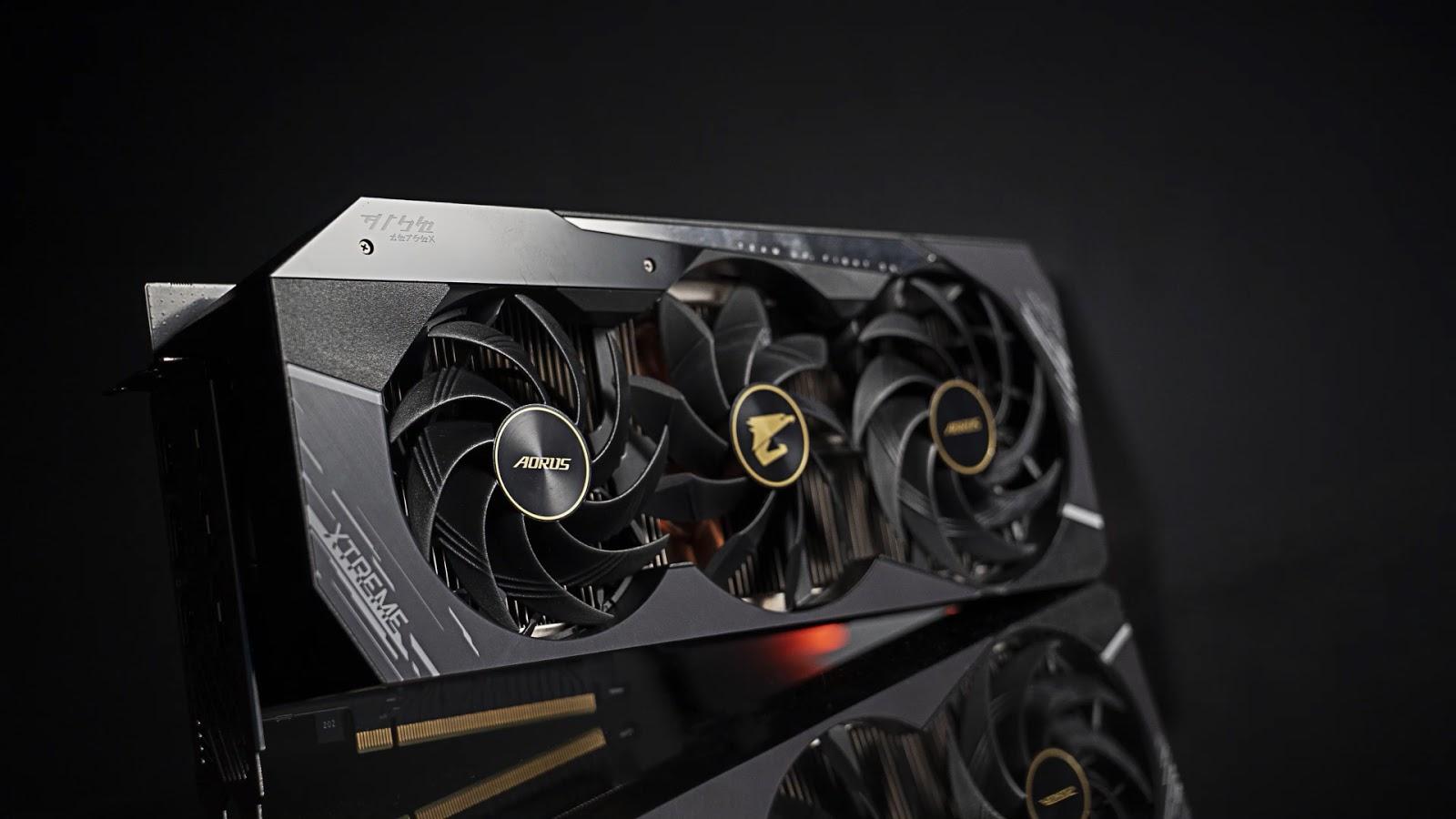
Air cooling uses fans and heat sinks to move heat away from the GPU. It is the most common and affordable method. Fans push cool air over metal fins, which absorb heat from the GPU. This method works well for most users and is easy to install. Noise levels depend on the fan quality and speed. Proper case ventilation improves air cooling efficiency.
Liquid Cooling Options
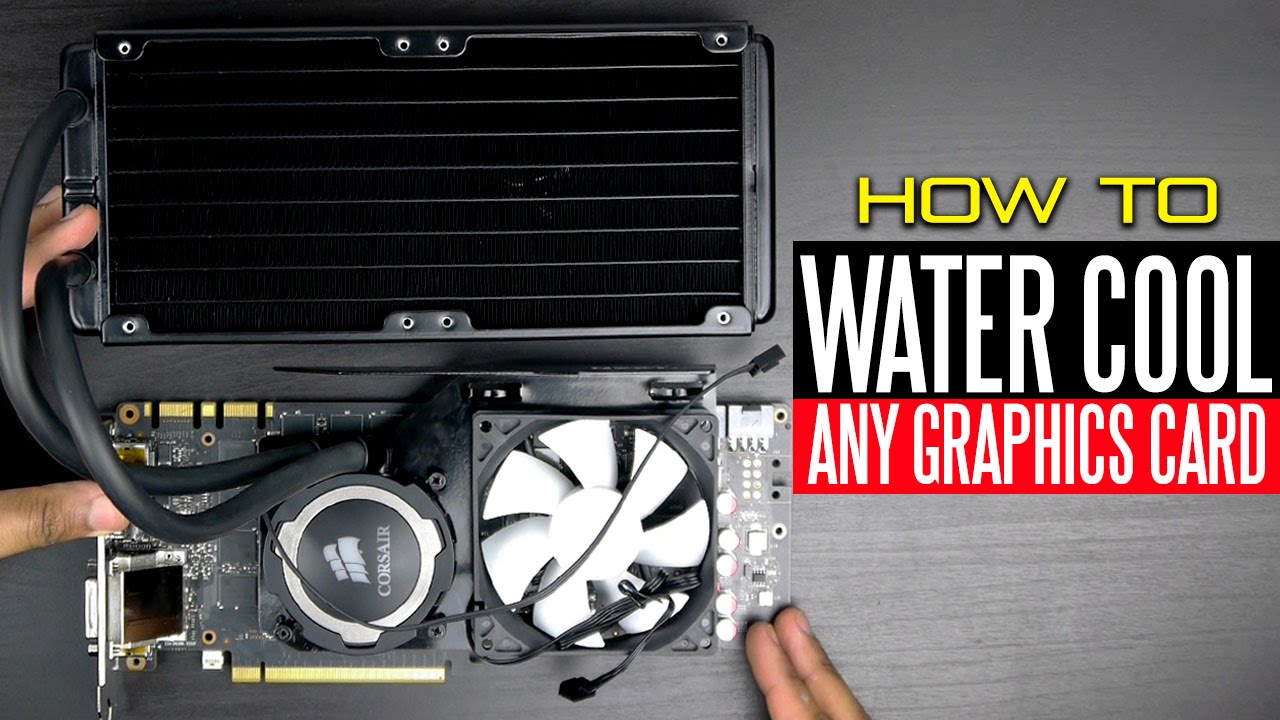
Liquid cooling uses a pump to move coolant through tubes and a radiator. The coolant absorbs heat from the GPU and releases it outside the case. This method cools better than air and is quieter. It suits high-performance GPUs and overclocking. Installation is more complex and costs more. Regular maintenance helps avoid leaks and keeps the system safe.
Hybrid Cooling Systems
Hybrid cooling combines air and liquid cooling for better results. It uses liquid cooling for the GPU core and air cooling for other components. This method balances cooling power and noise levels. It fits users who want strong cooling without a full liquid setup. Hybrid systems require careful installation but deliver reliable temperature control.
Credit: global.aorus.com
Improving Airflow Inside The Case
Improving airflow inside the computer case is key to cooling the GPU effectively. Good airflow moves hot air out and brings cooler air in. This lowers the temperature of your GPU and other parts.
Proper airflow prevents heat buildup. It keeps your system running smoothly and extends the life of your GPU. Small changes can make a big difference in cooling performance.
Optimizing Fan Placement
Place intake fans at the front or bottom of the case. These fans bring cool air inside. Exhaust fans should go at the back or top. They push hot air out. Balance the number of intake and exhaust fans. This creates steady airflow that cools the GPU well.
Cable Management Tips
Tidy cables reduce airflow blockage. Use zip ties or Velcro straps to bundle cables. Keep cables away from fans and airflow paths. Organized cables improve air movement inside the case. This helps keep the GPU cooler.
Using Dust Filters
Dust filters stop dust from entering your case. Dust can block airflow and trap heat. Clean filters regularly to maintain airflow. Use filters on intake fans for best results. This keeps the inside of your case clean and cool.
Thermal Paste And Its Role
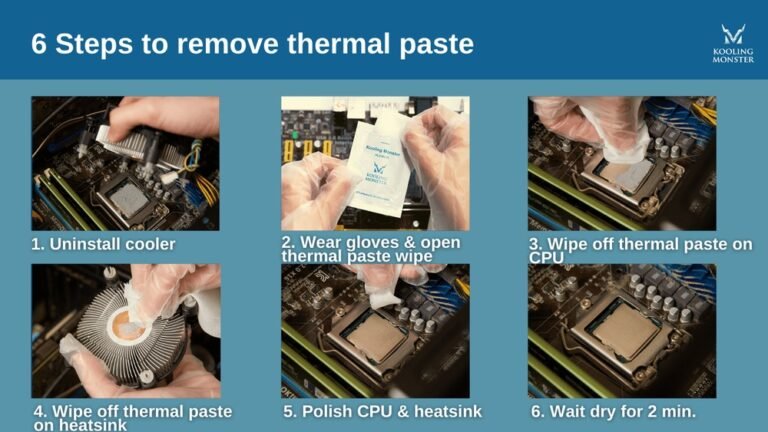
Thermal paste plays a key role in cooling your GPU. It fills tiny gaps between the GPU chip and the cooler. These gaps trap air, which blocks heat transfer. Thermal paste helps heat move from the GPU to the cooler quickly. This keeps the GPU temperature low and prevents overheating.
Without thermal paste, your GPU might get too hot. Too much heat can reduce performance and damage parts. Good thermal paste improves cooling and extends the GPU’s life.
When To Replace Thermal Paste
Replace thermal paste every 1 to 3 years. Over time, it dries out and loses effectiveness. You may notice higher GPU temperatures or loud fan noise. These signs suggest thermal paste needs replacing. Also, replace it if you remove the GPU cooler for any reason. Fresh thermal paste ensures the best heat transfer.
Application Techniques
Clean the old paste off with isopropyl alcohol first. Apply a small pea-sized amount of new thermal paste. Spread it evenly on the GPU chip surface. Avoid using too much paste. Too much paste can block heat transfer. Reattach the cooler firmly to ensure good contact. Proper application helps keep your GPU cool and stable.
Adjusting Gpu Fan Speeds
Adjusting GPU fan speeds helps control the temperature of your graphics card. It can prevent overheating and improve performance. Changing fan speeds allows you to find the right balance between cooling and noise. Many GPUs have software options to change fan speeds easily. This section explains how to adjust these settings for better GPU cooling.
Using Software Controls
Most GPUs come with software for fan control. You can change fan speeds based on temperature. Some popular tools include MSI Afterburner and EVGA Precision X1. These programs let you set custom fan curves. The fan speed increases as the GPU gets hotter. This helps keep the card cool during heavy use.
Software controls are easy to use. They give you real-time monitoring of temperature and fan speed. You can also create profiles for different uses. For example, a quiet profile for light tasks and a cooling profile for gaming. This flexibility improves your GPU’s lifespan and performance.
Balancing Noise And Cooling
Faster fan speeds cool the GPU better but create more noise. Slower fans are quiet but may let the GPU run hotter. Find a balance that suits your needs. Start by increasing fan speed slightly and watch the temperature. Stop increasing if the noise becomes too loud or if the GPU is cool enough.
Many users prefer a fan speed curve. This keeps the fans quiet at low temperatures. The fans spin faster only when needed. This approach protects your GPU and avoids annoying noise. Adjust the fan speeds gradually for the best mix of cooling and quiet.
Undervolting And Underclocking
Undervolting and underclocking are effective ways to cool your GPU. These methods reduce the power the GPU uses. Less power means less heat. This helps keep the GPU temperature low. It also helps your computer run quieter. Both undervolting and underclocking improve the GPU’s efficiency without major changes.
Reducing Heat Generation
Undervolting lowers the voltage sent to the GPU. This reduces the electrical power the GPU needs. With less power, the GPU produces less heat. Underclocking slows down the GPU’s clock speed. The GPU works less hard and generates less heat. Both methods reduce the overall temperature inside the computer case. Cooler GPUs last longer and prevent overheating problems.
Maintaining Stable Performance
Undervolting keeps the GPU stable at lower voltages. Proper testing helps find the best voltage for smooth performance. Underclocking lowers speed but keeps the GPU working well. This avoids crashes or lags during use. Both methods help maintain good frame rates in games and apps. The key is balancing cool temperatures with steady performance.

Credit: streacom.com
Custom Gpu Cooling Mods
Custom GPU cooling mods help keep your graphics card cool and extend its life. These mods improve airflow and reduce heat. They let you control your GPU temperature better than stock coolers.
Many users try different cooling methods to find the best fit. Custom mods also help reduce noise from fans. This section explains two popular ways to cool your GPU with custom parts.
Installing Aftermarket Coolers
Aftermarket coolers replace the original GPU cooler. They offer better heat dissipation and quieter operation. These coolers use bigger fans or liquid cooling systems.
Installation requires care and proper tools. Remove the old cooler carefully to avoid damage. Attach the new cooler following the instructions step-by-step. Thermal paste application is important for good heat transfer. After installation, check if the cooler runs smoothly.
Using Cooling Pads And Stands
Cooling pads and stands improve airflow around the GPU. They are easy to use and do not require disassembly. These devices have built-in fans that blow air directly onto the GPU area.
Place the GPU or the whole PC on the cooling pad. It helps lower temperatures during heavy use. Cooling stands raise the PC case for better ventilation. Both options reduce heat build-up inside the case.
Maintaining Your Cooling System
Keeping your GPU cool depends largely on maintaining the cooling system. A well-maintained cooling setup prevents overheating and extends the GPU’s life. Small actions done regularly can keep your system running smoothly.
Cleaning dust and checking parts help the cooling system work better. Watching how the system performs over time shows if any fixes are needed. Both steps are simple but important for good GPU health.
Regular Cleaning Practices
Dust blocks air and stops fans from spinning well. Use a soft brush or compressed air to clean your GPU and fans. Clean at least once a month to avoid dust build-up.
Remove any dirt from vents and heat sinks carefully. Keep the area around your PC clean to reduce dust entry. Avoid using water or wet cloths on electronic parts.
Monitoring Performance Over Time
Check your GPU temperature regularly using software tools. High temperatures can mean cooling is not working properly. Set alerts if temperature goes beyond safe limits.
Watch fan speeds and listen for unusual noises. Slow or noisy fans might need repair or replacement. Track performance changes after cleaning or repairs to ensure better cooling.
Frequently Asked Questions
How Can I Reduce Gpu Temperature Effectively?
To reduce GPU temperature, improve case airflow, clean dust regularly, and use quality thermal paste. Also, consider adding extra fans or upgrading your GPU cooler for better heat dissipation.
What Are The Best Gpu Cooling Methods?
The best GPU cooling methods include air cooling with high-performance fans, liquid cooling systems, and aftermarket GPU coolers. Each option offers different efficiency levels depending on your budget and system setup.
Does Undervolting Help Cool The Gpu?
Yes, undervolting lowers GPU voltage, reducing heat output and power consumption. It maintains performance while keeping temperatures lower, thus extending GPU lifespan and enhancing system stability.
Can Software Control Gpu Temperature?
Yes, software like MSI Afterburner or EVGA Precision allows fan speed adjustments and performance tuning. These tools help manage GPU temperature by optimizing cooling settings based on workload.
Conclusion
Keeping your GPU cool helps it work better and last longer. Clean fans and good airflow make a big difference. Using extra cooling tools can also lower temperatures. Watch your GPU’s heat regularly to avoid problems. Simple steps can stop overheating and keep your computer safe.
Stay mindful of your GPU’s needs for smooth performance. Cooling your GPU is easy with the right care and tools.