How to Reset Gpu: Quick Fixes to Boost Performance Instantly
Is your GPU acting up, causing your games or programs to lag or crash? Knowing how to reset your GPU can be the quick fix you need to get things running smoothly again.
Whether you’re facing driver issues, overheating, or just want to refresh your graphics card settings, this simple step can save you time and frustration. Keep reading, and you’ll learn easy, practical ways to reset your GPU and boost your system’s performance without any technical headache.
Credit: m.majorgeeks.com
Signs Your Gpu Needs Resetting
Knowing the signs that your GPU needs resetting can save time and prevent damage. Your computer may show clear hints that the graphics card is struggling. Detecting these signs early helps keep your system running smoothly. Watch closely for changes in performance, strange visuals, or system errors. These signals often mean a reset is necessary.
Common Performance Issues
Slow graphics or lag during games or videos is common. Frame rates dropping suddenly or stuttering can also appear. Programs using the GPU might freeze or respond late. These issues suggest the GPU is not working correctly. Resetting can clear temporary glitches and improve speed.
Visual Artifacts And Glitches
Seeing strange colors, lines, or shapes on the screen is a bad sign. Flickering or screen tearing may also happen during use. These visual errors indicate the GPU is not processing images properly. A reset often fixes these display problems quickly. Ignoring them can lead to permanent damage.
System Crashes And Freezes
The computer may crash or freeze unexpectedly while using graphics-heavy apps. Blue screens or sudden restarts can occur without warning. These crashes often link to GPU errors or overheating. Resetting the GPU can stop these crashes and restore stability. It helps the system run without interruptions.

Credit: www.wikihow.com
Simple Gpu Reset Methods
Resetting your GPU can fix many common graphics issues quickly. Simple methods often solve crashes, freezes, or display problems. These easy steps save time and avoid complex fixes. Try these basic ways to reset your GPU and get it working smoothly again.
Restarting The Computer
Restarting the computer is the easiest way to reset your GPU. It clears temporary errors and refreshes the system. Just save your work and reboot. This simple step often restores normal GPU function without extra effort.
Using Device Manager To Reset
Open Device Manager to reset your GPU driver manually. Find “Display adapters” and right-click your GPU. Select “Disable device” to turn it off. Wait a few seconds, then right-click and choose “Enable device.” This action resets the GPU driver and fixes many problems.
Keyboard Shortcuts For Quick Reset
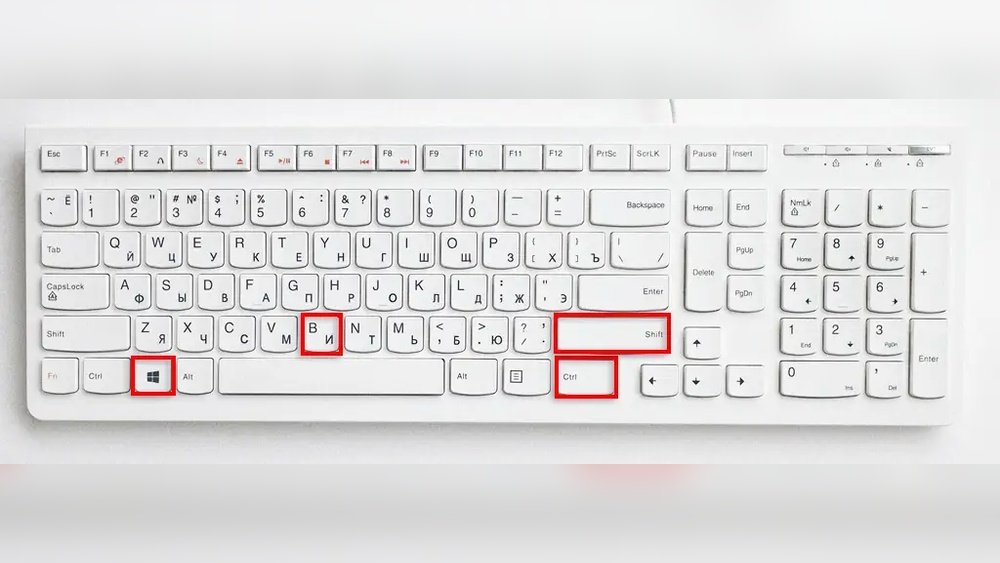
Windows offers a quick keyboard shortcut to reset the GPU driver. Press Win + Ctrl + Shift + B together. You will hear a beep and the screen may flicker briefly. This resets the graphics driver without closing programs. It is a fast and easy fix for minor GPU issues.
Updating And Reinstalling Drivers
Updating and reinstalling drivers is a key step to reset your GPU. Drivers help your computer talk to the graphics card. Outdated or corrupted drivers cause many GPU problems. Fixing these issues often needs fresh driver updates or a clean reinstall.
Checking For Latest Driver Updates
Check for the newest driver updates on the GPU maker’s website. Popular brands like NVIDIA and AMD offer easy access to drivers. Search by your GPU model to find the exact version. Download the latest driver for your operating system. Installing updates can solve bugs and improve performance.
Uninstalling And Reinstalling Drivers
Sometimes, old drivers cause conflicts. Uninstalling the current driver removes corrupted files. Use the Device Manager or a driver removal tool for this. After uninstalling, restart your computer. Then, install the latest driver you downloaded. This process ensures a clean slate for your GPU.
Using Manufacturer Software Tools
Many GPU makers provide software to manage drivers. Tools like NVIDIA GeForce Experience or AMD Radeon Software simplify updates. They check for new drivers automatically. These programs also help optimize your GPU settings. Using these tools keeps your drivers current with minimal effort.
Adjusting Gpu Settings For Stability
Adjusting GPU settings helps keep your graphics card stable. It stops crashes and freezes. Small changes can improve performance without risk. Follow easy steps to reset and tune your GPU for better stability.
Resetting Overclocking Settings
Overclocking makes your GPU run faster than usual. It can cause instability and errors. Reset overclocking to default speeds to fix problems. Use your GPU software or BIOS to reset. This returns the card to safe, factory settings.
Configuring Power Management
Power settings affect GPU performance and heat. Set power management to balanced or adaptive mode. This saves energy and stops overheating. Use your operating system or GPU control panel to adjust power options. Proper power settings improve stability and lifespan.
Tweaking Graphics Control Panel
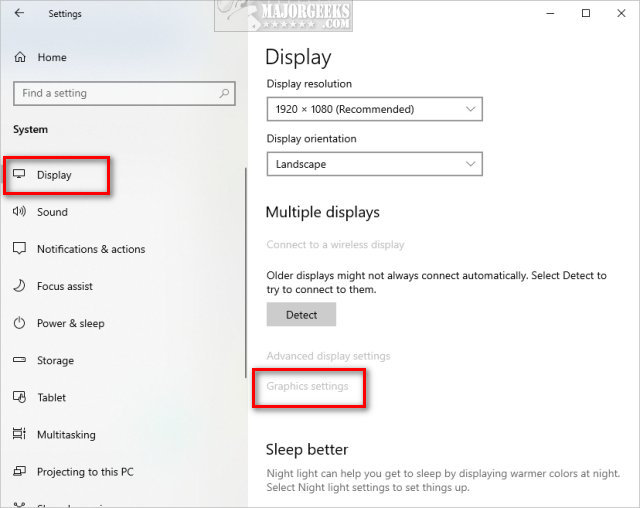
Your GPU control panel lets you change many settings. Lowering texture quality or turning off extras reduces load. Adjust vertical sync and anti-aliasing for smoother output. Test changes one by one to find the best setup. This helps keep games and apps running steady.
Physical Gpu Reset Techniques
Physical GPU reset techniques help fix hardware issues. These steps clear minor faults without software tools. They are simple and safe for most users. Follow them carefully to avoid damage.
Reseating The Gpu Card
Turn off your computer and unplug it. Open the case to access the GPU slot. Gently remove the GPU by pressing the latch. Wait a few seconds, then firmly reinsert the card. This resets the connection and can solve many issues.
Cleaning Dust And Debris
Dust blocks airflow and causes overheating. Use a soft brush or compressed air to clean the GPU. Focus on the fan and heatsink areas. Regular cleaning helps maintain performance and prevents crashes.
Checking Power Connections
GPU needs stable power to work well. Check the cables connecting the GPU to the power supply. Make sure they are fully plugged in and not loose. Poor connections can cause crashes or poor graphics performance.
Advanced Troubleshooting Steps
Advanced troubleshooting steps help fix GPU problems beyond basic resets. These steps dig deeper into system settings and hardware checks. They ensure your GPU works well and stays stable.
Resetting Bios/uefi Settings
Resetting BIOS or UEFI can fix GPU detection issues. Enter the BIOS menu by pressing a key during startup, like F2 or Delete. Find the option to reset to default or optimized settings. Save changes and restart your computer. This resets hardware settings that may block your GPU.
Monitoring Gpu Temperatures
High GPU temperatures cause crashes or slow performance. Use software tools to check GPU temperature. Keep it below the recommended maximum, usually around 85°C. Clean dust from fans and heatsinks to improve cooling. Good airflow inside your case helps lower temperatures. Monitor temps regularly to avoid overheating problems.
Testing With Different Hardware
Swap your GPU into another computer to test if it works there. Use a different GPU in your computer to see if the issue remains. This helps find if the problem is with the card or your PC. Check power supply cables and connectors for damage. Testing hardware isolates the cause of GPU problems clearly.
Preventing Future Gpu Issues
Preventing future GPU issues helps keep your computer running smoothly. Taking simple steps can extend your GPU’s life. These tips reduce crashes and improve performance. A well-maintained GPU means fewer resets and less frustration.
Regular Driver Maintenance
Keep your GPU drivers updated. New drivers fix bugs and improve stability. Check for updates every few weeks. Use official websites or trusted software for updates. Clean old drivers before installing new ones. This prevents conflicts and errors.
Keeping System Cool
Heat can damage your GPU over time. Make sure your computer has good airflow. Clean dust from fans and vents regularly. Use cooling pads or extra fans if needed. Monitor your GPU temperature with simple tools. Staying cool keeps your GPU safe and fast.
Avoiding Overclocking Risks
Overclocking pushes your GPU beyond its limits. It can cause crashes or permanent damage. Avoid overclocking unless you know what you do. Use safe settings and test stability carefully. Remember, a stable GPU lasts much longer.

Credit: www.wikihow.com
Frequently Asked Questions
How Do I Reset My Gpu Drivers Safely?
To reset GPU drivers safely, use the Device Manager on Windows. Right-click your GPU, select “Uninstall device,” then reboot. Windows will reinstall drivers automatically, fixing common issues without harming your system.
When Should I Reset My Gpu?
Reset your GPU if you experience crashes, glitches, or performance drops. It helps clear temporary errors and driver conflicts, restoring smooth graphics and gameplay.
Can Resetting Gpu Fix Overheating Problems?
Resetting the GPU mainly addresses software issues. Overheating usually requires cleaning fans, improving airflow, or reapplying thermal paste for effective cooling.
Does Resetting Gpu Remove Custom Settings?
Resetting GPU drivers restores default settings and removes custom configurations. Backup your preferences before resetting to avoid losing personalized adjustments.
Conclusion
Resetting your GPU can fix many common problems fast. Keep these steps clear and simple to follow. Regular resets help your computer run smoother and avoid crashes. Always save your work before starting the reset process. Practice these tips to keep your graphics card healthy.
A well-maintained GPU improves your overall computer experience. Try resetting your GPU whenever you face display or performance issues. It’s a useful skill for every computer user to know.