How to Increase Fan Speed on Cpu: Easy Steps for Better Cooling
Is your CPU running hotter than it should? You might need to increase your CPU fan speed to keep things cool and avoid slowdowns or damage.
But how exactly do you do that without risking your computer’s health? This guide will walk you through simple, effective steps to boost your fan speed safely. By the end, you’ll know exactly how to keep your system running smoothly and quietly.
Ready to take control of your CPU’s cooling? Let’s dive in.
Why Fan Speed Matters
Fan speed plays a key role in how well your CPU stays cool. It controls how much air flows over the CPU heat sink. This airflow removes heat from the CPU. Without enough fan speed, the CPU can get very hot. Too much heat can cause problems for your computer.
Understanding why fan speed matters helps you keep your system safe and fast. It affects temperature, performance, and noise. Finding the right fan speed balance is important for smooth computer use.
Impact On Cpu Temperature
The CPU produces heat when it works. The fan moves air to cool the CPU. Higher fan speeds push more air and cool the CPU faster. This keeps the CPU temperature low. Lower temperatures help the CPU run well and last longer. If the fan speed is low, the CPU may get too hot. High temperatures can cause the CPU to slow down or even shut off.
Effects On System Performance
CPU temperature affects system performance directly. When the CPU gets hot, it reduces speed to cool down. This is called throttling. Throttling makes your computer slower. Increasing fan speed stops overheating. This keeps your CPU running at full power. A cool CPU means smooth and faster performance. Fan speed helps your computer handle heavy tasks better.
Balancing Noise And Cooling
Fans make noise when they spin faster. High fan speeds create more noise. This can be distracting or annoying. Lower fan speeds are quieter but cool less. You must find a good balance between noise and cooling. Use fan speed settings to control this balance. Proper fan speed keeps your CPU cool without too much noise. This makes using your computer more comfortable.

Credit: www.techadvisor.com
Methods To Adjust Fan Speed
Adjusting your CPU fan speed can improve cooling and reduce noise. Different methods let you control fan speed easily. Choose a method that fits your skill level and needs. Here are three common ways to adjust your CPU fan speed.
Using Bios Or Uefi Settings
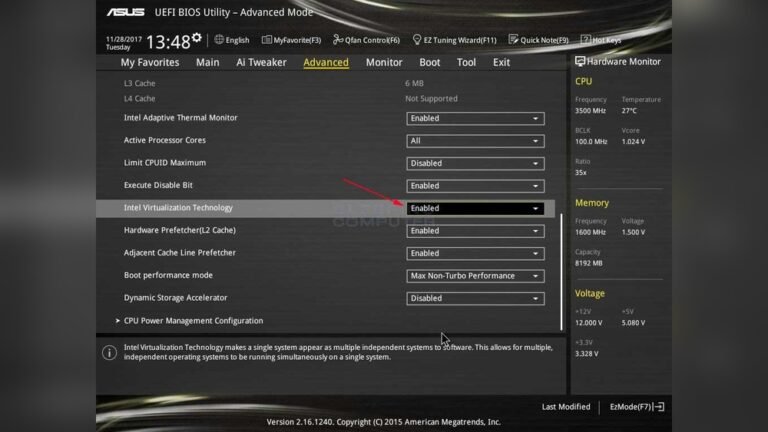
Access your computer’s BIOS or UEFI during startup. Look for the “Hardware Monitor” or “Fan Control” section. Here, you can set fan speed profiles or customize speeds manually. This method is reliable and works without extra software. Changes take effect immediately after you save and restart.
Software Tools For Fan Control
Many motherboard makers offer software to adjust fan speed in Windows. These tools provide easy sliders or presets for fan control. You can increase fan speed to cool your CPU faster. Software tools also allow automatic adjustments based on temperature. This method is user-friendly and works in real time.
Third-party Applications
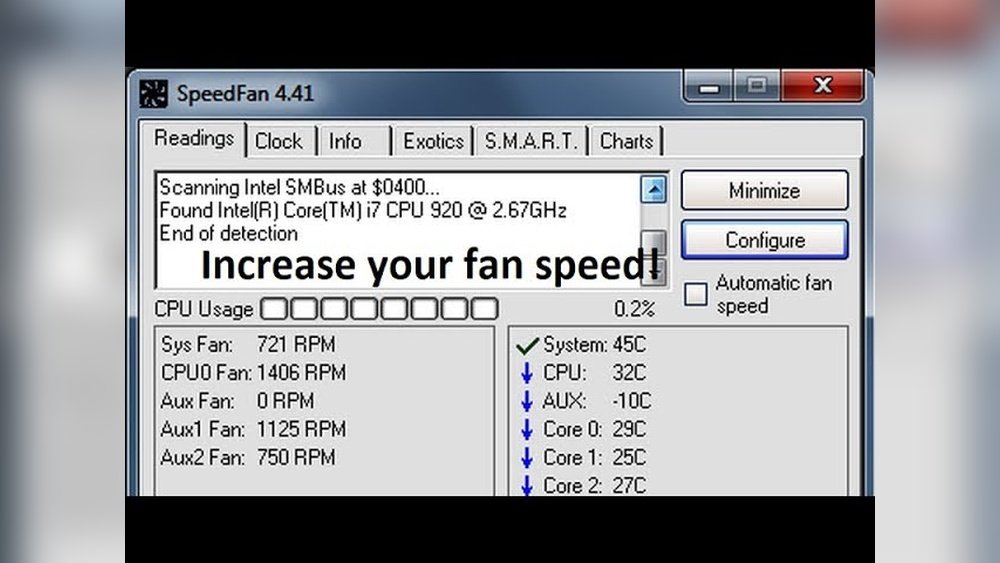
Third-party apps like SpeedFan or HWMonitor offer advanced fan control. These tools support many hardware types and provide detailed settings. You can set custom fan curves based on temperature. Some apps also monitor system health and report fan status. This method suits users who want more control and info.
Step-by-step Fan Speed Adjustment
Adjusting your CPU fan speed can help keep your computer cool and quiet. It also improves performance by preventing overheating. This step-by-step guide explains how to change fan speed using different methods. Each method fits different users and systems. Choose one that suits your setup and comfort level.
Accessing Bios For Fan Settings
Restart your computer and press the BIOS key during startup. Common keys include F2, Delete, or Esc. Inside BIOS, find the section labeled “Hardware Monitor” or “Fan Control.” Use arrow keys to navigate menus. Look for fan speed options like “CPU Fan Speed” or “Q-Fan Control.” Adjust settings to increase fan speed or set custom curves. Save changes and exit BIOS. Your PC will reboot with new fan settings.
Configuring Fan Profiles
Many motherboards offer built-in fan profiles. These profiles control fan speed based on temperature. Common profiles include Silent, Standard, Turbo, and Full Speed. Select a profile that fits your needs. Silent keeps noise low but may allow higher temperatures. Turbo boosts fan speed for better cooling. Profiles are easy to switch in BIOS or manufacturer software. Test different profiles to find the best balance.
Using Windows Fan Control Software
Windows users can adjust fan speeds using third-party software. Popular options include SpeedFan, HWMonitor, or manufacturer tools. Download and install the software. Open the program and find the fan control section. Use sliders or presets to change fan speeds. Monitor temperatures to avoid overheating. Some software allows custom fan curves for precise control. Remember to run the software with administrator rights for full access.
Mac Fan Speed Management
Mac computers do not offer built-in fan speed controls. Use third-party apps like Macs Fan Control. Download and install the app on your Mac. Open it to view current fan speeds and temperatures. Adjust fan speeds manually or set automatic rules. Increase fan speed during heavy use to keep your Mac cool. The app provides a simple interface for easy fan management. Always monitor temperature while adjusting fan speeds.
Advanced Cooling Tips
Advanced cooling tips help keep your CPU temperature low. This improves performance and extends hardware life. Simple fan speed increases may not be enough. Use these strategies for better cooling results.
Improving Airflow Inside The Case
Good airflow moves hot air out and brings cool air in. Arrange cables neatly to avoid blocking air paths. Place intake fans at the front and exhaust fans at the back. Keep dust filters clean to maintain airflow. This helps fans work more efficiently and lowers CPU temperature.
Choosing Better Fans
Select fans with higher airflow ratings for better cooling. Look for fans with a high CFM (cubic feet per minute) value. Quiet fans reduce noise but still move enough air. Consider PWM fans for speed control based on temperature. Use larger fans if your case supports them for smoother airflow.
Applying Thermal Paste Correctly
Thermal paste improves heat transfer between CPU and cooler. Clean old paste off the CPU and cooler before applying new paste. Apply a small pea-sized amount in the center of the CPU. Avoid spreading it manually; the cooler will spread it evenly. Too much paste can cause poor heat transfer and higher temperatures.
Troubleshooting Fan Speed Issues
Troubleshooting fan speed issues is key to keeping your CPU cool. Fans help control temperature by adjusting their speed. Sometimes, fans do not work as expected. You need to find out what causes the problem. This section guides you through common fan speed problems and how to check them.
Fan Not Responding To Changes
Sometimes, the fan does not change speed even after adjusting settings. Check the BIOS or fan control software first. Make sure the fan is connected properly to the motherboard. Loose cables can stop fans from working. Restart your computer after changes. If the fan still does not respond, try a different fan header. This helps find if the problem is the fan or the motherboard.
Overheating Despite High Fan Speed
The fan may run fast but the CPU still gets hot. Dust buildup can block airflow and cause heat. Clean the fan and heatsink carefully with compressed air. Check if the thermal paste between CPU and cooler is old or dry. Replace the thermal paste if needed. Also, make sure the fan is the right size and speed for your CPU model.
Detecting Faulty Fans
Faulty fans make noise or run unevenly. Listen for rattling or grinding sounds. Fans that stop spinning or spin slowly might be broken. Use software to monitor fan speed and temperature. Sudden drops in speed or erratic behavior indicate a bad fan. Replace any fan that shows these signs to avoid damage to your CPU.

Credit: softwareg.com.au
When To Consider Hardware Upgrades
Knowing when to upgrade your computer’s cooling hardware is important. Simple software tweaks and fan speed controls may not solve overheating problems. Hardware upgrades can offer better cooling and keep your CPU safe.
Signs like high temperatures, loud fans, or system slowdowns suggest it is time for better cooling parts. The right upgrades help your PC run cooler and quieter. Here are common hardware upgrades to consider for improving fan speed and cooling.
Upgrading To High-performance Fans
Standard fans may not move enough air to cool your CPU well. High-performance fans spin faster and push more air. They also use better blades and motors for quiet operation.
Replacing old fans with high-quality ones can reduce CPU temperature. These fans often come with speed controls to adjust cooling based on heat levels. Installing them is usually simple and cost-effective.
Installing Liquid Cooling Systems
Liquid cooling uses water or coolant to absorb heat from the CPU. It moves heat away faster than air cooling. This keeps the processor temperature much lower under heavy use.
Liquid coolers include a pump, radiator, and tubes. They are quieter than many fans and provide efficient cooling. This upgrade suits users who run demanding software or overclock their CPUs.
Replacing The Cpu Cooler
The CPU cooler sits directly on the processor to pull heat away. Stock coolers that come with CPUs may not be enough for intense tasks. Upgrading to a better cooler improves heat transfer and fan speed.
Aftermarket coolers use larger heatsinks and better fans. Installing a new cooler lowers the CPU temperature and reduces noise. This upgrade is effective for improving overall system stability.

Credit: www.youtube.com
Frequently Asked Questions
How Can I Increase Cpu Fan Speed In Bios?
You can increase CPU fan speed by entering BIOS setup. Look for “Hardware Monitor” or “Fan Control” settings. Adjust the fan curve or set a higher RPM manually. Save changes and restart your PC to apply the new fan speed settings.
What Software Helps Control Cpu Fan Speed?
Popular software like SpeedFan, MSI Afterburner, and HWMonitor allow you to adjust CPU fan speed. These tools offer user-friendly interfaces to customize fan curves based on temperature. Always download from official sites to ensure safety and compatibility with your hardware.
Does Increasing Cpu Fan Speed Improve Cooling?
Yes, increasing CPU fan speed improves airflow and reduces temperature. Higher fan speeds help dissipate heat more efficiently, preventing overheating. However, faster fans may produce more noise, so balance cooling needs with noise levels.
Can Cpu Fan Speed Be Controlled Automatically?
Modern motherboards support automatic fan control through BIOS or software. They adjust fan speed based on CPU temperature using preset curves. This ensures efficient cooling while minimizing noise during low workloads.
Conclusion
Increasing your CPU fan speed helps keep your computer cool. It can prevent overheating and improve performance. Use BIOS settings or software tools to adjust fan speed safely. Always check your CPU temperature after changes. Quiet fans might be nice, but cool CPUs last longer.
Regular cleaning of your PC also helps fans work better. Small steps make a big difference in cooling. Keep your system running smoothly and avoid damage. Cooling matters. Take control of your fan speed today.