How Often Should You Repaste Your Cpu: Ultimate Guide to Peak Performance
If you want your computer to run smoothly and avoid overheating, you need to pay attention to your CPU’s thermal paste. But how often should you repaste your CPU?
This simple step can make a big difference in your system’s performance and lifespan. If you’re not sure when or why to do it, keep reading. By the end of this article, you’ll know exactly when it’s time to refresh your CPU’s paste and how it can protect your investment.
Don’t let heat slow you down—let’s dive into the facts that every PC owner should know.
Why Repasting Matters
Repasting your CPU is a key part of keeping your computer healthy. Over time, the thermal paste between the CPU and the cooler can dry out or lose its effectiveness. This change affects how well heat moves away from the CPU. Good heat transfer means your CPU runs cooler and works better. Poor heat transfer can cause overheating, slow performance, or even damage. Understanding why repasting matters helps you keep your PC running smoothly.
Impact On Cpu Temperature
Thermal paste fills tiny gaps between the CPU and cooler. These gaps trap air, which does not conduct heat well. The paste helps heat move from the CPU to the cooler faster. When the paste dries or breaks down, heat transfer slows down. This causes the CPU temperature to rise. High temperatures can reduce your CPU’s lifespan. They also cause the computer to slow down or crash. Repasting lowers the CPU temperature and improves performance.
Signs Of Deteriorating Paste
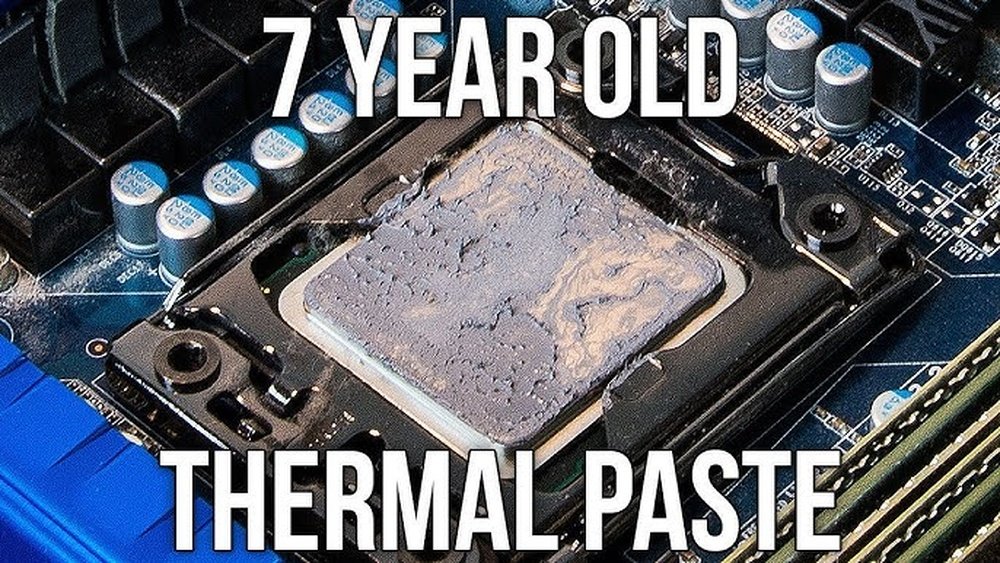
Old or bad thermal paste shows clear signs. One sign is higher than normal CPU temperatures. Another sign is the computer shutting down unexpectedly. You might also hear the fans running loudly all the time. These fans work harder to cool the hot CPU. If you see these signs, it is time to repaste. Regular checks help catch problems early. Fresh paste keeps your CPU cool and your system stable.

Credit: softwareg.com.au
When To Repaste Your Cpu
Knowing when to repaste your CPU is important for keeping it cool and working well. Thermal paste helps transfer heat from the CPU to the cooler. Over time, this paste can dry out or lose its effectiveness. This causes your CPU to run hotter and slower. Understanding the right time to repaste helps protect your computer from damage and keeps it running smoothly.
Recommended Timeframes
Most experts suggest repasting your CPU every two to three years. This timeframe can vary depending on the quality of the thermal paste. Some pastes last longer, while others dry out faster. If you use your computer heavily or in hot places, repaste more often. Regular maintenance keeps the CPU temperature low and performance steady.
Performance Drops And Overheating
Notice your CPU getting hot quickly or your computer slowing down? These are signs it might be time to repaste. Overheating causes the CPU to reduce speed to cool down. This leads to poor performance and crashes. Repasting helps restore good heat transfer and prevents these problems.
After Removing Or Upgrading Coolers
Always clean off old thermal paste and apply new paste after removing a CPU cooler. Changing or upgrading your cooler requires fresh paste for the best contact. Old paste dries out or gets uneven, which lowers cooling efficiency. Proper repasting ensures your new cooler works at its best.
Choosing The Right Thermal Paste
Choosing the right thermal paste is key for good CPU cooling. The paste helps move heat from the CPU to the cooler. Not all pastes work the same. Picking the right one can keep your CPU safe and fast.
Many types exist. Each has good and bad points. Knowing these helps you pick the best fit for your needs and budget.
Types Of Thermal Paste
There are three main types of thermal paste. Metal-based paste has high heat transfer. It often contains tiny metal particles. This type is very effective but can conduct electricity. Use it carefully to avoid short circuits.
Ceramic paste is safer. It does not conduct electricity. It is less effective than metal paste but still good for most users. It is easy to apply and clean.
Silicone-based paste is common and affordable. It is less efficient but works well for light tasks. This type suits users who do not overclock or stress their CPUs much.
Factors To Consider
Think about your CPU’s heat level. High-performance CPUs need better paste. Your budget matters too. Expensive paste is not always better for casual use.
Look at how easy it is to apply and clean. Some pastes dry fast or hard, making removal tough. Check the paste’s lifespan. Some last longer without drying out.
Check if the paste conducts electricity. Avoid metal-based paste if you are not confident in applying it properly. Safety first.
Popular Brands
Arctic Silver 5 is well-known and trusted. It is metal-based and very effective. It works well for gamers and heavy users.
Noctua NT-H1 is a ceramic paste. It balances performance and safety. Many users find it easy to apply and clean.
Thermal Grizzly Kryonaut is popular among enthusiasts. It offers high heat transfer and good durability. It is a bit pricier but worth it for high-end builds.
Credit: koolingmonster.com
Tools And Preparation
Preparing to repaste your CPU requires the right tools and careful setup. This step ensures the process goes smoothly and the thermal paste spreads evenly. Without proper preparation, you might damage your CPU or get poor cooling results.
Necessary Tools
You need a few basic tools before starting. A screwdriver fits your PC’s screws. Isopropyl alcohol cleans the old paste well. Use lint-free cloths or coffee filters for cleaning. New thermal paste is essential for better heat transfer. A plastic card or a dedicated spreader helps apply paste evenly. Have cotton swabs handy for tight spots.
Cleaning Old Thermal Paste
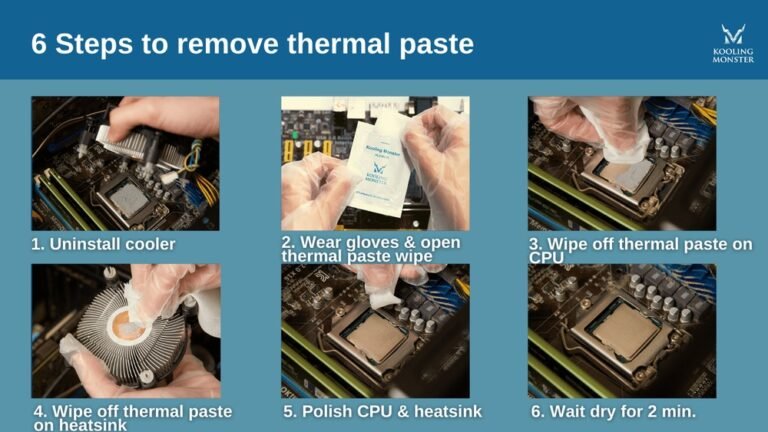
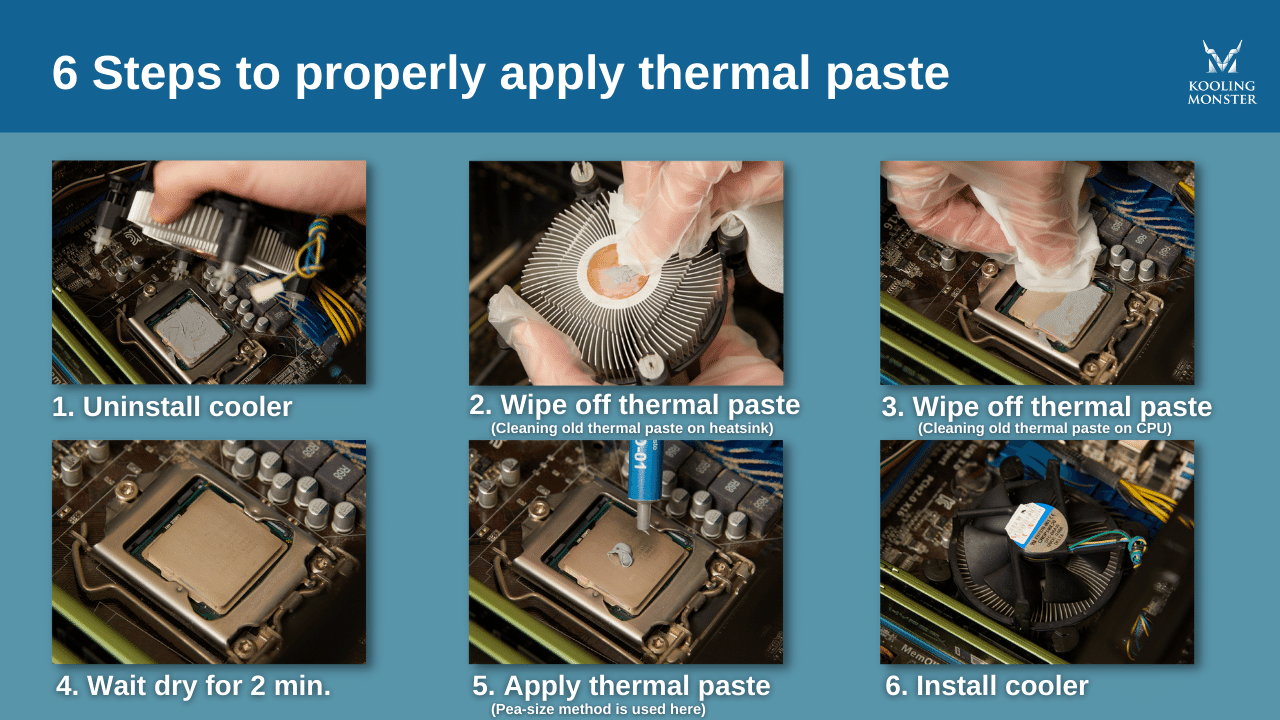
Remove the CPU cooler carefully. Avoid touching the CPU surface with your fingers. Apply isopropyl alcohol to the cloth or swab. Gently wipe the old thermal paste off the CPU and cooler base. Repeat until all residue disappears. Let the surfaces dry completely before adding new paste.
Safety Precautions
Work in a clean, static-free area. Ground yourself to avoid static damage to parts. Handle the CPU by its edges only. Avoid using too much force when removing or installing parts. Keep liquids away from your PC components. Follow product instructions for the thermal paste and cleaning materials.
Step-by-step Repasting Process
Repasting your CPU helps keep it cool and running well. The process is simple and only takes a few steps. Follow each carefully to avoid damage and get the best results.
Removing The Cooler
First, turn off your computer and unplug it. Wait for the CPU to cool down. Unscrew or unlatch the cooler carefully. Gently lift the cooler off the CPU. Avoid pulling too hard to prevent damage.
Applying New Thermal Paste
Clean the old paste off the CPU and cooler base. Use isopropyl alcohol and a soft cloth. Apply a small pea-sized dot of new thermal paste in the center of the CPU. Spread it evenly if needed, but a small dot usually works best.
Reinstalling The Cooler
Place the cooler back onto the CPU carefully. Align it with the screws or clips. Tighten screws evenly in a diagonal pattern. Avoid overtightening to prevent damage. Plug the fan back into the motherboard.

Credit: www.reddit.com
Post-repasting Checks
After repasting your CPU, it is important to do some checks. These checks make sure the thermal paste works well. They help you confirm the CPU stays cool and runs smoothly. Skipping these checks might cause overheating or damage.
Post-repasting checks are simple but very useful. They help you find any problem early. Let’s explore two key checks: monitoring temperatures and stress testing your CPU.
Monitoring Temperatures
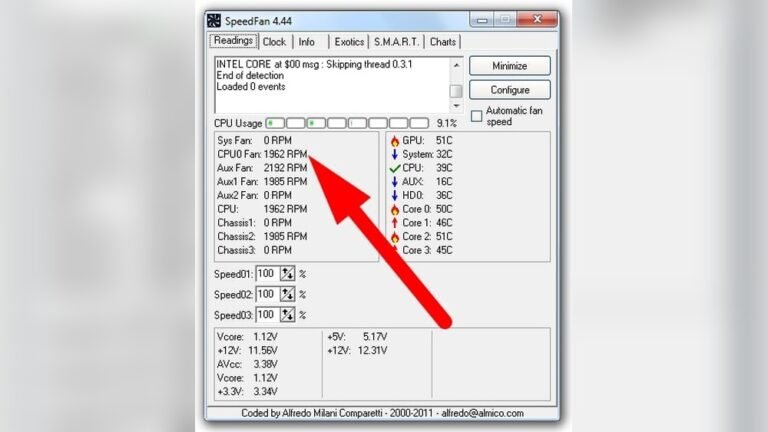
Watch your CPU temperature closely after repasting. Use software like HWMonitor or Core Temp for this task. Check both idle and load temperatures. Idle means when the computer is not busy. Load means when the CPU is working hard.
Temperatures should drop compared to before repasting. If temperatures stay high, paste might not be applied well. Or your cooler might not be seated properly. Keep monitoring for a few hours or days. This helps ensure stable cooling over time.
Stress Testing Your Cpu
Stress tests push your CPU to work at full power. Use tools like Prime95 or AIDA64 for stress testing. Run the test for 15 to 30 minutes. Watch the temperature and system stability during this time.
If the CPU stays cool and the system doesn’t crash, repasting was successful. If the temperature rises quickly or the system crashes, check the paste and cooler again. Stress tests confirm your CPU can handle heavy use safely after repasting.
Common Mistakes To Avoid
Applying thermal paste to your CPU might seem simple. Many make mistakes that lower performance or cause damage. Avoiding these errors helps keep your computer cool and safe. Understanding common mistakes makes repasting easier and more effective.
Using Too Much Or Too Little Paste
Applying too much thermal paste can trap heat instead of spreading it. This causes higher CPU temperatures and poor performance. Using too little paste creates air gaps. These gaps stop heat from moving away from the CPU. Use a small, pea-sized amount for best results. Spread evenly if needed, but avoid overdoing it.
Improper Cleaning
Not cleaning old paste properly is a common error. Old paste can block heat transfer and cause overheating. Use isopropyl alcohol and a soft cloth to clean well. Avoid using water or rough materials. Make sure the surface is dry before applying new paste.
Skipping Thermal Paste Altogether
Some skip thermal paste to save time or money. This is risky and can cause CPU damage. The paste fills tiny gaps between the CPU and cooler. Without it, heat cannot move away efficiently. Always use quality thermal paste to protect your CPU and improve cooling.
Frequently Asked Questions
How Often Should You Repaste Your Cpu?
You should repaste your CPU every 2 to 3 years. Repasting helps maintain optimal thermal performance and prevents overheating. If you notice higher temperatures or unstable performance, consider repasting sooner to ensure efficient heat transfer.
What Are Signs You Need To Repaste Your Cpu?
Signs include rising CPU temperatures, system crashes, or thermal throttling. If cooling efficiency drops despite a clean fan, repasting can restore proper heat dissipation and improve system stability.
Can Repasting Improve Cpu Cooling Performance?
Yes, repasting improves CPU cooling by replacing dried or degraded thermal paste. Fresh paste enhances heat transfer between the CPU and cooler, lowering temperatures and preventing overheating during heavy usage.
Is Repasting Necessary After Removing The Cpu Cooler?
Yes, always repaste after removing the CPU cooler. The old paste loses effectiveness once disturbed. Applying fresh thermal paste ensures proper contact and optimal heat conduction between surfaces.
Conclusion
Repasting your CPU helps keep it cool and working well. Over time, thermal paste dries out and loses its power. Check your CPU temperature every few months to spot changes. If temperatures rise, it’s a good sign to repaste. Doing this every 1 to 3 years usually works for most users.
Remember, clean surfaces and good paste make a big difference. Taking care of your CPU this way can prevent problems and extend its life. Simple steps keep your computer running smoothly and safely.