How Often Should You Replace Thermal Paste on a CPU: Ultimate Guide
If you want your CPU to run smoothly and avoid overheating, knowing when to replace the thermal paste is crucial. You might not realize it, but old or dried-up thermal paste can cause your computer to slow down or even damage important parts.
Wondering how often you should refresh this thin layer of paste? Keep reading—because the answer could save your PC from costly repairs and boost its performance like new. Don’t wait until your system starts overheating; learn the simple steps to keep your CPU cool and healthy right now.
Credit: koolingmonster.com
Why Thermal Paste Matters
Thermal paste plays a key role in keeping your CPU cool. Without it, heat can build up quickly. This can cause your computer to slow down or even stop working. Understanding why thermal paste matters helps you take better care of your CPU.
Thermal paste fills tiny gaps between the CPU and its cooler. These gaps trap air, which does not transfer heat well. The paste helps heat move from the CPU to the cooler. This keeps the CPU temperature low and your system running smoothly.
Role In Cpu Cooling
The CPU generates a lot of heat during use. The cooler takes this heat away to prevent damage. Thermal paste acts as a bridge for heat to travel efficiently. Without good thermal paste, heat transfer slows down. This leads to higher CPU temperatures and poor performance.
Types Of Thermal Paste
There are several types of thermal paste available. Some use metal particles for better heat transfer. Others use ceramic or silicone for easy application. Each type has different thermal conductivity and lifespan. Choosing the right paste can affect your CPU’s cooling ability.
Signs Of Thermal Paste Degradation
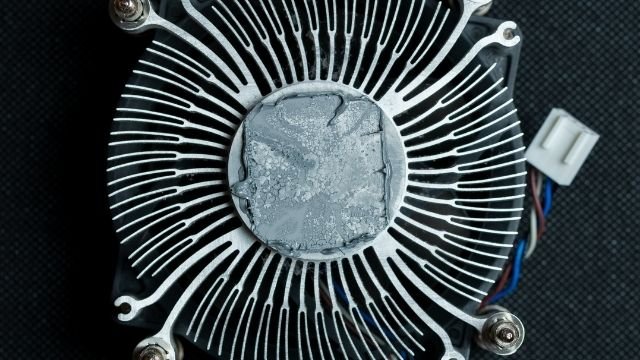
Thermal paste does not last forever. Over time, it can dry out or crack. This reduces its ability to transfer heat. Common signs include rising CPU temperatures and loud fan noise. Regular checks help spot these signs early. Replacing the paste can restore proper cooling.
When To Replace Thermal Paste
Thermal paste plays a key role in keeping your CPU cool. Over time, it can dry out or lose its effectiveness. Knowing when to replace thermal paste helps maintain your computer’s performance and prevent overheating. Several factors guide the right time to change it.
Manufacturer Recommendations
Most CPU makers suggest changing thermal paste every few years. Check your CPU or cooler manual for exact advice. Following these guidelines helps keep your system safe. Some manufacturers recommend replacing paste every two to five years.
Temperature Changes
Watch your CPU temperatures closely. If you notice higher temps during normal use, thermal paste might be failing. A rise of 10°C or more is a clear sign. This means the paste no longer transfers heat well. Replacing it can lower temperatures and improve performance.
After Removing The Cooler
Always replace thermal paste after taking off the CPU cooler. Removing the cooler breaks the paste seal. Reusing old paste causes poor heat transfer and overheating. Clean off the old paste carefully and apply a new layer before reattaching the cooler.
Factors Affecting Thermal Paste Lifespan
Thermal paste lifespan depends on several key factors. These factors influence how long the paste can effectively cool your CPU. Knowing these helps decide when to replace it.
Each factor affects the paste’s ability to transfer heat away from the processor. Understanding them ensures better CPU performance and longevity.
Usage Intensity
Heavy computer use causes thermal paste to wear out faster. High CPU loads generate more heat, breaking down the paste quicker. Overclocking increases this effect, reducing paste lifespan. Light or normal use helps the paste last longer.
Environmental Conditions
Heat, dust, and humidity affect thermal paste quality. Higher room temperatures speed up paste drying and cracking. Dust buildup can interfere with heat transfer. High humidity may cause paste to degrade faster. Cooler, cleaner environments extend paste life.
Quality Of Thermal Paste
Not all thermal pastes are equal. High-quality pastes contain better materials that last longer and perform better. Cheap or generic pastes dry out and lose effectiveness quickly. Investing in good thermal paste helps maintain CPU temperatures for years.

Credit: www.corsair.com
Step-by-step Replacement Process
Replacing thermal paste on your CPU helps keep it cool and working well. This process is simple if you follow the right steps. Each step needs care and the right tools.
Gathering Tools And Materials
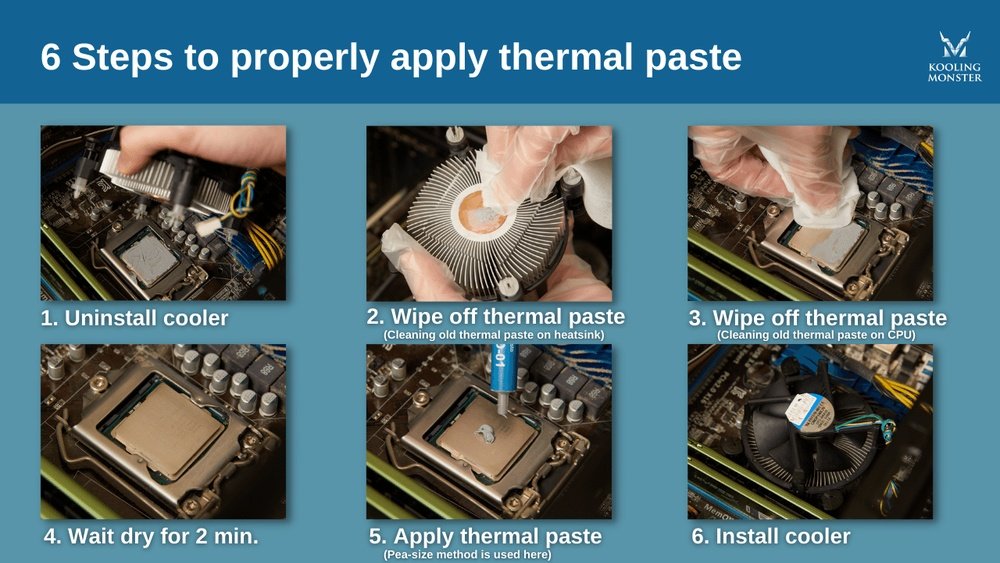
Prepare all items before starting. You need thermal paste, rubbing alcohol, a lint-free cloth, and a small screwdriver. A plastic card or a special applicator will help spread the paste evenly. Keep everything ready on a clean surface.
Removing Old Thermal Paste
Turn off your computer and unplug it. Remove the CPU cooler carefully by loosening screws or clips. Use the cloth with rubbing alcohol to wipe off old paste from the CPU and cooler base. Clean both surfaces until no residue remains. Be gentle to avoid damage.
Applying New Thermal Paste
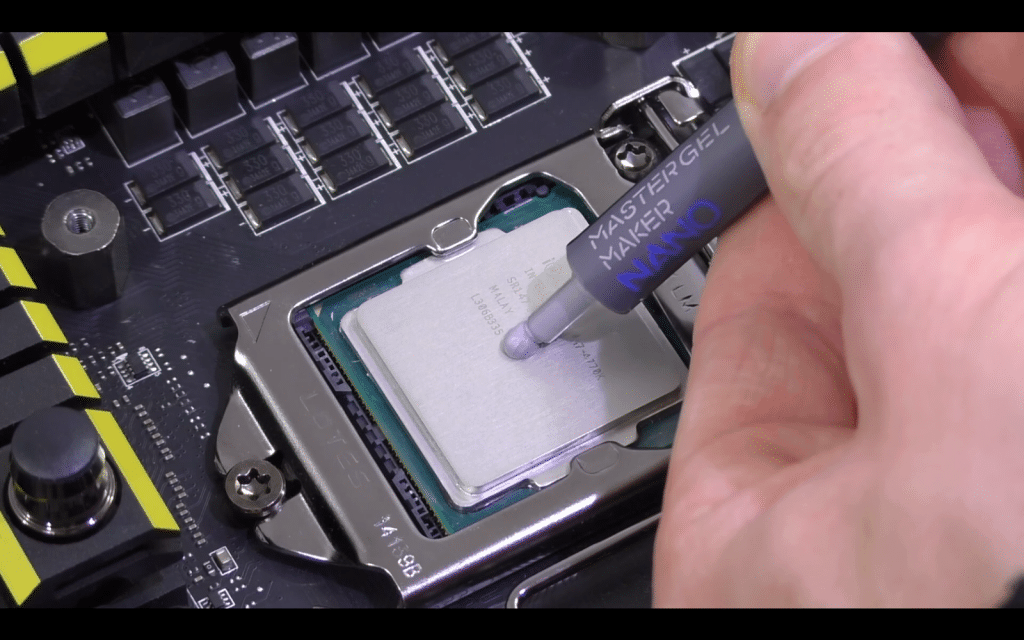
Apply a small pea-sized drop of thermal paste in the center of the CPU. The paste spreads out when the cooler is reinstalled. Avoid using too much paste; it can cause overheating. A thin, even layer works best for heat transfer.
Reassembling The Cpu Cooler
Place the cooler back on the CPU carefully. Tighten screws in a diagonal pattern to spread pressure evenly. Make sure the cooler sits flat and snug on the CPU. Reconnect any cables you removed. Check that everything is secure before turning on your computer.
Tips For Optimal Thermal Performance
Keeping your CPU cool is key to its long life and good speed. Thermal paste helps move heat from the CPU to the cooler. Using it the right way keeps your computer running smoothly. Follow these tips for the best thermal performance.
Proper Application Techniques
Start with a clean surface. Use rubbing alcohol and a soft cloth to remove old paste. Apply a small pea-sized amount in the center of the CPU. Spread it evenly by pressing the cooler gently on top. Avoid using too much paste. It can block heat transfer instead of helping.
Avoiding Common Mistakes
Do not skip cleaning old paste. This causes poor contact and higher temperatures. Avoid air bubbles by applying paste slowly and evenly. Do not use cheap or dry paste. It loses effectiveness fast. Tighten the cooler screws evenly. Uneven pressure can create hot spots on the CPU.
Maintaining Your Cooling System
Check your cooling fans regularly. Dust can block airflow and raise temperatures. Clean fans and vents with compressed air every few months. Replace thermal paste every 2 to 3 years or if temperatures rise. Watch your CPU temperature using software tools. Cooler running means better performance and longer life.
Troubleshooting Thermal Issues
Troubleshooting thermal issues is key to keeping your CPU healthy. Overheating can cause slow performance and sudden shutdowns. Knowing how to spot and fix these problems saves time and money. This guide helps you understand common causes and when to get expert help.
Identifying Overheating Causes
Check if your PC feels hot or noisy. Dust buildup blocks airflow and raises temperature. Old thermal paste can dry out and lose its ability to cool. Poorly installed cooling fans may not move air well. Running too many programs at once can also heat your CPU.
Use software tools to monitor CPU temperature. If temperatures often exceed 80°C, there is a problem. Look for signs like lagging apps or random restarts. These clues suggest your CPU struggles to stay cool.
When To Seek Professional Help
Some thermal issues need expert attention. If cleaning and replacing thermal paste does not help, call a technician. Complex problems like motherboard faults or damaged cooling systems require skill. Professionals have the right tools and knowledge to fix these safely.
Don’t ignore persistent overheating. It can damage your CPU permanently. Early intervention protects your computer and avoids costly repairs.
Credit: www.wepc.com
Frequently Asked Questions
How Often Should I Replace Thermal Paste On A Cpu?
Replace thermal paste every 2 to 3 years to maintain optimal cooling. If you remove the CPU cooler, always reapply fresh paste. High-performance or overclocked CPUs may require more frequent replacement for better heat transfer and stability.
What Are Signs Thermal Paste Needs Replacing?
If your CPU temperature rises suddenly or system overheats, thermal paste may be dry or ineffective. Check for erratic fan behavior or frequent shutdowns. These signs indicate poor heat transfer, meaning it’s time to clean and reapply thermal paste.
Can I Leave Old Thermal Paste On My Cpu?
No, old thermal paste can dry out and lose effectiveness over time. It can cause higher CPU temperatures and reduce cooling efficiency. Always clean off the old paste completely before applying a new layer for proper heat dissipation.
Is Replacing Thermal Paste Necessary When Upgrading Cpu?
Yes, always replace thermal paste when upgrading or reinstalling your CPU cooler. New paste ensures maximum contact and heat transfer between the CPU and cooler. Skipping this step can lead to overheating and performance issues.
Conclusion
Replacing thermal paste keeps your CPU cool and running well. Check it every 1 to 3 years, depending on use. Old paste can dry out and lose its power. Clean the old paste fully before adding new. This simple step helps prevent overheating and slowdowns.
Staying on top of paste changes saves your computer’s health. Remember, a cool CPU lasts longer and works better. Don’t wait for problems—replace thermal paste on time. It’s a small task that makes a big difference.