How to Check Cpu Temp on Mac: Quick & Easy Guide
Are you worried that your Mac might be running too hot? Checking your CPU temperature is an easy way to make sure your device stays cool and performs at its best.
If your Mac gets too warm, it can slow down or even get damaged over time. But don’t worry—you don’t need to be a tech expert to find out how hot your CPU is running. You’ll discover simple and effective methods to check your Mac’s CPU temperature quickly.
Keep reading, and you’ll learn exactly what to do to protect your Mac and keep it running smoothly.
:max_bytes(150000):strip_icc()/how-to-check-macbook-temperature-51841464-3aa2d26ccbe9448fa74f087e753e4dd0.jpg)
Credit: www.lifewire.com
Why Monitor Mac Cpu Temperature
Monitoring your Mac’s CPU temperature helps keep your computer safe and fast. The CPU works hard to run apps and processes. It creates heat during use. Checking the temperature shows if it gets too hot. This helps avoid damage and slowdowns.
Impact Of High Cpu Temps
High CPU temperature can cause your Mac to slow down. The system may reduce speed to cool itself. This affects your work or entertainment. Overheating can also damage internal parts. It shortens your Mac’s life and may cause crashes. Keeping temperature in check prevents these problems.
Benefits Of Regular Monitoring
Regular checks help you spot heat issues early. You can take action before damage happens. Monitoring helps keep your Mac running smoothly. It improves performance and reliability. You can avoid costly repairs or data loss. Simple checks give peace of mind and protect your device.

Credit: beebom.com
Built-in Mac Tools For Temperature
Mac computers do not show CPU temperature directly in their system settings. Apple provides tools that help monitor general system activity and performance. These built-in tools give some clues about your Mac’s health but lack detailed temperature readings. Still, they offer a starting point to check if your Mac is working too hard or overheating.
Using Activity Monitor
Activity Monitor is a default app on every Mac. It shows how much CPU power each app or process uses. Open it from the Utilities folder or search in Spotlight. It updates in real-time and helps spot apps that push your CPU hard. High CPU usage can cause your Mac to heat up. Though Activity Monitor does not display temperature, it helps find causes of overheating.
Limitations Of Native Options
Apple’s built-in tools do not provide direct CPU temperature data. They focus on CPU load, memory, and disk activity. This means you cannot see the exact heat of your processor inside macOS. For precise temperature readings, third-party apps are necessary. These apps read sensors on your Mac’s hardware. The lack of native temperature monitoring can make troubleshooting heat issues tricky.
Best Third-party Apps
Checking your Mac’s CPU temperature helps prevent overheating and slowdowns. MacOS does not have a built-in tool for this, so third-party apps are the best choice. These apps provide clear temperature readings and extra features to keep your Mac safe.
Popular Temperature Monitoring Apps
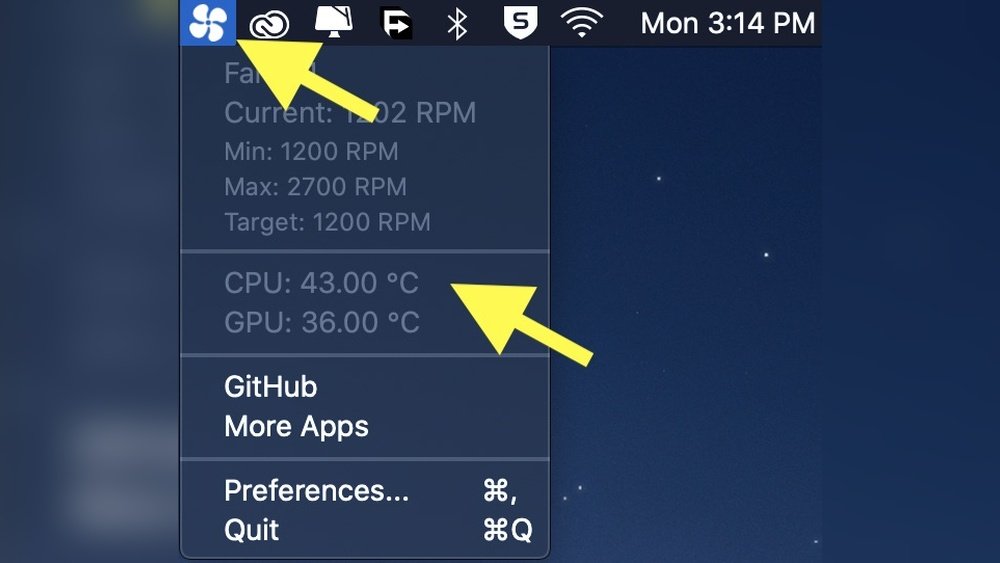
Several apps stand out for monitoring CPU temperature on Mac. “iStat Menus” shows detailed temperature and system info in the menu bar. “Macs Fan Control” offers temperature readings and fan speed control. “Intel Power Gadget” works well for Intel Macs, showing real-time CPU temperature and usage. These apps run quietly in the background and update data regularly.
Features To Look For
Choose apps that display accurate temperature in Celsius or Fahrenheit. Look for real-time updates and alerts for high temperatures. Easy-to-read graphs and simple interfaces help understand data fast. Extra tools like fan speed control can improve cooling. Compatibility with your Mac model is important. Apps with low battery and CPU use keep your Mac running smoothly.
Step-by-step App Setup
Setting up an app to check your Mac’s CPU temperature is easy. Follow clear steps to get accurate readings fast. This guide helps you install and configure the app with no confusion.
Downloading And Installing
First, choose a trusted app for checking CPU temperature. Visit the official website or the Mac App Store. Click the download button and wait for the file to save on your Mac.
Open the downloaded file to start installation. Follow the on-screen instructions carefully. Allow any permission requests to ensure the app works properly. Once installed, open the app to begin setup.
Configuring For Accurate Readings
After launching the app, check the settings menu. Enable options that monitor CPU sensors. Set the app to refresh data every few seconds for real-time updates.
Close other heavy apps to avoid false temperature spikes. Keep the app running in the background to track CPU heat continuously. Adjust alerts or notifications to warn you if temperatures get too high.
Interpreting Temperature Readings
Understanding your Mac’s CPU temperature is important for keeping it healthy. The temperature tells you how hard your computer is working. Too hot can mean trouble. Normal temperatures show your Mac is running smoothly. This section explains how to read those numbers and what they mean.
Safe Temperature Ranges
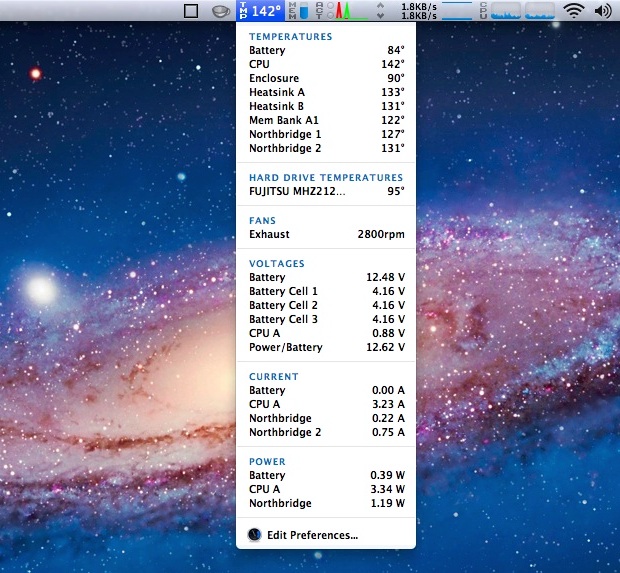
Most Macs run best between 30°C and 50°C when idle. During heavy tasks, temperatures can rise to 70°C or 80°C. Staying below 90°C is usually safe. If temperatures reach above 90°C often, it might cause damage. Keeping your CPU cool helps your Mac last longer.
Signs Of Overheating
Watch for slow performance or random shutdowns. Loud fan noise can mean your Mac is hot. You might feel the case getting very warm. Apps may freeze or crash unexpectedly. These signs mean your Mac needs cooling or less work.
Credit: osxdaily.com
Tips To Lower Cpu Temperature
Keeping your Mac’s CPU temperature low helps it run smoothly. High temperatures can slow down your Mac and shorten its life. Follow simple tips to keep your CPU cool and your Mac healthy.
Cleaning And Maintenance
Dust and dirt block air vents. This stops proper airflow. Clean your Mac’s vents regularly. Use a soft brush or compressed air. Avoid opening your Mac if unsure. Let a professional handle internal cleaning. Clean surroundings too. A clean space reduces dust buildup.
Optimizing System Performance
Close apps not in use. Running many apps raises CPU load. Check Activity Monitor for heavy processes. Restart your Mac to clear temporary files. Update macOS and apps often. Updates fix bugs and improve efficiency. Use fewer browser tabs. Each tab uses CPU power. Lower screen brightness to reduce heat. Simple steps help keep your Mac cool.
Frequently Asked Questions
How Do I Check Cpu Temperature On Mac?
You can check CPU temperature on Mac using third-party apps like iStat Menus or Macs Fan Control. These apps provide real-time temperature readings and system monitoring. MacOS doesn’t offer a built-in CPU temperature feature, so installing reliable software is essential for accurate data.
Is Monitoring Mac Cpu Temperature Important?
Yes, monitoring CPU temperature helps prevent overheating and hardware damage. It ensures optimal performance and prolongs your Mac’s lifespan. Regular checks can identify cooling issues early, keeping your Mac safe and efficient during intensive tasks or prolonged use.
Can Macos Display Cpu Temperature Natively?
No, MacOS does not natively show CPU temperature. You need third-party applications to access detailed hardware sensor data. These tools provide precise temperature readings and fan speed control, which MacOS system preferences do not include.
Which Apps Are Best For Mac Cpu Temperature?
Popular apps for Mac CPU temperature include iStat Menus, Macs Fan Control, and TG Pro. These apps offer real-time monitoring, customizable alerts, and fan control options. They are user-friendly and trusted by many Mac users for temperature management.
Conclusion
Checking your Mac’s CPU temperature helps keep your computer safe. You can avoid overheating and slowdowns by watching the heat. Use simple tools or apps to see the temperature anytime. Keep your Mac clean and well-ventilated to stay cool. Knowing how to check CPU temp gives you control.
It’s a small step that protects your device every day. Stay aware, and your Mac will run smoothly for longer. Easy and quick—just what every Mac user needs.