

Have you ever wondered how many CPU cores your computer has? Knowing this simple detail can help you understand your device’s power and speed better.
Whether you’re gaming, working, or just curious, checking your CPU cores is easier than you think. You’ll learn quick and straightforward ways to find out your CPU core count. Keep reading—you might be surprised by what you discover about your own machine!
Credit: www.cgdirector.com
What Cpu Cores Mean
CPU cores are the small processors inside your computer’s main chip. They handle tasks and run programs. More cores mean your computer can work on more tasks at the same time. Understanding what CPU cores mean helps you know how your computer performs.
Each core can work independently or together with others. This affects speed and efficiency. Knowing the difference between single and multi-core CPUs helps you choose the right one for your needs.
Single Vs Multi Core
A single-core CPU has only one core to process tasks. It can do one thing at a time. Multi-core CPUs have two or more cores. They can handle many tasks at once. This makes multi-core CPUs better for multitasking and running heavy programs.
Older computers usually have single-core CPUs. Most modern computers come with at least dual-core or quad-core processors. The more cores, the better your computer handles many tasks.
Impact On Performance
More CPU cores can speed up your computer. They allow programs to run faster and smoother. Tasks like video editing, gaming, and running multiple apps benefit from multi-core CPUs.
Some programs only use one core well. Others use many cores to improve speed. A CPU with more cores gives better performance for complex tasks. It helps your computer stay fast under heavy use.
Check Cpu Cores On Windows
Checking the number of CPU cores on a Windows computer is simple. Knowing this helps you understand your computer’s power and performance. You can find this information using built-in Windows tools. These methods require no extra software and take just a few clicks or commands.
Using Task Manager
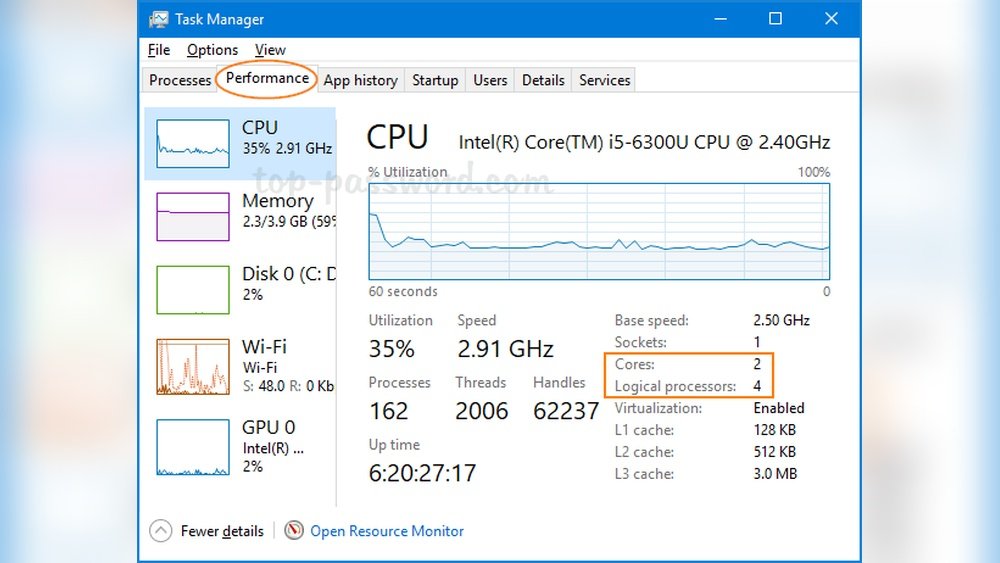
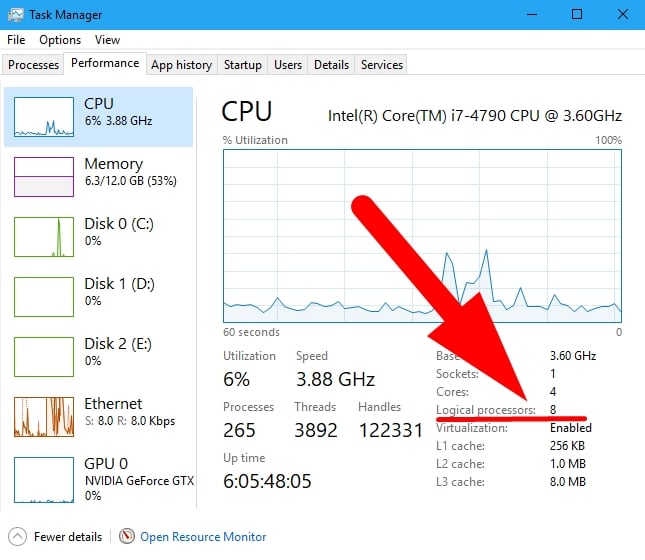
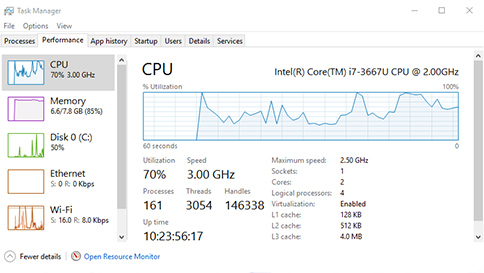
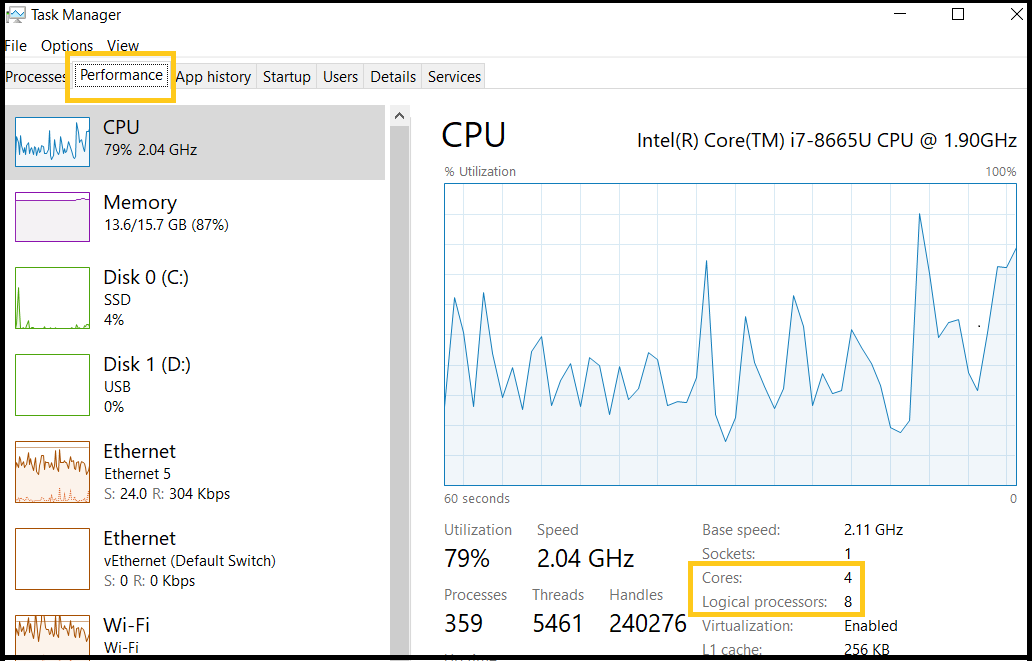
Open Task Manager by pressing Ctrl + Shift + Esc keys together. Click the “Performance” tab at the top. Select “CPU” from the left side menu. Look at the right side under “Cores” to see the number of CPU cores. This method shows real-time CPU usage and core details easily.
Via System Information
Press Windows + R keys to open the Run box. Type “msinfo32” and hit Enter. The System Information window appears. Find “Processor” in the list on the right side. It shows the CPU model and core count in the description. This tool gives detailed system data in one place.
Command Prompt Method
Press Windows + R and type “cmd” then press Enter. In Command Prompt, type “wmic cpu get NumberOfCores” and press Enter. The number of cores appears below the command. This quick method works well for users who prefer typing commands.
Check Cpu Cores On Mac
Checking the number of CPU cores on your Mac helps understand its performance. More cores mean your Mac can handle more tasks at once. Knowing your CPU cores can guide decisions about software and upgrades.
About This Mac
Click the Apple icon at the top-left corner of your screen. Select “About This Mac” from the menu. A window opens showing an overview of your Mac.
Click the “System Report” button to see detailed info. In the new window, select “Hardware” from the sidebar. Find the “Total Number of Cores” under the “Processor Name” section. This shows how many CPU cores your Mac has.
Using Terminal Commands
Open the Terminal app from the Utilities folder or use Spotlight search. Type the command sysctl -n hw.ncpu and press Enter. The number that appears is your CPU core count.
This method is quick and works on all Mac models. You can also use sysctl -a | grep cpu to see more CPU details. Terminal commands give precise data about your Mac’s processor.
Credit: support.microsoft.com
Check Cpu Cores On Linux
Checking CPU cores on Linux helps understand your system’s power. It shows how many cores your processor has. This info is useful for running programs well. Linux offers simple ways to find this detail.
Using Lscpu Command
The lscpu command displays CPU architecture details. Open your terminal and type lscpu. Press Enter. You will see a list of CPU information.
Look for the line called “CPU(s)”. It shows the number of cores. Also, find “Thread(s) per core” for more details. This command is quick and easy.
Viewing /proc/cpuinfo File
The /proc/cpuinfo file contains detailed CPU info. Open the terminal and type cat /proc/cpuinfo. Press Enter. The file lists every core separately.
Count the “processor” entries to know the core count. Each entry is one core or thread. This method gives in-depth details about each core.
Third-party Tools For Cpu Info
Third-party tools provide detailed information about your CPU cores. These tools gather data directly from your system. They show the number of cores, threads, and other specs. Using these programs is easy and quick. You can get clear insights beyond basic system info.
Popular Software Options
CPU-Z is one of the most popular tools. It displays core count, clock speed, and cache size. Another option is HWMonitor. It shows CPU temperature and voltage along with core details. Speccy is user-friendly and provides a full system overview. These tools work on most Windows computers. Many also offer free versions for basic info.
Benefits Of Using Tools
Third-party tools provide accurate and detailed CPU data. They offer real-time monitoring of core performance. These tools help diagnose issues like overheating or slow speeds. They also support hardware upgrades by showing current specs. Using software saves time compared to manual checks. The clear layout helps beginners understand CPU info easily.
Credit: www.intel.com
Interpreting Cpu Core Data
Understanding CPU core data helps you know how your computer works. This data shows how many tasks your processor can handle at once. It also tells if your CPU uses special technology to boost performance. Knowing these details can help you choose the right computer or improve your current setup.
Physical Vs Logical Cores
Physical cores are the actual hardware inside the CPU. Each core can run one task at a time. More physical cores mean better multitasking and faster performance.
Logical cores come from a technology that splits one physical core into two. The system sees these as separate cores. This helps the CPU handle more tasks at once, but not as fast as real physical cores.
Hyper-threading Explained
Hyper-Threading is a technology created by Intel. It allows one physical core to act like two logical cores. This lets the CPU work on two threads at once, improving efficiency.
This does not double the speed but helps run multiple programs smoothly. Many CPUs with Hyper-Threading show twice the number of cores in system tools. Knowing this helps you understand your CPU’s true power.
Frequently Asked Questions
How Do I Check Cpu Cores On Windows?
Open Task Manager by pressing Ctrl + Shift + Esc. Go to the Performance tab and click on CPU. The number of cores appears under “Cores. ”
Can I Find Cpu Cores Using Command Prompt?
Yes, type wmic cpu get NumberOfCores in Command Prompt. It instantly shows the total number of physical CPU cores.
How To Check Cpu Cores On Mac?
Click the Apple menu, select “About This Mac,” then “System Report. ” Under “Hardware Overview,” the number of CPU cores is listed.
Does Cpu Core Count Affect Performance?
Yes, more CPU cores allow better multitasking and faster processing of parallel tasks. It enhances overall system performance.
Conclusion
Checking your CPU cores is simple and useful. Knowing core count helps with choosing software and games. It also guides you in upgrading your computer. Use built-in tools or software to see your cores. This knowledge saves time and improves your device use.
Keep your system info handy for better decisions. Understanding your CPU makes computing easier and clearer.
